Clearing the print queue in Windows 11 is a straightforward process that helps resolve common printing issues when documents get stuck. To clear the print queue, you’ll need to navigate to the Print Spooler service, stop it, delete the stuck print files, and then restart the service. This clears out any remaining print jobs and allows your printer to start fresh. In just a few steps, your printer will be ready to go again, as if nothing ever happened.
How to Clear Print Queue in Windows 11
Follow these steps to successfully clear the print queue on your Windows 11 machine. Doing so will ensure that any stuck documents are removed, allowing your printer to operate smoothly again.
Step 1: Open the Windows Services App
Press the Windows key, type “Services,” and hit Enter.
In the Services app, you’ll see a list of all services running on your computer. This includes the Print Spooler.
Step 2: Locate the Print Spooler Service
Scroll through the list and find “Print Spooler.”
The Print Spooler is the service responsible for managing all print jobs sent to the printer. You’ll need to stop this service to clear the print queue.
Step 3: Stop the Print Spooler Service
Right-click on “Print Spooler” and select “Stop.”
Stopping the Print Spooler service halts any active print jobs, allowing you to delete them from the queue without interference.
Step 4: Delete Print Queue Files
Navigate to C:WindowsSystem32spoolPRINTERS and delete all files in the folder.
These files are your stuck print jobs. Removing them clears the queue so you can start fresh.
Step 5: Restart the Print Spooler Service
Go back to the Services app, right-click “Print Spooler,” and select “Start.”
Restarting the Print Spooler service reactivates the printing process. With the queue cleared, your printer is ready for new print jobs.
Once these steps are completed, any documents that were stuck in the print queue will be gone. Your printer will be ready to accept new print jobs without any issues. This method acts like a reset button for your print queue, ensuring smoother operation moving forward.
Tips for Clearing Print Queue in Windows 11
- Regularly check the print queue to avoid buildup of stuck print jobs.
- Always stop the Print Spooler service before deleting files in the print queue.
- Make sure your printer drivers are up to date to minimize queue issues.
- Restarting your computer can also help clear minor print queue problems.
- Consider setting your printer as the default printer to prevent confusion.
What is the Print Spooler?
The Print Spooler is a service that manages print jobs sent to your printer. It helps organize and streamline printing tasks.
What causes printing jobs to get stuck?
Jobs often get stuck due to issues like software glitches, outdated drivers, or interruptions in communication with the printer.
Is it safe to delete files in the spool folder?
Yes, deleting files in the spool folder is safe and necessary to clear the print queue.
Will clearing the print queue delete saved settings?
No, clearing the print queue only removes stuck print jobs, not your printer settings.
How often should I clear the print queue?
Only clear the print queue when you encounter issues with stuck jobs, as regular maintenance is not needed.
Summary
- Open Windows Services app.
- Locate Print Spooler.
- Stop Print Spooler service.
- Delete print queue files.
- Restart Print Spooler service.
Conclusion
Clearing the print queue in Windows 11 is an effective way to resolve common issues that can disrupt your printing tasks. By understanding and managing the Print Spooler service, you ensure that your print jobs don’t get stuck, causing unnecessary delays. This simple process, akin to giving your printer a fresh start, can be a lifesaver when you’re pressed for time and need your documents without frustration.
Moreover, maintaining an orderly print queue can prevent future hiccups, allowing you to focus on more important tasks. Regular checks and updates to your printer’s software can minimize the chances of encountering such issues. Remember, technology should work for you, not against you.
For more in-depth knowledge, consider exploring Windows 11’s support resources or reading about printer maintenance tips. As you get more comfortable with your system’s features, you’ll find that troubleshooting becomes second nature. So the next time your print jobs hit a snag, you’ll know exactly what to do.

Matthew Burleigh has been writing tech tutorials since 2008. His writing has appeared on dozens of different websites and been read over 50 million times.
After receiving his Bachelor’s and Master’s degrees in Computer Science he spent several years working in IT management for small businesses. However, he now works full time writing content online and creating websites.
His main writing topics include iPhones, Microsoft Office, Google Apps, Android, and Photoshop, but he has also written about many other tech topics as well.
Read his full bio here.
Featured guides and deals
JavaScript is not available.
We’ve detected that JavaScript is disabled in this browser. Please enable JavaScript or switch to a supported browser to continue using x.com. You can see a list of supported browsers in our Help Center.
Help Center

Dengan mengeklik Lanjutkan, Anda menyetujui Perjanjian Pengguna , Kebijakan Privasi , dan Kebijakan Cookie LinkedIn.
Kami telah mengirimkan link sekali pakai ke alamat email utama Anda
Klik link untuk login langsung ke akun LinkedIn Anda.
Jika Anda tidak menemukan email tersebut di kotak pesan, periksa folder spam.
Setuju & Bergabung dengan LinkedIn
Dengan mengeklik Lanjutkan, Anda menyetujui Perjanjian Pengguna , Kebijakan Privasi , dan Kebijakan Cookie LinkedIn.
The print spooler, or printer spooler, on your Windows computer, is a part of the operating system that controls communication between the document or file that you want to print and the printer on which you are printing that information.
Printing on a Windows 7 computer with regularity will eventually result in your seeing a print error of some kind.
So many different problems can occur throughout the printing process that it is a difficult action to perform without some kind of issue.
One of the more common issues that arise involves the print spooler, which is the application on your computer that sends print jobs from your programs to your printers .
It is one of the most crucial elements of the printing process, but fixing a specific print spooler problem can be difficult if you do not know where to look.
How to Start, Stop, Pause or Resume the Print Spooler in Windows 7
- Click the Start button.
- Click Control Panel .
- Click the View by drop-down menu , then select Small Icons .
- Double-click Services .
- Double-click Print Spooler .
- Click the Start , Stop , Pause , or Resume button, based on your current needs.
Our guide on how to use the print spooler in Windows 7 continues below with additional information, including pictures of these steps.
If you need to use a fancy script font in a document, then our signature font in Word article can show you how to find and add one to the application.
Managing the Print Spooler (Guide with Pictures)
Perhaps the most confusing aspect of troubleshooting your print spooler is that it is not in the first place that you might look.
The print spooler is handled by Windows 7 as a service and is listed as Print Spooler on the Services menu.
Step 1: To locate theServicesmenu, click theStartbutton at the bottom-left corner of your computer screen, then clickControl Panel. Click the drop-down menu at the top-right corner of the window, next toView by, then click theSmall iconsoption.
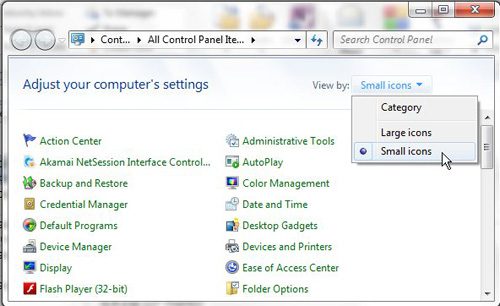
Step 2: Click theAdministrative Toolsoption at the top of this window, which will open a newAdministrative Toolswindow. Double-click theServicesitem in this window to launch theServiceswindow.
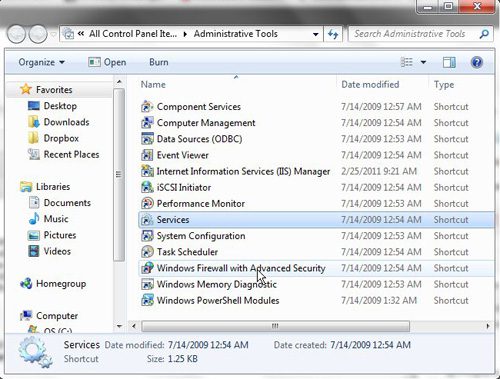
Step 3: Scroll through the list of services on this screen until you locate thePrint Spooleroption.
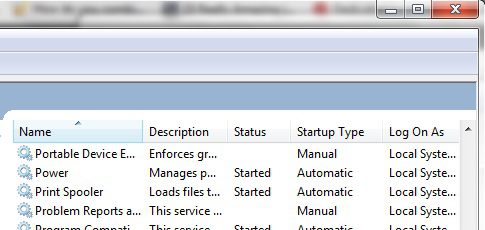
Step 4: Double-clickPrint Spooler, which will open thePrint Spooler Propertieswindow.
This window contains all of the necessary options for correctly customizing your print spooler and troubleshooting issues that might occur.
By default, the tab that is selected on this menu is the General tab.
Step 5: In the menu shown in the image below, click the drop-down menu to the right ofStartup type, then clickAutomatic.
This will ensure that your print spooler starts as soon as you turn on your computer, which will prevent your programs from sending items to the printer unsuccessfully.
Once you have chosen the Automatic option, click Apply at the bottom of the window to apply your change, then click OK .
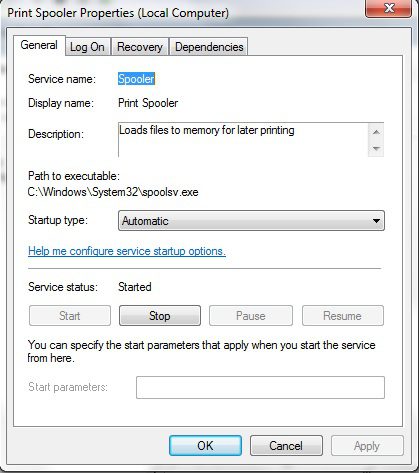
Now that you know how to adjust the print spooler in Windows 7, you can use this tool to attempt to fix printing problems that you encounter on the machine.
You will note that there is also a horizontal row of buttons that say Start , Stop , Pause, and Resume. Each of these buttons performs the action that they indicate; however, if a button is grayed out, then the action that the button performs is not currently available.
Typically a button is grayed out because of the current status of the print spooler. For example, if you can click the Stop button, this is because the print spooler is currently running.
If the print spooler is not running, then you will be able to click the Start button to make it run again.
These buttons, as well as the Startup type drop-down menu, are the first items you should check on your print spooler menu when you are unable to print.
Additional Print Spooler Options
At the top of the print spooler menu is another tab that you should check to ensure that the print spooler is behaving correctly. Click the Recovery tab at the top of the window. This menu contains the settings for how the print spooler should respond in the event that it fails. The correct settings for this menu are shown in the image below.
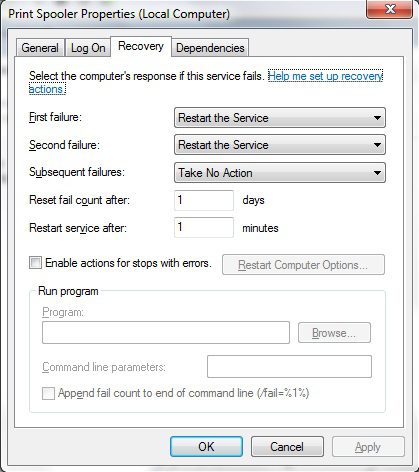
If your settings do not match those shown in this image, then change them so that they do. Click the Apply button, then click OK .
Often if you are having repeated problems with the print spooler then it can be a good idea to attempt to uninstall and reinstall the printer.
The print spooler is the software on your computer that facilitates communication between the application with the document that you want to print, and the printer that is creating the document.
Are you troubleshooting a printer problem , but keep running into driver issues when you reinstall it? Learn how to completely uninstall a printer in Windows 7 if it seems like your drivers might be causing a problem.
Matthew Burleigh has been writing tech tutorials since 2008. His writing has appeared on dozens of different websites and been read over 50 million times.
After receiving his Bachelor’s and Master’s degrees in Computer Science he spent several years working in IT management for small businesses. However, he now works full time writing content online and creating websites.
His main writing topics include iPhones, Microsoft Office, Google Apps, Android, and Photoshop, but he has also written about many other tech topics as well.
Read his full bio here.
Featured guides and deals
Printers can be difficult ot work with, and troubleshooting them can take you to a lot of different places on your computer.
One common issue that can arise with a printer is when it says that it is offline, even though it’s turned on and seems to be hooked up correctly.
Our tutorial below will show you some steps to try so that you can learn how to change a printer from offline to online.
How to Switch a Printer from Offline to Online in Windows 7
- Click Start , then Devices and Printers .
- Right-click the printer, then click See what’s printing .
- Select the Printer tab, then click Use printer offline to clear the check mark.
Our guide continues below with additional information on how to switch a printer from offline to online , including pictures for these steps.
If you’re lucky, then this should work and your queued documents will start printing. However, sometimes this isn’t enough and you need to do some more troubleshooting. We discuss those additional troubleshooting steps further in this article.
Printers can be frustrating when they are not working correctly, due largely to the fact that errors can occur for seemingly no reason. Whether your print jobs don’t look right, you are getting constant paper jams, or printing is inconsistent or erratic, printers are often some of the most difficult electronic devices to work with. So if your printer is showing as offline and you can’t print, then you may be trying to figure out why it’s showing as offline when the printer was working before and nothing has changed.
One issue that you might encounter is Windows 7 not being able to connect to your printer to send documents that you want to print. Further investigation into the issue might lead you to discover that Windows 7 thinks the printer is offline.
There are several reasons why this might be occurring, so you will need to follow the instructions in this tutorial to learn how to change your printer from offline to online .
Once your printer is back online, it should then start printing the documents that you have sent to the printer that are currently sitting in your print queue.
How Do You Change a Printer from Offline to Online? (Guide with Pictures)
Windows is recognizing your printer as being offline because it is unable to communicate with the printer. This can be caused by several different situations, so you need to pinpoint exactly from where the problem is originating.
These steps will show you how to change a printer from offline to online from a Windows laptop or desktop computer.
Step 1: Click theStartbutton at the bottom-left corner of your screen, then clickDevices and Printers.
Click Start then choose Devices & Printers .
Step 2: Right-click the printer that is showing as offline, then clickSee what’s printing.
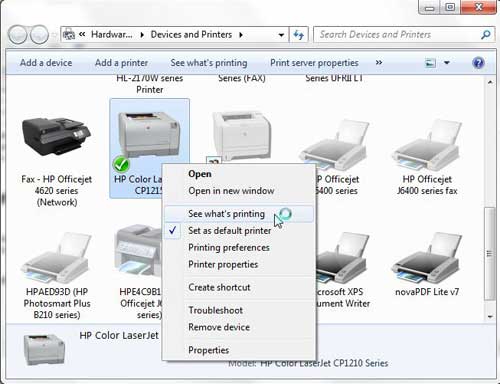
Right-click on the printer, then select See what’s printing.
Step 3: Click thePrinterlink at the top of this window, then click theUse Printer Offlineoption to remove the check mark.
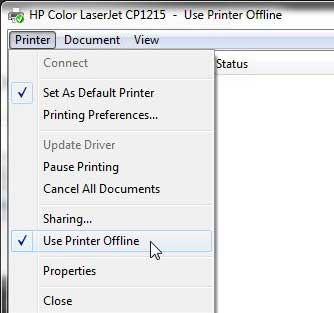
Select Printer , then Use Printer Offline .
Now that you know how to change printer from offline to online you can try this step whenever your computer is unable to print a file.
If this solved your problem, then you are all set and can continue with your printing . However, if this did not resolve the issue, then there are some more troubleshooting steps you can try.
Additional Troubleshooting for an Offline Printer in Windows 7
Check that the printer is turned on, and that the USB cable is properly connected to both the back of the printer and your computer. If your printer is wireless, you may need to restart the printer, then restart your computer to see if you can re-establish the wireless connection.
If you are using a wireless printer, have you recently changed your router, or changed the name of the wireless network ? If so, you may need to update your wireless printer with the new wireless network settings . If your wireless printer does not feature a control panel on the printer that allows you to change the network settings, you may need to temporarily connect the printer to your computer with a USB cable to modify the settings.
If your wired printer is still showing an offline status, despite the fact that it is plugged in and connected to your computer, then there may be a problem with the port to which the device is connected.
How to Change a Printer Port in Windows 7
You can use these steps to change the printer port for a printer that has been set up in Windows 7.
Step 1: Return to theDevices and Printersmenu, right-click your printer, then clickPrinter Properties.
Step 2: Click thePortstab at the top of the window, choose the correct port from the list at the center of the window, clickApply, then clickOK.
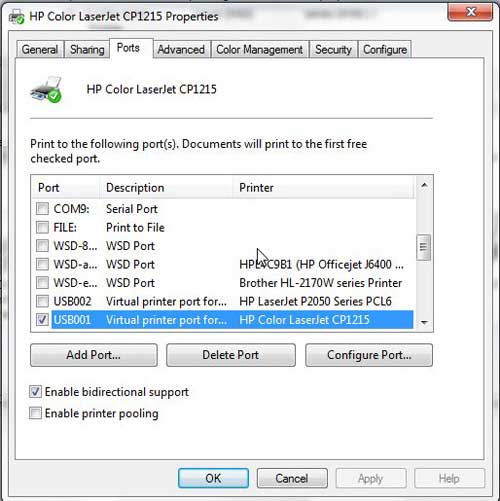
If you are still unable to print, then one final option you can attempt is to stop and restart the print spooler . You can follow the instructions in this article to learn how to manage the print spooler.
If you are still unable to print after following all of these instructions, then you may need to uninstall, then reinstall your printer. You can remove a printer from your computer by right-clicking the printer, then clicking Remove device . Once the printer has been uninstalled, follow your printer’s installation guide to properly reinstall it.
Why Is My Printer Offline?
The sections in the article above provide a bunch of different options and settings that you can check in order to see why your printer might be offline.
There are so many potential reasons that your printer might be offline that it’s hard to point to one specific reason why it might be happening.
In my experience, the best, simplest, and most useful thing that you can do when your printer is showing as offline is to simply restart the printer.
This can resolve issues related to a wireless printer that isn’t connected to a network, it can force the print spooler to restart, and it can fix print jobs that are stuck in the print queue.
While your printer is going through the process of restarting it can be helpful to restart your computer, too. And if you have a wireless printer and have been experiencing connection issues with other wireless devices as well, then even restarting your modem and your router might not be a bad idea.
How do I restart a printer?
You can reboot your printer by pressing the Power button on the printer, waiting until it has completely turned off, then pressing the Power button again to turn it back on.
How can I check my printer status?
If you aren’t sure whether or not your printer is in Printer Online or Printer Offline mode in Windows 11, then a quick way to check is to go to Start > Settings > Devices > Printers & Scanners .
You can then click on your printer and choose the Open Queue option. When you open print queue windows on your computer you can see any documents that are currently queued up to print.
When the printer window is open you can click the Printer option in the menu bar, then make sure the Use Printer Offline option isn’t selected.
How can I change the printer driver that my printer is currently using?
If you go to Start > Settings > Devices > Printers & Scanners then select your printer, you can click the Printer properties button, which will open a new window.
In this window you can choose the Advanced tab, then click the Driver drop down menu and choose a different driver. You could also click the New Driver button, which will launch the Add Printer Driver Wizard .
How do I run printer troubleshooter in Windows 11?
If you aren’t sure what the problem is, you can try the Windows utility that will cycle through a bunch of potential settings to try and fix the problem.
This means it will do things like restart printer related services, such as restarting the print spooler service and checking for outdated printer drivers.
You can do this by clicking the Windows button in the taskbar, searching for “Printer” then selecting the Printers & scanners option.
You can then select your printer and click the Run the troubleshooter option.
Why is my HP Printer offline?
The Hp printer offline Windows 11 steps are the same for Hewlett Packard printers as they are for other printers.
You need to open the Windows Settings menu, choose Bluetooth and devices, then select Printers & scanners.
You can then click on the default printer or whatever printer you want to check, then make sure Use printer offline is not selected.
If it is offline and clicking that option doesn’t put it back online, then you will need to go through the troubleshoot printer offline process of checking the printer cable (or the network status for wireless printers) and restarting the printer and the computer.
If that doesn’t work, then you may printer offline – how to put online instructions on the printer manufacturer’s website, which may involve reinstalling printer software and drivers.
Matthew Burleigh has been writing tech tutorials since 2008. His writing has appeared on dozens of different websites and been read over 50 million times.
After receiving his Bachelor’s and Master’s degrees in Computer Science he spent several years working in IT management for small businesses. However, he now works full time writing content online and creating websites.
His main writing topics include iPhones, Microsoft Office, Google Apps, Android, and Photoshop, but he has also written about many other tech topics as well.
Read his full bio here.
Featured guides and deals
If your printer queue is clogged and nothing seems to be printing, don’t worry. Clearing the printer queue in Windows 10 is a straightforward task. Follow these steps, and you’ll have your printer back to normal in no time. It’s a simple process involving stopping the print spooler service, deleting the print jobs, and restarting the service. Here’s how to do it.
Step by Step Tutorial: How to Clear Printer Queue Windows 10
Let’s go through each step to help you clear your printer queue in Windows 10. This will ensure that any stuck print jobs are removed, allowing your printer to function correctly.
Step 1: Open the Services Window
First, press the Windows key + R, type “services.msc,” and hit Enter.
Opening the Services window brings up a list of all services running on your computer. This is where you’ll find the Print Spooler service, which manages all print jobs.
Step 2: Find and Stop the Print Spooler Service
Locate the “Print Spooler” service in the list, right-click on it, and select “Stop.”
Stopping the Print Spooler service halts all current print jobs. This step is crucial to prevent the printer queue from being accessed while you clear it.
Step 3: Open the Print Spooler Folder
Next, press the Windows key + R again, type “%windir%System32spoolPRINTERS,” and hit Enter.
This command opens the folder where your print jobs are stored. You might need administrator permission to access this folder. It’s where you’ll delete the stuck print jobs.
Step 4: Delete All Files in the PRINTERS Folder
Select all files in the PRINTERS folder and delete them.
Deleting these files clears out all print jobs that were previously stuck in the queue. Make sure to delete only the files in this folder, not the folder itself.
Step 5: Restart the Print Spooler Service
Go back to the Services window, right-click on the “Print Spooler” service, and select “Start.”
Restarting the Print Spooler service reactivates the printer queue. With the stuck jobs cleared, your printer should now work smoothly.
After completing these steps, your printer will no longer have any stuck print jobs, and you should be able to print without issues.
Tips for Clearing Printer Queue Windows 10
- Regular Maintenance: Regularly check your printer queue to avoid future clogging.
- Restart Computer: Sometimes a simple restart of your computer can clear the printer queue.
- Update Drivers: Ensure your printer drivers are up to date to avoid compatibility issues.
- Use Printer Troubleshooter: Windows 10 has a built-in printer troubleshooter that can help identify and fix problems.
- Check Printer Connection: Make sure your printer is properly connected to your computer to avoid job failures.
What if I can’t find the Print Spooler service?
Ensure you are in the Services window and carefully scroll through the list. It’s usually near the bottom.
Can I cancel print jobs individually?
Yes, you can cancel jobs individually from the Devices and Printers menu, but clearing them all at once is often faster.
Why do print jobs get stuck?
Print jobs can get stuck due to driver issues, network problems, or printer errors.
What if clearing the queue doesn’t work?
Try restarting your computer and printer. If the problem persists, there might be a deeper issue with your printer or drivers.
How often should I clear my printer queue?
Clear your printer queue whenever you notice jobs not printing. Regular checks can help prevent buildup.
Summary
- Open the Services window.
- Find and stop the Print Spooler service.
- Open the Print Spooler folder.
- Delete all files in the PRINTERS folder.
- Restart the Print Spooler service.
Conclusion
Clearing the printer queue in Windows 10 is a quick and easy way to fix printing issues that can occur when print jobs get stuck. By following the steps outlined above, you’ll ensure that your print queue is clear and your printer is ready to go. Regular maintenance and staying on top of potential issues can save you time and frustration in the long run.
If you found this guide helpful, consider checking out other troubleshooting articles to keep your tech running smoothly. Remember, a well-maintained printer queue means fewer headaches and smoother operations for all your printing needs. Happy printing!
Matthew Burleigh has been writing tech tutorials since 2008. His writing has appeared on dozens of different websites and been read over 50 million times.
After receiving his Bachelor’s and Master’s degrees in Computer Science he spent several years working in IT management for small businesses. However, he now works full time writing content online and creating websites.
His main writing topics include iPhones, Microsoft Office, Google Apps, Android, and Photoshop, but he has also written about many other tech topics as well.
Read his full bio here.
Featured guides and deals
One of the parts of printing a document from your computer to your printer involves something called a print spooler.
If the spooler isn’t working properly, then you will find that nothing will print either.
Luckily you can go into a settings menu in Windows where you are able to stop the print spooler, then restart it.
Our tutorial below will show you how to stop a print spooler in Windows.
How to Stop the Windows Print Spooler
- Click Start , then Control Panel .
- Choose System and Security .
- Select Administrative Tools .
- Double-click Services .
- Right-click Print Spooler and choose Stop .
Our guide continues below with additional information on stopping the print spooler in Windows, including pictures of these steps.
Printing on a Windows 7 computer should be a simple task but, as anyone who has ever experienced a printing problem knows, this is far from true.
Whether you run into an issue that is a result of a document, operating system, or hardware problem, resolving a print issue can be problematic.
As you start to troubleshoot your printer problem, you will encounter the term “print spooler.” This is the utility on your Windows 7 computer that handles the process of sending documents to the printer, as well as managing the queues for the printers that are installed on your computer.
If you have a document that is stuck in your print queue and is preventing you from printing, for example, then stopping and restarting the print spooler in Windows 7 could resolve your issue.
Are you looking for a good all-in-one printer for your home or office? The HP Officejet 6700 is a great choice. You can even use the AirPrint option to print to it from your iPhone 5 .
You can read our how to change printer to online tutorial if you aren’t able to print a document because your computer thinks your printer is offline.
Working with the Print Spooler in Windows 7 (Guide with Pictures)
While there are many other troubleshooting methods that can and should be attempted before you start working with the print spooler service, it can often help you when you are having a problem that the normal troubleshooting methods cannot resolve.
So once you have checked the connection between your printer and computer, restarted both devices, and attempted to manually delete items from your print queue, then it may be time to follow the steps below to stop and restart your print spooler in Windows 7.
Step 1: Click theStartbutton at the bottom-left corner of the screen, then click theControl Paneloption in the column at the right side of the Start menu.
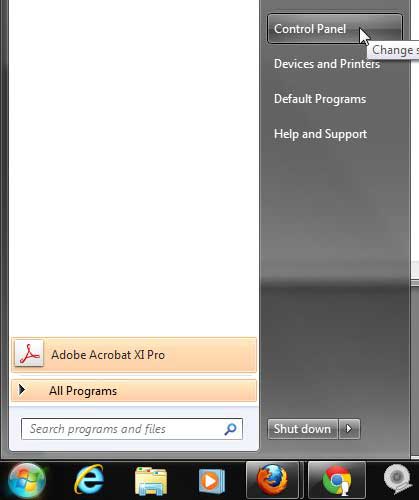
Click Start, then Control Panel
Step 2: Click theSystem and Securityoption at the center of the screen.
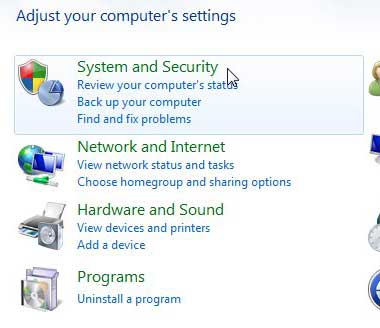
Click System and Security
Step 3: Click theAdministrative Toolslink at the bottom of the window.
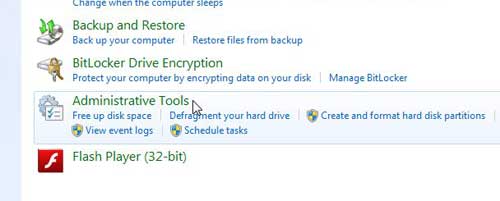
Click Administrative Tools
Step 4: Double-click theServicesoption.
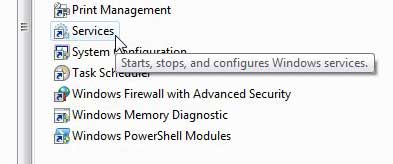
Double-click the Services option
Step 5: Scroll down to thePrint Spooleroption, right-click it, then click theStopoption.
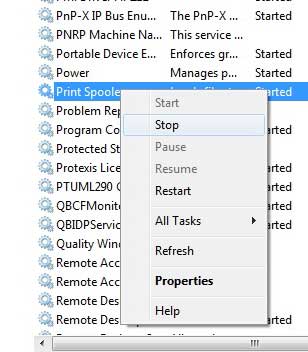
Right-click the Print Spooler option, then click Stop
Step 6: Wait a few seconds for the print spooler to stop, then right-click it again and choose theStartoption.
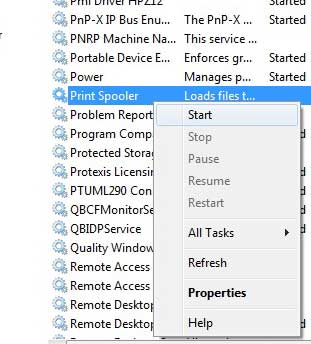
Right-click the Print Spooler option, then click Start
Now that you know how to stop the print spooler in Windows 7, you will be able to use this option to troubleshoot problems that you are experiencing while printing documents on the computer.
This solution will not work for every print problem that you are having issues resolving, but it can be helpful when the first tier of printer troubleshooting is unsuccessful.
Matthew Burleigh has been writing tech tutorials since 2008. His writing has appeared on dozens of different websites and been read over 50 million times.
After receiving his Bachelor’s and Master’s degrees in Computer Science he spent several years working in IT management for small businesses. However, he now works full time writing content online and creating websites.
His main writing topics include iPhones, Microsoft Office, Google Apps, Android, and Photoshop, but he has also written about many other tech topics as well.
Read his full bio here.
Featured guides and deals
Clearing a printer queue in Windows 11 can be a quick and simple process, ensuring your printer starts working smoothly again. By following a few steps, you can stop any stuck print jobs, clear them out, and get your printer back to normal in no time. Here’s how you can do it.
How to Clear Printer Queue Windows 11
Follow these steps to clear a printer queue in Windows 11. This will help you remove any print jobs that are causing the printer to be stuck or not respond properly.
Step 1: Open the Settings Menu
First, open the Settings menu on your Windows 11 PC.
You can do this by clicking on the Start menu and then selecting the gear icon, or simply by pressing the Windows key + I on your keyboard.
Step 2: Go to Devices
Navigate to the Devices section in the Settings menu.
This is where you manage all your connected devices, including your printer. Click on “Devices” to proceed.
Step 3: Select Printers & Scanners
Click on the “Printers & Scanners” option from the Devices menu.
This will display a list of all printers connected to your computer. Find the printer you want to manage.
Step 4: Choose Your Printer
Select the printer that has the stuck queue.
Click on it to open a menu with several options, including “Open queue.”
Step 5: Open the Print Queue
Click on “Open queue” to see the list of print jobs.
Here you can view all the documents waiting to be printed. Identify the ones causing issues.
Step 6: Cancel All Documents
Click on “Printer” in the top-left corner of the queue window and select “Cancel All Documents.”
This will clear all jobs from the queue, resolving any issues with stuck print jobs.
After completing these steps, your printer queue should be empty. You can try printing a test page to ensure everything is working smoothly.
Tips for How to Clear Printer Queue Windows 11
- Regularly check your print queue to avoid build-ups.
- Ensure your printer drivers are up to date.
- Restart both your computer and printer after clearing the queue for best results.
- Use the “Print Spooler” service if the queue doesn’t clear from the Settings menu.
- Consider setting your printer to “Print directly to the printer” to skip the queue.
Why is my printer queue stuck?
A printer queue can get stuck due to corrupted print jobs or driver issues. Clearing the queue can resolve this.
Can I clear the printer queue without restarting my computer?
Yes, you can clear the printer queue without restarting your computer by following the steps provided.
What if I can’t find my printer in the Devices menu?
Ensure your printer is properly connected and installed. Restart both the printer and your computer if necessary.
How often should I update my printer drivers?
Check for updates at least once a month to ensure your printer operates smoothly.
Can I cancel specific print jobs instead of all?
Yes, you can cancel individual print jobs by selecting them in the queue and choosing “Cancel.”
Summary
- Open the Settings menu.
- Go to Devices.
- Select Printers & Scanners.
- Choose your printer.
- Open the print queue.
- Cancel all documents.
Conclusion
Clearing a printer queue in Windows 11 can be a lifesaver when your printer decides to act up. By following these straightforward steps, you can ensure your print jobs run smoothly without any hiccups. It’s a good practice to regularly check the printer queue and keep your printer drivers updated to avoid any future issues.
Whether you’re a tech newbie or a seasoned pro, everyone can benefit from these tips and tricks. If you encounter persistent problems, don’t hesitate to consult your printer’s manual or seek professional help. Keep your printer in top shape and enjoy hassle-free printing!
Matthew Burleigh has been writing tech tutorials since 2008. His writing has appeared on dozens of different websites and been read over 50 million times.
After receiving his Bachelor’s and Master’s degrees in Computer Science he spent several years working in IT management for small businesses. However, he now works full time writing content online and creating websites.
His main writing topics include iPhones, Microsoft Office, Google Apps, Android, and Photoshop, but he has also written about many other tech topics as well.
Read his full bio here.
Featured guides and deals
