Clearing a printer queue in Windows 11 can be a lifesaver when you’re stuck with a printing job that just won’t cooperate. Whether your printer is clogged with endless documents or simply refusing to print, knowing how to clear the queue can help you get back on track. All you need to do is access the printer settings on your Windows 11 device, locate the stuck print jobs, and remove them. It’s a straightforward process that can be done in just a few steps.
How to Clear Printer Queue in Windows 11
Clearing the printer queue on Windows 11 is a simple task that will help you resolve issues related to stuck or unresponsive print jobs. Follow these steps to ensure a smooth experience.
Step 1: Open the Settings
Access the Settings on your Windows 11 device by clicking the Start button and selecting the gear icon.
The Settings menu is your go-to spot for managing everything on your device, from internet connections to installed printers. You can also press Windows key + I to open it quickly.
Step 2: Navigate to Devices
In the Settings menu, click on the “Devices” section to view all connected devices, including printers.
The “Devices” section is where you’ll find a list of everything connected to your computer, such as Bluetooth devices, external drives, and of course, printers.
Step 3: Select Printers & Scanners
Within the Devices menu, click on “Printers & Scanners” to view your installed printers.
This section displays all printers and scanners currently set up on your computer. You’ll be able to manage each one, including adjusting their settings or removing them if necessary.
Step 4: Choose Your Printer
Locate and select the printer with the queue you want to clear.
Once you click on your specific printer, you’ll be greeted with more options related to its management, such as viewing its queue or setting it as your default printer.
Step 5: Open the Queue
Click “Open queue” to see all current print jobs for your selected printer.
Opening the queue allows you to see what’s holding up your printing process. This list will show any documents that are waiting to be printed.
Step 6: Clear the Queue
Right-click the print jobs and select “Cancel” to remove them from the queue.
Canceling the documents from the queue will free up your printer, allowing it to operate smoothly again. You can cancel individual documents or all of them at once.
After you’ve completed these steps, your printer queue will be cleared. This means any stuck print jobs will be removed, and your printer can resume its normal operations. If your printer was refusing to print due to a jammed queue, this should solve the problem.
Tips for Clearing Printer Queue in Windows 11
- Always check that your printer is turned on and connected before attempting to clear the queue.
- Ensure that there are no physical paper jams in the printer that could be causing the issue.
- Restart the printer after clearing the queue to refresh its status.
- If problems persist, consider reinstalling the printer driver.
- Regularly update your Windows 11 system to prevent compatibility issues with your printer.
What should I do if the printer queue doesn’t clear?
First, try restarting your printer and PC. If that doesn’t work, you may need to restart the Print Spooler service.
Why is my printer queue always getting stuck?
This could be due to outdated drivers, too many pending print jobs, or a network issue. Regular maintenance and updates can help.
Can I clear the printer queue for a network printer?
Yes, the process is the same. Ensure your device has permission to manage print jobs on the network printer.
How can I prevent printer queue issues in the future?
Regularly update your printer’s software and drivers, and clear out the queue periodically even if no issues are present.
What happens if I cancel a print job?
Canceling a print job removes it from the queue, freeing up the printer to process other pending jobs.
Summary
- Open the Settings.
- Navigate to Devices.
- Select Printers & Scanners.
- Choose Your Printer.
- Open the Queue.
- Clear the Queue.
Conclusion
Getting tangled up in a printer queue can be a frustrating experience, especially when you’re in a rush. Fortunately, Windows 11 makes it easy to clear the queue and get your printer back to work. By following the steps outlined above, you can quickly address any issues with stuck print jobs and ensure your printer runs smoothly.
Remember, maintaining your printer and keeping all related software up to date are crucial steps in preventing future problems. Regular checks and balances can save you from unexpected headaches down the line. So, next time your printer decides to throw a tantrum, you’ll know exactly what to do.
Feel free to revisit this guide whenever you encounter printing issues. If you’re interested in diving deeper into managing devices on Windows 11, there are plenty of online resources and tutorials available. Keep your printing experience hassle-free by staying informed and proactive. Happy printing!

Matthew Burleigh has been writing tech tutorials since 2008. His writing has appeared on dozens of different websites and been read over 50 million times.
After receiving his Bachelor’s and Master’s degrees in Computer Science he spent several years working in IT management for small businesses. However, he now works full time writing content online and creating websites.
His main writing topics include iPhones, Microsoft Office, Google Apps, Android, and Photoshop, but he has also written about many other tech topics as well.
Read his full bio here.
Featured guides and deals
- Return home
JavaScript is not available.
We’ve detected that JavaScript is disabled in this browser. Please enable JavaScript or switch to a supported browser to continue using x.com. You can see a list of supported browsers in our Help Center.
Help Center

Dengan mengeklik Lanjutkan, Anda menyetujui Perjanjian Pengguna , Kebijakan Privasi , dan Kebijakan Cookie LinkedIn.
Kami telah mengirimkan link sekali pakai ke alamat email utama Anda
Klik link untuk login langsung ke akun LinkedIn Anda.
Jika Anda tidak menemukan email tersebut di kotak pesan, periksa folder spam.
Setuju & Bergabung dengan LinkedIn
Dengan mengeklik Lanjutkan, Anda menyetujui Perjanjian Pengguna , Kebijakan Privasi , dan Kebijakan Cookie LinkedIn.
Printers can be difficult ot work with, and troubleshooting them can take you to a lot of different places on your computer.
One common issue that can arise with a printer is when it says that it is offline, even though it’s turned on and seems to be hooked up correctly.
Our tutorial below will show you some steps to try so that you can learn how to change a printer from offline to online.
How to Switch a Printer from Offline to Online in Windows 7
- Click Start , then Devices and Printers .
- Right-click the printer, then click See what’s printing .
- Select the Printer tab, then click Use printer offline to clear the check mark.
Our guide continues below with additional information on how to switch a printer from offline to online , including pictures for these steps.
If you’re lucky, then this should work and your queued documents will start printing. However, sometimes this isn’t enough and you need to do some more troubleshooting. We discuss those additional troubleshooting steps further in this article.
Printers can be frustrating when they are not working correctly, due largely to the fact that errors can occur for seemingly no reason. Whether your print jobs don’t look right, you are getting constant paper jams, or printing is inconsistent or erratic, printers are often some of the most difficult electronic devices to work with. So if your printer is showing as offline and you can’t print, then you may be trying to figure out why it’s showing as offline when the printer was working before and nothing has changed.
One issue that you might encounter is Windows 7 not being able to connect to your printer to send documents that you want to print. Further investigation into the issue might lead you to discover that Windows 7 thinks the printer is offline.
There are several reasons why this might be occurring, so you will need to follow the instructions in this tutorial to learn how to change your printer from offline to online .
Once your printer is back online, it should then start printing the documents that you have sent to the printer that are currently sitting in your print queue.
How Do You Change a Printer from Offline to Online? (Guide with Pictures)
Windows is recognizing your printer as being offline because it is unable to communicate with the printer. This can be caused by several different situations, so you need to pinpoint exactly from where the problem is originating.
These steps will show you how to change a printer from offline to online from a Windows laptop or desktop computer.
Step 1: Click theStartbutton at the bottom-left corner of your screen, then clickDevices and Printers.
Click Start then choose Devices & Printers .
Step 2: Right-click the printer that is showing as offline, then clickSee what’s printing.
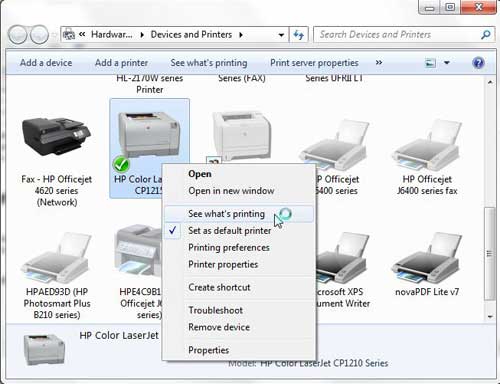
Right-click on the printer, then select See what’s printing.
Step 3: Click thePrinterlink at the top of this window, then click theUse Printer Offlineoption to remove the check mark.
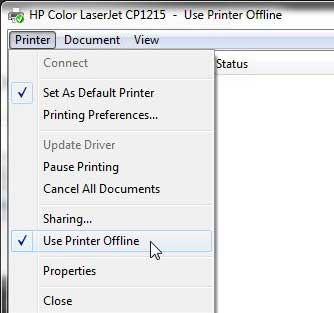
Select Printer , then Use Printer Offline .
Now that you know how to change printer from offline to online you can try this step whenever your computer is unable to print a file.
If this solved your problem, then you are all set and can continue with your printing . However, if this did not resolve the issue, then there are some more troubleshooting steps you can try.
Additional Troubleshooting for an Offline Printer in Windows 7
Check that the printer is turned on, and that the USB cable is properly connected to both the back of the printer and your computer. If your printer is wireless, you may need to restart the printer, then restart your computer to see if you can re-establish the wireless connection.
If you are using a wireless printer, have you recently changed your router, or changed the name of the wireless network ? If so, you may need to update your wireless printer with the new wireless network settings . If your wireless printer does not feature a control panel on the printer that allows you to change the network settings, you may need to temporarily connect the printer to your computer with a USB cable to modify the settings.
If your wired printer is still showing an offline status, despite the fact that it is plugged in and connected to your computer, then there may be a problem with the port to which the device is connected.
How to Change a Printer Port in Windows 7
You can use these steps to change the printer port for a printer that has been set up in Windows 7.
Step 1: Return to theDevices and Printersmenu, right-click your printer, then clickPrinter Properties.
Step 2: Click thePortstab at the top of the window, choose the correct port from the list at the center of the window, clickApply, then clickOK.
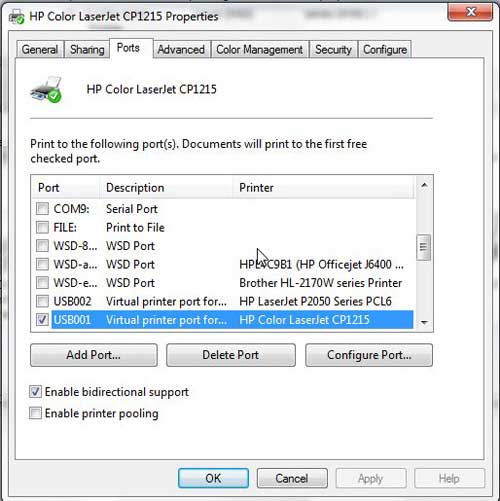
If you are still unable to print, then one final option you can attempt is to stop and restart the print spooler . You can follow the instructions in this article to learn how to manage the print spooler.
If you are still unable to print after following all of these instructions, then you may need to uninstall, then reinstall your printer. You can remove a printer from your computer by right-clicking the printer, then clicking Remove device . Once the printer has been uninstalled, follow your printer’s installation guide to properly reinstall it.
Why Is My Printer Offline?
The sections in the article above provide a bunch of different options and settings that you can check in order to see why your printer might be offline.
There are so many potential reasons that your printer might be offline that it’s hard to point to one specific reason why it might be happening.
In my experience, the best, simplest, and most useful thing that you can do when your printer is showing as offline is to simply restart the printer.
This can resolve issues related to a wireless printer that isn’t connected to a network, it can force the print spooler to restart, and it can fix print jobs that are stuck in the print queue.
While your printer is going through the process of restarting it can be helpful to restart your computer, too. And if you have a wireless printer and have been experiencing connection issues with other wireless devices as well, then even restarting your modem and your router might not be a bad idea.
How do I restart a printer?
You can reboot your printer by pressing the Power button on the printer, waiting until it has completely turned off, then pressing the Power button again to turn it back on.
How can I check my printer status?
If you aren’t sure whether or not your printer is in Printer Online or Printer Offline mode in Windows 11, then a quick way to check is to go to Start > Settings > Devices > Printers & Scanners .
You can then click on your printer and choose the Open Queue option. When you open print queue windows on your computer you can see any documents that are currently queued up to print.
When the printer window is open you can click the Printer option in the menu bar, then make sure the Use Printer Offline option isn’t selected.
How can I change the printer driver that my printer is currently using?
If you go to Start > Settings > Devices > Printers & Scanners then select your printer, you can click the Printer properties button, which will open a new window.
In this window you can choose the Advanced tab, then click the Driver drop down menu and choose a different driver. You could also click the New Driver button, which will launch the Add Printer Driver Wizard .
How do I run printer troubleshooter in Windows 11?
If you aren’t sure what the problem is, you can try the Windows utility that will cycle through a bunch of potential settings to try and fix the problem.
This means it will do things like restart printer related services, such as restarting the print spooler service and checking for outdated printer drivers.
You can do this by clicking the Windows button in the taskbar, searching for “Printer” then selecting the Printers & scanners option.
You can then select your printer and click the Run the troubleshooter option.
Why is my HP Printer offline?
The Hp printer offline Windows 11 steps are the same for Hewlett Packard printers as they are for other printers.
You need to open the Windows Settings menu, choose Bluetooth and devices, then select Printers & scanners.
You can then click on the default printer or whatever printer you want to check, then make sure Use printer offline is not selected.
If it is offline and clicking that option doesn’t put it back online, then you will need to go through the troubleshoot printer offline process of checking the printer cable (or the network status for wireless printers) and restarting the printer and the computer.
If that doesn’t work, then you may printer offline – how to put online instructions on the printer manufacturer’s website, which may involve reinstalling printer software and drivers.
Matthew Burleigh has been writing tech tutorials since 2008. His writing has appeared on dozens of different websites and been read over 50 million times.
After receiving his Bachelor’s and Master’s degrees in Computer Science he spent several years working in IT management for small businesses. However, he now works full time writing content online and creating websites.
His main writing topics include iPhones, Microsoft Office, Google Apps, Android, and Photoshop, but he has also written about many other tech topics as well.
Read his full bio here.
Clearing the print queue in Windows 11 is a straightforward process that helps resolve common printing issues when documents get stuck. To clear the print queue, you’ll need to navigate to the Print Spooler service, stop it, delete the stuck print files, and then restart the service. This clears out any remaining print jobs and allows your printer to start fresh. In just a few steps, your printer will be ready to go again, as if nothing ever happened.
How to Clear Print Queue in Windows 11
Follow these steps to successfully clear the print queue on your Windows 11 machine. Doing so will ensure that any stuck documents are removed, allowing your printer to operate smoothly again.
Step 1: Open the Windows Services App
Press the Windows key, type “Services,” and hit Enter.
In the Services app, you’ll see a list of all services running on your computer. This includes the Print Spooler.
Step 2: Locate the Print Spooler Service
Scroll through the list and find “Print Spooler.”
The Print Spooler is the service responsible for managing all print jobs sent to the printer. You’ll need to stop this service to clear the print queue.
Step 3: Stop the Print Spooler Service
Right-click on “Print Spooler” and select “Stop.”
Stopping the Print Spooler service halts any active print jobs, allowing you to delete them from the queue without interference.
Step 4: Delete Print Queue Files
Navigate to C:WindowsSystem32spoolPRINTERS and delete all files in the folder.
These files are your stuck print jobs. Removing them clears the queue so you can start fresh.
Step 5: Restart the Print Spooler Service
Go back to the Services app, right-click “Print Spooler,” and select “Start.”
Restarting the Print Spooler service reactivates the printing process. With the queue cleared, your printer is ready for new print jobs.
Once these steps are completed, any documents that were stuck in the print queue will be gone. Your printer will be ready to accept new print jobs without any issues. This method acts like a reset button for your print queue, ensuring smoother operation moving forward.
Tips for Clearing Print Queue in Windows 11
- Regularly check the print queue to avoid buildup of stuck print jobs.
- Always stop the Print Spooler service before deleting files in the print queue.
- Make sure your printer drivers are up to date to minimize queue issues.
- Restarting your computer can also help clear minor print queue problems.
- Consider setting your printer as the default printer to prevent confusion.
What is the Print Spooler?
The Print Spooler is a service that manages print jobs sent to your printer. It helps organize and streamline printing tasks.
What causes printing jobs to get stuck?
Jobs often get stuck due to issues like software glitches, outdated drivers, or interruptions in communication with the printer.
Is it safe to delete files in the spool folder?
Yes, deleting files in the spool folder is safe and necessary to clear the print queue.
Will clearing the print queue delete saved settings?
No, clearing the print queue only removes stuck print jobs, not your printer settings.
How often should I clear the print queue?
Only clear the print queue when you encounter issues with stuck jobs, as regular maintenance is not needed.
Summary
- Open Windows Services app.
- Locate Print Spooler.
- Stop Print Spooler service.
- Delete print queue files.
- Restart Print Spooler service.
Conclusion
Clearing the print queue in Windows 11 is an effective way to resolve common issues that can disrupt your printing tasks. By understanding and managing the Print Spooler service, you ensure that your print jobs don’t get stuck, causing unnecessary delays. This simple process, akin to giving your printer a fresh start, can be a lifesaver when you’re pressed for time and need your documents without frustration.
Moreover, maintaining an orderly print queue can prevent future hiccups, allowing you to focus on more important tasks. Regular checks and updates to your printer’s software can minimize the chances of encountering such issues. Remember, technology should work for you, not against you.
For more in-depth knowledge, consider exploring Windows 11’s support resources or reading about printer maintenance tips. As you get more comfortable with your system’s features, you’ll find that troubleshooting becomes second nature. So the next time your print jobs hit a snag, you’ll know exactly what to do.
Matthew Burleigh has been writing tech tutorials since 2008. His writing has appeared on dozens of different websites and been read over 50 million times.
After receiving his Bachelor’s and Master’s degrees in Computer Science he spent several years working in IT management for small businesses. However, he now works full time writing content online and creating websites.
His main writing topics include iPhones, Microsoft Office, Google Apps, Android, and Photoshop, but he has also written about many other tech topics as well.
Read his full bio here.
Clearing a printer queue in Windows 11 can be a quick and simple process, ensuring your printer starts working smoothly again. By following a few steps, you can stop any stuck print jobs, clear them out, and get your printer back to normal in no time. Here’s how you can do it.
How to Clear Printer Queue Windows 11
Follow these steps to clear a printer queue in Windows 11. This will help you remove any print jobs that are causing the printer to be stuck or not respond properly.
Step 1: Open the Settings Menu
First, open the Settings menu on your Windows 11 PC.
You can do this by clicking on the Start menu and then selecting the gear icon, or simply by pressing the Windows key + I on your keyboard.
Step 2: Go to Devices
Navigate to the Devices section in the Settings menu.
This is where you manage all your connected devices, including your printer. Click on “Devices” to proceed.
Step 3: Select Printers & Scanners
Click on the “Printers & Scanners” option from the Devices menu.
This will display a list of all printers connected to your computer. Find the printer you want to manage.
Step 4: Choose Your Printer
Select the printer that has the stuck queue.
Click on it to open a menu with several options, including “Open queue.”
Step 5: Open the Print Queue
Click on “Open queue” to see the list of print jobs.
Here you can view all the documents waiting to be printed. Identify the ones causing issues.
Step 6: Cancel All Documents
Click on “Printer” in the top-left corner of the queue window and select “Cancel All Documents.”
This will clear all jobs from the queue, resolving any issues with stuck print jobs.
After completing these steps, your printer queue should be empty. You can try printing a test page to ensure everything is working smoothly.
Tips for How to Clear Printer Queue Windows 11
- Regularly check your print queue to avoid build-ups.
- Ensure your printer drivers are up to date.
- Restart both your computer and printer after clearing the queue for best results.
- Use the “Print Spooler” service if the queue doesn’t clear from the Settings menu.
- Consider setting your printer to “Print directly to the printer” to skip the queue.
Why is my printer queue stuck?
A printer queue can get stuck due to corrupted print jobs or driver issues. Clearing the queue can resolve this.
Can I clear the printer queue without restarting my computer?
Yes, you can clear the printer queue without restarting your computer by following the steps provided.
What if I can’t find my printer in the Devices menu?
Ensure your printer is properly connected and installed. Restart both the printer and your computer if necessary.
How often should I update my printer drivers?
Check for updates at least once a month to ensure your printer operates smoothly.
Can I cancel specific print jobs instead of all?
Yes, you can cancel individual print jobs by selecting them in the queue and choosing “Cancel.”
Summary
- Open the Settings menu.
- Go to Devices.
- Select Printers & Scanners.
- Choose your printer.
- Open the print queue.
- Cancel all documents.
Conclusion
Clearing a printer queue in Windows 11 can be a lifesaver when your printer decides to act up. By following these straightforward steps, you can ensure your print jobs run smoothly without any hiccups. It’s a good practice to regularly check the printer queue and keep your printer drivers updated to avoid any future issues.
Whether you’re a tech newbie or a seasoned pro, everyone can benefit from these tips and tricks. If you encounter persistent problems, don’t hesitate to consult your printer’s manual or seek professional help. Keep your printer in top shape and enjoy hassle-free printing!
Matthew Burleigh has been writing tech tutorials since 2008. His writing has appeared on dozens of different websites and been read over 50 million times.
After receiving his Bachelor’s and Master’s degrees in Computer Science he spent several years working in IT management for small businesses. However, he now works full time writing content online and creating websites.
His main writing topics include iPhones, Microsoft Office, Google Apps, Android, and Photoshop, but he has also written about many other tech topics as well.
Read his full bio here.
If your printer queue is clogged and nothing seems to be printing, don’t worry. Clearing the printer queue in Windows 10 is a straightforward task. Follow these steps, and you’ll have your printer back to normal in no time. It’s a simple process involving stopping the print spooler service, deleting the print jobs, and restarting the service. Here’s how to do it.
Step by Step Tutorial: How to Clear Printer Queue Windows 10
Let’s go through each step to help you clear your printer queue in Windows 10. This will ensure that any stuck print jobs are removed, allowing your printer to function correctly.
Step 1: Open the Services Window
First, press the Windows key + R, type “services.msc,” and hit Enter.
Opening the Services window brings up a list of all services running on your computer. This is where you’ll find the Print Spooler service, which manages all print jobs.
Step 2: Find and Stop the Print Spooler Service
Locate the “Print Spooler” service in the list, right-click on it, and select “Stop.”
Stopping the Print Spooler service halts all current print jobs. This step is crucial to prevent the printer queue from being accessed while you clear it.
Step 3: Open the Print Spooler Folder
Next, press the Windows key + R again, type “%windir%System32spoolPRINTERS,” and hit Enter.
This command opens the folder where your print jobs are stored. You might need administrator permission to access this folder. It’s where you’ll delete the stuck print jobs.
Step 4: Delete All Files in the PRINTERS Folder
Select all files in the PRINTERS folder and delete them.
Deleting these files clears out all print jobs that were previously stuck in the queue. Make sure to delete only the files in this folder, not the folder itself.
Step 5: Restart the Print Spooler Service
Go back to the Services window, right-click on the “Print Spooler” service, and select “Start.”
Restarting the Print Spooler service reactivates the printer queue. With the stuck jobs cleared, your printer should now work smoothly.
After completing these steps, your printer will no longer have any stuck print jobs, and you should be able to print without issues.
Tips for Clearing Printer Queue Windows 10
- Regular Maintenance: Regularly check your printer queue to avoid future clogging.
- Restart Computer: Sometimes a simple restart of your computer can clear the printer queue.
- Update Drivers: Ensure your printer drivers are up to date to avoid compatibility issues.
- Use Printer Troubleshooter: Windows 10 has a built-in printer troubleshooter that can help identify and fix problems.
- Check Printer Connection: Make sure your printer is properly connected to your computer to avoid job failures.
What if I can’t find the Print Spooler service?
Ensure you are in the Services window and carefully scroll through the list. It’s usually near the bottom.
Can I cancel print jobs individually?
Yes, you can cancel jobs individually from the Devices and Printers menu, but clearing them all at once is often faster.
Why do print jobs get stuck?
Print jobs can get stuck due to driver issues, network problems, or printer errors.
What if clearing the queue doesn’t work?
Try restarting your computer and printer. If the problem persists, there might be a deeper issue with your printer or drivers.
How often should I clear my printer queue?
Clear your printer queue whenever you notice jobs not printing. Regular checks can help prevent buildup.
Summary
- Open the Services window.
- Find and stop the Print Spooler service.
- Open the Print Spooler folder.
- Delete all files in the PRINTERS folder.
- Restart the Print Spooler service.
Conclusion
Clearing the printer queue in Windows 10 is a quick and easy way to fix printing issues that can occur when print jobs get stuck. By following the steps outlined above, you’ll ensure that your print queue is clear and your printer is ready to go. Regular maintenance and staying on top of potential issues can save you time and frustration in the long run.
If you found this guide helpful, consider checking out other troubleshooting articles to keep your tech running smoothly. Remember, a well-maintained printer queue means fewer headaches and smoother operations for all your printing needs. Happy printing!
Matthew Burleigh has been writing tech tutorials since 2008. His writing has appeared on dozens of different websites and been read over 50 million times.
After receiving his Bachelor’s and Master’s degrees in Computer Science he spent several years working in IT management for small businesses. However, he now works full time writing content online and creating websites.
His main writing topics include iPhones, Microsoft Office, Google Apps, Android, and Photoshop, but he has also written about many other tech topics as well.
Read his full bio here.
If you’re used to working with printers frequently, you have probably faced situations where your machine is ready to print, but the printer status on your Windows 10 is showing offline.
This can happen due to minor network connectivity issues, poor printer connection, paper jams, or other problems.
Whatever the reason is, you should know how to get a printer online in Windows 10 to fix the problems and get your work done.
To make the task easier for you, we will discuss a number of methods of solving the printer offline issue and tell you some simple tricks to avoid such problems in the future.
We will cover it all, from minor paper jam problems to complex setting issues. So, let’s dive right in.
How to Use the Windows 10 Printer Troubleshooter to Get the Printer Online
- Press the Windows key + I to open Settings.
- Choose Devices in the left column.
- Select Printers and Scanners .
- Choose to run the troubleshooter.
- Let the troubleshooter run and perform the suggested tasks.
Our guide continues below with additional information on getting your Windows 10 printer online, including some other options that you can try which might help to resolve the situation.
Sometimes you will need to send someone a picture of the items that appear on your screen. Our article on how to screenshot on Acer laptops can help you with that.
How to Solve Windows 10 Printer Offline Issues – 10 Options
As you already know, your computer can show that your printer is offline for many reasons. Some problems are so trivial that you can solve them within moments, even without any printer technician. Below are some effective and detailed methods to solve the printer offline error yourself:
Method One – Perform Physical Checks
To bring back a printer online, you should properly check all the wire connections. If your machine is a local printer or a network printer and needs to be connected by a USB cable or Ethernet cable, you should check out whether the connection is firm or not. Try checking out the cable at both ends of your USB port and printer.
If the cable is too loose or broken, replace it with a new one. Also, try to use multiple USB ports on your computer to make sure that the problem isn’t in your cable, ethernet port, or USB ports.
Method Two – Check Your Internet Connection
If you have connected your printer using a Wi-Fi network, check out if the device’s network is working properly. The printer’s status might go offline if the network is too slow or if the network keeps dropping.
So, check out the condition of the network from the built-in options of your printer. If you don’t know how to connect your printer through Wi-Fi, look for instructions in your owner’s manual. Sometimes the printer status goes offline when you try to connect it using a VPN (virtual private network.)
In that case, you must disconnect the VPN connection and restart your printer. Otherwise, you can also try a more efficient VPN connection and adjust the VPN configuration to access the local network.
Method Three – Restart Your Printer and Computer
The process of restarting your devices is called power cycling. It’s a very common technique to solve minor glitches in your devices – power off both your PC and printer first. Then disconnect your printer from the computer and unplug its power cable.
Wait for 30 seconds before restarting the printer. When your printer is switched on, turn on your computer again and check if the offline status is turned online.
Method Four – Use Printer Offline Option
If our previously mentioned methods fail to solve your printer problems, it’s time to do some work manually. You need to open settings on your computer and make some necessary changes to the printer offline option. And here’s how to use the printer offline option in Windows 11 –
Step 1) On your windows computer, click on the ‘Start’ option from the bottom of your screen. From there, click on the ‘Settings’ option and then ‘Bluetooth and devices.’
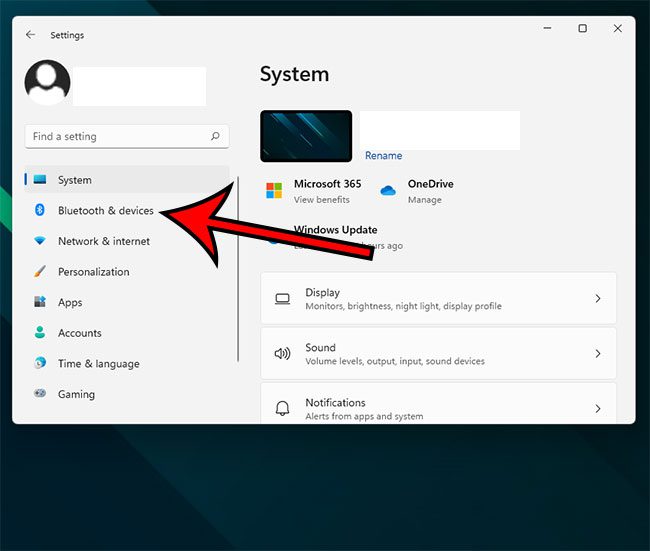
Step 2) Now select the option called ‘Printers & Scanners’.
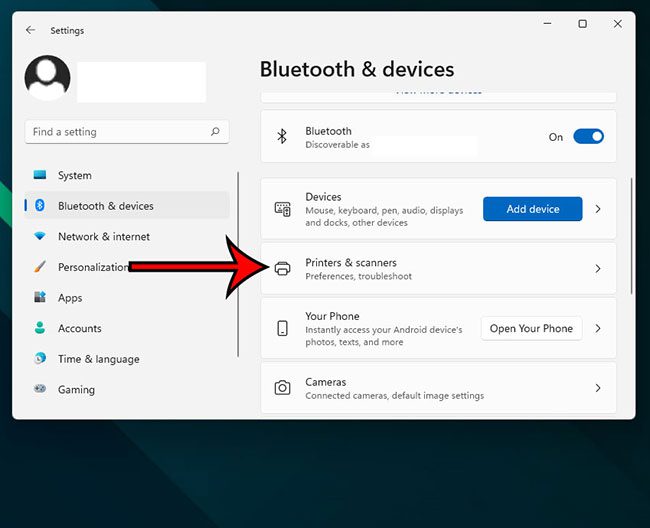
Step 3) Select your printer and choose the ‘Open print queue’ option.
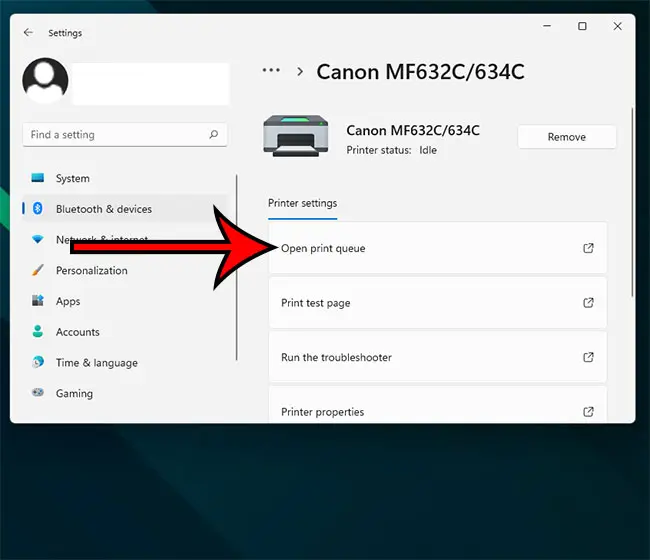
Step 4) A new page will appear, and you need to look for the ‘Printer’ tab on the toolbar. Click on it, and a drop-down menu will arrive. Do you see any ‘Use Printer Offline’ option there? Check out if there’s a tick beside this option. Click on it to remove the tick mark and get your printer online.
<img loading=“lazy” src=“https://www.solveyourtech.com/wp-content/uploads/2022/02/how-to-get-printer-online-windows-10-4.jpg" onerror=“this.onerror=null;this.src=‘https://blogger.googleusercontent.com/img/a/AVvXsEhe7F7TRXHtjiKvHb5vS7DmnxvpHiDyoYyYvm1nHB3Qp2_w3BnM6A2eq4v7FYxCC9bfZt3a9vIMtAYEKUiaDQbHMg-ViyGmRIj39MLp0bGFfgfYw1Dc9q_H-T0wiTm3l0Uq42dETrN9eC8aGJ9_IORZsxST1AcLR7np1koOfcc7tnHa4S8Mwz_xD9d0=s16000';" alt=“turn off the “use printer offline” option - 13”>
For additional coverage of this topic, you can read our printer offline Windows 7 guide.
Method Five – Use Printer Troubleshooter
If the status of your printer keeps coming online briefly and going offline again, you can use a printer troubleshooter to solve the problem and start printing again. In fact, Windows 10 features several troubleshooters to solve the printer offline issues automatically. Here’s how you can perform troubleshooting –
Step 1) Use the dedicated Windows key to open the ‘Start’ menu and go to your settings. You can also press Windows key + I to open the Settings app directly. Click on ‘Devices’ and then on ‘Printers & Scanners.’
Step 2) Click on the ‘Run the troubleshooter’ option from the right-pane. You can find it right beneath the ‘Related Settings’ option.
Step 3) Now, the troubleshooter will run several series of checks. It will also suggest to you some ways to solve the detected problems. It might ask you to set your current printer as a default printer or ask you to update your printer driver. Act accordingly to fix the problems.
Method Six – Clear Your Pending Print Jobs
It’s always preferable to perform one print job at once. When you continue printing for a long time and multiple unfinished print jobs are queued, it might cause printer offline errors. Follow the steps given below to remove the print queue –
Step 1) Open settings and choose ‘Devices.’ Then select ‘Printers & Scanners’ and click on your printer’s name.
Step 2) Now click on ‘Open queue’ to get the list of all the pending documents. Select the ‘ Printer ‘ option from the toolbar at the top and then click ‘Cancel All Documents.’ It should clear all the pending jobs.
Step 3) You can restart your printer and your computer to clear the remaining documents of the print queue.
Method Seven – Use Print Spooler Service
The print spooler service controls the interactions between your computer and printer. You can restart the service to get the printer online. Here’s how you can do it –
Step 1) Open your computer’s start menu, type ‘Services’, and press enter. You can also press Windows Key + R and search by typing ‘Service.msc.’
Step 2) Look for the ‘Print Spooler’ option and right-click on it. Then choose ‘Restart,’ and your offline printer will go online again.
Method Eight – Change Printer Properties
Step 1) Open the control panel of your printer and then go to ‘Devices and Printers.’ Right-click on your printer’s name and select ‘Printer Properties.’
Step 2) From there, click on the ‘Ports’ tab and then choose the printer’s IP address. Now select the option ‘Configure Port.’
Step 3) Check if there’s any tick next to the ‘SNMP Status Enable’ option. Click on it to uncheck the option and then choose ‘OK’ for saving the changes.
Method Nine – Use Printer Software
Many printer manufacturers own printer software to let your windows manage and troubleshoot the printer. You can go to the printer manufacturer’s website to install the software. Or, your printer manufacturer might have provided a CD containing the software.
To check whether the software is installed or not, go to settings and click on ‘Devices.’ Then select ‘Printers & Scanners’, choose your printer’s name, and then ‘Manage.’ If the software is installed, you’ll see the option ‘Open printer app.’
Click on it to open the software and look for troubleshooting options to bring the offline printer status back online.
Method Ten – Reinstall the Printer
If the printer offline message keeps appearing even after you have tried all our methods, you should try to remove the current printer and reinstall it or install a new printer. Here’s how you can remove and reinstall it –
Step 1) Open your computer’s settings and choose ‘Devices.’ From the menu bar, select ‘Printers & Scanners’ and then your printer’s name.
Step 2) Click on ‘Remove Device’ and select ‘Yes’ to remove the current printer.
Step 3) Now go for the option ‘Add printer or scanner.’ Follow the necessary steps to reinstall the printer.
Final Words
So, now you know how to get a printer online Windows 10. Before anything else, try our first three methods to solve the printer offline errors in your Windows 10 easily.
If none of our methods work for your computer, the problem might be hardware-related. In that case, you need to get your printers to a technician or change the printer drivers to solve the issues.
Matthew Burleigh has been writing tech tutorials since 2008. His writing has appeared on dozens of different websites and been read over 50 million times.
After receiving his Bachelor’s and Master’s degrees in Computer Science he spent several years working in IT management for small businesses. However, he now works full time writing content online and creating websites.
His main writing topics include iPhones, Microsoft Office, Google Apps, Android, and Photoshop, but he has also written about many other tech topics as well.
Read his full bio here.
Featured guides and deals

