Connecting Windows 11 to your TV can transform your viewing experience, letting you stream movies, display presentations, or just enjoy a larger screen. It’s a simple process: you can use an HDMI cable or go wireless with Miracast. This guide will walk you through both methods, making it a breeze for you to get started.
Step-by-Step: How to Connect Windows 11 to TV
Ready to take your PC viewing experience to a larger screen? Here’s how you can connect your Windows 11 device to your TV using simple steps.
Step 1: Check Your TV’s Compatibility
First, ensure your TV has an HDMI port or supports Miracast.
Most modern TVs will have these features, but it’s always good to double-check. If it’s an older model, you might need an adapter.
Step 2: Connect via HDMI Cable
Plug one end of an HDMI cable into your Windows 11 device and the other into the TV.
This is the most straightforward method. Once connected, your PC should automatically detect the TV and adjust the display settings.
Step 3: Go Wireless with Miracast
If you prefer wireless, press Windows + K on your PC and select your TV from the list.
Make sure both devices are on the same Wi-Fi network. This allows you to cast your screen without the hassle of cables.
Step 4: Adjust Display Settings
Once connected, navigate to Settings > System > Display to tweak your display preferences.
You can choose to mirror your screen or extend it. This flexibility helps you customize your viewing experience.
Step 5: Troubleshoot Connection Issues
If you face issues, restart both devices and try again.
Sometimes a simple reboot can resolve connectivity issues. Check all connections and make sure your TV is set to the correct input source.
After completing these steps, your Windows 11 should be successfully connected to your TV, opening up a world of entertainment options on the big screen.
Tips for Connecting Windows 11 to TV
- Ensure your devices are on the same network for wireless connections.
- Keep your HDMI cable away from interference like power cables.
- Regularly update your PC’s drivers for optimal performance.
- Use a high-speed HDMI cable for better video quality.
- Position your PC and TV close to avoid lag in wireless connections.
Can I connect older TVs without HDMI?
Yes, you can use adapters like VGA to HDMI, but you might lose some quality.
Why is my TV not showing up in the list?
Ensure both devices are on the same network and within range for wireless connections.
Does my TV need to be smart to connect wirelessly?
Yes, either a smart TV or a streaming device like Chromecast is required for wireless connections.
Why is the display quality poor?
Check your HDMI cable for damage and ensure it’s a high-speed one for HD streaming.
Can I use Bluetooth to connect?
Bluetooth isn’t suitable for video connections as it doesn’t support video streaming.
Summary
- Check TV compatibility.
- Connect via HDMI or Miracast.
- Adjust display settings.
- Troubleshoot if needed.
Conclusion
Connecting Windows 11 to a TV is like opening a door to a new world of possibilities. Whether you’re streaming the latest blockbuster or hosting a big presentation, this guide provides a straightforward route to success.
With both wired and wireless options, you can tailor the experience to fit your setup. Just remember, technology can sometimes be tricky—so don’t hesitate to revisit these steps if something goes awry.
Feel free to dive into more advanced settings to make the most out of your connection, exploring options like audio outputs or multi-screen setups.
Your TV is not just for cable anymore; it’s a canvas for whatever you want to project. So grab your remote—or your HDMI cable—and start exploring. Happy viewing!

Matthew Burleigh has been writing tech tutorials since 2008. His writing has appeared on dozens of different websites and been read over 50 million times.
After receiving his Bachelor’s and Master’s degrees in Computer Science he spent several years working in IT management for small businesses. However, he now works full time writing content online and creating websites.
His main writing topics include iPhones, Microsoft Office, Google Apps, Android, and Photoshop, but he has also written about many other tech topics as well.
Read his full bio here.
Featured guides and deals
Wireless printing is a great thing to have when you use a laptop or have multiple devices in your home or office that share a printer.
Not every printer has this capability, but the Brother HL2270DW is one device that does.
Our Brother hl-2270dw wireless setup tutorial below will show you how to get the printer on your wireless network so that you can print to it without needing to physically connect a printer cable to your laptop or desktop computers.
Summary – Brother hl-2270dw Wireless Setup Steps
- Insert the installation disc or download the printer software.
- Choose the HL-2270DW option.
- Select the language.
- Click Install Printer Driver , then click Yes .
- Click Yes, choose Wireless Connection , then click Next .
- Select Brother Peer-to-Peer Network Printer and click Next .
- Choose Change the Firewall port settings to enable network connection and continue with the installation and click Next.
- Select Wireless Setup .
- Click No , then Next .
- Check the Checked and confirmed box and click Next .
- Choose Temporarily use a USB cable, and click Next .
- Connect the USB cable.
- Choose the printer and click Next .
- Select your Wi-Fi network and click Next .
- Enter the password, confirm the password, then click Next .
- Click Next , then next, then Finish .
Our guide continues below with additional information on the Brother hl-2270dw wireless setup, including pictures of these steps.
Two of the most important characteristics of a printer are the quality of its’ printouts and the speed at which each page is printed .
Brother’s line of laser printers offers both of these features, all for a relatively lower price than you will find with most other laser printers of this class.
The Brother HL2270DW steps up its level of convenience even more by offering a wireless feature in addition to the other laser printer benefits.
Some people might be intimidated by the prospects of a wireless printer, especially if they have ever encountered difficulty setting up a wireless router, but the wireless setup process for the Brother HL2270DW is very simple.
Additionally, once you have been able to set up wireless printing with the Brother HL2270DW on one computer, it is even easier to set the printer up with the rest of the computers in your home or office.
How to Complete a Wireless Setup for the Brother HL2270DW (Guide with Pictures)
The first thing to clarify when you are performing the wireless setup for this device is that your computer does not need to have wireless capabilities.
It simply needs to be connected to a network that has a wireless element. For example, I currently have this printer wirelessly connected to my desktop computer. The desktop computer does not have a wireless network card, but is connected to my wireless router using an ethernet cable.
The next point of clarification is that you will need a USB printer cable for the initial wireless setup of this device.
Since the printer does not have a way for you to manually input the settings for the wireless network, you will need to apply them to the printer from the computer.
Brother also does not include a USB cable with the printer, so you will either need to purchase one or, preferably, use the cable that was connecting your old, wired printer to your computer.
Begin the setup process by unpacking the printer from its packaging materials, then removing all of the stickers on the printer.
The toner cartridge is already in the printer , but you should take it out and shake it to reposition the toner inside. Replace the cartridge, then close the access door.
Connect the power cable to the back of the printer, then plug it in. Do NOT connect the USB cable yet . You will be prompted to do that later.
Turn on the printer, wait for it to boot up, then press the Go button on the top of the printer to print a test page.
Step 1: Insert the Brother installation disc into the disc drive on your computer, then click theSetup.exeoption in theAutoPlaywindow.
If you do not have a disc drive or you have misplaced the installation disc, you can download the driver software from here .
Step 2: Click theHL-2270DWbutton at the bottom of the window.
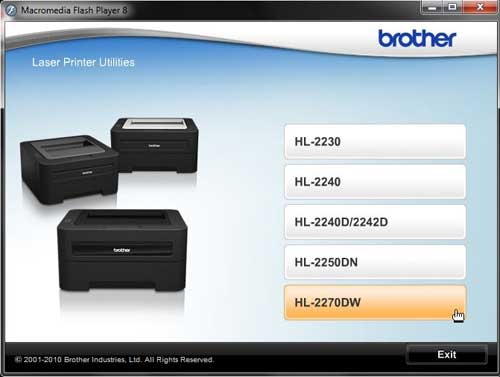
Step 3: Click your preferred language from the list.
Step 4: Click theInstall Printer Driverbutton at the top of the window. Click theYesbutton to allow this program to make changes to your computer.
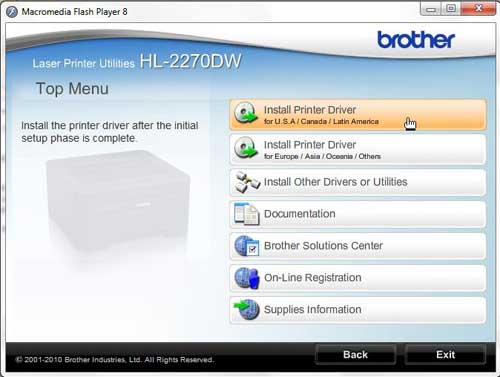
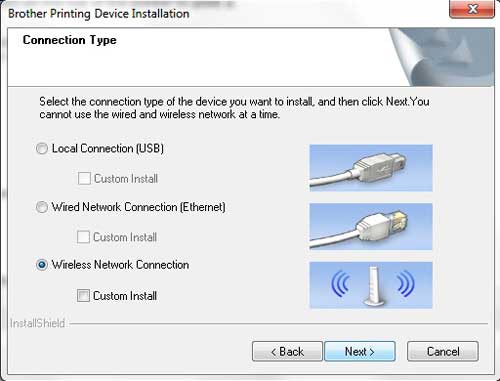
Step 5: Click theYesbutton to accept the license agreement, click theWireless Connectionoption, then click theNextbutton.
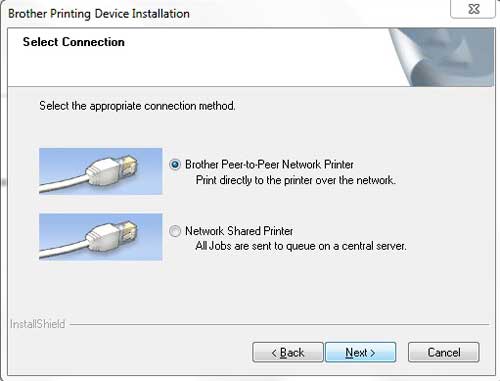
Step 6: Check theBrother Peer-to-Peer Network Printeroption, then click theNextbutton.
Step 7: Choose the option toChange the Firewall port settings to enable network connection and continue with the installation, then click theNextbutton.
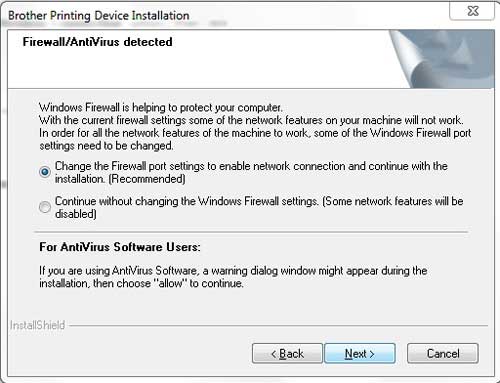
Step 8: Click theWireless Setupoption at the bottom of the window.
Note that when installing this printer on future computers, your printer will appear on this screen, and you will select it from the list.
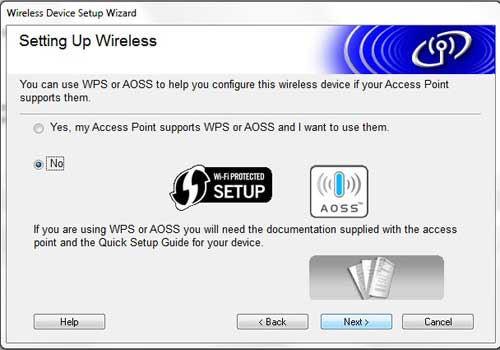
Step 9: Click theNooption at the center of the next window, then click Next.
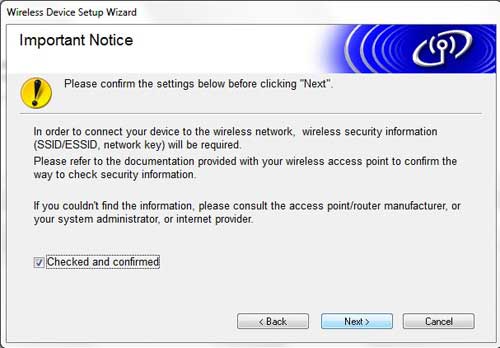
Step 10: Check the box to the left ofChecked and confirmed, then click theNextbutton.
Step 11: Check theTemporarily use a USB cableoption, then click theNextbutton.
Step 12: Connect the USB cable from the back of your printer to your computer, then wait for the computer to recognize the printer.
Step 13: Click your Brother HL2270DW printer from the list of available devices, then click theNextbutton.
Step 14: Click your wireless network from the list, then clickNext.
Step 15: Type your password into theNetwork Keyfield, retype it into theConfirm Network Keyfield, then click theNextbutton.
Step 16: ClickNext, clickNextagain, then clickFinishto complete the setup.
You can then disconnect the USB cable when prompted.
Now that you have completed the Brother hl-2270dw wireless setup, you will be able to print documents to this printer over your wireless network.
Matthew Burleigh has been writing tech tutorials since 2008. His writing has appeared on dozens of different websites and been read over 50 million times.
After receiving his Bachelor’s and Master’s degrees in Computer Science he spent several years working in IT management for small businesses. However, he now works full time writing content online and creating websites.
His main writing topics include iPhones, Microsoft Office, Google Apps, Android, and Photoshop, but he has also written about many other tech topics as well.
Read his full bio here.
Featured guides and deals
