Converting JPG images to PDF on Windows 11 is easier than you might think. With just a few clicks, you can quickly transform your image files into a single, neat PDF document. This is a handy skill, especially when you need to share multiple images in a professional format. Follow along to see how simple it is, even if you’re not a tech expert.
How to Convert JPG to PDF on Windows 11
By following the steps below, you’ll learn how to take your JPG images and convert them into a PDF file using tools built into Windows 11. This method is quick, efficient, and doesn’t require any third-party software.
Step 1: Open the JPG File
Find the JPG file you want to convert. Right-click on the file and select “Open with” followed by “Photos.”
The Photos app is a built-in tool on Windows 11 that allows you to view and manage your image files easily. Once the image is open, you’re halfway there.
Step 2: Print the Image
Click on the three-dot menu located in the top-right corner of the Photos app and select “Print.”
The print option may seem unusual, but in this case, you’ll use it to save the file as a PDF instead of sending it to a printer.
Step 3: Choose the PDF Printer
In the Printer dropdown menu, select “Microsoft Print to PDF.”
This option is a virtual printer that Windows 11 provides, allowing you to save the file as a PDF. It’s like magic, turning digital ink into a neat document.
Step 4: Set Preferences
Adjust any settings like orientation or size to fit your needs, then click “Print.”
These settings let you tweak how the final PDF will look. Make sure everything is just the way you want it before saving.
Step 5: Save the PDF
Choose a location on your computer to save the PDF file and give it a name. Click “Save.”
This final step wraps up the process, storing your new PDF file wherever you choose on your computer. And just like that, your JPG is now a PDF!
Once you’ve completed these steps, your JPG will be neatly tucked into a PDF file. You can now share it, print it, or archive it without hassle.
Tips for Converting JPG to PDF on Windows 11
- Make sure your Windows is up-to-date to use the latest features.
- Use the Photos app for multiple images by selecting them all before printing.
- Double-check your print settings to avoid unwanted cropping.
- Organize your files by naming them appropriately during the save process.
- Consider a third-party tool if you need more advanced features.
Can I convert multiple JPGs to one PDF?
Yes, select multiple images in the Photos app before choosing the print option.
Do I need third-party software to convert JPG to PDF?
No, Windows 11’s built-in features handle this task easily.
Is the quality of the PDF the same as the original JPG?
Yes, the quality remains intact unless you change settings that affect resolution.
Can I convert other image formats besides JPG?
Yes, most image formats like PNG or BMP can also be converted using the same method.
What if the Microsoft Print to PDF option is missing?
Ensure your Windows is updated or check the optional features in Windows settings to add it.
Summary
- Open the JPG file in Photos.
- Select “Print” from the menu.
- Choose “Microsoft Print to PDF.”
- Adjust settings and click “Print.”
- Save the PDF file to your computer.
Conclusion
Converting JPG to PDF on Windows 11 is a breeze when you know where to start. With no need for extra software or complex steps, you can take your images and turn them into professional-looking PDFs in no time. Whether you’re prepping for a presentation or archiving family photos, this method gets the job done swiftly and efficiently.
The flexibility of Windows 11’s built-in tools means that handling your digital tasks is as simple as pie. With just a few clicks, your images are ready to be shared, printed, and admired in a new format. Embrace the convenience and capability of your PC. And if you ever find yourself stuck, remember this guide is here to help turn any confusion into clarity.
So, next time you need to convert JPG to PDF, you’ll do it with confidence and ease. Keep exploring, keep learning, and never shy away from letting your creativity shine through technology. Happy converting!

Matthew Burleigh has been writing tech tutorials since 2008. His writing has appeared on dozens of different websites and been read over 50 million times.
After receiving his Bachelor’s and Master’s degrees in Computer Science he spent several years working in IT management for small businesses. However, he now works full time writing content online and creating websites.
His main writing topics include iPhones, Microsoft Office, Google Apps, Android, and Photoshop, but he has also written about many other tech topics as well.
Read his full bio here.
Featured guides and deals
When smartphones first started to gain popularity, the prospect of printing something from them seemed like a pipe dream. Printers were already hard enough to deal with on a computer, and it seemed unlikely that it could work on a phone.
But the Google Docs app started adding new features like the ability to add small numbers in Google Docs , and it became apparent that the app was going to gain most of its desktop counterpart’s functionality.
Now we are also able to print from Google Docs on our iPhone or Android device, and it’s surprisingly accessible.
Most modern printers have some sort of network compatibility, meaning that devices on the same network as the printer can use that printer if they have that capability.
Mobile phones, but those that use the iOS and Android operating systems, are now able to print wirelessly to printers that support it. Plus, most of the apps that you would want to print from, such as creative apps and productivity apps, will usually support some type of printing functionality in addition to the other features they offer, like file sharing .
Our guide below will show you how to print through the Google Docs app on your iPhone or Android phone, plus we will address some of the common issues that might arise if you can’t make it work.
How to Print from the Google Docs Mobile App
- Open Docs.
- Choose a document.
- Tap the three dots.
- Select Share & export .
- Choose Print .
- Touch Select Printer .
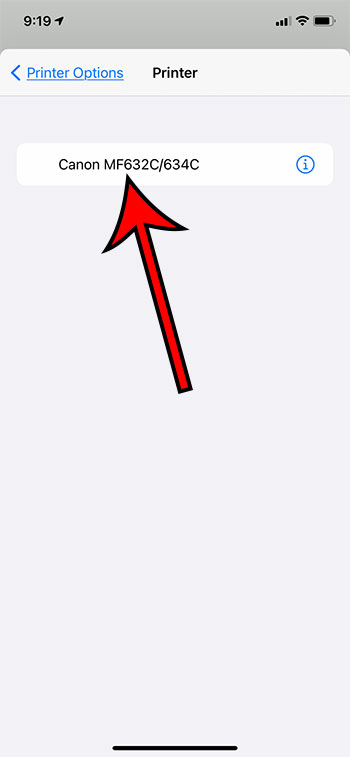
- Chose a printer.
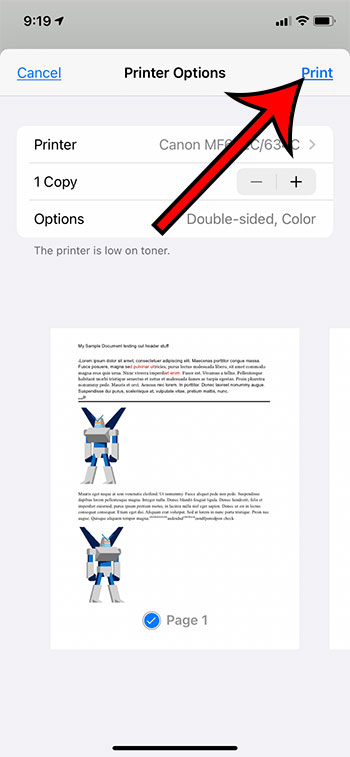
- Tap Print .
Our guide continues below with additional information on printing from the Google Docs app, including pictures of these steps.
How to Print from Google Docs on an iPhone (Guide with Pictures)
The steps in this section were performed on an iPhone 11 in iOS 14.6. These steps will also work on other iPhone models using this same version of iOS, as well as in most other versions of iOS. I am using the most current version of the Google Docs app that was available at the time this article was written.
Step 1: Open theDocsapp on your iPhone.
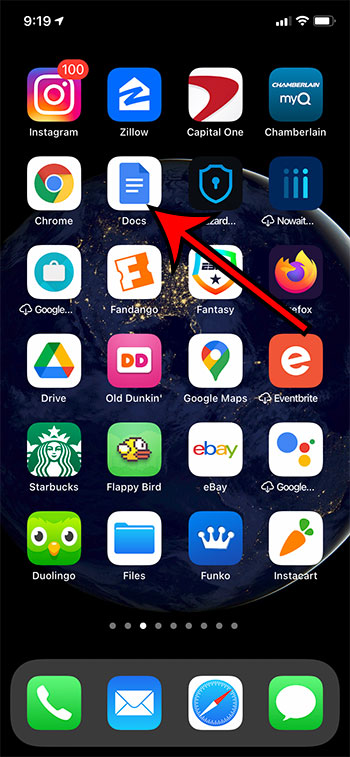
Step 2: Select the document that you want to print.
Step 3: Touch the three dots at the top-right of the screen.
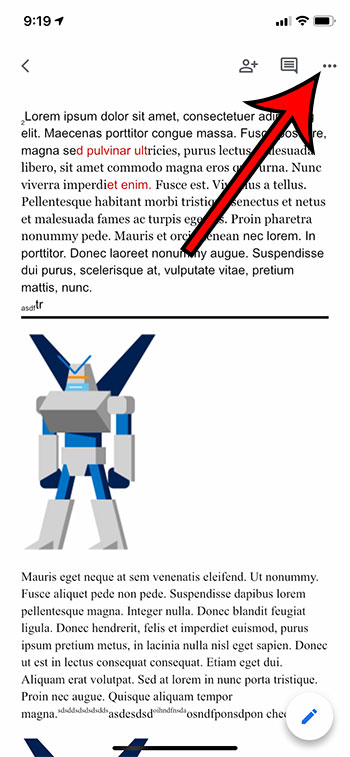
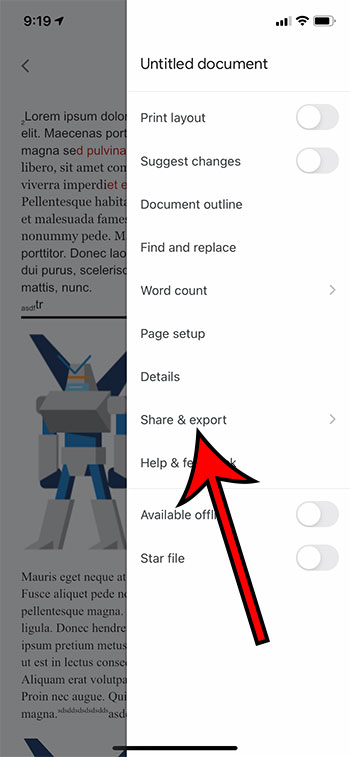
Step 4: Select theShare & exportoption.
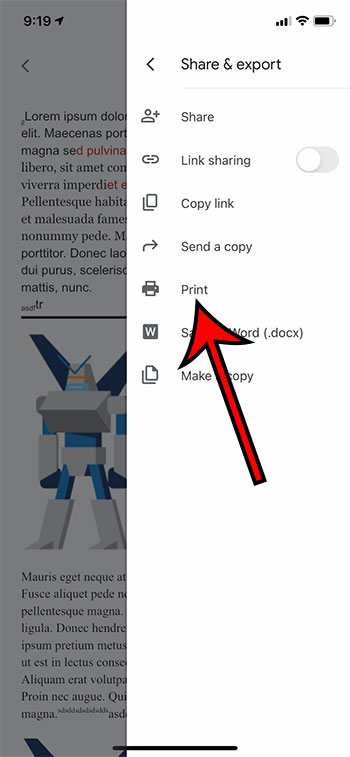
Step 5: ChoosePrint.
Step 6: Tap theSelect Printeroption.
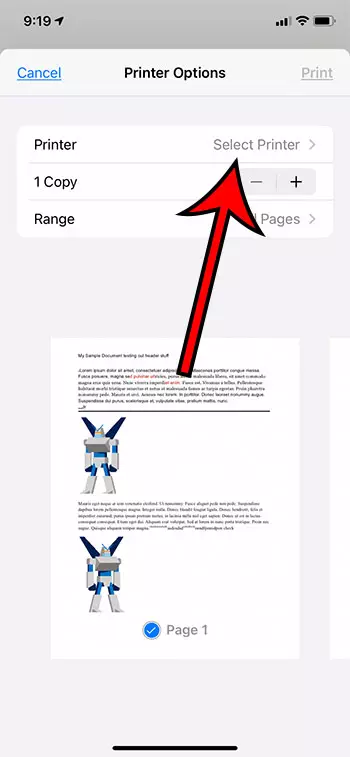
Step 7: Choose your printer.
Step 8: TapPrintat the top-right corner of the screen.
Our article continues below with information on how to print from your Android device.
How to Print from Google Docs on Android (Guide with Pictures)
The steps in this section were performed on a Google Pixel 4A, using Android 11. I am using the most current version of the Docs app that was available when I wrote this article.
Step 1: Swipe up from the center of the screen.
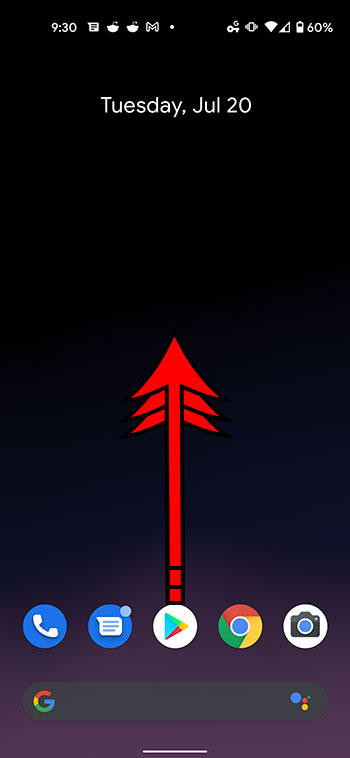
Step 2: Touch theDocsicon.
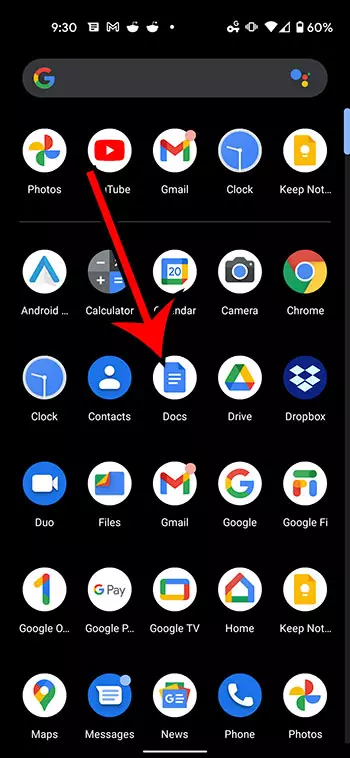
Step 3: Choose the document from your Google Drive that you want to print.
Step 4: Tap the three vertical dots at the top of the screen.
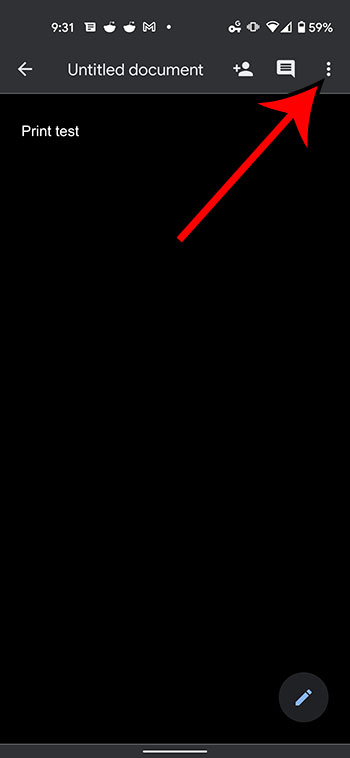
Step 5: Select theShare & exportoption from the menu on the right side of the screen.
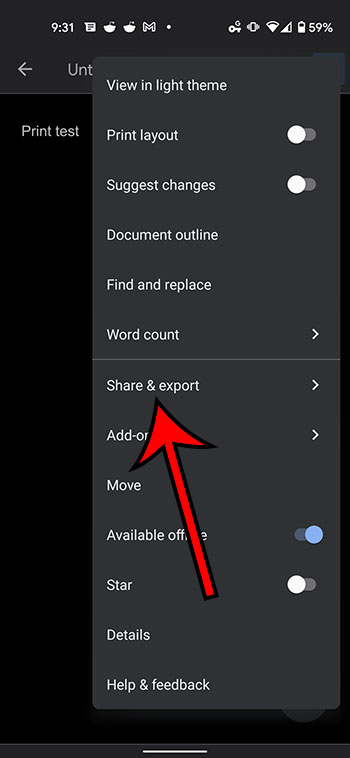
Step 6: ChosePrintfrom the list of sharing options.
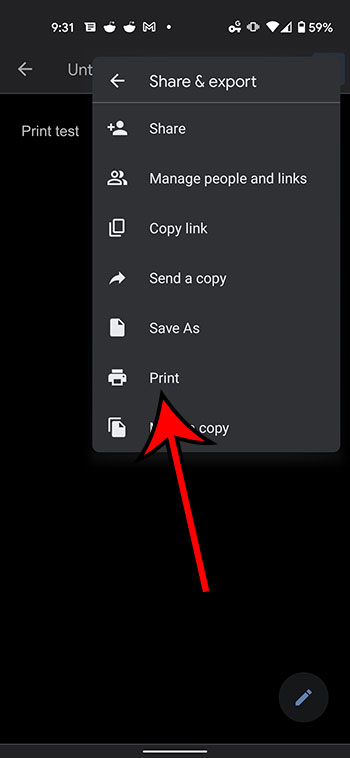
Step 7: Touch theSelect a printerdropdown at the top of the screen.
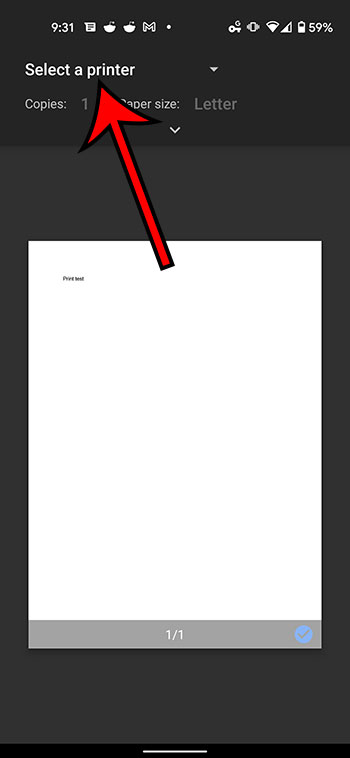
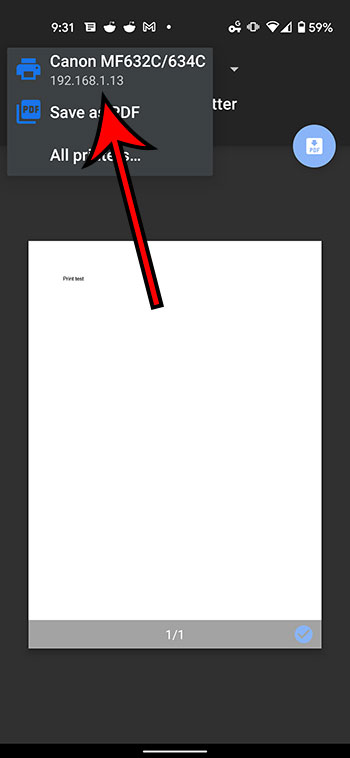
Step 8: Select the desired printer from the list of printing options.
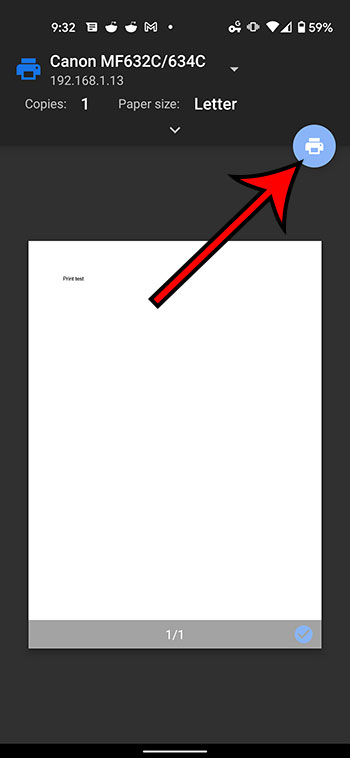
Step 9: Tap thePrinticon.
Our article continues below with additional information on printing from Google Docs.
Why Isn’t My Printer Listed?
Trying to resolve printing issues can be a tricky prospect, as printers are notoriously difficult to work with. When you combine this with the fact that you are printing from a mobile device, then there is a strong possibility that something isn’t going to work properly.
The first thing to check when you are trying to print is that your mobile device is connected to the same wireless network as the printer. If your iPhone or Android device is not on Wi-Fi, then you probably won’t see your printer.
A second consideration is that the printer may not be turned on. Many modern printers will turn off if they haven’t been used in a while. If you don’t see the printer but know that it should be there, try power cycling the printer (turning it off and on again) then wait a few minutes to see if it shows up in your mobile device’s printer list.
One final option to check is whether or not the printer is AirPrint compatible. Since you aren’t able to install print drivers on your mobile device, your printer will use a feature called AirPrint so that it can communicate with your phone. However, not all printers have this feature. Additionally, not all printers are network compatible. If your printer isn’t connected to your local network, either wirelessly or via an ethernet cable, then you probably won’t be able to communicate with the printer through your smartphone.
What is Google Cloud Print
There is a feature that is available as part of your Google Account that is called Google Cloud Print. If you have installed the Chrome browser on your computer and have added it as a printer that is available through Cloud Print, then this gives you some additional printing options.
After you select the Print option from the Share & export menu, you will see Google Cloud Print option listed there as well. If you choose that option you can follow the instructions on screen to select a printer and send it there. This means that you can even print Google Docs files on a printer that is in a completely different location.
How to Print from Google Docs on a Laptop or Desktop Computer
Printing a Google Docs document from your computer via a Web browser is a similar process to printing other documents. I am going to perform the steps below using the Chrome browser, but you can also use another browser like Firefox, Edge, or Safari.
Step 1: Navigate to https://docs.google.com and open the Google Docs file that you would like to print.
Step 2: Select File at the top-left of the window.
Step 3: Choose the Print option at the bottom of the menu.
Step 4: Adjust the print settings as needed, then click the blue Print button.
More Information on How to Print from Google Docs on iPhone or Android
The number of options that you can adjust when printing from your iPhone or Android device is pretty large.
When you have the Printer options menu open on your iPhone you will be able to specify the number of copies that you want to print, as well as the range, whether or not to print double-sided, and whether you want to print in black and white or color. Other document settings can be changed through the Page setup menu that is accessible from the menu where you selected the Share & export option.
The number of printing options on Android is greater, although you might initially have trouble locating them. After you choose the Print option from the Share & export menu, then select your printer, there will be a small downward-facing arrow in the top section. If you tap that arrow you will have these options:
- Copies
- Paper size
- Color
- Orientation
- Two-sided
- Pages
- More options
If you choose more options then you will be given the option to install additional device services, or to manage existing services.
While this article is focused specifically on printing from mobile phones, the same steps will work to print documents on an iPhone or iPad, as the Docs app and the printing process is similar for both of those iOS devices.
Additional Sources
Matthew Burleigh has been writing tech tutorials since 2008. His writing has appeared on dozens of different websites and been read over 50 million times.
After receiving his Bachelor’s and Master’s degrees in Computer Science he spent several years working in IT management for small businesses. However, he now works full time writing content online and creating websites.
His main writing topics include iPhones, Microsoft Office, Google Apps, Android, and Photoshop, but he has also written about many other tech topics as well.
Read his full bio here.
Printing a PDF from Word is a straightforward process. First, open the Word document you want to convert. Then, click on ‘File’ and select ‘Save As.’ In the Save As dialog box, choose PDF from the dropdown menu, and click ‘Save.’ Your Word document is now a PDF!
After completing this action, you will have a PDF version of your Word document. This PDF can be shared, printed, or stored as a digital file.
Introduction
Have you ever needed to share a document with someone, but they don’t have Microsoft Word? Or maybe you want to make sure the formatting stays exactly the same, no matter what device it’s viewed on. One solution is to convert your Word document into a PDF. This format is universally accessible and retains the layout and formatting of your document.
Converting Word documents to PDFs is a valuable skill for students, professionals, and anyone who shares documents online. Whether you’re submitting a paper, sending a resume, or sharing a report, a PDF ensures your document appears the same for everyone. Plus, PDFs are less easily altered than Word documents, providing an added layer of security for sensitive information.
Step by Step Tutorial: How to Print a PDF from Word
Before we dive into the steps, it’s important to understand that converting a Word document to a PDF is beneficial because it maintains the original formatting and is widely accepted for professional documents. Now, let’s get started.
Step 1: Open your Word document
Open the Word document that you want to convert to a PDF.
This is the document that contains the content you wish to print as a PDF. Make sure you’ve saved any changes before proceeding.
Step 2: Click on ‘File’
Go to the top left corner of the screen and click on the ‘File’ tab.
This will open the backstage view, where you can access various options for managing your document.
Step 3: Select ‘Save As’
In the ‘File’ menu, find and select the ‘Save As’ option.
This allows you to save a copy of your document, potentially in a different format.
Step 4: Choose PDF from the dropdown menu
In the ‘Save As’ dialog box, look for the ‘Save as type’ dropdown menu and select PDF.
PDF is listed among other file types like Word Document (.docx) and Plain Text (.txt).
Step 5: Click ‘Save’
After selecting PDF from the dropdown menu, click the ‘Save’ button.
Your Word document will now be converted and saved as a PDF file.
Pros
| Benefit | Explanation |
|---|---|
| Universally Accessible | PDF files can be opened on any device with a PDF reader, making sharing documents hassle-free. |
| Maintains Formatting | Converting to PDF ensures the document’s layout and formatting remain intact, regardless of where it’s opened. |
| Security | PDFs can be password protected and are more difficult to alter without leaving an electronic footprint. |
Cons
| Drawback | Explanation |
|---|---|
| Requires PDF Reader | To view a PDF, you must have a PDF reader installed on your device, which may be an extra step for some users. |
| Limited Editability | Once a document is saved as a PDF, it’s more challenging to make edits than in a Word document. |
| File Size | PDFs can sometimes have a larger file size than Word documents, which might be an issue when sharing via email. |
Additional Information
When you print a PDF from Word, you’re creating a secure and reliable copy of your document that can be easily shared and accessed on various devices. But remember, while PDFs are great for viewing a document as intended, they are not ideal if you need to make future edits. If you anticipate needing to update the document, it’s wise to keep the original Word file.
Another tip is to use the ‘Print’ option instead of ‘Save As’ if you want to directly print the document as a PDF. This can be particularly useful when working with a printer that supports direct PDF printing. Additionally, if you’re dealing with sensitive information, consider encrypting your PDF or adding a watermark before sharing it.
Lastly, keep in mind that while most modern Word processors can save documents as PDFs, the specific steps may vary slightly depending on your software version. The process outlined here is based on the most recent versions of Microsoft Word.
Summary
- Open your Word document
- Click on ‘File’
- Select ‘Save As’
- Choose PDF from the dropdown menu
- Click ‘Save’
Can I convert a Word document to PDF on a Mac?
Yes, the steps are similar to those on a Windows PC. Use the ‘File’ menu and choose ‘Export to PDF’ on a Mac.
Will my hyperlinks work in the PDF?
Generally, yes. Most PDF readers support active hyperlinks, but it’s always a good idea to test your PDF after conversion to ensure everything works as expected.
Can I convert a Word document to PDF without Microsoft Word?
Yes, there are online converters and other software options available that can convert Word documents to PDF.
Can I save multiple Word documents as one PDF?
Yes, you can combine multiple Word documents into one PDF using the ‘Combine’ feature in Adobe Acrobat or similar PDF editing software.
Is it possible to convert a PDF back into a Word document?
Yes, there are tools available that can convert PDFs back into editable Word documents, though the formatting may not be perfectly preserved.
Conclusion
Printing a PDF from Word is a simple yet powerful way to ensure your documents maintain their formatting, are easily shareable, and secure. Whether you’re a student turning in a paper, a professional sharing a report, or just need to send a document to someone without Word, knowing how to convert your files to PDF is a game-changer.
With this skill in your repertoire, you’re well-equipped to handle a range of document sharing needs. So go ahead, give it a try, and see how this trick can streamline your workflow!
Matthew Burleigh has been writing tech tutorials since 2008. His writing has appeared on dozens of different websites and been read over 50 million times.
After receiving his Bachelor’s and Master’s degrees in Computer Science he spent several years working in IT management for small businesses. However, he now works full time writing content online and creating websites.
His main writing topics include iPhones, Microsoft Office, Google Apps, Android, and Photoshop, but he has also written about many other tech topics as well.
Read his full bio here.
Featured guides and deals
Print areas in Microsoft Excel are a good solution when you need to print some of the data in a file, but not all of it. But occasionally a print area has been set and is no longer correct. Fortunately, you can use a similar process to remove a print area from your Excel spreadsheet if you don’t need it anymore.
Microsoft Excel 2010 allows you to customize most aspects of your spreadsheet, including the way that it prints. If you had previously set the print area for a document, then you know that you can force Excel to print out an area of cells that you have specified, regardless of whether there is information in those cells, or if there is additional information on the spreadsheet.
Unfortunately, while the print area is set, that is the only range of cells that you will be able to print. So if you need to learn how to clear the print area in Excel 2010 because the designated print area is either no longer accurate, or because you want to print a different area of your spreadsheet, then you can follow the instructions below.
How to Clear Print Area – Excel 2010
- Open your Excel file.
- Select the Page Layout tab at the top of the window.
- Click the Print Area button.
- Choose the Clear Print Area option.
Our article continues below with additional information on clearing the print area in Excel, including pictures of these steps.
How to Stop Excel 2010 From Printing a Specified Print Area (Guide with Pictures)
Designating a print area in Excel 2010 is very helpful when you have a large spreadsheet and only periodically need to print a specific part of it. You do not need to remember to change your printer settings whenever you create a copy of the spreadsheet, and you can configure all of your page layout settings so that the spreadsheet prints to fit on a set number of pages. But when that print area changes and you need to remove the settings, you can clear the print area in Excel 2010.
Step 1: Open the Excel document with the set print area that you want to clear.
Step 2: Click thePage Layouttab at the top of the window.
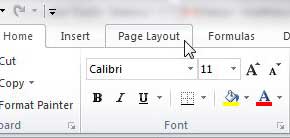
Step 3: Click thePrint Areadrop-down menu in thePage Setupsection of the ribbon at the top of the window, then choose theClear Print Areaoption.
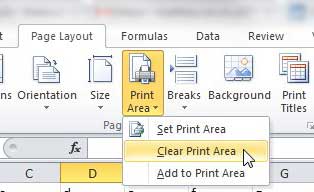
Note that after you clear the print area for your worksheet, all of the data on that sheet is going to print the next time you click the Print button. Often a worksheet that had a set print area is going to have some formatting options set which took that print area into consideration.
More Information on How to Clear the Print Area in Excel
After clearing the print area it’s a good idea to check the Print Preview before you click the Print button. This can save a lot of wasted paper, especially if you are dealing with a very large spreadsheet.
If you want to print your spreadsheet and ignore a print area this one time, while still leaving it intact for future printings you can also choose the Ignore Print Area option on the Print menu.
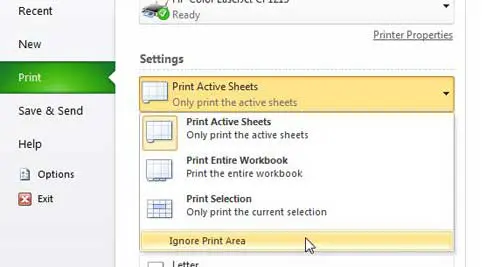
You can find this setting by clicking the File tab, clicking Print , clicking the Print Active Sheets drop-down menu, then choosing Ignore Print Area .
You can set a print area if you highlight the cells that you want to print, go the Page Setup group, click Print Area , then choose the Set Print Area option.
Additionally, if you would like to add more cells to an existing print area you can do so by choosing those cells, selecting the Page Layout tab, then clicking the Print Area button and selecting the Add to Print Area button.
You can have multiple print areas in Excel. However, if you do have multiple print areas and they aren’t connected to one another, they will print on separate pages. Creating multiple print areas is possible by either adding a selection of cells to an existing print area, or making a selection of cells, then holding down the Ctrl key before choosing another selection of cells. Once both print areas are selected you go to the Page Layout tab, go to the Page Setup group, click Print Area, then Set Print Area.
When you save the workbook in Excel, any defined print areas will be saved as well. However, print areas only apply to a worksheet, not an entire workbook. Therefore, if you go to print the entire workbook Excel will print only the print area on your worksheet, but will print the rest of the worksheets in their entirety, assuming that there are no print areas on those other sheets.
Conclusion
As we outlined above, you can clear a print area in Excel by going to Page Layout > Print Area > Clear Print Area . When there is no range of cells that is specified as a print area, Excel will print the entire worksheet.
After you have cleared a print area in Excel you can always choose to set a new area if you select the cells to include in the print area, then go to Page Layout > Print Area > Set Print Area .
- How to subtract in Excel
- How to sort by date in Excel
- How to center a worksheet in Excel
- How to select non-adjacent cells in Excel
- How to unhide a hidden workbook in Excel
- How to make Excel vertical text
Matthew Burleigh has been writing tech tutorials since 2008. His writing has appeared on dozens of different websites and been read over 50 million times.
After receiving his Bachelor’s and Master’s degrees in Computer Science he spent several years working in IT management for small businesses. However, he now works full time writing content online and creating websites.
His main writing topics include iPhones, Microsoft Office, Google Apps, Android, and Photoshop, but he has also written about many other tech topics as well.
Read his full bio here.
