Downloading Android Studio in Windows 11 is a straightforward process. You’ll need to visit the official website, download the installer, and follow the on-screen instructions to get everything set up. This guide will walk you through each step to ensure you can start developing your Android apps in no time.
How to Download Android Studio in Windows 11
In this section, we’ll cover the steps to download and install Android Studio on your Windows 11 machine. By the end of these steps, you’ll have Android Studio up and running, ready for your coding adventures.
Step 1: Visit the Official Android Studio Website
The first step is to visit the official Android Studio website.
Open your web browser and navigate to developer.android.com/studio . This is where you will find the official download link for Android Studio, ensuring that you get the latest and safest version.
Step 2: Download the Installer
Once you’re on the website, find and click the download button.
You’ll usually see a big green button labeled “Download Android Studio.” Clicking this will download the installer to your computer. Make sure you save it to a location where you can easily find it, like the Downloads folder.
Step 3: Run the Installer
After downloading, locate the installer file and double-click it to run.
Running the installer will start the installation process. You might get a prompt asking for permission to make changes to your device; click “Yes” to proceed.
Step 4: Follow the Installation Wizard
Follow the on-screen instructions provided by the installation wizard.
The installation wizard will guide you through the setup process. It typically involves agreeing to the terms and conditions, choosing the installation path, and selecting components to install. Stick with the default options if you’re unsure.
Step 5: Complete the Installation
Once the installation is complete, click “Finish” to exit the wizard.
After clicking “Finish,” Android Studio should automatically launch. If it doesn’t, you can manually open it from your Start menu or desktop shortcut.
Step 6: Set Up Android Studio
When you first open Android Studio, follow the setup wizard to configure your environment.
The setup wizard will help you install additional components like the Android SDK, which is necessary for developing apps. Just follow the prompts, and you should be good to go.
Once you’ve completed these steps, you’ll have Android Studio installed and configured on your Windows 11 machine. You can start creating Android apps, exploring sample projects, or following tutorials to get the hang of it.
Tips for Downloading Android Studio in Windows 11
- Make sure you have a stable internet connection before starting the download process.
- Ensure your system meets the minimum requirements for running Android Studio.
- Create a restore point before installing new software, just in case.
- Keep your Java Development Kit (JDK) updated, as it’s required for Android development.
- Regularly check for updates within Android Studio to get the latest features and security enhancements.
Does Android Studio work on Windows 11?
Yes, Android Studio is fully compatible with Windows 11.
Do I need to install the Java Development Kit (JDK) separately?
No, the Android Studio installer includes the JDK, but it’s good to keep it updated.
How much disk space does Android Studio require?
Android Studio requires about 2-4 GB of disk space for installation, but additional space is needed for your projects and the Android SDK.
Can I use Android Studio for developing apps for other platforms?
Primarily, Android Studio is for Android development, but you can use plugins to develop for other platforms like iOS.
What if I encounter an error during installation?
Check the official documentation and forums for troubleshooting tips, or consider reinstalling the software.
Summary
- Visit the official Android Studio website.
- Download the installer.
- Run the installer.
- Follow the installation wizard.
- Complete the installation.
- Set up Android Studio.
Conclusion
Downloading and installing Android Studio on Windows 11 is a breeze if you follow the steps outlined above. Whether you’re a newbie or an experienced developer, getting the environment set up correctly is crucial for a smooth coding experience. Remember to keep your system and software updated to avoid any hiccups down the road. If you encounter any issues, the Android developer community and official documentation are great resources for troubleshooting. Now that you have Android Studio installed, you’re ready to dive into the exciting world of Android app development. Happy coding!

Matthew Burleigh has been writing tech tutorials since 2008. His writing has appeared on dozens of different websites and been read over 50 million times.
After receiving his Bachelor’s and Master’s degrees in Computer Science he spent several years working in IT management for small businesses. However, he now works full time writing content online and creating websites.
His main writing topics include iPhones, Microsoft Office, Google Apps, Android, and Photoshop, but he has also written about many other tech topics as well.
Read his full bio here.
When smartphones first started to gain popularity, the prospect of printing something from them seemed like a pipe dream. Printers were already hard enough to deal with on a computer, and it seemed unlikely that it could work on a phone.
But the Google Docs app started adding new features like the ability to add small numbers in Google Docs , and it became apparent that the app was going to gain most of its desktop counterpart’s functionality.
Now we are also able to print from Google Docs on our iPhone or Android device, and it’s surprisingly accessible.
Most modern printers have some sort of network compatibility, meaning that devices on the same network as the printer can use that printer if they have that capability.
Mobile phones, but those that use the iOS and Android operating systems, are now able to print wirelessly to printers that support it. Plus, most of the apps that you would want to print from, such as creative apps and productivity apps, will usually support some type of printing functionality in addition to the other features they offer, like file sharing .
Our guide below will show you how to print through the Google Docs app on your iPhone or Android phone, plus we will address some of the common issues that might arise if you can’t make it work.
How to Print from the Google Docs Mobile App
- Open Docs.
- Choose a document.
- Tap the three dots.
- Select Share & export .
- Choose Print .
- Touch Select Printer .
- Chose a printer.
- Tap Print .
Our guide continues below with additional information on printing from the Google Docs app, including pictures of these steps.
How to Print from Google Docs on an iPhone (Guide with Pictures)
The steps in this section were performed on an iPhone 11 in iOS 14.6. These steps will also work on other iPhone models using this same version of iOS, as well as in most other versions of iOS. I am using the most current version of the Google Docs app that was available at the time this article was written.
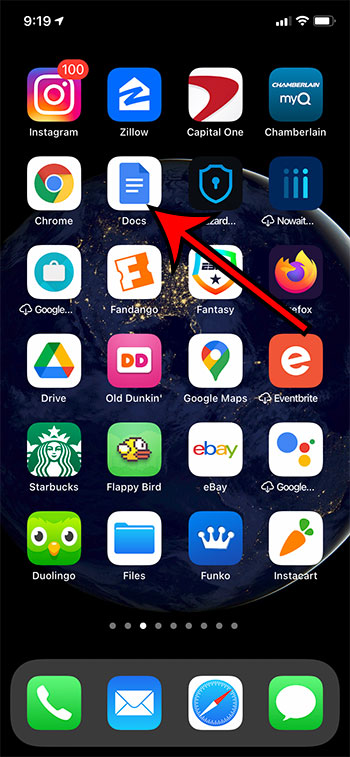
Step 1: Open theDocsapp on your iPhone.
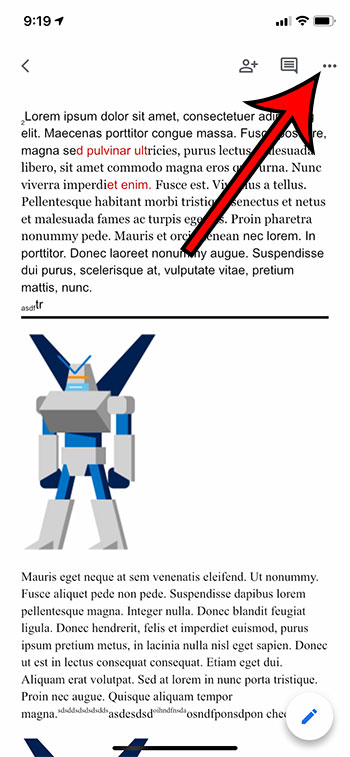
Step 2: Select the document that you want to print.
Step 3: Touch the three dots at the top-right of the screen.
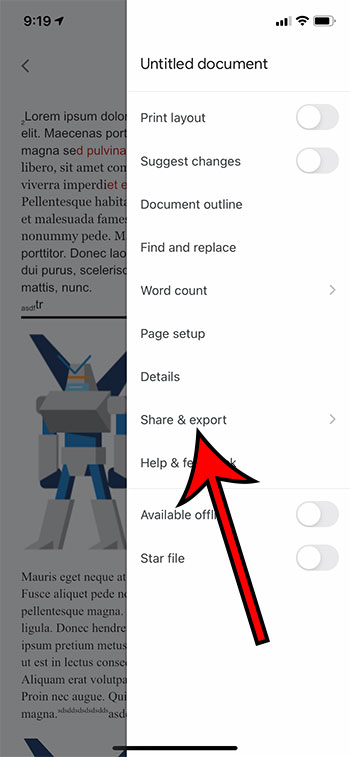
Step 4: Select theShare & exportoption.
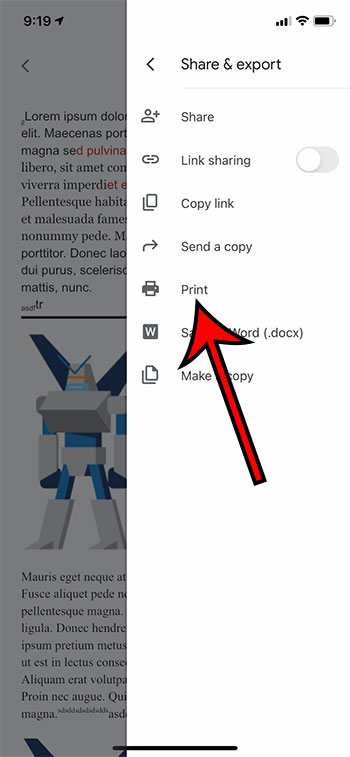
Step 5: ChoosePrint.
Step 6: Tap theSelect Printeroption.
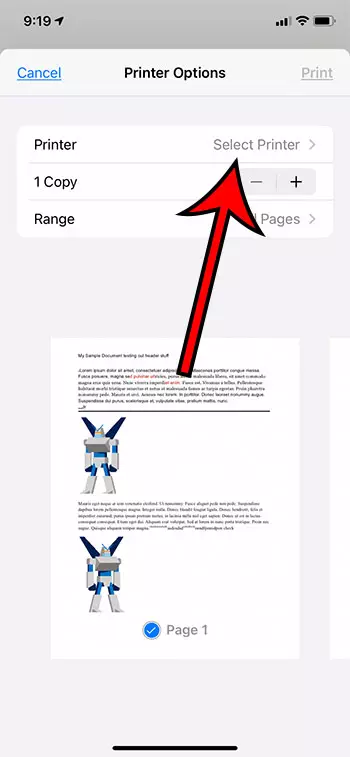
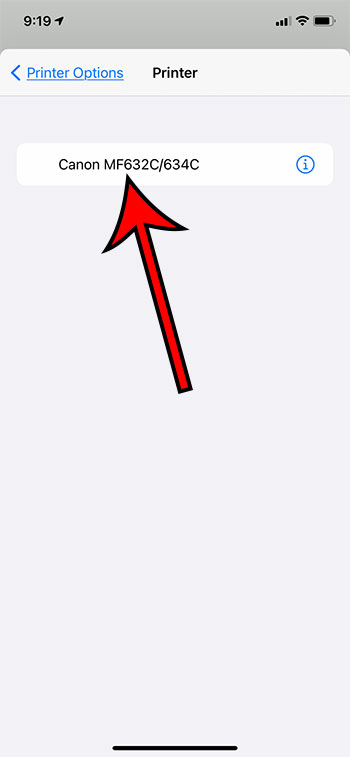
Step 7: Choose your printer.
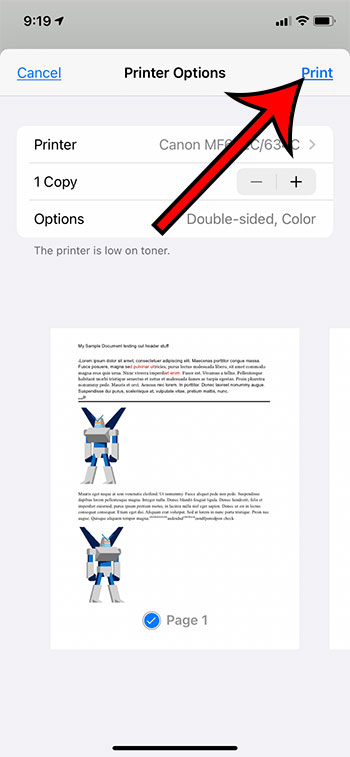
Step 8: TapPrintat the top-right corner of the screen.
Our article continues below with information on how to print from your Android device.
How to Print from Google Docs on Android (Guide with Pictures)
The steps in this section were performed on a Google Pixel 4A, using Android 11. I am using the most current version of the Docs app that was available when I wrote this article.
Step 1: Swipe up from the center of the screen.
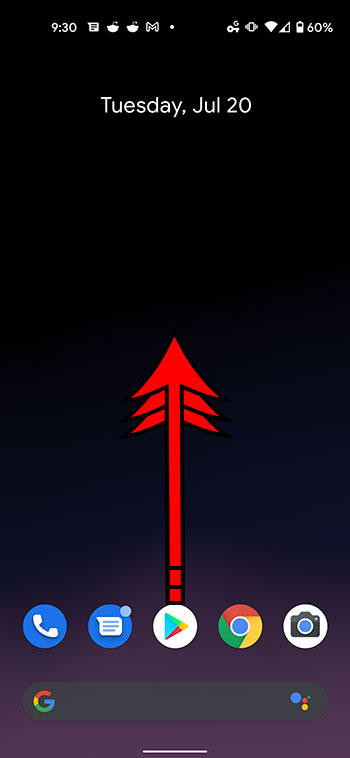
Step 2: Touch theDocsicon.
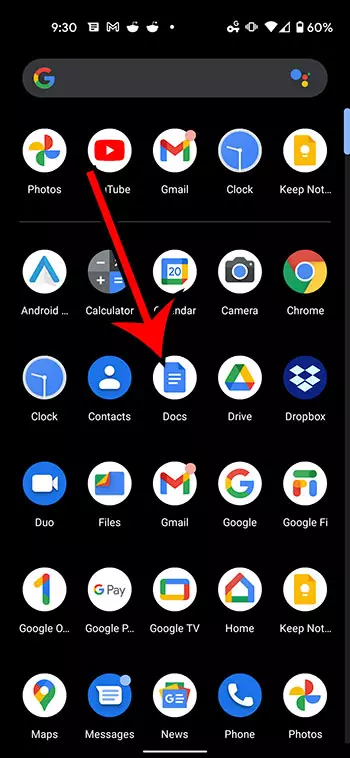
Step 3: Choose the document from your Google Drive that you want to print.
Step 4: Tap the three vertical dots at the top of the screen.
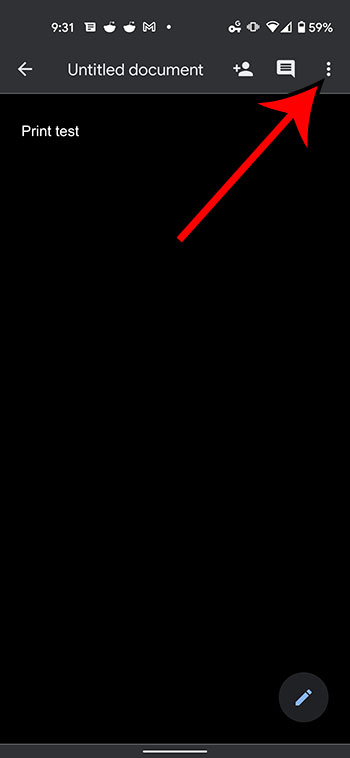
Step 5: Select theShare & exportoption from the menu on the right side of the screen.
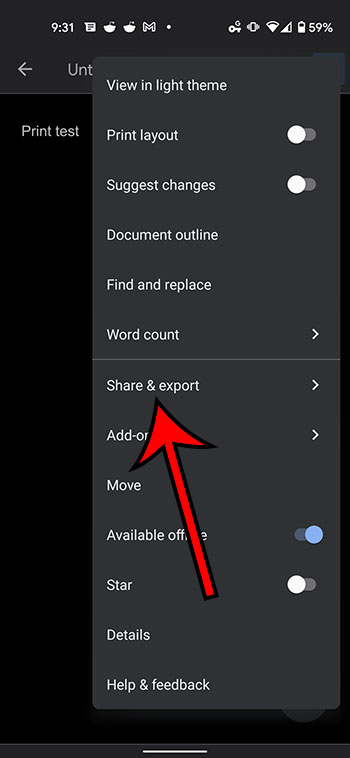
Step 6: ChosePrintfrom the list of sharing options.
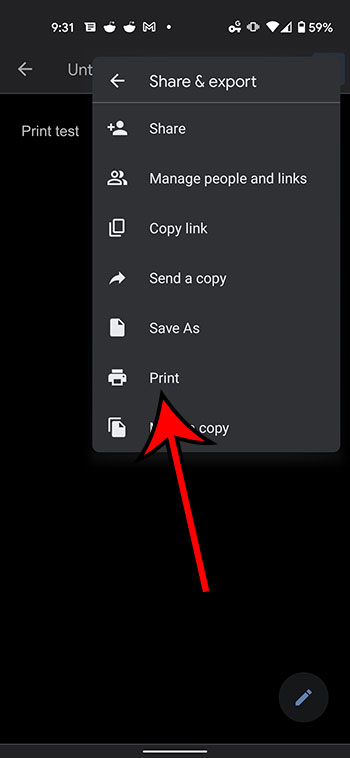
Step 7: Touch theSelect a printerdropdown at the top of the screen.
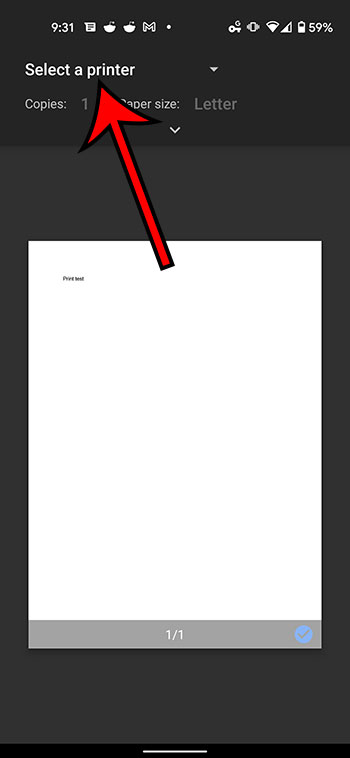
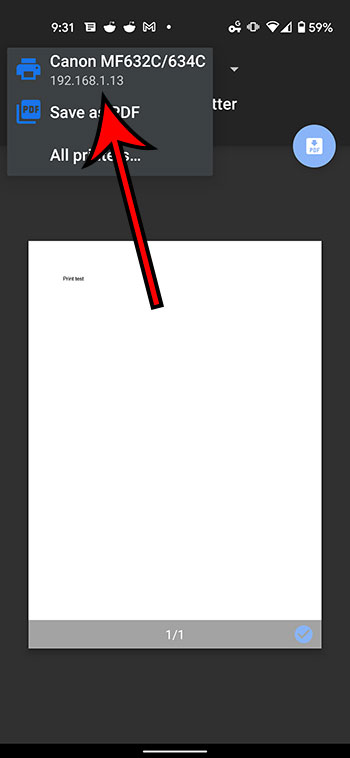
Step 8: Select the desired printer from the list of printing options.
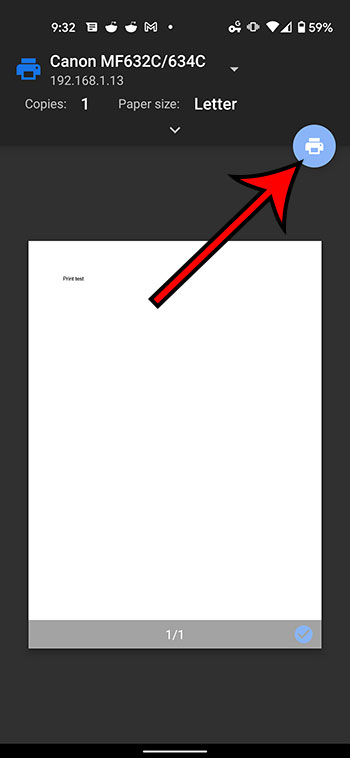
Step 9: Tap thePrinticon.
Our article continues below with additional information on printing from Google Docs.
Why Isn’t My Printer Listed?
Trying to resolve printing issues can be a tricky prospect, as printers are notoriously difficult to work with. When you combine this with the fact that you are printing from a mobile device, then there is a strong possibility that something isn’t going to work properly.
The first thing to check when you are trying to print is that your mobile device is connected to the same wireless network as the printer. If your iPhone or Android device is not on Wi-Fi, then you probably won’t see your printer.
A second consideration is that the printer may not be turned on. Many modern printers will turn off if they haven’t been used in a while. If you don’t see the printer but know that it should be there, try power cycling the printer (turning it off and on again) then wait a few minutes to see if it shows up in your mobile device’s printer list.
One final option to check is whether or not the printer is AirPrint compatible. Since you aren’t able to install print drivers on your mobile device, your printer will use a feature called AirPrint so that it can communicate with your phone. However, not all printers have this feature. Additionally, not all printers are network compatible. If your printer isn’t connected to your local network, either wirelessly or via an ethernet cable, then you probably won’t be able to communicate with the printer through your smartphone.
What is Google Cloud Print
There is a feature that is available as part of your Google Account that is called Google Cloud Print. If you have installed the Chrome browser on your computer and have added it as a printer that is available through Cloud Print, then this gives you some additional printing options.
After you select the Print option from the Share & export menu, you will see Google Cloud Print option listed there as well. If you choose that option you can follow the instructions on screen to select a printer and send it there. This means that you can even print Google Docs files on a printer that is in a completely different location.
How to Print from Google Docs on a Laptop or Desktop Computer
Printing a Google Docs document from your computer via a Web browser is a similar process to printing other documents. I am going to perform the steps below using the Chrome browser, but you can also use another browser like Firefox, Edge, or Safari.
Step 1: Navigate to https://docs.google.com and open the Google Docs file that you would like to print.
Step 2: Select File at the top-left of the window.
Step 3: Choose the Print option at the bottom of the menu.
Step 4: Adjust the print settings as needed, then click the blue Print button.
More Information on How to Print from Google Docs on iPhone or Android
The number of options that you can adjust when printing from your iPhone or Android device is pretty large.
When you have the Printer options menu open on your iPhone you will be able to specify the number of copies that you want to print, as well as the range, whether or not to print double-sided, and whether you want to print in black and white or color. Other document settings can be changed through the Page setup menu that is accessible from the menu where you selected the Share & export option.
The number of printing options on Android is greater, although you might initially have trouble locating them. After you choose the Print option from the Share & export menu, then select your printer, there will be a small downward-facing arrow in the top section. If you tap that arrow you will have these options:
- Copies
- Paper size
- Color
- Orientation
- Two-sided
- Pages
- More options
If you choose more options then you will be given the option to install additional device services, or to manage existing services.
While this article is focused specifically on printing from mobile phones, the same steps will work to print documents on an iPhone or iPad, as the Docs app and the printing process is similar for both of those iOS devices.
Additional Sources
Matthew Burleigh has been writing tech tutorials since 2008. His writing has appeared on dozens of different websites and been read over 50 million times.
After receiving his Bachelor’s and Master’s degrees in Computer Science he spent several years working in IT management for small businesses. However, he now works full time writing content online and creating websites.
His main writing topics include iPhones, Microsoft Office, Google Apps, Android, and Photoshop, but he has also written about many other tech topics as well.
Read his full bio here.
Featured guides and deals
