Enabling Bluetooth on your Windows 10 computer is truly a breeze. You just need to pop into your PC’s settings, which is like the control room for all your computer’s functions. From there, navigate to the “Devices” section, because that’s where all your external gadgets, including wireless ones, are managed. Within “Devices,” you’ll easily spot “Bluetooth & other devices.” Simply flip the main Bluetooth switch to the “On” position, and your computer will instantly begin searching for nearby wireless accessories to connect with. It’s a quick, straightforward process that gets you ready to pair your headphones, speakers, or any other Bluetooth-enabled devices in just a few clicks.
Tutorial – How to Enable Bluetooth in Windows 10
This step-by-step guide will walk you through the simple process of turning on Bluetooth on your Windows 10 machine, getting you all set to connect your favorite wireless gadgets without any fuss.
Step 1: Open the Start Menu.
Think of the Start Menu as your computer’s main entrance, your personal launchpad for pretty much anything you want to do. You’ll usually find it sitting patiently in the bottom-left corner of your screen, looking like four neat little squares. Just give that icon a friendly click, or if you prefer, tap the Windows key on your keyboard, and watch the menu pop right up.
Step 2: Click on “Settings”.
Once the Start Menu makes its grand appearance, your eyes should quickly land on a gear-shaped icon, which is your trusty “Settings” button. Clicking this icon will whisk you to the main settings window, a central hub that serves as the comprehensive control panel for your entire Windows 10 experience. It’s where all the magic happens for customizing your PC.
Step 3: Select “Devices”.
Inside the Settings window, you’ll be greeted by a mosaic of categories, like “System,” “Network & Internet,” and “Personalization,” each serving a specific purpose. The one we’re interested in for our mission is clearly labeled “Devices,” as it’s the dedicated section for managing all your peripherals, from printers to, you guessed it, your Bluetooth connections.
Step 4: Go to “Bluetooth & other devices”.
Look to the left-hand side of the “Devices” window, and you’ll notice a distinct menu laid out for you. From that list, make sure to pick “Bluetooth & other devices,” as this is your command center for managing all your wireless connections, keeping everything just right. This is where the real action for enabling Bluetooth begins.
Step 5: Toggle the Bluetooth switch to “On”.
Right in front of you, you’ll see a prominent switch labeled “Bluetooth,” which probably looks a bit like a light switch. If its current status reads “Off,” just give it a simple click to effortlessly slide it into the “On” position. You’ll know it’s successfully activated when the switch turns vibrant blue, confidently signaling that your computer’s wireless capabilities are now fully awake and ready to roll.
Once you’ve flipped that Bluetooth switch to the “On” position, your Windows 10 computer immediately springs into action, broadcasting its presence and actively searching for other Bluetooth devices nearby. Below the toggle switch, you’ll start to see a convenient list of available devices populate, ready for you to select and pair. This means your wireless headphones, speakers, or other peripherals are now detectable and eager to connect to your PC.
Tips for Using Bluetooth in Windows 10
- Always check your device’s battery levels; both your computer and the Bluetooth accessory need enough power to maintain a stable connection.
- Consider updating your Bluetooth drivers, as old or corrupted drivers are a common culprit when things aren’t working right.
- A simple restart of your PC can often magically fix minor glitches and connectivity issues, so don’t underestimate its power.
- For the best, most reliable connection, keep your Bluetooth device within a few feet of your computer to minimize interference.
- Be mindful of other electronics, like Wi-Fi routers or microwaves, which can sometimes interfere with Bluetooth signals and cause drops.
- Remember to put your Bluetooth accessory, whether it’s headphones or a speaker, into its specific “pairing mode,” so your PC can actually find it.
My Bluetooth switch is missing. What should I do?
If you can’t find the Bluetooth toggle switch at all, there are a couple of possibilities. It might be that your computer simply doesn’t have Bluetooth hardware built in, or perhaps the necessary drivers aren’t installed or have become corrupted. Your best bet is to check your computer’s specifications or visit the manufacturer’s website to download and install the correct drivers.
Why can’t my computer find my Bluetooth device?
First things first, make sure your Bluetooth device is fully charged and, crucially, that it’s in pairing mode. Many devices have a specific button or a sequence of button presses you need to perform to put them into pairing mode. Also, double-check that the device isn’t already secretly connected to another computer or phone, which could prevent your PC from seeing it.
How do I disconnect a Bluetooth device?
Disconnecting a Bluetooth device is just as easy as connecting one, don’t worry. Simply head back to “Settings” > “Devices” > “Bluetooth & other devices.” From there, click on the specific device you wish to disconnect, and you’ll then see options like “Remove device” or “Disconnect” appear. Pick the one that suits what you want to do.
Can I connect multiple Bluetooth devices at once?
Absolutely, you generally can! Windows 10 is quite versatile and allows you to connect several Bluetooth devices simultaneously. For example, you could easily have a wireless mouse, a keyboard, and even a pair of headphones all connected at once. However, keep in mind that performance may vary slightly depending on the specific devices you’re using and your computer’s hardware capabilities.
What if Bluetooth keeps turning off by itself?
If your Bluetooth seems to have a mind of its own and keeps switching off, it’s often related to your computer’s power management settings, trying to save energy. To fix this, open Device Manager, find your Bluetooth adapter, right-click on it, and select “Properties.” Then go to the “Power Management” tab and make sure to uncheck the box labeled “Allow the computer to turn off this device to save power.”
Summary of Enabling Bluetooth in Windows 10
- Open Start Menu.
- Click Settings.
- Select Devices.
- Go to Bluetooth & other devices.
- Toggle Bluetooth switch to On.
Conclusion
This article has, hopefully, served as your clear and friendly guide through the surprisingly simple process of enabling Bluetooth in Windows 10, a fundamental step for unlocking a whole new world of wireless convenience. We’ve walked through every essential step together, from that initial click on the Start Menu to the satisfying flip of that crucial “On” switch, making sure you now feel completely confident in your ability to connect your favorite gadgets. Whether your goal is to pair up a sleek new wireless mouse, stream your favorite tunes to a powerful Bluetooth speaker without any cables, or effortlessly chat with friends using a hands-free headset, getting Bluetooth up and running is undeniably your very first port of call. It truly transforms how you interact with your computer, significantly reducing messy, tangled cables and giving you far more freedom to move around and be productive.
Remember, at its core, technology is thoughtfully designed to make our lives easier, more efficient, and certainly more enjoyable, and Bluetooth stands out as a prime, shining example of that exact principle in action. So, please don’t be shy about exploring the incredible variety of devices you can now connect seamlessly. Perhaps you own a smart home gadget that can connect to your PC, or maybe you’re simply fed up with the endless frustration of untangling headphone wires every time you want to listen to some music. With Bluetooth now successfully enabled, those minor daily frustrations can genuinely become a thing of the past, freeing up your time and patience. If you ever, for any reason, run into a minor snag, such as a device not showing up on your list or a connection dropping unexpectedly, don’t hesitate to revisit our helpful tips section. Often, a quick check of battery levels, a swift driver update, or simply putting your accessory back into its designated pairing mode can magically resolve the problem.
The digital landscape we navigate is constantly evolving and expanding, always bringing new innovations, and knowing how to effectively manage your device’s fundamental features, such as enabling Bluetooth in Windows 10, is an incredibly valuable skill in this modern age. It empowers you to truly make the most of your technology, ensuring a smoother, more integrated, and ultimately more enjoyable computing experience. So go ahead, connect those headphones, pair that keyboard, and fully embrace the untethered freedom that Bluetooth graciously brings to your Windows 10 machine. It’s a small, easy step that definitely opens up a significant world of possibilities, making your overall computing experience far more versatile, personalized, and wonderfully enjoyable.

Matthew Burleigh has been writing tech tutorials since 2008. His writing has appeared on dozens of different websites and been read over 50 million times.
After receiving his Bachelor’s and Master’s degrees in Computer Science he spent several years working in IT management for small businesses. However, he now works full time writing content online and creating websites.
His main writing topics include iPhones, Microsoft Office, Google Apps, Android, and Photoshop, but he has also written about many other tech topics as well.
Read his full bio here.
Featured guides and deals
Wireless printing is a great thing to have when you use a laptop or have multiple devices in your home or office that share a printer.
Not every printer has this capability, but the Brother HL2270DW is one device that does.
Our Brother hl-2270dw wireless setup tutorial below will show you how to get the printer on your wireless network so that you can print to it without needing to physically connect a printer cable to your laptop or desktop computers.
Summary – Brother hl-2270dw Wireless Setup Steps
- Insert the installation disc or download the printer software.
- Choose the HL-2270DW option.
- Select the language.
- Click Install Printer Driver , then click Yes .
- Click Yes, choose Wireless Connection , then click Next .
- Select Brother Peer-to-Peer Network Printer and click Next .
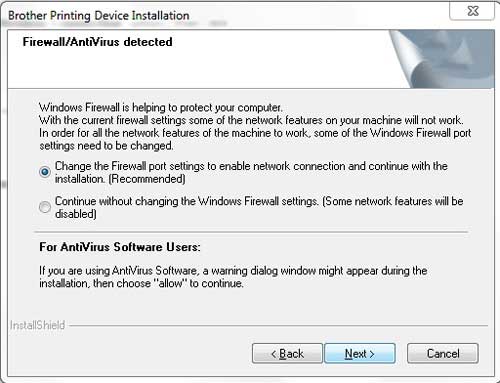
- Choose Change the Firewall port settings to enable network connection and continue with the installation and click Next.
- Select Wireless Setup .
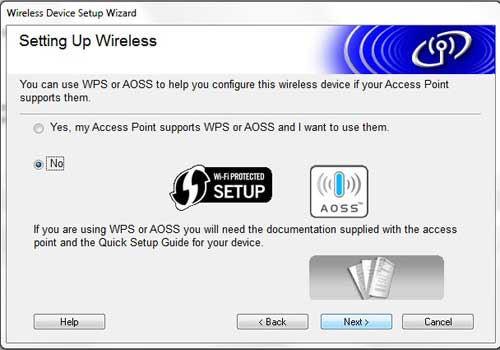
- Click No , then Next .
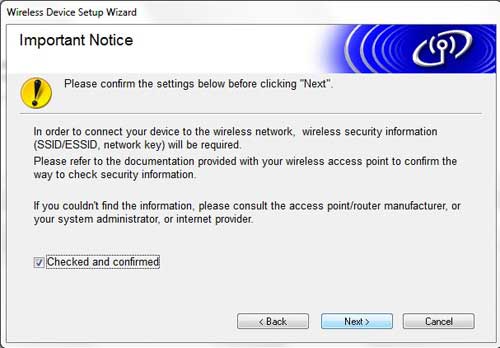
- Check the Checked and confirmed box and click Next .
- Choose Temporarily use a USB cable, and click Next .
- Connect the USB cable.
- Choose the printer and click Next .
- Select your Wi-Fi network and click Next .
- Enter the password, confirm the password, then click Next .
- Click Next , then next, then Finish .
Our guide continues below with additional information on the Brother hl-2270dw wireless setup, including pictures of these steps.
Two of the most important characteristics of a printer are the quality of its’ printouts and the speed at which each page is printed .
Brother’s line of laser printers offers both of these features, all for a relatively lower price than you will find with most other laser printers of this class.
The Brother HL2270DW steps up its level of convenience even more by offering a wireless feature in addition to the other laser printer benefits.
Some people might be intimidated by the prospects of a wireless printer, especially if they have ever encountered difficulty setting up a wireless router, but the wireless setup process for the Brother HL2270DW is very simple.
Additionally, once you have been able to set up wireless printing with the Brother HL2270DW on one computer, it is even easier to set the printer up with the rest of the computers in your home or office.
How to Complete a Wireless Setup for the Brother HL2270DW (Guide with Pictures)
The first thing to clarify when you are performing the wireless setup for this device is that your computer does not need to have wireless capabilities.
It simply needs to be connected to a network that has a wireless element. For example, I currently have this printer wirelessly connected to my desktop computer. The desktop computer does not have a wireless network card, but is connected to my wireless router using an ethernet cable.
The next point of clarification is that you will need a USB printer cable for the initial wireless setup of this device.
Since the printer does not have a way for you to manually input the settings for the wireless network, you will need to apply them to the printer from the computer.
Brother also does not include a USB cable with the printer, so you will either need to purchase one or, preferably, use the cable that was connecting your old, wired printer to your computer.
Begin the setup process by unpacking the printer from its packaging materials, then removing all of the stickers on the printer.
The toner cartridge is already in the printer , but you should take it out and shake it to reposition the toner inside. Replace the cartridge, then close the access door.
Connect the power cable to the back of the printer, then plug it in. Do NOT connect the USB cable yet . You will be prompted to do that later.
Turn on the printer, wait for it to boot up, then press the Go button on the top of the printer to print a test page.
Step 1: Insert the Brother installation disc into the disc drive on your computer, then click theSetup.exeoption in theAutoPlaywindow.
If you do not have a disc drive or you have misplaced the installation disc, you can download the driver software from here .
Step 2: Click theHL-2270DWbutton at the bottom of the window.
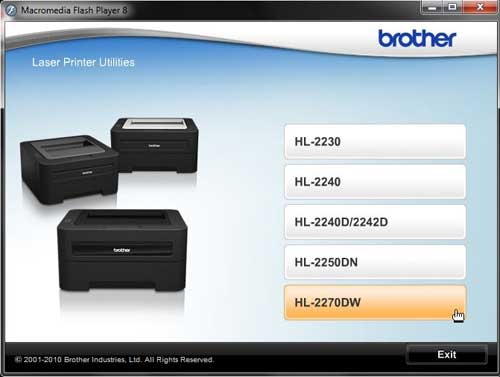
Step 3: Click your preferred language from the list.
Step 4: Click theInstall Printer Driverbutton at the top of the window. Click theYesbutton to allow this program to make changes to your computer.
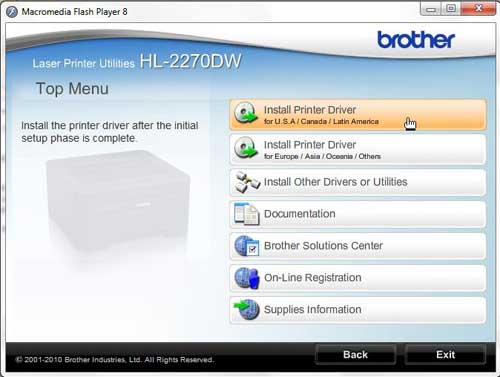
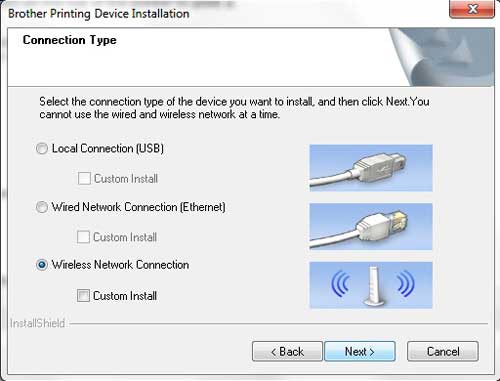
Step 5: Click theYesbutton to accept the license agreement, click theWireless Connectionoption, then click theNextbutton.
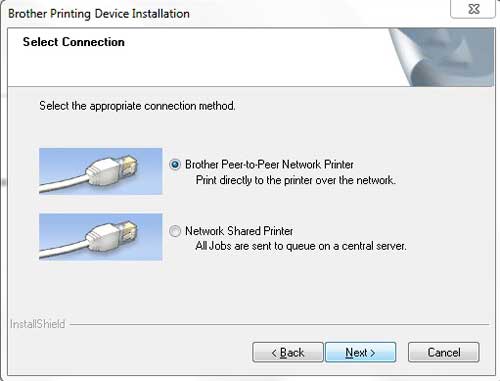
Step 6: Check theBrother Peer-to-Peer Network Printeroption, then click theNextbutton.
Step 7: Choose the option toChange the Firewall port settings to enable network connection and continue with the installation, then click theNextbutton.
Step 8: Click theWireless Setupoption at the bottom of the window.
Note that when installing this printer on future computers, your printer will appear on this screen, and you will select it from the list.
Step 9: Click theNooption at the center of the next window, then click Next.
Step 10: Check the box to the left ofChecked and confirmed, then click theNextbutton.
Step 11: Check theTemporarily use a USB cableoption, then click theNextbutton.
Step 12: Connect the USB cable from the back of your printer to your computer, then wait for the computer to recognize the printer.
Step 13: Click your Brother HL2270DW printer from the list of available devices, then click theNextbutton.
Step 14: Click your wireless network from the list, then clickNext.
Step 15: Type your password into theNetwork Keyfield, retype it into theConfirm Network Keyfield, then click theNextbutton.
Step 16: ClickNext, clickNextagain, then clickFinishto complete the setup.
You can then disconnect the USB cable when prompted.
Now that you have completed the Brother hl-2270dw wireless setup, you will be able to print documents to this printer over your wireless network.
Matthew Burleigh has been writing tech tutorials since 2008. His writing has appeared on dozens of different websites and been read over 50 million times.
After receiving his Bachelor’s and Master’s degrees in Computer Science he spent several years working in IT management for small businesses. However, he now works full time writing content online and creating websites.
His main writing topics include iPhones, Microsoft Office, Google Apps, Android, and Photoshop, but he has also written about many other tech topics as well.
Read his full bio here.
Featured guides and deals
