Are you juggling between an iPhone and a Windows 11 PC and wish you could get your iPhone messages on Windows 11? It’s totally doable! You just need to use third-party apps or some nifty tricks to bridge the gap between Apple’s iMessage and your Windows machine. This quick guide will show you how.
How To Get iPhone Messages on Windows 11
Let’s dive into the step-by-step process to get your iPhone messages on your Windows 11 computer. By following these instructions, you’ll be able to mirror your iMessages, making it easy to read and respond to them right from your PC.
Step 1: Download and Install the ‘Your Phone’ App on Windows 11
First, head over to the Microsoft Store and download the ‘Your Phone’ app.
The ‘Your Phone’ app is a Microsoft application designed to link your smartphone to your PC. It’s generally used for Android, but we’ll use a workaround for iPhone.
Step 2: Download and Install ‘Dell Mobile Connect’
Second, if you have a Dell computer, download and install the ‘Dell Mobile Connect’ app.
This app allows both Android and iOS devices to connect to your PC. It can mirror your iPhone screen and notifications, including text messages.
Step 3: Open ‘Dell Mobile Connect’ on Your PC
Third, launch the ‘Dell Mobile Connect’ app on your computer.
When you open the app, it will guide you through linking your iPhone. This usually involves scanning a QR code and following some instructions on your phone.
Step 4: Pair Your iPhone with ‘Dell Mobile Connect’
Fourth, pair your iPhone with the app by following the on-screen instructions.
You might need to enable Bluetooth and Wi-Fi for the pairing process. Once paired, your iPhone screen will appear on your Windows 11 PC.
Step 5: Enable Notifications for Text Messages
Fifth, make sure to allow notifications for text messages on the ‘Dell Mobile Connect’ app.
Enabling notifications ensures you’ll receive your iPhone text messages directly on your Windows 11 computer without checking your phone constantly.
Once these steps are completed, you’ll start receiving iPhone messages on your Windows 11 PC. Your texts will show up as notifications, and you can read and respond to them just like you would on your iPhone.
Tips for Getting iPhone Messages on Windows 11
- Keep both your iPhone and Windows 11 PC connected to the same Wi-Fi network for seamless performance.
- Make sure Bluetooth is turned on for both devices to maintain a stable connection.
- Regularly update ‘Dell Mobile Connect’ for the latest features and improvements.
- Set app permissions correctly to ensure all notifications, including texts, appear on your PC.
- Ensure your iPhone is not on ‘Do Not Disturb’ mode, as it may block notifications from appearing on your PC.
Can I use iMessage directly on Windows 11?
Unfortunately, iMessage is exclusive to Apple devices. You need third-party apps like ‘Dell Mobile Connect’ to mirror your messages.
Is ‘Your Phone’ app effective for iPhone messages?
‘Your Phone’ works best with Android. It’s not as effective for iPhone messages, which is why ‘Dell Mobile Connect’ is recommended.
Is ‘Dell Mobile Connect’ available for non-Dell PCs?
‘Dell Mobile Connect’ is primarily designed for Dell computers, but similar apps like ‘ApowerMirror’ can work for other Windows PCs.
Can I respond to messages from my Windows 11 PC?
Yes! Once your devices are connected, you can read and respond to messages directly from your PC.
Are there any security risks?
As long as you download apps from official sources and keep your software updated, the risks are minimal.
Summary
- Download and Install the ‘Your Phone’ App on Windows 11.
- Download and Install ‘Dell Mobile Connect’.
- Open ‘Dell Mobile Connect’ on Your PC.
- Pair Your iPhone with ‘Dell Mobile Connect’.
- Enable Notifications for Text Messages.
Conclusion
Getting iPhone messages on Windows 11 may seem a bit tricky, but with the right tools like ‘Dell Mobile Connect,’ you can easily bridge the gap between your devices. This guide walks you through each step in a simple and straightforward manner, making tech feel less like rocket science and more like a walk in the park.
For further reading, you might explore other apps like ‘ApowerMirror’ or ‘AirMessage’ as additional options. Now that you can get your iPhone messages on your Windows 11 PC, you’ve got the best of both worlds at your fingertips. So, go ahead and simplify your tech life!

Matthew Burleigh has been writing tech tutorials since 2008. His writing has appeared on dozens of different websites and been read over 50 million times.
After receiving his Bachelor’s and Master’s degrees in Computer Science he spent several years working in IT management for small businesses. However, he now works full time writing content online and creating websites.
His main writing topics include iPhones, Microsoft Office, Google Apps, Android, and Photoshop, but he has also written about many other tech topics as well.
Read his full bio here.
Featured guides and deals
There is a moon or a crossed-out bell icon next to your iPhone text message because the Hide Alerts option for that text conversation has been turned on. This means that you won’t see notifications for that conversation.
Our article continues below with additional information on the bell next to text message conversations on your iPhone, including how to remove the moon on your iPhone if you are using an older version of iOS, as well as pictures of these steps.
You can also check out our video on YouTube about hiding alerts for more information.
How to Add or Remove a Moon Next to an iMessage on Your iPhone (Newer iOS Versions – Guide with Pictures)
We discussed what to do if you see a crescent moon next to a text message or iMessage on your iPhone, but you may be having trouble with it. This section includes pictures of these steps.
In newer versions of iOS, there is no longer a moon next to a text that has been muted. Now you will see a crossed-out bell icon next to your text instead.
Step 1: OpenMessages.
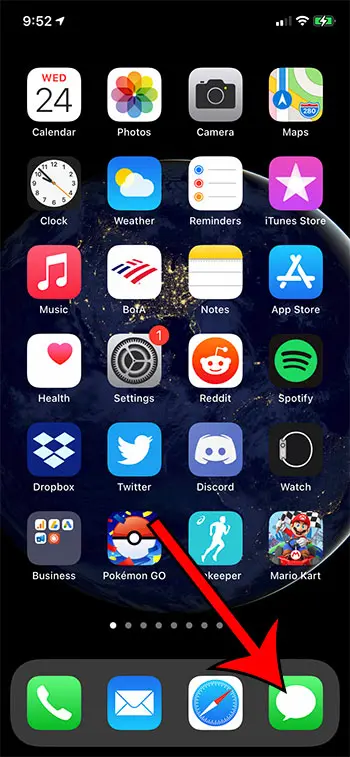
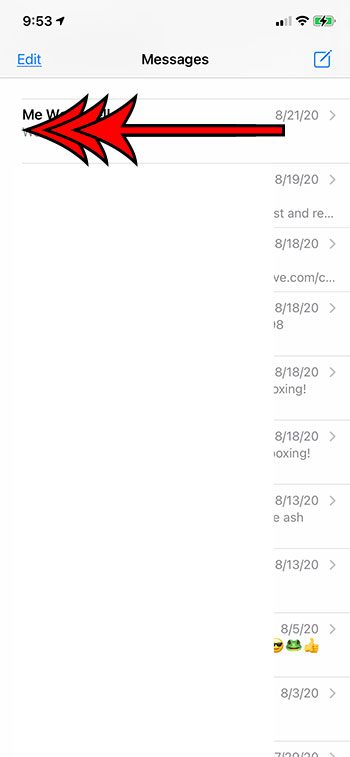
Step 2: Swipe left on an iMessage or text message conversation with a moon or a crossed-out bell icon or that you want to mute.
Step 3: Tap the bell icon to add or remove the moon next to the text message conversation.
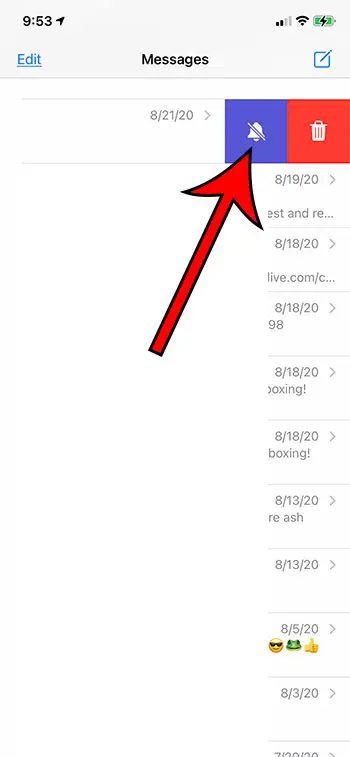
Alternatively, you could open the conversation, select its name at the top of the screen, choose the Info option, and then toggle the Hide Alerts option on or off.
Now that you have completed the why is there a silent symbol on my text message iPhone tutorial steps, you will be able to toggle notifications on or off as needed for some of your conversations.
If you have a group text conversation and need to add someone else to it, then our add contact to group text iPhone article can help you out.
How to Turn Off Do Not Disturb for a Text Message on an iPhone (Older iOS Versions)
The steps in this article were performed on an iPhone 6 Plus in iOS 9.2.
This guide assumes that you currently have a text message conversation that has a crescent moon appearing to the left of it.
Here is how to remove the crescent moon to the left of a text message on an iPhone –
- Open the Messages app.
- Select the conversation with the crescent moon icon.
- Click the Details button at the top-right corner.
- Tap the button to the right of Do Not Disturb .
These steps are also shown below with pictures –
Step 1: Open theMessagesapp.
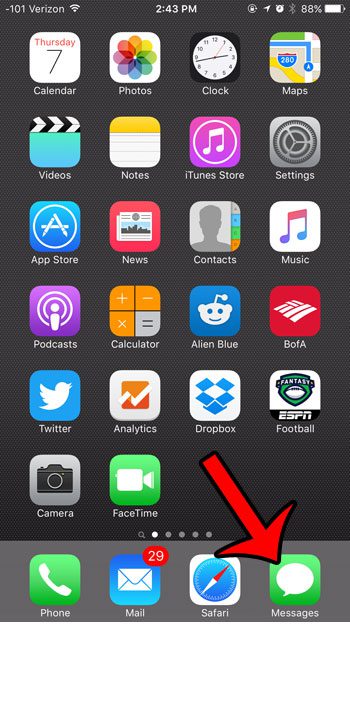
Step 2: Select the message with the crescent moon icon to the left of it.
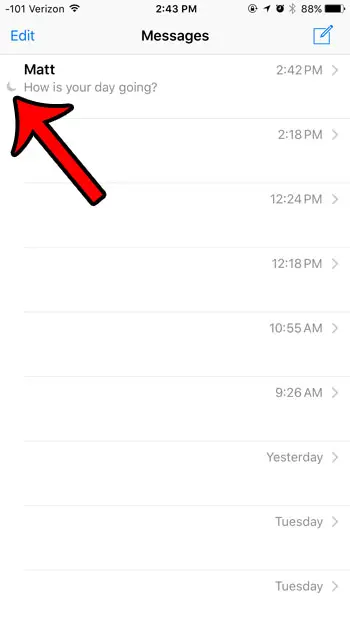
Step 3: Tap theDetailsbutton at the top-right corner of the screen.
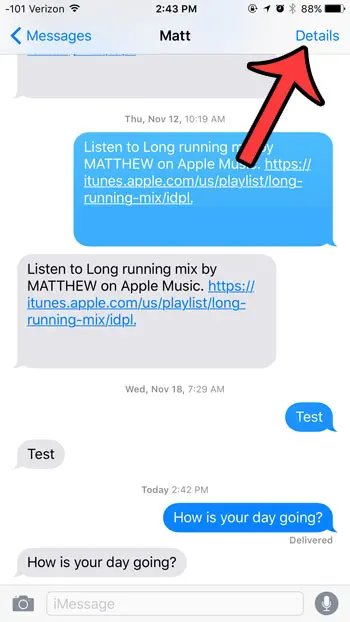
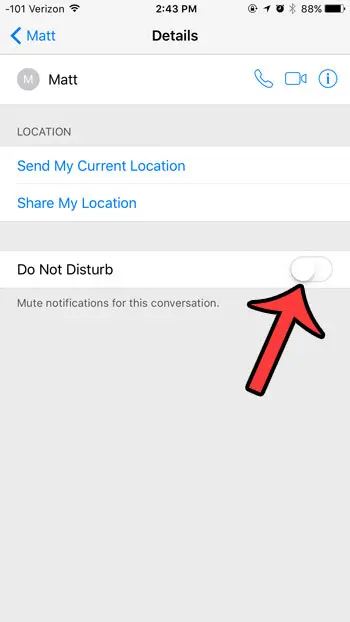
Step 4: Tap the button to the right ofDo Not Disturbto turn it off.
You will receive notifications and remove the crescent moon icon when there is no green shading around the button. The Do Not Disturb feature is turned off in the picture below.
If you no longer wish to receive phone calls, text messages, or FaceTime calls from a contact, then learn how to block a caller on your iPhone .
Difference Between Do Not Disturb and Hide Alerts for iPhone Text Message Conversations
This feature of muting message conversations has been around for several versions of iOS, but its name has changed in more recent versions of iOS.
So, basically, there is no difference between Do Not Disturb and Hide Alerts for iPhone message conversations. The name of the action has been renamed, and the method for performing the action has been made easier.
But while the Do Not Disturb option that is specific to text message conversations is the same as hiding alerts, there is still an overall “Do Not Disturb” feature for the iPhone, and that crescent moon means something else.
Our why is there a clock at the top of my screen article can answer that question if you have a clock icon on your screen and aren’t sure what is causing it.
How to Enable Do Not Disturb for the Entire iPhone
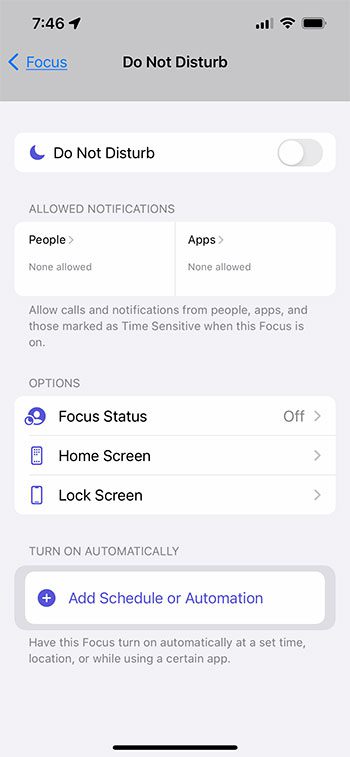
If you open the iPhone Settings app, you will see a Focus option there. When you open that menu, you are going to see a bunch of options that let you silence calls, turn off notifications, and generally just limit interruptions while you are either busy with work or something personal and don’t want to be bothered.
So, by going to Settings > Focus > Do Not Disturb > then adjusting the settings on that menu, you will put your iPhone into Do Not Disturb mode.
Additionally, if you swipe down from the upper right corner of your screen, you will open the Control Center. On this menu is a half-moon icon next to the word “Focus.”
If you tap the moon, it will enable Do Not Disturb mode, which will add the crescent moon to the status bar at the top of the iPhone screen. Tapping it again will remove the crescent moon from the top of the screen.
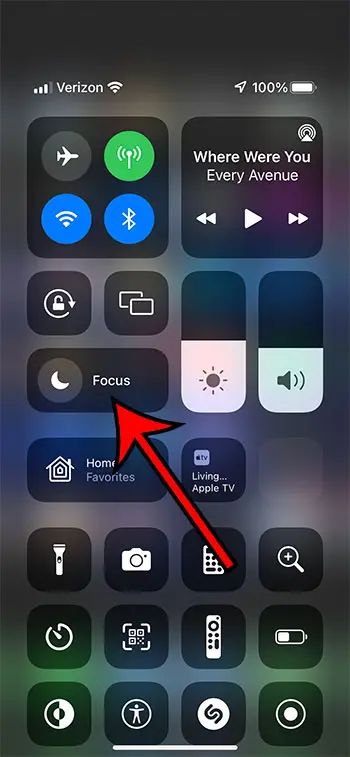
If you tap the word Focus, however, in the control center, then that opens another menu with these options:
- Do Not Disturb
- Sleep
- Driving
- Personal
- Work
Tapping one of those options will engage that focus mode, which will enable the set of actions that you determined from the Settings > Do Not Disturb menu.
Related Topic: AirPod notifications can be an unwanted interruption, so read our how to turn off AirPod notifications article and learn how to stop them.
More Information on Why There is a Crescent Moon Next to a Text Message on Your iPhone
The crescent moon icon was originally just something in iOS that indicated that the Do Not Disturb feature was enabled, but its utility has expanded, including for text messages.
If you are using a newer iPhone model, such as an iPhone 13, and you are using a newer iOS version, like iOS 15, then it’s a lot easier to use the “do not disturb mode” for a text message conversation.
Simply swipe to the left on the message conversation and tap the bell icon. The half-moon icon should then appear there, and you shouldn’t see any new notifications for the text message thread.
Since the moon on iPhone text message thread means that the notifications are muted, you may discover that you actually need to be alerted to new messages for that particular conversation if you are missing things.
Related: How to Find Old Messages on iPhone Without Scrolling
Luckily, you can always just use the swipe left > bell method to remove the moon symbol, or you can select the conversation from the open Messages app, tap the names at the top of the screen, and then tap the Hide Alerts button.
This will re-enable notifications and should start to show alerts again in whatever manner you have set on your device.
Just because you have hidden alerts for a particular contact and their text message conversation doesn’t mean that you won’t still receive messages from them.
You will still be able to open the conversation thread and see their new texts, and you will still be able to send new ones.
Related: How to Turn Off a Scheduled “Do Not Disturb” On an iPhone
What does the moon mean on iPhone?
If you see a crescent moon at the top of your screen, that means that the “Do Not Disturb” feature is currently active on the device.
If you see the moon next to a message conversation, that means notifications are muted.
Our why is there a silent symbol on my text message iPhone guide above provides detailed information, but swiping left on the conversation and tapping the bell icon will let you silence or unsilence a text message or iMessage conversation.
What does a moon mean next to a text?
In older versions of iOS, the moon next to a text indicates that the “Do Not Disturb” setting for that conversation is enabled.
In newer versions of iOS, that moon icon has been replaced with a bell that has a diagonal line through it. This means that “Hide Alerts” is turned on for that conversation.
Generally, a symbol of a moon on iPhone apps or menus is an indication that some type of notification or alert is being silenced. It’s typically a blue crescent moon icon or a gray crescent moon icon that you can disable using the methods in this guide if you want to start getting iPhone notifications again.
How do I get rid of the crescent moon on my iPhone?
You can remove the crescent moon from the top of your iPhone screen by turning off Do Not Disturb.
You can do this by tapping the moon icon in the Control Center or by going to Settings > Do Not Disturb and turning it off from there.
The half-moon symbol is on a button next to the word “Focus,” which you could tap instead to make some additional adjustments to the notifications that you do and don’t want to receive in certain situations.
Why is there a silent symbol on my text message – iPhone?
When you see a silent symbol on a text message, it means that notifications for that conversation are currently muted.
This means the phone won’t vibrate or display any type of notification when someone sends you a message in that conversation.
That symbol is there because you enabled the setting that hides notifications for the conversation, either purposely or accidentally.
What does a half moon next to a text mean?
The half moon next to a text is an indication of an active Do Not Disturb setting for that text message conversation. You can turn it off by opening the conversation, tapping the Details button at the top of the screen, then turning off Do Not Disturb.
In newer versions of iOS, you might not see the crescent moon icon next to your texts anymore.
Now, when you use the “Hide Alerts” feature, you will see a crossed-out bell icon instead.
Why don’t I have a Do Not Disturb option on my iPhone?
If you are using a newer version of the Apple iOS operating system, then the Do Not Disturb feature has been merged with a similar setting called “Focus.”
If you go to Settings > Focus, you will see an option for Do Not Disturb. You can then open that menu, and you will be able to customize a lot of the different apps and settings on your device so that you can get the Do Not Disturb mode set up the way that you want it.
Why is there a moon on my iPhone in iOS 15?
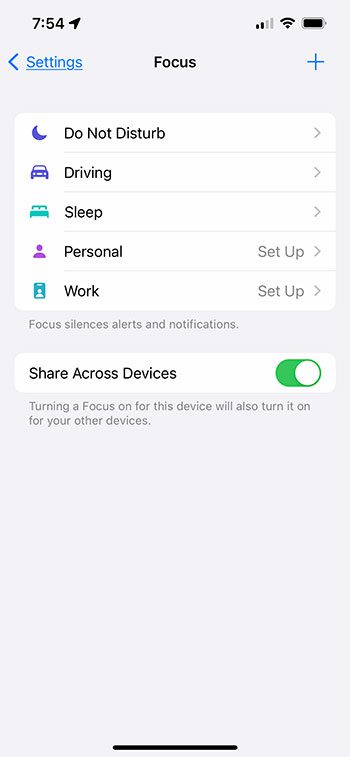
If you have a newer iPhone model , such as the iPhone 13, and it uses the iOS 15 operating system, then the half moon appears at the top of your screen because you have turned on the Do Not Disturb option that is found inside the Focus menu.
This is actually a pretty in-depth feature, and you can do a lot with it to ensure that you are getting the notifications that you need and silencing the ones that you don’t.
The details screen for the Focus feature is shown in the image below.
Here you see that you have options for: – Do Not Disturb – Driving – Sleep – Personal – Work
There is also an option to share these settings across devices and a + icon that you can use to add other modes.
One of the more interesting aspects of this is the fact that you can add some automation to it. For example, you can configure the “Driving” option to turn on automatically when your iPhone senses that you are driving a car.
How do I get rid of the crescent moon on my iPhone 11?
If you see a crescent moon icon at the top of your screen, then you can swipe down from the top-right corner of the screen and tap the crescent moon symbol in the Control Center to turn off Do Not Disturb.
If you see the crescent moon next to a text message conversation, then you can swipe left on it and tap the bell icon to re-enable notifications for that conversation.
Check out our guide on iPhone button shapes if you would like to know more about them, including how to enable them and make your phone a little easier to navigate.
Video About Why is There a Moon Next to My Text (or a Crossed Out Bell)
Summary – Why Is There a Moon or a Crossed Out Bell Next to a Text on My iPhone?
- Open Messages .
- Swipe left on the message with the moon.
- Tap the bell icon to remove the moon.
Conclusion
When you aren’t getting notifications about a text message conversation, especially when it’s one that you are actively participating in, then you may be taking a long time to respond.
This usually isn’t a glitch with your iPhone and is likely due to a silent symbol or a moon icon iPhone symbol that is muting those notifications.
Our tutorial above has discussed this setting and how you can remove the silent symbol on your iPhone text message to start getting those notifications.
Some text message conversations on your iPhone are going to be more active than others.
This is particularly noticeable in group messages with multiple people. But you may be wondering why there is a moon next to a text message on your iPhone, especially if you aren’t getting any notifications for those conversations.
There are a number of different icons and images that appear on your iPhone.
Often, these can include icons in the status bar at the top of the screen, such as the little arrow icon , or they can include symbols that appear within individual apps.
One such icon is a crescent moon that can be displayed to the left of a text message conversation.
This indicates that the notifications for that specific conversation have been muted by turning on the Do Not Disturb option for that conversation.
Our guide below will show you how to disable this setting and remove the crescent moon icon.
Our tutorial on why is the time blue on my iPhone can provide an answer to questions you may have about blue shading around your iPhone’s clock.
- How to Enable iMessage on iPhone 13
Matthew Burleigh has been writing tech tutorials since 2008. His writing has appeared on dozens of different websites and been read over 50 million times.
After receiving his Bachelor’s and Master’s degrees in Computer Science he spent several years working in IT management for small businesses. However, he now works full time writing content online and creating websites.
His main writing topics include iPhones, Microsoft Office, Google Apps, Android, and Photoshop, but he has also written about many other tech topics as well.
Read his full bio here.
Featured guides and deals
