Installing Windows 11 without an internet connection might sound tricky, but it’s actually quite manageable with a few simple steps. You’ll need a Windows 11 installation media, like a USB drive, and a product key. First, you’ll set up your installation media. Then, you’ll configure your computer to boot from the USB. Once Windows 11 starts installing, you’ll choose to proceed without internet by selecting relevant options during the setup. Finally, after installation, complete the basic setup offline. With these steps, you can enjoy Windows 11 without the need for an internet connection right from the start.
How to Install Windows 11 Without Internet
In this guide, we’ll walk through the steps to successfully install Windows 11 without needing an internet connection. This process is especially handy if you’re setting up a computer where internet access isn’t available.
Step 1: Prepare Installation Media
Prepare a USB drive with Windows 11 installation files.
You can create a bootable USB drive using Microsoft’s Media Creation Tool. Make sure the drive has at least 8GB of space. Follow the tool’s instructions to download and set up the installation files onto your USB.
Step 2: Boot from USB Drive
Configure your computer to boot from the USB drive.
Restart your computer and enter the BIOS/UEFI settings (usually by pressing F2, F12, DEL, or ESC). Set the USB drive as the primary boot device. Save your changes and exit. Your computer should now boot from the USB drive.
Step 3: Start Windows 11 Installation
Begin the Windows 11 installation process.
Once your computer boots from the USB, the Windows 11 setup will start. Choose your language, time, and keyboard preferences, then click “Next” to proceed.
Step 4: Bypass Internet Requirement
Select the option to install Windows 11 without an internet connection.
When prompted to connect to the internet, choose “I don’t have internet” or “Skip for now.” This allows you to continue the setup process offline.
Step 5: Complete Offline Setup
Finish the installation and initial setup without an internet connection.
Follow the on-screen instructions to set up your computer. You can create a local user account and customize settings. Once the setup is complete, you will reach the Windows 11 desktop.
After following these steps, you’ll have Windows 11 installed on your computer, ready to use offline. Later, you can connect to the internet to access updates and additional features.
Tips for Installing Windows 11 Without Internet
- Ensure USB Preparedness: Double-check that your USB drive is bootable and contains all necessary Windows 11 files.
- Backup Important Data: Before starting the installation, backup any vital files from your computer, just in case.
- Keep Product Key Handy: Have your Windows 11 product key ready, as you might need it during installation.
- Check System Requirements: Verify that your computer meets the Windows 11 hardware requirements to avoid compatibility issues.
- Post-Installation Updates: Once connected to the internet, remember to update your system for security and performance improvements.
Can I install Windows 11 without an internet connection?
Yes, you can install Windows 11 without an internet connection by following the steps outlined in this guide.
Do I need a product key to install Windows 11 offline?
While you can often bypass entering a product key during installation, having one will help activate Windows 11 and unlock all features.
What if my computer doesn’t boot from USB?
Ensure your USB is properly set up as a bootable drive and check the BIOS settings to prioritize USB boot.
Can I create a Microsoft account offline?
No, creating a Microsoft account requires an internet connection. You can, however, set up a local user account and switch to a Microsoft account later.
Will I miss out on features without the internet?
Initially, yes. Some features and updates require internet access, which you can obtain after connecting your computer online.
Summary
- Prepare installation media.
- Boot from USB drive.
- Start Windows 11 installation.
- Bypass internet requirement.
- Complete offline setup.
Conclusion
Installing Windows 11 without internet might seem like a puzzle initially, but with the right tools and steps, it’s as easy as pie. Why go offline? Maybe you’re in a spot without a reliable connection, or perhaps you prefer setting things up before diving into the digital sea. Whatever the reason, the process is straightforward. First, get that USB drive ready with Windows 11 installation files. Once you’ve got your setup media, let your computer know it needs to pay attention to that USB on startup. As you stride through the installation, a little prompt will try to nudge you online—just politely decline and keep going. Before you know it, you’ll be looking at your shiny new Windows 11 desktop, all set for offline adventure.
While living in a connected world has its perks, there’s something serene about setting up without the constant ping of updates and notifications. It’s like having a moment of silence before the internet orchestra starts playing. Once you connect to the internet later, you’ll unlock updates and some nifty features, but for now, enjoy the peace and simplicity of offline installation. So go ahead, follow the steps, and embrace the tranquility of an internet-free install.

Matthew Burleigh has been writing tech tutorials since 2008. His writing has appeared on dozens of different websites and been read over 50 million times.
After receiving his Bachelor’s and Master’s degrees in Computer Science he spent several years working in IT management for small businesses. However, he now works full time writing content online and creating websites.
His main writing topics include iPhones, Microsoft Office, Google Apps, Android, and Photoshop, but he has also written about many other tech topics as well.
Read his full bio here.
Featured guides and deals
Printers can be difficult ot work with, and troubleshooting them can take you to a lot of different places on your computer.
One common issue that can arise with a printer is when it says that it is offline, even though it’s turned on and seems to be hooked up correctly.
Our tutorial below will show you some steps to try so that you can learn how to change a printer from offline to online.
How to Switch a Printer from Offline to Online in Windows 7
- Click Start , then Devices and Printers .
- Right-click the printer, then click See what’s printing .
- Select the Printer tab, then click Use printer offline to clear the check mark.
Our guide continues below with additional information on how to switch a printer from offline to online , including pictures for these steps.
If you’re lucky, then this should work and your queued documents will start printing. However, sometimes this isn’t enough and you need to do some more troubleshooting. We discuss those additional troubleshooting steps further in this article.
Printers can be frustrating when they are not working correctly, due largely to the fact that errors can occur for seemingly no reason. Whether your print jobs don’t look right, you are getting constant paper jams, or printing is inconsistent or erratic, printers are often some of the most difficult electronic devices to work with. So if your printer is showing as offline and you can’t print, then you may be trying to figure out why it’s showing as offline when the printer was working before and nothing has changed.
One issue that you might encounter is Windows 7 not being able to connect to your printer to send documents that you want to print. Further investigation into the issue might lead you to discover that Windows 7 thinks the printer is offline.
There are several reasons why this might be occurring, so you will need to follow the instructions in this tutorial to learn how to change your printer from offline to online .
Once your printer is back online, it should then start printing the documents that you have sent to the printer that are currently sitting in your print queue.
How Do You Change a Printer from Offline to Online? (Guide with Pictures)
Windows is recognizing your printer as being offline because it is unable to communicate with the printer. This can be caused by several different situations, so you need to pinpoint exactly from where the problem is originating.
These steps will show you how to change a printer from offline to online from a Windows laptop or desktop computer.
Step 1: Click theStartbutton at the bottom-left corner of your screen, then clickDevices and Printers.
Click Start then choose Devices & Printers .
Step 2: Right-click the printer that is showing as offline, then clickSee what’s printing.
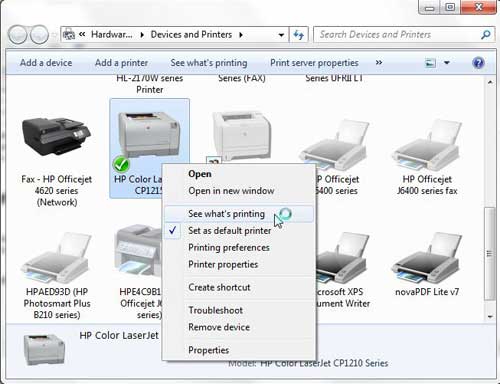
Right-click on the printer, then select See what’s printing.
Step 3: Click thePrinterlink at the top of this window, then click theUse Printer Offlineoption to remove the check mark.
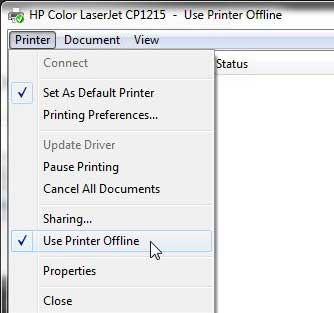
Select Printer , then Use Printer Offline .
Now that you know how to change printer from offline to online you can try this step whenever your computer is unable to print a file.
If this solved your problem, then you are all set and can continue with your printing . However, if this did not resolve the issue, then there are some more troubleshooting steps you can try.
Additional Troubleshooting for an Offline Printer in Windows 7
Check that the printer is turned on, and that the USB cable is properly connected to both the back of the printer and your computer. If your printer is wireless, you may need to restart the printer, then restart your computer to see if you can re-establish the wireless connection.
If you are using a wireless printer, have you recently changed your router, or changed the name of the wireless network ? If so, you may need to update your wireless printer with the new wireless network settings . If your wireless printer does not feature a control panel on the printer that allows you to change the network settings, you may need to temporarily connect the printer to your computer with a USB cable to modify the settings.
If your wired printer is still showing an offline status, despite the fact that it is plugged in and connected to your computer, then there may be a problem with the port to which the device is connected.
How to Change a Printer Port in Windows 7
You can use these steps to change the printer port for a printer that has been set up in Windows 7.
Step 1: Return to theDevices and Printersmenu, right-click your printer, then clickPrinter Properties.
Step 2: Click thePortstab at the top of the window, choose the correct port from the list at the center of the window, clickApply, then clickOK.
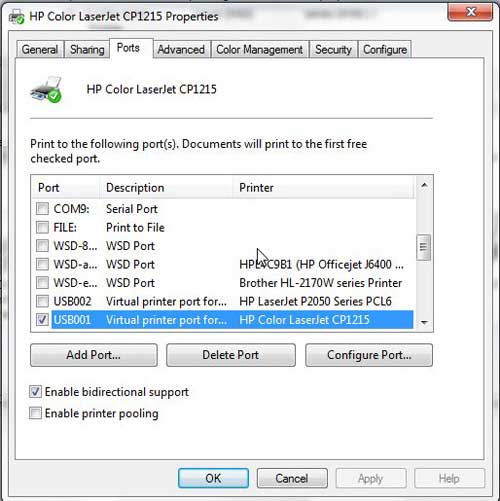
If you are still unable to print, then one final option you can attempt is to stop and restart the print spooler . You can follow the instructions in this article to learn how to manage the print spooler.
If you are still unable to print after following all of these instructions, then you may need to uninstall, then reinstall your printer. You can remove a printer from your computer by right-clicking the printer, then clicking Remove device . Once the printer has been uninstalled, follow your printer’s installation guide to properly reinstall it.
Why Is My Printer Offline?
The sections in the article above provide a bunch of different options and settings that you can check in order to see why your printer might be offline.
There are so many potential reasons that your printer might be offline that it’s hard to point to one specific reason why it might be happening.
In my experience, the best, simplest, and most useful thing that you can do when your printer is showing as offline is to simply restart the printer.
This can resolve issues related to a wireless printer that isn’t connected to a network, it can force the print spooler to restart, and it can fix print jobs that are stuck in the print queue.
While your printer is going through the process of restarting it can be helpful to restart your computer, too. And if you have a wireless printer and have been experiencing connection issues with other wireless devices as well, then even restarting your modem and your router might not be a bad idea.
How do I restart a printer?
You can reboot your printer by pressing the Power button on the printer, waiting until it has completely turned off, then pressing the Power button again to turn it back on.
How can I check my printer status?
If you aren’t sure whether or not your printer is in Printer Online or Printer Offline mode in Windows 11, then a quick way to check is to go to Start > Settings > Devices > Printers & Scanners .
You can then click on your printer and choose the Open Queue option. When you open print queue windows on your computer you can see any documents that are currently queued up to print.
When the printer window is open you can click the Printer option in the menu bar, then make sure the Use Printer Offline option isn’t selected.
How can I change the printer driver that my printer is currently using?
If you go to Start > Settings > Devices > Printers & Scanners then select your printer, you can click the Printer properties button, which will open a new window.
In this window you can choose the Advanced tab, then click the Driver drop down menu and choose a different driver. You could also click the New Driver button, which will launch the Add Printer Driver Wizard .
How do I run printer troubleshooter in Windows 11?
If you aren’t sure what the problem is, you can try the Windows utility that will cycle through a bunch of potential settings to try and fix the problem.
This means it will do things like restart printer related services, such as restarting the print spooler service and checking for outdated printer drivers.
You can do this by clicking the Windows button in the taskbar, searching for “Printer” then selecting the Printers & scanners option.
You can then select your printer and click the Run the troubleshooter option.
Why is my HP Printer offline?
The Hp printer offline Windows 11 steps are the same for Hewlett Packard printers as they are for other printers.
You need to open the Windows Settings menu, choose Bluetooth and devices, then select Printers & scanners.
You can then click on the default printer or whatever printer you want to check, then make sure Use printer offline is not selected.
If it is offline and clicking that option doesn’t put it back online, then you will need to go through the troubleshoot printer offline process of checking the printer cable (or the network status for wireless printers) and restarting the printer and the computer.
If that doesn’t work, then you may printer offline – how to put online instructions on the printer manufacturer’s website, which may involve reinstalling printer software and drivers.
Matthew Burleigh has been writing tech tutorials since 2008. His writing has appeared on dozens of different websites and been read over 50 million times.
After receiving his Bachelor’s and Master’s degrees in Computer Science he spent several years working in IT management for small businesses. However, he now works full time writing content online and creating websites.
His main writing topics include iPhones, Microsoft Office, Google Apps, Android, and Photoshop, but he has also written about many other tech topics as well.
Read his full bio here.
Featured guides and deals
