Printing back-to-back in Word is a great way to save paper and keep your documents organized. To do this, you’ll need to adjust your print settings to enable double-sided printing. This process involves selecting the appropriate printer settings within your Word document, ensuring that your printer supports duplex printing, and following the prompts to print on both sides of the paper effectively.
How to Print Back to Back in Word
To print back-to-back in Word, you’ll be adjusting your document’s print settings to utilize both sides of the paper. This not only saves resources but also creates a more professional-looking document.
Step 1: Open Your Document
First, open the Word document you want to print.
By starting with the document open, you ensure all changes apply correctly. Make sure it’s the final version you want to print.
Step 2: Select the Print Option
Go to the “File” menu and click on “Print.”
This action will open the print settings menu, where you can access various options to customize how your document prints.
Step 3: Choose Your Printer
Select the printer that supports double-sided printing from the list.
Not all printers have this feature, so ensure the one you select is capable of duplex printing.
Step 4: Set Print Preferences
Under “Settings,” look for “Print on Both Sides” and select it.
This setting may be labeled differently depending on your printer model, like “Duplex” or “Double-sided.”
Step 5: Print Your Document
Click “Print” to start the process.
The printer will automatically print on both sides if set correctly, but you may need to manually reload paper if it prompts you.
Once completed, your document will be neatly printed on both sides of the paper, reducing bulk and making it easier to handle.
Tips for Printing Back to Back in Word
- Make sure your printer supports duplex printing before starting.
- Check your printer’s manual or online resources for specific instructions.
- Experiment with a test page to ensure settings are correct.
- Adjust margins if needed to ensure text isn’t too close to edges.
- Be patient; the process might take a little longer than single-sided printing.
How can I tell if my printer supports duplex printing?
Check your printer’s user manual or look for a duplex option in the printer settings.
What if I don’t see the “Print on Both Sides” option?
Ensure your printer is selected; if it doesn’t support duplex, the option won’t appear.
Can I manually print on both sides?
Yes, by printing odd pages first, then reloading the paper and printing even pages.
Will double-sided printing save ink?
Not necessarily, but it does save paper and reduce bulk.
How do I fix alignment issues?
Check margins in Word and ensure the paper is loaded correctly in the printer.
Summary
- Open your Word document.
- Select the “Print” option.
- Choose a compatible printer.
- Enable “Print on Both Sides.”
- Click “Print” to finalize.
Conclusion
Printing back-to-back in Word is an efficient and environmentally friendly way to handle your documents. By following these steps, you can easily set up your document to print on both sides, ensuring you maximize paper use and minimize waste.
Remember, double-sided printing not only saves paper but also gives your documents a more professional appearance. Whether you’re preparing for a school project, a work presentation, or just organizing your home office, knowing how to print back-to-back in Word is a valuable skill.
For more complex documents, consider exploring additional Word features, such as adjusting page layouts or using templates. Each document is unique, and understanding how to manipulate Word’s settings can help you achieve the best results. Keep experimenting, and soon, printing back-to-back will become second nature.

Matthew Burleigh has been writing tech tutorials since 2008. His writing has appeared on dozens of different websites and been read over 50 million times.
After receiving his Bachelor’s and Master’s degrees in Computer Science he spent several years working in IT management for small businesses. However, he now works full time writing content online and creating websites.
His main writing topics include iPhones, Microsoft Office, Google Apps, Android, and Photoshop, but he has also written about many other tech topics as well.
Read his full bio here.
Featured guides and deals
JavaScript tidak tersedia.
We’ve detected that JavaScript is disabled in this browser. Please enable JavaScript or switch to a supported browser to continue using x.com. You can see a list of supported browsers in our Help Center.
Pusat Bantuan
Persyaratan Layanan Kebijakan Privasi Kebijakan Penggunaan Kuki Jejak Informasi iklan © 2026 X Corp.

Dengan mengeklik Lanjutkan, Anda menyetujui Perjanjian Pengguna , Kebijakan Privasi , dan Kebijakan Cookie LinkedIn.
Kami telah mengirimkan link sekali pakai ke alamat email utama Anda
Klik link untuk login langsung ke akun LinkedIn Anda.
Jika Anda tidak menemukan email tersebut di kotak pesan, periksa folder spam.
Setuju & Bergabung dengan LinkedIn
Dengan mengeklik Lanjutkan, Anda menyetujui Perjanjian Pengguna , Kebijakan Privasi , dan Kebijakan Cookie LinkedIn.
Pembuat pin
Printing double-sided on Google Docs is a straightforward process. First, open the document you want to print. Then click on ‘File’, select ‘Print’, and in the print settings, choose the option for ‘Two-sided’ or ‘Duplex’ printing. After that, select the specific settings for how you want your document printed and click on the ‘Print’ button. Your printer should automatically print on both sides of the paper.
After completing these steps, your document will be printed on both sides of the paper, reducing the amount of paper used and helping you create professional-looking documents.
Introduction
Have you ever found yourself printing a lengthy document, only to realize that you’ve used much more paper than necessary? Or maybe you’re trying to make your office more eco-friendly? Whatever the reason, learning how to print double-sided on Google Docs can be a game-changer.
Printing double-sided, also known as duplex printing, is not just good for the environment; it also helps save money and keeps your documents looking sleek and professional. Plus, it’s easier than you might think! Whether you’re a student, a business owner, or just someone who prints a lot of documents, this skill is essential. Not all printers support double-sided printing, but many newer models do, so it’s worth checking out whether yours does. And don’t worry—if you’re not the most tech-savvy person, we’ve got you covered. This step-by-step guide will walk you through the process, so let’s get started!
Step by Step Tutorial: How to Print Double-Sided on Google Docs
Before we dive into the steps, here’s what we’ll accomplish: we’ll go from a single-sided document to a neatly printed double-sided one, all with a few clicks in Google Docs.
Step 1: Open your document in Google Docs
Start by opening the document you want to print in Google Docs.
Opening your document is the first step in the process. Make sure you’re logged into your Google account and navigate to Google Docs to find your document. If you don’t have a Google account, you’ll need to create one to access Google Docs.
Step 2: Click on ‘File’
Once your document is open, click on the ‘File’ menu in the top left corner of the screen.
The ‘File’ menu is where you’ll find all the options for managing your document, including the printing settings. It’s a simple click, but it’s your gateway to a double-sided document.
Step 3: Select ‘Print’
After clicking on ‘File’, a dropdown menu will appear. From there, select ‘Print’ to open the print settings.
In the print settings, you’ll have several options for customizing your print job. This is where the magic happens—where you’ll tell your printer to print on both sides of each page.
Step 4: Choose ‘Two-sided’ or ‘Duplex’ printing
In the print settings, look for the option to print on both sides of the paper. It may be labeled as ‘Two-sided’ or ‘Duplex’ printing.
This step is crucial because it tells your printer to automatically print on the front and back of each page. The terminology might differ depending on your printer, but the function is the same.
Step 5: Select the layout and binding options
Depending on your document, you may want to adjust the layout and binding options for your double-sided print job.
Some documents look better with a certain binding option, like a booklet or a report. Experiment with the layout to see what looks best for your needs.
Step 6: Click on ‘Print’
After setting up your double-sided print job, all that’s left to do is click on the ‘Print’ button.
Clicking ‘Print’ sends the job to your printer, which should then automatically start printing on both sides of the paper. If it doesn’t, there might be an issue with your printer settings.
Pros
| Benefit | Explanation |
|---|---|
| Saves Paper | Printing double-sided uses half the amount of paper compared to single-sided printing. |
| Professional Look | Documents printed on both sides often look more professional and are easier to handle. |
| Environmentally Friendly | Reducing paper usage by double-sided printing is beneficial for the environment. |
Cons
| Drawback | Explanation |
|---|---|
| Printer Compatibility | Not all printers have the capability to print double-sided. |
| Possible Jams | Printers not designed for duplex printing may experience paper jams. |
| Limited Paper Options | Some types of paper may not be suitable for double-sided printing, such as thick cardstock. |
Additional Information
While printing double-sided on Google Docs is relatively straightforward, there are a few additional tips and insights that can help you achieve the best results. First, make sure your printer is properly set up for duplex printing. This might require changing some settings on the printer itself or installing specific drivers on your computer.
Also, consider the quality of the paper you’re using. Higher quality paper is less likely to jam and will give your documents a more professional finish. And remember, while Google Docs is a fantastic tool for creating and editing documents, the actual printing process is handled by your printer. So, take the time to familiarize yourself with your printer’s settings and capabilities.
Lastly, if you’re printing a document that will be read like a book, remember to select the ‘Flip on long edge’ option. If you’re printing something like a pamphlet, you might want to choose ‘Flip on short edge’ instead. It’s a small detail, but it makes a big difference in how your final document looks and feels.
Summary
- Open your document in Google Docs.
- Click on ‘File’.
- Select ‘Print’.
- Choose ‘Two-sided’ or ‘Duplex’ printing.
- Select the layout and binding options.
- Click on ‘Print’.
What if my printer doesn’t support double-sided printing?
If your printer doesn’t have duplex printing capabilities, you can manually print double-sided. Print the odd-numbered pages first, reinsert the paper into the printer, and then print the even-numbered pages.
Can I print double-sided on Google Docs from a mobile device?
Yes, you can print double-sided from a mobile device as long as you have access to a printer that supports duplex printing and you’ve set up mobile printing.
How do I know if my printer supports double-sided printing?
Check your printer’s manual or specifications online. Most modern printers have the duplex printing function, but it’s always good to confirm.
What should I do if the printer prints on the wrong side of the page?
Adjust the ‘Flip on long edge’ or ‘Flip on short edge’ settings based on whether your document is portrait or landscape orientation.
Can I save my double-sided printing settings for future use?
Yes, once you’ve adjusted the settings for double-sided printing, you can usually save these preferences in your printer’s settings for future print jobs.
Conclusion
Printing double-sided on Google Docs is not only a smart way to save paper and present your work professionally, but it’s also a step towards more sustainable habits. Whether you’re preparing a report, crafting a brochure, or simply printing out notes, double-sided printing should definitely be in your skillset.
Keep in mind that printer compatibility, paper type, and specific settings are key factors in achieving a successful duplex print job. With the guidelines provided, you’re well-equipped to tackle double-sided printing and make an eco-friendly impact one page at a time. Happy printing!
Matthew Burleigh has been writing tech tutorials since 2008. His writing has appeared on dozens of different websites and been read over 50 million times.
After receiving his Bachelor’s and Master’s degrees in Computer Science he spent several years working in IT management for small businesses. However, he now works full time writing content online and creating websites.
His main writing topics include iPhones, Microsoft Office, Google Apps, Android, and Photoshop, but he has also written about many other tech topics as well.
Read his full bio here.
Printing double-sided in Word 2019 is a great way to save paper and present your documents professionally. The process is straightforward: you just need to adjust a few settings before hitting print. After reading this quick overview, you’ll have the basics down and be ready to print your double-sided document in no time.
Step by Step Tutorial: How to Print Double Sided in Word 2019
Before diving into the steps, let’s understand what we’re about to do. Printing double-sided, also known as duplex printing, allows you to print on both sides of a piece of paper. This can be done automatically if your printer supports it, or manually if it doesn’t.
Step 1: Open the Print menu
The first thing you’ll need to do is open the Print menu in Word 2019.
Once you’re done with your document, click on ‘File’ then ‘Print’ or use the shortcut Ctrl+P. This will bring up the Print menu where you’ll make the necessary adjustments for double-sided printing.
Step 2: Find the Printer settings
In the Print menu, look for the ‘Printer’ section or a similar option that allows you to adjust printer settings.
You might need to click on ‘Printer Properties,’ ‘Preferences,’ or ‘Settings,’ depending on your printer model. This is where you’ll find the option to print double-sided.
Step 3: Choose the double-sided printing option
Look for a setting that says ‘Print on both sides,’ ‘Duplex printing,’ or something similar, and select it.
If your printer supports automatic duplex printing, this option will allow you to print double-sided without manually flipping the paper. If it doesn’t, you’ll need to print one side, then reinsert the paper to print the other side.
Step 4: Adjust additional settings (if necessary)
Depending on your document and printer, you might need to adjust other settings like binding or page flip options.
Make sure to preview your document to see how it will look when printed. You might need to select ‘Flip on Long Edge’ or ‘Flip on Short Edge’ depending on how you want your document to be read.
Step 5: Print your document
Once you’ve adjusted all settings, you’re ready to print. Click ‘Print’ and watch your double-sided document come to life.
If you’re manually printing double-sided, remember to reinsert the paper according to your printer’s instructions after the first side has been printed.
After completing these steps, your document will print on both sides of the paper. If you’ve selected automatic duplex printing, your printer will handle everything, and you’ll have a double-sided document without any extra effort. If you’re printing manually, you’ll need to pay attention to how the paper needs to be reinserted to ensure proper printing on the second side.
Tips: Making Double Sided Printing Easier in Word 2019
- Make sure your printer supports automatic duplex printing to save time and hassle.
- Always preview your document before printing to check the alignment and layout.
- If printing manually, mark a sample page to understand how to reinsert paper correctly.
- Consider the weight and type of paper you’re using, as some printers may have trouble with heavier stock.
- Keep a clean and organized workspace to avoid paper jams or misfeeds when printing double-sided.
How do I know if my printer supports double-sided printing?
Your printer’s manual or product specifications should indicate whether it supports duplex printing. You can also check the printer properties in the Print menu to see if the option is available.
What should I do if my printer doesn’t support duplex printing?
If your printer doesn’t support automatic duplex printing, you’ll have to print each side manually. Print the first side, reinsert the paper according to your printer’s instructions, and then print the second side.
Can I print double-sided on any type of paper?
Most standard papers work well with double-sided printing, but heavier stock might cause issues. Check your printer’s specifications to see which types of paper it can handle.
How can I avoid paper jams when printing double-sided?
Ensure that your printer’s paper tray isn’t overloaded and that the paper is aligned correctly. Also, using high-quality paper can reduce the chances of jamming.
What if the text is upside down on the second side of the print?
This usually means you need to change the page flip option. Try selecting ‘Flip on Long Edge’ or ‘Flip on Short Edge’ to correct the orientation of the text.
Summary
- Open the Print menu
- Find the Printer settings
- Choose the double-sided printing option
- Adjust additional settings (if necessary)
- Print your document
Conclusion
Mastering the art of double-sided printing in Word 2019 can bring a touch of professionalism to your documents while also being eco-friendly. The process is quite simple, whether your printer handles duplex printing automatically or you do it manually. Remember to check your printer’s capabilities, select the correct settings, and you’ll be on your way to creating impressive double-sided documents in no time. Have you tried printing double sided in Word 2019 yet? Give it a shot and see how it elevates your documents to the next level!
Matthew Burleigh has been writing tech tutorials since 2008. His writing has appeared on dozens of different websites and been read over 50 million times.
After receiving his Bachelor’s and Master’s degrees in Computer Science he spent several years working in IT management for small businesses. However, he now works full time writing content online and creating websites.
His main writing topics include iPhones, Microsoft Office, Google Apps, Android, and Photoshop, but he has also written about many other tech topics as well.
Read his full bio here.
Featured guides and deals
Printers can be difficult ot work with, and troubleshooting them can take you to a lot of different places on your computer.
One common issue that can arise with a printer is when it says that it is offline, even though it’s turned on and seems to be hooked up correctly.
Our tutorial below will show you some steps to try so that you can learn how to change a printer from offline to online.
How to Switch a Printer from Offline to Online in Windows 7
- Click Start , then Devices and Printers .
- Right-click the printer, then click See what’s printing .
- Select the Printer tab, then click Use printer offline to clear the check mark.
Our guide continues below with additional information on how to switch a printer from offline to online , including pictures for these steps.
If you’re lucky, then this should work and your queued documents will start printing. However, sometimes this isn’t enough and you need to do some more troubleshooting. We discuss those additional troubleshooting steps further in this article.
Printers can be frustrating when they are not working correctly, due largely to the fact that errors can occur for seemingly no reason. Whether your print jobs don’t look right, you are getting constant paper jams, or printing is inconsistent or erratic, printers are often some of the most difficult electronic devices to work with. So if your printer is showing as offline and you can’t print, then you may be trying to figure out why it’s showing as offline when the printer was working before and nothing has changed.
One issue that you might encounter is Windows 7 not being able to connect to your printer to send documents that you want to print. Further investigation into the issue might lead you to discover that Windows 7 thinks the printer is offline.
There are several reasons why this might be occurring, so you will need to follow the instructions in this tutorial to learn how to change your printer from offline to online .
Once your printer is back online, it should then start printing the documents that you have sent to the printer that are currently sitting in your print queue.
How Do You Change a Printer from Offline to Online? (Guide with Pictures)
Windows is recognizing your printer as being offline because it is unable to communicate with the printer. This can be caused by several different situations, so you need to pinpoint exactly from where the problem is originating.
These steps will show you how to change a printer from offline to online from a Windows laptop or desktop computer.
Step 1: Click theStartbutton at the bottom-left corner of your screen, then clickDevices and Printers.
Click Start then choose Devices & Printers .
Step 2: Right-click the printer that is showing as offline, then clickSee what’s printing.
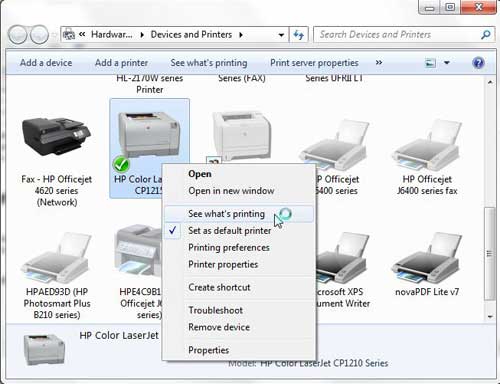
Right-click on the printer, then select See what’s printing.
Step 3: Click thePrinterlink at the top of this window, then click theUse Printer Offlineoption to remove the check mark.
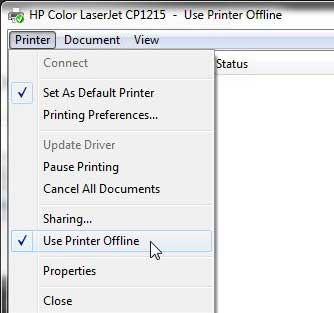
Select Printer , then Use Printer Offline .
Now that you know how to change printer from offline to online you can try this step whenever your computer is unable to print a file.
If this solved your problem, then you are all set and can continue with your printing . However, if this did not resolve the issue, then there are some more troubleshooting steps you can try.
Additional Troubleshooting for an Offline Printer in Windows 7
Check that the printer is turned on, and that the USB cable is properly connected to both the back of the printer and your computer. If your printer is wireless, you may need to restart the printer, then restart your computer to see if you can re-establish the wireless connection.
If you are using a wireless printer, have you recently changed your router, or changed the name of the wireless network ? If so, you may need to update your wireless printer with the new wireless network settings . If your wireless printer does not feature a control panel on the printer that allows you to change the network settings, you may need to temporarily connect the printer to your computer with a USB cable to modify the settings.
If your wired printer is still showing an offline status, despite the fact that it is plugged in and connected to your computer, then there may be a problem with the port to which the device is connected.
How to Change a Printer Port in Windows 7
You can use these steps to change the printer port for a printer that has been set up in Windows 7.
Step 1: Return to theDevices and Printersmenu, right-click your printer, then clickPrinter Properties.
Step 2: Click thePortstab at the top of the window, choose the correct port from the list at the center of the window, clickApply, then clickOK.
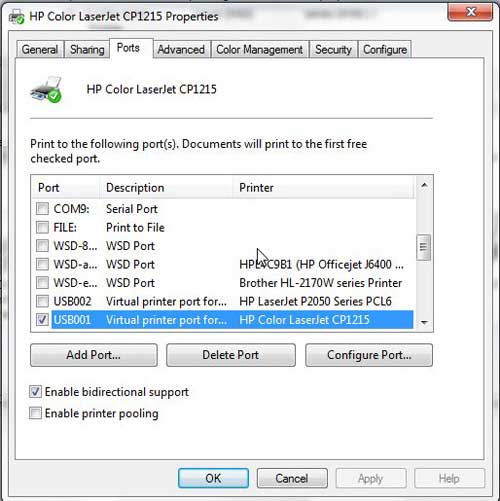
If you are still unable to print, then one final option you can attempt is to stop and restart the print spooler . You can follow the instructions in this article to learn how to manage the print spooler.
If you are still unable to print after following all of these instructions, then you may need to uninstall, then reinstall your printer. You can remove a printer from your computer by right-clicking the printer, then clicking Remove device . Once the printer has been uninstalled, follow your printer’s installation guide to properly reinstall it.
Why Is My Printer Offline?
The sections in the article above provide a bunch of different options and settings that you can check in order to see why your printer might be offline.
There are so many potential reasons that your printer might be offline that it’s hard to point to one specific reason why it might be happening.
In my experience, the best, simplest, and most useful thing that you can do when your printer is showing as offline is to simply restart the printer.
This can resolve issues related to a wireless printer that isn’t connected to a network, it can force the print spooler to restart, and it can fix print jobs that are stuck in the print queue.
While your printer is going through the process of restarting it can be helpful to restart your computer, too. And if you have a wireless printer and have been experiencing connection issues with other wireless devices as well, then even restarting your modem and your router might not be a bad idea.
How do I restart a printer?
You can reboot your printer by pressing the Power button on the printer, waiting until it has completely turned off, then pressing the Power button again to turn it back on.
How can I check my printer status?
If you aren’t sure whether or not your printer is in Printer Online or Printer Offline mode in Windows 11, then a quick way to check is to go to Start > Settings > Devices > Printers & Scanners .
You can then click on your printer and choose the Open Queue option. When you open print queue windows on your computer you can see any documents that are currently queued up to print.
When the printer window is open you can click the Printer option in the menu bar, then make sure the Use Printer Offline option isn’t selected.
How can I change the printer driver that my printer is currently using?
If you go to Start > Settings > Devices > Printers & Scanners then select your printer, you can click the Printer properties button, which will open a new window.
In this window you can choose the Advanced tab, then click the Driver drop down menu and choose a different driver. You could also click the New Driver button, which will launch the Add Printer Driver Wizard .
How do I run printer troubleshooter in Windows 11?
If you aren’t sure what the problem is, you can try the Windows utility that will cycle through a bunch of potential settings to try and fix the problem.
This means it will do things like restart printer related services, such as restarting the print spooler service and checking for outdated printer drivers.
You can do this by clicking the Windows button in the taskbar, searching for “Printer” then selecting the Printers & scanners option.
You can then select your printer and click the Run the troubleshooter option.
Why is my HP Printer offline?
The Hp printer offline Windows 11 steps are the same for Hewlett Packard printers as they are for other printers.
You need to open the Windows Settings menu, choose Bluetooth and devices, then select Printers & scanners.
You can then click on the default printer or whatever printer you want to check, then make sure Use printer offline is not selected.
If it is offline and clicking that option doesn’t put it back online, then you will need to go through the troubleshoot printer offline process of checking the printer cable (or the network status for wireless printers) and restarting the printer and the computer.
If that doesn’t work, then you may printer offline – how to put online instructions on the printer manufacturer’s website, which may involve reinstalling printer software and drivers.
Matthew Burleigh has been writing tech tutorials since 2008. His writing has appeared on dozens of different websites and been read over 50 million times.
After receiving his Bachelor’s and Master’s degrees in Computer Science he spent several years working in IT management for small businesses. However, he now works full time writing content online and creating websites.
His main writing topics include iPhones, Microsoft Office, Google Apps, Android, and Photoshop, but he has also written about many other tech topics as well.
Read his full bio here.
Featured guides and deals
Printing from Microsoft Word for Office 365 is a simple process. Open the document you want to print, click on the ‘File’ tab, select ‘Print’, choose your printer, set your print options, and then click ‘Print’. And just like that, your document should be making its way out of your printer!
After clicking ‘Print’, your computer will send the document to the printer, and the physical printing process will begin. Make sure you have enough paper and ink in your printer to avoid any interruptions.
Introduction
So, you’ve finished drafting that all-important document in Microsoft Word for Office 365, and now it’s time to bring it into the physical world. Whether it’s a report for work, an essay for school, or a recipe for that new dish you want to try out, knowing how to print your documents is essential. In today’s digital age, we often overlook the importance of having a hard copy. However, there are numerous scenarios where a printed document is necessary or just more convenient. This process is relevant to students, professionals, and anyone who uses Microsoft Word for creating documents.
It’s one of those basic skills that, once mastered, will serve you time and time again. Printing can seem straightforward, but there are a few steps and options that you might not be aware of. This article will guide you through the process, ensuring you can print with confidence from Microsoft Word for Office 365.
Related: How to Print Multiple Word Documents at Once
Step by Step Tutorial: Printing from Microsoft Word for Office 365
The following steps will guide you through printing a document from Microsoft Word for Office 365.
Step 1: Open the document you want to print
Open the document in Microsoft Word that you wish to print.
Once you have your document open, check it over to make sure everything is exactly how you want it to appear in print. This is your last chance to catch any typos or formatting issues!
Step 2: Click on the ‘File’ tab
Click on the ‘File’ tab located in the top left corner of the Microsoft Word window.
This will take you to the backstage view, where you can access a range of document-related settings and options, including the print settings.
Step 3: Select ‘Print’
From the menu options, select ‘Print’.
This will bring up the print settings where you can choose your printer and specify the print details such as the number of copies, pages to print, and whether to print one-sided or double-sided.
Step 4: Choose your printer
Choose the printer you want to use from the list of available printers.
If you’re using a new printer for the first time, make sure it’s been correctly set up and connected to your computer or network.
Step 5: Set your print options
Set your print options, including the number of copies, pages to print, and other preferences.
Here you can also change the orientation of the paper, print in color or black and white, and adjust the size of the print. Make sure to preview your document to ensure it looks exactly how you want it to.
Step 6: Click ‘Print’
Once you’re satisfied with your print settings, click ‘Print’.
Your document will be sent to the printer and should begin printing shortly. Make sure to collect your document from the printer and check it over once more to ensure everything printed correctly.
Pros
| Benefit | Explanation |
|---|---|
| Convenience | Printing directly from Microsoft Word for Office 365 is highly convenient. It allows you to quickly and easily produce a physical copy of your document without the need for any additional software or steps. |
| Customization | The print settings in Microsoft Word for Office 365 offer a range of options to tailor the printout to your specific needs. Whether it’s selecting the number of copies, choosing specific pages, or adjusting the layout, these customizable settings ensure your document is printed just the way you need it. |
| Preview Feature | Before printing, Microsoft Word allows you to preview your document. This helps to catch any errors or formatting issues before they’re printed, saving you time, paper, and ink. |
Cons
| Drawback | Explanation |
|---|---|
| Printer Compatibility | Not all printers are compatible with Microsoft Word for Office 365’s print function. It’s important to ensure your printer is set up correctly and is compatible with the software to avoid any printing issues. |
| Resource Consumption | Printing documents, especially in large quantities or in color, can consume a significant amount of paper and ink. It’s important to consider the environmental impact and cost when deciding to print. |
| Technical Issues | Sometimes, technical issues can arise, such as printer errors, connectivity issues, or software glitches. These can disrupt the printing process and may require troubleshooting to resolve. |
Additional Information
When printing from Microsoft Word for Office 365, there are a few additional tips you should keep in mind. First, always ensure that your printer has enough ink or toner and that there is an adequate supply of paper. Nothing is more frustrating than a document that’s half-printed because you ran out of ink! If you’re printing a lengthy document, consider using the ‘Print on Both Sides’ option to save paper.
Another important aspect is to understand the different print layouts available. Depending on the nature of your document, you may want to print in portrait or landscape mode. For large documents, such as reports or manuscripts, you might want to use the ‘Print Layout’ view to see how each page will look when printed.
Don’t forget about the ‘Save Ink/Toner’ option in the print settings. This is useful if you’re printing draft documents or anything that doesn’t require high-quality print. This option reduces the amount of ink or toner used and can be a cost-effective and environmentally friendly choice.
Lastly, if you’re printing confidential or sensitive documents, be sure to collect them from the printer immediately to protect your privacy. If your printer supports it, you can also use secure print options that require a code to be entered at the printer before the document will print.
Summary
- Open the document you want to print.
- Click on the ‘File’ tab.
- Select ‘Print’.
- Choose your printer.
- Set your print options.
- Click ‘Print’.
How do I print double-sided on Microsoft Word for Office 365?
To print double-sided, go to the print settings and look for the option that says ‘Print on Both Sides’ or ‘Duplex Printing’. Select this option before clicking ‘Print’.
What should I do if my document won’t print?
First, check your printer to ensure it’s turned on and connected to your computer or network. If that’s not the issue, try restarting both your printer and computer. If the problem persists, consult your printer’s manual or contact technical support.
Can I print in color from Microsoft Word for Office 365?
Yes, if your printer supports color printing, you can print in color by selecting the color option in the print settings.
How can I save paper when printing?
To save paper, consider printing on both sides of the paper if your printer supports this feature. You can also print multiple pages on a single sheet by adjusting the ‘Pages per Sheet’ setting.
How do I cancel a print job in Microsoft Word for Office 365?
To cancel a print job, go to the print queue on your computer and select the document you want to cancel. Right-click and choose ‘Cancel’ or use the cancel button on your printer if available.
Conclusion
Printing from Microsoft Word for Office 365 is a fundamental skill that can enhance your productivity and efficiency. With the simple steps outlined in this article, you can print your documents quickly and easily, adjusting settings as needed to meet your specific requirements. Remember, while printing is convenient, always consider the environmental impact and use this feature responsibly.
Whether you’re a student printing an essay, a professional preparing a report, or someone sharing a cherished recipe, mastering the print function in Microsoft Word for Office 365 will serve you well in all your document-related endeavors. Keep these tips in mind, and happy printing!
Matthew Burleigh has been writing tech tutorials since 2008. His writing has appeared on dozens of different websites and been read over 50 million times.
After receiving his Bachelor’s and Master’s degrees in Computer Science he spent several years working in IT management for small businesses. However, he now works full time writing content online and creating websites.
His main writing topics include iPhones, Microsoft Office, Google Apps, Android, and Photoshop, but he has also written about many other tech topics as well.
Read his full bio here.
Featured guides and deals
While printers are becoming much easier to install and use in newer Windows operating systems, they can still be a large source of frustration for many people.
The combination of drivers, moving printer parts, print queues, and everything else that is involved with a printer can make it difficult to pinpoint the exact problem.
Our general printer troubleshooting guide below can walk you through a couple common issues that you should check if your printer isn’t working properly and you aren’t sure why.
We have written about working with several specific models of printers, such as the HP Officejet 4620 and the Officejet 6700, but there are so many different models of printers on the market, with so many different issues, that what works for one printer might not work for another.
So if you have a printer that is giving you problems on your Windows 7 computer, then there are a few steps that you can try which might work for any printer.
Note that each additional step under the sections below should only be tried if the previous step did not work.
If one of the steps has resolved your issue, then you do not need to continue with the rest of the steps in the section.
Additionally, these are generalized guidelines, that are meant to be effective for a wide range of printers. Individual printer models all work differently, so there may be some specifics about your printer that are not mentioned below.
This includes things such as exact locations of commands on Print menus, and physical characteristics and properties of the machine.
You can check out our printer offline Windows 7 article if your printer is currently showing as offline even though it seems to be hooked up properly.
Problem: I sent a document to the printer, but it’s not printing.
Troubleshooting steps (Note that each additional step in this section should only be tried if the previous step did not work. If one of the steps has resolved your issue, then you do not need to continue with the rest of the steps in the section):
Confirm that the printer is turned on.
Is the printer connected to the computer? Be sure to check both ends of the cable. If the printer is connected wirelessly, then make sure that the printer and the computer are both connected to the same wireless network. The method for connecting wirelessly will vary from model to model, so you may need to find the specific documentation for your printer. This article , for example, shows how to connect an HP Officejet 4620 to a wireless network.
Turn the printer off, wait ten seconds, then turn it back on.
Click the Start button at the lower left corner of the screen, click Devices and Printers , then right-click your printer and choose the See what’s printing option. If there is something there, then click the Printer option in the menu bar and choose the Cancel All Documents option. You will then need to re-send the document to the printer.
Stop and restart the print spooler. This option is a little more complicated, so you will need to read this article to learn how to do it.
Turn off the printer, turn off the computer, restart the computer, then restart the printer.
Are you trying to print labels, or on a paper size that is different than the default size for your printer? If your printer has a manual feed tray, then the computer may be trying to send the document to that tray instead. Try putting the paper in the manual feed tray and see if that causes the document to print.
Uninstall the printer, disconnect the printer cable from the back of your computer, then re-install the printer.
Problem: Documents are printing with spaces, missing colors, and general errors.
Troubleshooting steps (Note that each additional step in this section should only be tried if the previous step did not work. If one of the steps has resolved your issue, then you do not need to continue with the rest of the steps in the section):
Clean the printheads (inkjet printers), or run maintenance utilities (laserjet printers). Note that the specific ways to perform these operations will vary depending upon your printer model. If you are having print quality issues, then you should find the manual or troubleshooting guide to determine the necessary steps for resolving print quality issues for your specific printer model.
Open your printer and check the printer cartridges for any physical defects.
Replace printer cartridges. Printer ink can dry out if you do not use your printer very often.
Problem: Printer is showing as offline, but it is turned on and connected.
Troubleshooting steps (Note that each additional step in this section should only be tried if the previous step did not work. If one of the steps has resolved your issue, then you do not need to continue with the rest of the steps in the section):
Turn the printer off, then turn it back on again. Sometimes a printer will enter a sleep or hibernation mode and the computer won’t recognize it when it wakes up.
Unplug the printer cable from the back of the computer, wait ten seconds, then plug it back in again.
Click Start , click Devices and Printers , then right-click the printer and click Printer Properties . Click the Ports tab at the top of the window, make note of the USB port that is currently selected, then select a different USB port. Click Apply , then click OK . Check to see if the printer is still showing as Offline. If so, repeat this step, but with a different port.
Uninstall the printer, disconnect the printer cable, then re-install the printer. If you are still having problems, then there may be an issue with old print drivers. You can read this article to learn how to remove old print drivers.
Problem: My printer is printing everything very small or very big.
Troubleshooting steps (Note that each additional step in this section should only be tried if the previous step did not work. If one of the steps has resolved your issue, then you do not need to continue with the rest of the steps in the section):
- Try printing something from a different program. For example, if everything is printing small from Internet Explorer, then open Notepad or Microsoft Word and see if it is still printing small. If Word or Notepad prints correctly, then the print scale in Internet Explorer may have been changed. You can open Internet Explorer, click the gear icon at the top-right of the screen, click Print , then click Print Preview . Click the size drop-down menu at the top of the window and select a larger zoom level, such as 100%. Try and print the document again to confirm that it is now printing at the correct size.
Note that most popular programs have a scale option on the Print screen, so you will need to find this option if other programs are able to print at the correct size. Additionally, programs like Microsoft Word and Excel can have scaling that applies on a per-document basis. This means that one document might be configured to print at a 50% scale, while others might be set to print at the default 100% scale.
- Click the Start button, click Devices and Printers , then right-click your printer and click the Printing Preferences option. The exact steps from here will vary based on your specific printer model, but there should be a “Zoom” or “Scaling” option. Change this to 100%, then click the Apply or OK button to confirm your changes.
Problem: My printer is printing everything in black and white.
Troubleshooting steps (Note that each additional step in this section should only be tried if the previous step did not work. If one of the steps has resolved your issue, then you do not need to continue with the rest of the steps in the section):
Confirm that you have a color printer.
If you have a color printer, then confirm that there are color cartridges installed.
Check the ink levels of your printer cartridges to confirm that the color cartridges are not depleted.
Try and print a document, but check the settings on the Print menu before you click the Print button . Check for a color or black and white option, and make sure that the black and white option is not selected. The exact steps for this will vary based on the program and the printer being used. If you do not see an option like this on the default screen, then click the Advanced tab and check for this setting there.
Click the Start button, click Devices and Printers , then right-click your printer and choose the Printing Preferences option. Look for a Color Mode option on one of the tabs and confirm that the Color option is selected.
Additional troubleshooting steps
You can print a test page to confirm that your printer is set up properly. Click the Start button, click Devices and Printers , then right-click your printer and choose the Printer Properties option. Click the Print Test Page option near the bottom of the window. If the test page does not print, then you will need to follow the steps above to resolve an issue where documents are not printing.
If you have a paper jam, open the paper tray and check for any visual jams there. If you do not see anything, then check the back of the printer to see if there is an additional access door there. If so, open this access door and check there for a paper jam. If there is nothing there, then open the ink compartment and check to see if there is any jammed paper that can be accessed from there. If you still do not see anything, then try turning off the printer and turning it back on.
If your printer has a touchscreen or display, then check it for any error messages. If there is an error message, try and resolve it using the on-screen steps. If not, then search online for the identified issue and your printer model.
Are you printing to the correct printer? It is not uncommon to have many printers installed on the same computer, and certain programs may try to send a document to the incorrect printer. You should also confirm that the correct printer is selected as your default printer. You can set a default printer by clicking the Start button, clicking Devices and Printers , then right-clicking your printer and selecting the Set as default printer option. You can read this article for additional instructions on setting a default printer in Windows 7.
If nothing is working to resolve your print issue, then the best option may be to completely uninstall your printer, then install it again. This article will walk you through the process.
This article from Microsoft can provide additional help in identifying any issues that you may be having with your printer.
Additional Sources
Matthew Burleigh has been writing tech tutorials since 2008. His writing has appeared on dozens of different websites and been read over 50 million times.
After receiving his Bachelor’s and Master’s degrees in Computer Science he spent several years working in IT management for small businesses. However, he now works full time writing content online and creating websites.
His main writing topics include iPhones, Microsoft Office, Google Apps, Android, and Photoshop, but he has also written about many other tech topics as well.
Read his full bio here.
