Printing from your iPad to a Brother printer is easier than you might think. All you need is a Wi-Fi connection and a compatible Brother printer. You can use Apple’s AirPrint feature to send documents and photos straight from your iPad to your Brother printer.
How to Print from iPad to Brother Printer
In the following steps, you’ll learn how to print from your iPad to a Brother printer using AirPrint. This guide will walk you through setting up your printer and selecting the right options on your iPad.
Step 1: Ensure Both Devices are Connected to the Same Wi-Fi Network
Make sure your iPad and Brother printer are connected to the same Wi-Fi network.
Your printer needs to be on the same Wi-Fi network as your iPad for AirPrint to work. Check your printer’s manual or settings to confirm it’s connected properly.
Step 2: Open the Document or Photo You Want to Print
Find and open the document or photo you wish to print on your iPad.
Whether it’s an email, a webpage, or a picture in your Photos app, make sure the content is ready for printing.
Step 3: Tap the Share Button
Tap the share button (usually a square with an arrow pointing up) on your iPad.
The share button is usually at the bottom or top of the screen, depending on the app you’re using.
Step 4: Select Print from the Share Menu
Choose the “Print” option from the share menu.
You may need to scroll to find it, especially if there are many sharing options available.
Step 5: Choose Your Brother Printer
Select your Brother printer from the list of available printers.
Your iPad will automatically search for printers on the same network. Make sure your Brother printer appears in the list and select it.
Step 6: Adjust Print Settings
Select the number of copies and other printing options, if necessary.
You can usually adjust settings like the number of copies and color options here.
Step 7: Tap Print
Finally, tap the “Print” button to send your document or photo to the Brother printer.
Your iPad will communicate with the printer, and your document should start printing shortly.
Once you’ve completed these steps, your Brother printer will receive the document or photo and start printing it. If everything is set up correctly, you should see your print job come to life within moments.
Tips for Printing from iPad to Brother Printer
- Ensure Printer Compatibility : Make sure your Brother printer supports AirPrint. Most modern models do, but it’s worth checking.
- Keep Devices Close : Keep your iPad and printer within a reasonable distance of your Wi-Fi router to maintain a strong connection.
- Update Firmware : Make sure your Brother printer’s firmware is up-to-date for the best performance and compatibility.
- Check Printer Status : Ensure that your printer has paper and ink or toner before starting the print job to avoid interruptions.
- Restart Devices : If you encounter any issues, try restarting both your iPad and printer to resolve connectivity problems.
How do I know if my Brother printer supports AirPrint?
Check the printer’s manual or Brother’s official website. Most recent models come with AirPrint support.
What should I do if my Brother printer doesn’t appear on the list?
Ensure both devices are on the same Wi-Fi network. Restarting both your iPad and printer can also help.
Can I print in black and white from my iPad?
Yes, you can choose black and white or color printing in the print settings before you send the job to the printer.
What if my prints have poor quality or errors?
Check your printer’s ink or toner levels and perform a head cleaning or alignment from the printer’s settings.
Is there a way to select specific pages to print?
Yes, before you tap “Print,” you can usually choose which pages to print by selecting the range in the print settings.
Summary
- Ensure both devices are connected to the same Wi-Fi network.
- Open the document or photo you want to print.
- Tap the share button.
- Select Print from the share menu.
- Choose your Brother printer.
- Adjust print settings.
- Tap Print.
Conclusion
Printing from your iPad to a Brother printer is a breeze once you know how to set it up. With just a few taps, you can send documents and photos straight from your iPad to your printer using AirPrint. This seamless process saves time and makes it easy to get hard copies of whatever you need. The convenience of wireless printing means you can print from anywhere in your home or office, as long as you have a Wi-Fi connection.
If you run into any issues, remember to check your Wi-Fi connection and restart your devices. Keeping your printer’s firmware up-to-date and ensuring it’s fully stocked with paper and ink or toner will also help avoid most common problems.
So the next time you need to print something from your iPad, just follow these steps, and you’ll have your document in hand in no time. Happy printing!

Matthew Burleigh has been writing tech tutorials since 2008. His writing has appeared on dozens of different websites and been read over 50 million times.
After receiving his Bachelor’s and Master’s degrees in Computer Science he spent several years working in IT management for small businesses. However, he now works full time writing content online and creating websites.
His main writing topics include iPhones, Microsoft Office, Google Apps, Android, and Photoshop, but he has also written about many other tech topics as well.
Read his full bio here.
Featured guides and deals
JavaScript is not available.
We’ve detected that JavaScript is disabled in this browser. Please enable JavaScript or switch to a supported browser to continue using x.com. You can see a list of supported browsers in our Help Center.
Help Center

Dengan mengeklik Lanjutkan, Anda menyetujui Perjanjian Pengguna , Kebijakan Privasi , dan Kebijakan Cookie LinkedIn.
Kami telah mengirimkan link sekali pakai ke alamat email utama Anda
Klik link untuk login langsung ke akun LinkedIn Anda.
Jika Anda tidak menemukan email tersebut di kotak pesan, periksa folder spam.
Setuju & Bergabung dengan LinkedIn
Dengan mengeklik Lanjutkan, Anda menyetujui Perjanjian Pengguna , Kebijakan Privasi , dan Kebijakan Cookie LinkedIn.
Wireless printing is a great thing to have when you use a laptop or have multiple devices in your home or office that share a printer.
Not every printer has this capability, but the Brother HL2270DW is one device that does.
Our Brother hl-2270dw wireless setup tutorial below will show you how to get the printer on your wireless network so that you can print to it without needing to physically connect a printer cable to your laptop or desktop computers.
Summary – Brother hl-2270dw Wireless Setup Steps
- Insert the installation disc or download the printer software.
- Choose the HL-2270DW option.
- Select the language.
- Click Install Printer Driver , then click Yes .
- Click Yes, choose Wireless Connection , then click Next .
- Select Brother Peer-to-Peer Network Printer and click Next .
- Choose Change the Firewall port settings to enable network connection and continue with the installation and click Next.
- Select Wireless Setup .
- Click No , then Next .
- Check the Checked and confirmed box and click Next .
- Choose Temporarily use a USB cable, and click Next .
- Connect the USB cable.
- Choose the printer and click Next .
- Select your Wi-Fi network and click Next .
- Enter the password, confirm the password, then click Next .
- Click Next , then next, then Finish .
Our guide continues below with additional information on the Brother hl-2270dw wireless setup, including pictures of these steps.
Two of the most important characteristics of a printer are the quality of its’ printouts and the speed at which each page is printed .
Brother’s line of laser printers offers both of these features, all for a relatively lower price than you will find with most other laser printers of this class.
The Brother HL2270DW steps up its level of convenience even more by offering a wireless feature in addition to the other laser printer benefits.
Some people might be intimidated by the prospects of a wireless printer, especially if they have ever encountered difficulty setting up a wireless router, but the wireless setup process for the Brother HL2270DW is very simple.
Additionally, once you have been able to set up wireless printing with the Brother HL2270DW on one computer, it is even easier to set the printer up with the rest of the computers in your home or office.
How to Complete a Wireless Setup for the Brother HL2270DW (Guide with Pictures)
The first thing to clarify when you are performing the wireless setup for this device is that your computer does not need to have wireless capabilities.
It simply needs to be connected to a network that has a wireless element. For example, I currently have this printer wirelessly connected to my desktop computer. The desktop computer does not have a wireless network card, but is connected to my wireless router using an ethernet cable.
The next point of clarification is that you will need a USB printer cable for the initial wireless setup of this device.
Since the printer does not have a way for you to manually input the settings for the wireless network, you will need to apply them to the printer from the computer.
Brother also does not include a USB cable with the printer, so you will either need to purchase one or, preferably, use the cable that was connecting your old, wired printer to your computer.
Begin the setup process by unpacking the printer from its packaging materials, then removing all of the stickers on the printer.
The toner cartridge is already in the printer , but you should take it out and shake it to reposition the toner inside. Replace the cartridge, then close the access door.
Connect the power cable to the back of the printer, then plug it in. Do NOT connect the USB cable yet . You will be prompted to do that later.
Turn on the printer, wait for it to boot up, then press the Go button on the top of the printer to print a test page.
Step 1: Insert the Brother installation disc into the disc drive on your computer, then click theSetup.exeoption in theAutoPlaywindow.
If you do not have a disc drive or you have misplaced the installation disc, you can download the driver software from here .
Step 2: Click theHL-2270DWbutton at the bottom of the window.
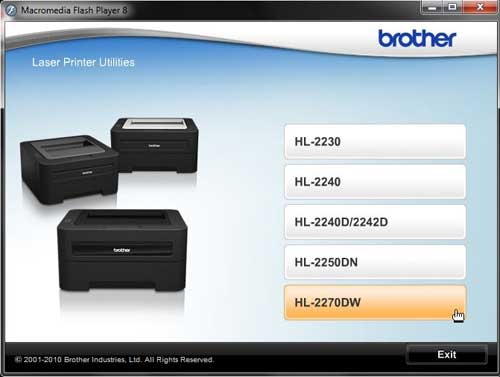
Step 3: Click your preferred language from the list.
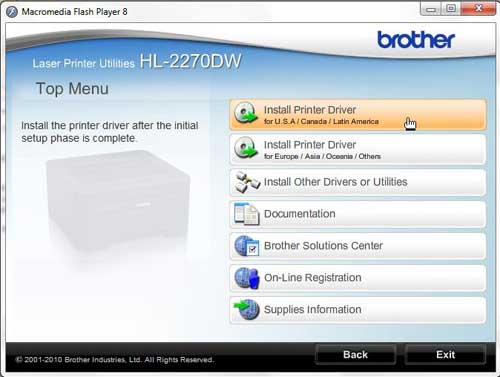
Step 4: Click theInstall Printer Driverbutton at the top of the window. Click theYesbutton to allow this program to make changes to your computer.
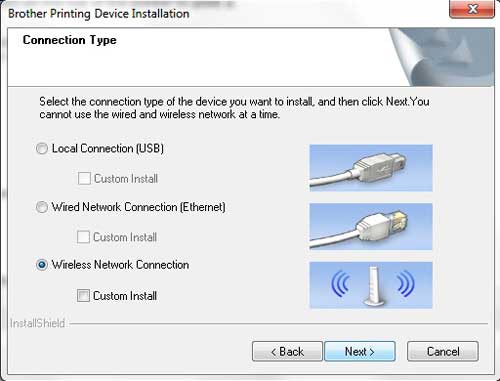
Step 5: Click theYesbutton to accept the license agreement, click theWireless Connectionoption, then click theNextbutton.
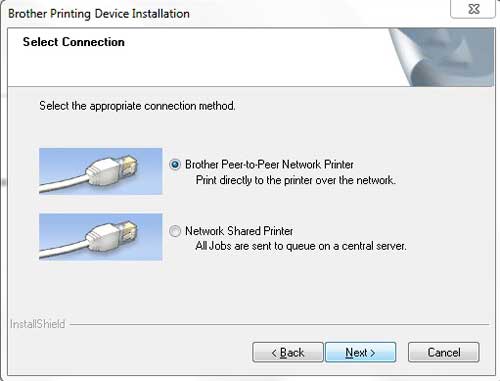
Step 6: Check theBrother Peer-to-Peer Network Printeroption, then click theNextbutton.
Step 7: Choose the option toChange the Firewall port settings to enable network connection and continue with the installation, then click theNextbutton.
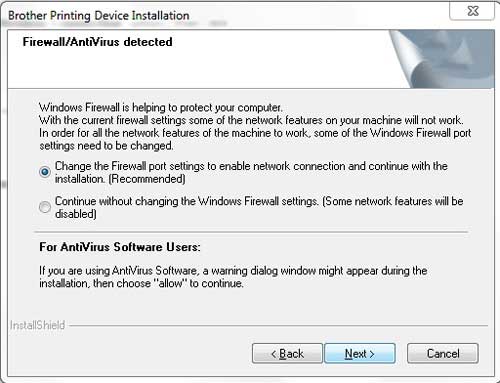
Step 8: Click theWireless Setupoption at the bottom of the window.
Note that when installing this printer on future computers, your printer will appear on this screen, and you will select it from the list.
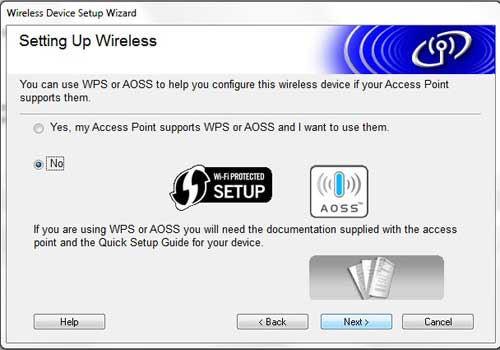
Step 9: Click theNooption at the center of the next window, then click Next.
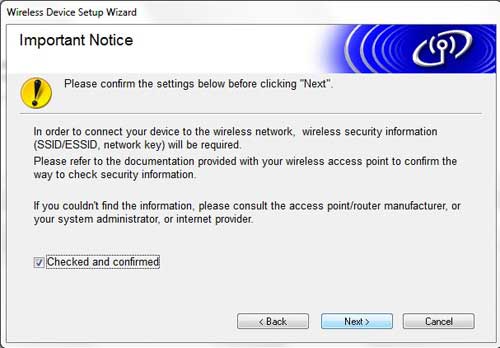
Step 10: Check the box to the left ofChecked and confirmed, then click theNextbutton.
Step 11: Check theTemporarily use a USB cableoption, then click theNextbutton.
Step 12: Connect the USB cable from the back of your printer to your computer, then wait for the computer to recognize the printer.
Step 13: Click your Brother HL2270DW printer from the list of available devices, then click theNextbutton.
Step 14: Click your wireless network from the list, then clickNext.
Step 15: Type your password into theNetwork Keyfield, retype it into theConfirm Network Keyfield, then click theNextbutton.
Step 16: ClickNext, clickNextagain, then clickFinishto complete the setup.
You can then disconnect the USB cable when prompted.
Now that you have completed the Brother hl-2270dw wireless setup, you will be able to print documents to this printer over your wireless network.
Matthew Burleigh has been writing tech tutorials since 2008. His writing has appeared on dozens of different websites and been read over 50 million times.
After receiving his Bachelor’s and Master’s degrees in Computer Science he spent several years working in IT management for small businesses. However, he now works full time writing content online and creating websites.
His main writing topics include iPhones, Microsoft Office, Google Apps, Android, and Photoshop, but he has also written about many other tech topics as well.
Read his full bio here.
Featured guides and deals
Printers can be difficult ot work with, and troubleshooting them can take you to a lot of different places on your computer.
One common issue that can arise with a printer is when it says that it is offline, even though it’s turned on and seems to be hooked up correctly.
Our tutorial below will show you some steps to try so that you can learn how to change a printer from offline to online.
How to Switch a Printer from Offline to Online in Windows 7
- Click Start , then Devices and Printers .
- Right-click the printer, then click See what’s printing .
- Select the Printer tab, then click Use printer offline to clear the check mark.
Our guide continues below with additional information on how to switch a printer from offline to online , including pictures for these steps.
If you’re lucky, then this should work and your queued documents will start printing. However, sometimes this isn’t enough and you need to do some more troubleshooting. We discuss those additional troubleshooting steps further in this article.
Printers can be frustrating when they are not working correctly, due largely to the fact that errors can occur for seemingly no reason. Whether your print jobs don’t look right, you are getting constant paper jams, or printing is inconsistent or erratic, printers are often some of the most difficult electronic devices to work with. So if your printer is showing as offline and you can’t print, then you may be trying to figure out why it’s showing as offline when the printer was working before and nothing has changed.
One issue that you might encounter is Windows 7 not being able to connect to your printer to send documents that you want to print. Further investigation into the issue might lead you to discover that Windows 7 thinks the printer is offline.
There are several reasons why this might be occurring, so you will need to follow the instructions in this tutorial to learn how to change your printer from offline to online .
Once your printer is back online, it should then start printing the documents that you have sent to the printer that are currently sitting in your print queue.
How Do You Change a Printer from Offline to Online? (Guide with Pictures)
Windows is recognizing your printer as being offline because it is unable to communicate with the printer. This can be caused by several different situations, so you need to pinpoint exactly from where the problem is originating.
These steps will show you how to change a printer from offline to online from a Windows laptop or desktop computer.
Step 1: Click theStartbutton at the bottom-left corner of your screen, then clickDevices and Printers.
Click Start then choose Devices & Printers .
Step 2: Right-click the printer that is showing as offline, then clickSee what’s printing.
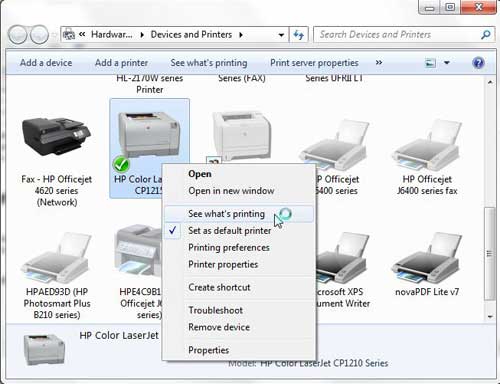
Right-click on the printer, then select See what’s printing.
Step 3: Click thePrinterlink at the top of this window, then click theUse Printer Offlineoption to remove the check mark.
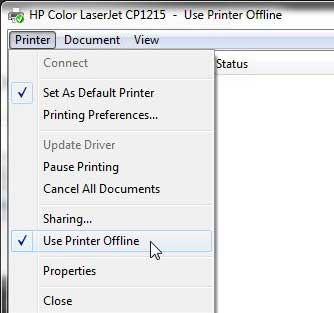
Select Printer , then Use Printer Offline .
Now that you know how to change printer from offline to online you can try this step whenever your computer is unable to print a file.
If this solved your problem, then you are all set and can continue with your printing . However, if this did not resolve the issue, then there are some more troubleshooting steps you can try.
Additional Troubleshooting for an Offline Printer in Windows 7
Check that the printer is turned on, and that the USB cable is properly connected to both the back of the printer and your computer. If your printer is wireless, you may need to restart the printer, then restart your computer to see if you can re-establish the wireless connection.
If you are using a wireless printer, have you recently changed your router, or changed the name of the wireless network ? If so, you may need to update your wireless printer with the new wireless network settings . If your wireless printer does not feature a control panel on the printer that allows you to change the network settings, you may need to temporarily connect the printer to your computer with a USB cable to modify the settings.
If your wired printer is still showing an offline status, despite the fact that it is plugged in and connected to your computer, then there may be a problem with the port to which the device is connected.
How to Change a Printer Port in Windows 7
You can use these steps to change the printer port for a printer that has been set up in Windows 7.
Step 1: Return to theDevices and Printersmenu, right-click your printer, then clickPrinter Properties.
Step 2: Click thePortstab at the top of the window, choose the correct port from the list at the center of the window, clickApply, then clickOK.
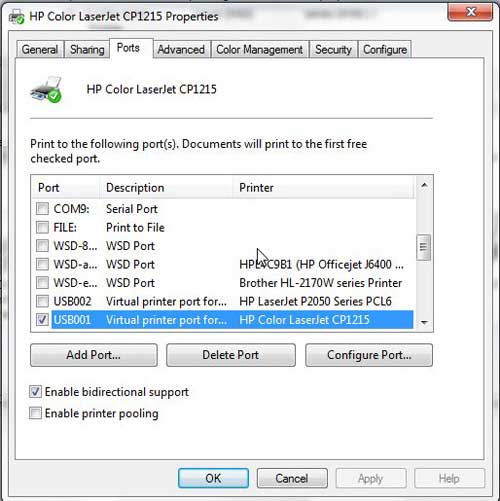
If you are still unable to print, then one final option you can attempt is to stop and restart the print spooler . You can follow the instructions in this article to learn how to manage the print spooler.
If you are still unable to print after following all of these instructions, then you may need to uninstall, then reinstall your printer. You can remove a printer from your computer by right-clicking the printer, then clicking Remove device . Once the printer has been uninstalled, follow your printer’s installation guide to properly reinstall it.
Why Is My Printer Offline?
The sections in the article above provide a bunch of different options and settings that you can check in order to see why your printer might be offline.
There are so many potential reasons that your printer might be offline that it’s hard to point to one specific reason why it might be happening.
In my experience, the best, simplest, and most useful thing that you can do when your printer is showing as offline is to simply restart the printer.
This can resolve issues related to a wireless printer that isn’t connected to a network, it can force the print spooler to restart, and it can fix print jobs that are stuck in the print queue.
While your printer is going through the process of restarting it can be helpful to restart your computer, too. And if you have a wireless printer and have been experiencing connection issues with other wireless devices as well, then even restarting your modem and your router might not be a bad idea.
How do I restart a printer?
You can reboot your printer by pressing the Power button on the printer, waiting until it has completely turned off, then pressing the Power button again to turn it back on.
How can I check my printer status?
If you aren’t sure whether or not your printer is in Printer Online or Printer Offline mode in Windows 11, then a quick way to check is to go to Start > Settings > Devices > Printers & Scanners .
You can then click on your printer and choose the Open Queue option. When you open print queue windows on your computer you can see any documents that are currently queued up to print.
When the printer window is open you can click the Printer option in the menu bar, then make sure the Use Printer Offline option isn’t selected.
How can I change the printer driver that my printer is currently using?
If you go to Start > Settings > Devices > Printers & Scanners then select your printer, you can click the Printer properties button, which will open a new window.
In this window you can choose the Advanced tab, then click the Driver drop down menu and choose a different driver. You could also click the New Driver button, which will launch the Add Printer Driver Wizard .
How do I run printer troubleshooter in Windows 11?
If you aren’t sure what the problem is, you can try the Windows utility that will cycle through a bunch of potential settings to try and fix the problem.
This means it will do things like restart printer related services, such as restarting the print spooler service and checking for outdated printer drivers.
You can do this by clicking the Windows button in the taskbar, searching for “Printer” then selecting the Printers & scanners option.
You can then select your printer and click the Run the troubleshooter option.
Why is my HP Printer offline?
The Hp printer offline Windows 11 steps are the same for Hewlett Packard printers as they are for other printers.
You need to open the Windows Settings menu, choose Bluetooth and devices, then select Printers & scanners.
You can then click on the default printer or whatever printer you want to check, then make sure Use printer offline is not selected.
If it is offline and clicking that option doesn’t put it back online, then you will need to go through the troubleshoot printer offline process of checking the printer cable (or the network status for wireless printers) and restarting the printer and the computer.
If that doesn’t work, then you may printer offline – how to put online instructions on the printer manufacturer’s website, which may involve reinstalling printer software and drivers.
Matthew Burleigh has been writing tech tutorials since 2008. His writing has appeared on dozens of different websites and been read over 50 million times.
After receiving his Bachelor’s and Master’s degrees in Computer Science he spent several years working in IT management for small businesses. However, he now works full time writing content online and creating websites.
His main writing topics include iPhones, Microsoft Office, Google Apps, Android, and Photoshop, but he has also written about many other tech topics as well.
Read his full bio here.
Adding printers to AirPrint is straightforward: ensure your printer is AirPrint-compatible, connect it to the same Wi-Fi network as your Apple device, and select the printer from the AirPrint option on your device when you print. After completing these steps, you should be able to print wirelessly from your Apple device without any additional software.
After adding your printer to AirPrint, you’ll be able to wirelessly send documents, photos, and emails from your Apple devices to your printer. You won’t need to install any drivers or software, making the process seamless and hassle-free.
Introduction
Isn’t it annoying when you have to print something from your iPhone, iPad, or Mac, but the printer is not set up for AirPrint? Welcome to the 21st century, where technology makes life easier, and AirPrint is one of those conveniences that we’ve come to appreciate. For those who are not in the know, AirPrint is a feature that allows Apple users to print wirelessly from their devices without the need for drivers or cables. This is particularly useful for households or offices with multiple Apple devices and a single printer.
But, why should you care about AirPrint? Well, imagine this: you’ve just finished putting together a brilliant report on your iPad, and you need to print it out for a meeting that’s starting in ten minutes. With AirPrint, you can print directly from your iPad to your printer without having to transfer files or fuss with connecting cables. It’s all about convenience, efficiency, and the joy of living in a wireless world. So, whether you’re a student, a professional, or someone who just likes to print photos from your iPhone, AirPrint is something you’ll want to set up.
Step by Step Tutorial: Adding Printers to AirPrint
This section will guide you through the steps of adding a printer to AirPrint, so you can start printing from your Apple devices without any cables or additional software.
Step 1: Check Printer Compatibility
Ensure your printer supports AirPrint.
Not all printers are compatible with AirPrint, so the first thing you need to do is to check if your printer supports this feature. You can do this by looking at the printer’s manual or visiting the manufacturer’s website. If your printer is compatible, you’re good to go. If not, you might need to consider getting an AirPrint-enabled printer.
Step 2: Connect the Printer to the Same Wi-Fi Network
Connect your printer to the same Wi-Fi network as your Apple device.
For AirPrint to work, your printer and Apple device need to be on the same Wi-Fi network. This usually involves pressing the Wi-Fi button on your printer and selecting your home or office network. You may need to enter a password if your network is secured. Once connected, the printer should appear on your network.
Step 3: Select the Printer from your Apple Device
Choose the printer from the AirPrint option on your Apple device when you’re ready to print.
When you want to print something, open the app you’re printing from and tap the share icon or the print option. Select ‘Print’ or the printer icon, and your AirPrint-compatible printer should appear on the list. Just tap on it, hit print, and you’re all set! Remember, your device and the printer must be on the same network for the printer to show up.
Pros
| Benefit | Explanation |
|---|---|
| Wireless Printing | With AirPrint, you can print from your Apple devices without the need for cables. This means you can print from anywhere in your home or office, as long as you’re connected to the same Wi-Fi network as your printer. |
| No Drivers Needed | AirPrint eliminates the need to install drivers or additional software. This makes setting up your printer a breeze and reduces the chances of compatibility issues. |
| Easy to Use | AirPrint is designed to be user-friendly. Printing is as simple as selecting the print option on your device and choosing your printer. It’s a straightforward process that anyone can follow. |
Cons
| Drawback | Explanation |
|---|---|
| Limited Compatibility | Not all printers are compatible with AirPrint, which means you may need to invest in a new printer if your current one does not support this feature. |
| Network Dependency | AirPrint requires both the Apple device and printer to be on the same Wi-Fi network, which can be limiting if you’re away from your usual network or if the network is down. |
| Potential for Network Issues | Like any wireless technology, AirPrint is subject to network stability. If your Wi-Fi network is spotty or unreliable, it could affect your ability to print. |
Additional Information
When adding printers to AirPrint, there are a few supplementary tips and insights that can enhance your experience. First, ensure your Apple device’s software is up to date to avoid any compatibility issues. Secondly, if you encounter problems, restarting both your Apple device and printer can often resolve the issue. It’s also worth noting that AirPrint works with a variety of apps, including Safari, Mail, Photos, and even third-party apps, so don’t limit yourself to just printing documents.
Additionally, some printers offer advanced AirPrint features, such as double-sided printing or specific color settings, so be sure to explore your printer’s capabilities. And remember, while adding printers to AirPrint is a convenient feature, it’s important to secure your Wi-Fi network to prevent unauthorized access to your printer.
Summary
- Check if your printer is AirPrint-compatible.
- Connect your printer to the same Wi-Fi network as your Apple device.
- Select the printer from the AirPrint option on your device when printing.
Can I use AirPrint with a USB or wired connection?
No, AirPrint is designed for wireless printing, so it requires a Wi-Fi connection.
What should I do if my printer isn’t AirPrint compatible?
You may need to consider purchasing an AirPrint-compatible printer or explore other wireless printing alternatives.
Can I print from any app using AirPrint?
Most native Apple apps and many third-party apps support AirPrint.
Is AirPrint secure?
As long as your Wi-Fi network is secure, AirPrint is a safe way to print wirelessly.
Can I print to an AirPrint printer from a non-Apple device?
No, AirPrint is exclusive to Apple devices running iOS, iPadOS, or macOS.
Conclusion
Adding printers to AirPrint is a game-changer for anyone entrenched in the Apple ecosystem. It simplifies the printing process and aligns with the seamless experience Apple users have come to expect. Remember that while AirPrint is indeed convenient, it does come with its limitations and is not universally compatible.
However, for those with the right setup, the wireless, driverless printing experience is nothing short of magical. As you move forward, consider the tips and additional information shared in this article, and enjoy the ease and efficiency of AirPrint-enabled printing.
Matthew Burleigh has been writing tech tutorials since 2008. His writing has appeared on dozens of different websites and been read over 50 million times.
After receiving his Bachelor’s and Master’s degrees in Computer Science he spent several years working in IT management for small businesses. However, he now works full time writing content online and creating websites.
His main writing topics include iPhones, Microsoft Office, Google Apps, Android, and Photoshop, but he has also written about many other tech topics as well.
Read his full bio here.
Smartphones and mobile devices like the iPhone have become so capable and powerful that they can perform many of the same functions as a desktop or laptop computer.
Therefore you might be wondering how to add a printer on your iPhone 11 so that you can print a file directly from the device.
If you were an early adopter of cell phones or even the first smartphone options, then you may have become so accustomed to avoiding printing that you may not have tried it in a while.
Printing from mobile devices used to be difficult, if not impossible, so many users simply chose to keep printing only from their computers.
But the prevalence and market dominance of mobile devices has increased so much that printing was something that needed to be addressed.
This happened with a feature called AirPrint that makes it much easier for iPhones to communicate with printers over a wireless printer.
Our guide below will show you how to add a printer to your iPhone 11 and how to complete a print job from the device.
How to Add an iPhone Printer
- Open an app or file to print.
- Tap the Share button.
- Choose Print .
- Tap Select Printer .
- Touch the printer you wish to use.
- Change print job settings as needed.
- Tap Print .
Our article continues below with additional information on how to add a printer on an iPhone, including pictures of these steps.
How to Use a Printer from an iPhone (Guide with Pictures)
The steps in this article were performed on an iPhone 11 in iOS 14.6. This section assumes that you have an AirPrint-enabled printer that is already setup up to use AirPrint over your wireless network.
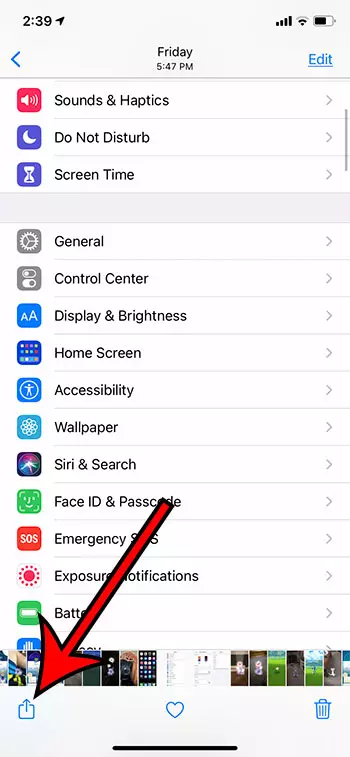
Step 1: Open the app with the file you want to print, or open the specific file.
Step 2: Touch theShareicon (the one with the square and an upward pointing arrow.)
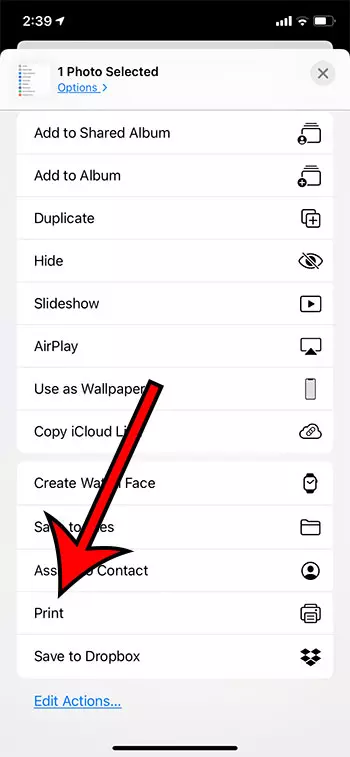
Step 3: Choose thePrintoption.
You may need to scroll down a little bit to find this option.
Step 4: Tap theSelect Printerbutton.
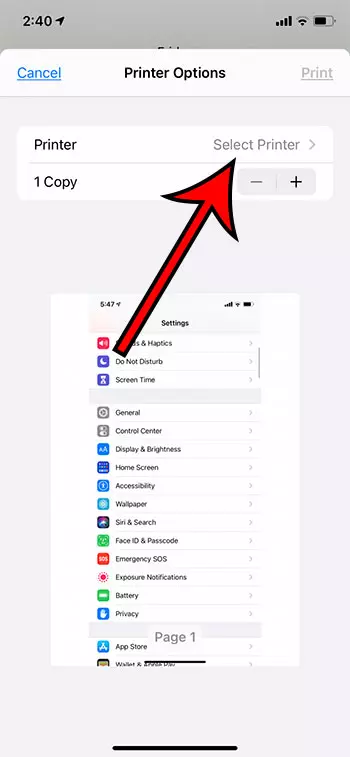
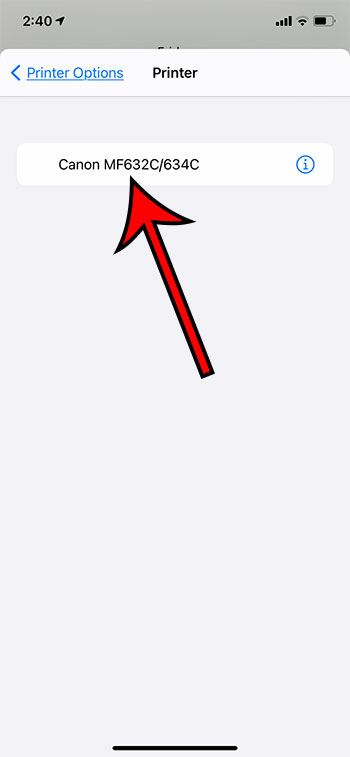
Step 5: Choose the printer that you would like to add and print from.
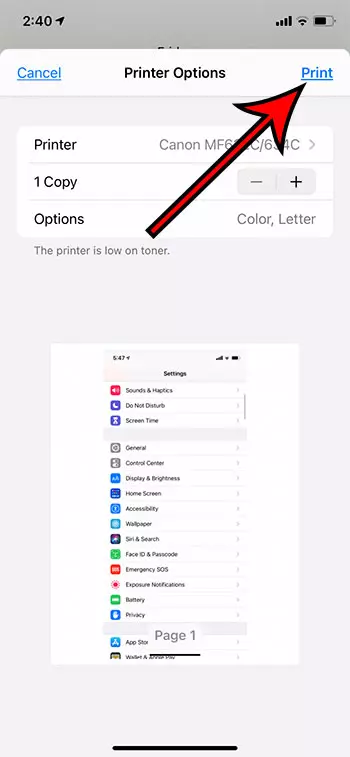
Step 6: Adjust any of the additional options on this print menu like the number of copies, then tapPrintat the top right corner of the screen.
Now that you know how to print from an iPhone you will be able to create physical copies of documents without needing to involve a laptop or desktop computer in the process.
What is Airprint?
The AirPrint feature is one that was rather uncommon and mysterious a decade ago but has become much more common and popular. In fact, most new wireless printers are now compatible with AirPrint, as it is such an important feature.
AirPrint is a wireless protocol that Apple takes advantage of to allow their device to print wirelessly. Most printers will need to install their own drivers on a computer in order to print, but the AirPrint feature is kind of a universal driver that any iPhone, iPad, or iPod Touch can use to print without needing to go through the headache of actually installing the files for a printer on to the device.
How to Print from an iPhone
If you are used to printing from a computer and haven’t yet had to try this from a device that uses iOS, then it’s a little tricky the first time.
Your iPhone lumps the printing option in with other sharing options, such as sending data through a text message or an email. Therefore, you need to open the Share menu from within the app or file which you want to print.
Step 1: Open the app or file.
Step 2: Tap the Share icon.
Step 3: Choose the Print option.
Step 4: Select the printer and adjust the other print settings, then tap the Print button.
Note that you will need to be connected to the same wireless network as the printer that you want to use for this print job.
Most of the items that you would want to print from a default iPhone app are going to use this “Share” method to print the file. However, you might need to follow some different steps to print from within other apps. For example, to print from Google Docs on an iPhone you would open the document, tap the three dots at the top-right, choose Share & export , then tap Print .
How to View or Cancel a Print Job on an iPhone
When you create a print job on your iPhone it is handled through an app called the Print Center. If the print job is just a single page then the printing process can occur very quickly, and you probably won’t be able to view or cancel that job.
But if the document that you are trying to print has a lot of pages, or if you are printing a lot of copies, then you might be able to view or modify it.
You can open the Print Center from the App Switcher. On older iPhone models you can open the App Switcher by pressing the Home button twice. On newer iPhone models you swipe up and to the left or right from the bottom of the Home screen.
You can then select the Print Center app and either look at the print job or tap the Cancel Printing button to cancel the print job.
How to Print To a Printer Without AirPrint from an iPhone (Using an App)
The specifics of this method are a little generic, as these steps will depend on the brand of printer. But, generally speaking, you are going to need to download an app to your iPhone for your printer, enable the Wi-Fi option on your printer, then connect to the network that the printer creates through your iPhone.
- Open the App Store .
- Search for your printer’s app. (Not all printers are going to have a dedicated app. Consult your printer’s documentation to see if this option is available.)
- Download and install the app.
- Enable Wi-Fi on your printer so that the printer is broadcasting its wireless network.
- Open the Settings app on your iPhone.
- Choose the Wi-Fi option.
- Select the printer’s Wi-Fi network and enter the password if prompted.
- Open the file that you want to print.
- Tap the Share icon.
- Select the Print option.
- Choose the printer.
- Tap Print .
Alternatively, you might open the printer app instead, then browse through your iPhone’s files through the app and send them to the printer that way.
If you can’t use an app or AirPrint for your printer then you might be able to use a USB solution. Note that this will likely require you to purchase some additional equipment.
Can You Print from Your iPhone to a Printer Without a Wi Fi Network?
Yes, this is possible, but it is going to require some additional steps and equipment. The iPhone is a wireless device, o its default method of connection is going to rely on wireless connectivity.
The section below discusses how to establish a wired connection between a printer and the iPhone using the USB port on the back of the printer and the Lightning port on your iPhone.
How to Use a USB Cable to Print from an iPhone to a Non AirPrint Printer
- Connect the USB end of the cable to the port on the back of the printer.
- Connect the other end of the cable to the iPhone’s lightning port.
- Confirm the device connection on your iPhone.
- Open the file you want to print.
- Tap the Share icon.
- Choose the Print option.
- Touch the Select Printer button.
- Select the USB-connected printer.
- Tap the Print button.
More Information on How to Add Printer to iPhone 11
While you can often get good prints from files, images, or other objects that you print from your iPhone, I have found that the prints typically look better when printed from a computer.
Often this is due to scaling, but it can also come from the fact that AirPrint can occasionally have some compatibility issues with combinations of phones and printers.
The different settings that are available on the print options menu can include things like the number of copies, color options, or a range selection.
These options aren’t always available for everything, though, so you might need to experiment with opening the file in different apps if you need to switch between black and white or color, for example.
Some printers that aren’t compatible with AirPrint, or aren’t wireless, can employ an email-based solution for printing.
Essentially what you are doing is assigning an email address to your printer, then you are sending the file that you want to print to that email address.
Since you can create and send emails with the Mail app on your iPhone, this can be another convenient option for printing from the device. Consult your printer’s manual for more information on setting up this feature, as its availability and functionality will vary between printer models.
One final thing to consider is setting up a wireless print server for your wired printer.
While this can be complicated and more expensive than simply purchasing a new, wireless printer, it can solve your printing issue.
Establishing the connection to that printer may involve some additional steps, but they are much more approachable when wireless capability has been added to the printer.
Matthew Burleigh has been writing tech tutorials since 2008. His writing has appeared on dozens of different websites and been read over 50 million times.
After receiving his Bachelor’s and Master’s degrees in Computer Science he spent several years working in IT management for small businesses. However, he now works full time writing content online and creating websites.
His main writing topics include iPhones, Microsoft Office, Google Apps, Android, and Photoshop, but he has also written about many other tech topics as well.
Read his full bio here.
Featured guides and deals
Configuring AirPrint for an iPad is a breeze! Just make sure your printer supports AirPrint, and you’re connected to the same Wi-Fi network as your printer. Then, select the print option from your iPad’s share menu, choose your printer, and hit print. Voila! You’re now ready to print wirelessly from your iPad.
Introduction
AirPrint is Apple’s wireless printing technology, allowing iPad and iPhone users to print directly from their devices without the need for drivers or cables. So, why is this important? Well, imagine you’re rushing to print out a boarding pass or an important document, and you don’t have time to transfer files to a computer or deal with pesky wires. AirPrint to the rescue! It’s a game-changer for anyone who values efficiency and ease of use in their daily lives, especially in a world where more and more work is done on the go.
Whether you’re a busy professional, a student, or just someone who enjoys the convenience of modern technology, knowing how to set up AirPrint on your iPad can save you time and hassle. Plus, it’s environmentally friendly since it encourages less printing, only what you need, when you need it. So let’s dive into the nitty-gritty of configuring AirPrint and unleash the full potential of your iPad’s printing capabilities!
Step by Step Tutorial: How to Configure AirPrint for an iPad
Before we dive into the steps, let’s clarify what we’re about to accomplish. By following these instructions, your iPad will be able to communicate with your AirPrint-compatible printer over your Wi-Fi network. This means you can print documents directly from your iPad, as long as both devices are connected to the same Wi-Fi.
Step 1: Verify Printer Compatibility
Ensure that your printer supports AirPrint.
Most modern printers come with AirPrint support, but it’s always good to double-check. You can usually find this information in your printer’s manual or by looking up the model online. If your printer is AirPrint-enabled, you’re good to go!
Step 2: Connect to Wi-Fi
Connect both your iPad and your AirPrint-compatible printer to the same Wi-Fi network.
This step is crucial because AirPrint works over Wi-Fi. Make sure your iPad is connected to Wi-Fi by going to Settings > Wi-Fi. Then, connect your printer to the same network. The process for this will vary depending on the printer, so refer to the printer’s manual for specific instructions.
Step 3: Select the Print Option
Choose the document or photo you want to print on your iPad and tap the share icon.
Once you’ve got your document, photo, or webpage open, look for the share icon (it looks like a square with an arrow pointing up). Tap it, and a menu of options will appear.
Step 4: Print from Your iPad
Tap “Print” or the printer icon, select your printer, choose the number of copies, and hit the print button.
After tapping the print option, your iPad will search for AirPrint printers on the network. Select your printer from the list, decide how many copies you need, and then tap “Print.” Your document will start printing wirelessly – just like magic!
Pros
| Benefit | Explanation |
|---|---|
| Convenience | AirPrint eliminates the need for cables or transferring files to a computer, making it super convenient for on-the-go printing. |
| Ease of Use | With just a few taps, you can print directly from your iPad, without the need to install drivers or software. |
| Saves Time | Quick setup and the ability to print instantly from your iPad save you a significant amount of time, especially when you’re in a hurry. |
Cons
| Drawback | Explanation |
|---|---|
| Printer Compatibility | Not all printers support AirPrint, which can be a limitation for those with older or incompatible models. |
| Wi-Fi Dependence | Since AirPrint works over Wi-Fi, you won’t be able to print if your network is down or if you’re out of range. |
| Limited Settings | AirPrint may not offer as many custom printing options as printing from a computer, which could be a downside for complex printing tasks. |
Additional Information
Now that you know the basics of setting up AirPrint on your iPad, let’s touch on some additional tips. First, remember to keep your iPad’s software updated. Apple occasionally releases updates that can improve AirPrint functionality and compatibility. Also, if you run into any issues while trying to print, restart both your iPad and printer – this can often resolve any hiccups in the connection.
Another handy tip is to use the “Preview” option before printing. This allows you to see exactly how your document will look once printed, which can help you avoid any unwanted surprises. And don’t forget, you can also select specific pages to print if you don’t need the whole document, saving you ink and paper.
Lastly, be aware that AirPrint supports various file types, not just photos and documents. You can print emails, PDFs, and even web pages directly from your iPad. So next time you come across a delicious recipe online, don’t just bookmark it – print it out and stick it to your fridge!
Summary
- Verify that your printer supports AirPrint.
- Connect your iPad and printer to the same Wi-Fi network.
- Select the document or photo you want to print and tap the share icon.
- Tap “Print,” select your printer, choose the number of copies, and press the print button.
Can I use AirPrint with any printer?
No, AirPrint only works with printers that specifically support this feature. Check your printer’s specifications to see if it’s compatible.
Do I need to install any apps or drivers to use AirPrint?
Nope, AirPrint is built into iOS, so there’s no need for additional apps or drivers.
Can I print from any app on my iPad?
Most apps support AirPrint, but it’s always best to check if the app has a print option available.
What if my printer isn’t showing up when I try to print?
Make sure your printer is turned on, connected to the same Wi-Fi network as your iPad, and that AirPrint is enabled in your printer’s settings.
Can I print double-sided with AirPrint?
Yes, if your printer supports double-sided printing, you can select this option before printing from your iPad.
Conclusion
Configuring AirPrint for an iPad isn’t just about convenience; it’s about embracing the wireless, interconnected world we live in. By following the steps outlined in this article, you’ll be able to print important documents, cherished photos, and more, all without the need for cables or complicated setups.
Remember, the key to successful AirPrint setup lies in ensuring your printer’s compatibility and having both your iPad and printer connected to the same Wi-Fi network. Once you’re set up, the benefits – such as convenience, time-saving, and ease of use – are undeniable. However, also be mindful of the limitations, like printer compatibility and reliance on a Wi-Fi network.
AirPrint is more than just a feature; it’s a testament to how our devices can work seamlessly together to make our lives easier. So, take a moment to configure AirPrint on your iPad, and step into the future of printing.
Matthew Burleigh has been writing tech tutorials since 2008. His writing has appeared on dozens of different websites and been read over 50 million times.
After receiving his Bachelor’s and Master’s degrees in Computer Science he spent several years working in IT management for small businesses. However, he now works full time writing content online and creating websites.
His main writing topics include iPhones, Microsoft Office, Google Apps, Android, and Photoshop, but he has also written about many other tech topics as well.
Read his full bio here.
