Hey there, ever felt stuck with a stack of envelopes and a pen, wishing there was an easier way to enter those addresses? Or maybe you’re trying to organize your pantry, but writing on every jar label feels like a chore. Well, good news! Printing labels directly from Microsoft Word is super straightforward, and I’m here to walk you through it. You’ll just need to open Word, head over to the Mailings tab, pick the Labels option, choose your label type, type in what you want, and hit print. It’s that simple to create professional-looking labels for just about anything you can imagine.
How to Print Labels from Word Tutorial
This section guides you through each step of printing labels in Word, ensuring you understand exactly what to do from start to finish. We’ll cover everything from opening the correct menu to ensuring your labels print perfectly.
Step 1: Open a brand new Word document.
Starting with a fresh, blank document is always the best practice when you’re beginning a new project in Word, especially for something precise like labels. This helps prevent existing formatting or content from disrupting your label layout and gives you a clean slate to work with. Think of it like starting with an empty canvas before you paint, it just makes things easier and cleaner.
Step 2: Navigate to the Mailings tab at the top of the screen.
Once your new document is open, look up at the ribbon, which is that long bar with all the buttons and menus at the top of Word. You’ll find a tab specifically called “Mailings” there. This tab is your go-to spot for anything related to letters, envelopes, and of course, labels, because it contains all the tools designed for mass communication and printing tasks.
Step 3: Click on the “Labels” button within the Mailings tab.
After clicking “Mailings,” you’ll see a group of options on the left side, and one of the first buttons you’ll spot is “Labels.” Clicking this button opens the “Envelopes and Labels” dialog box, where all the magic happens for setting up your labels. This is the gateway to telling Word exactly what kind of labels you want to create.
Step 4: Choose your label options in the dialog box.
In the “Envelopes and Labels” box, select the “Product number” that matches the labels you bought. This is super important because different labels have different sizes and layouts. You can click “Options” to select your label vendor, such as Avery or another brand, and then locate the specific product number on your label packaging. If your labels aren’t listed, you can often create a “New Label” with custom dimensions.
Step 5: Enter the content you want to appear on your labels.
Now, enter the text for your labels in the “Address” box. This could be an address, a name, a description for a storage box, or anything else you need. If you’re printing a full page of the same label, just type it once. If you need different information on each label, you’ll generally create a full page of labels, and then edit each one individually after Word generates them.
Step 6: Decide whether to use a single label or a full page, then preview and print.
Before you hit print, you have a choice: print a single label or an entire sheet. If you select “Full page of the same label,” Word will fill an entire sheet with your content. If you select “Single label,” you can specify which row and column to print on, which is handy if you need only one or two. Always click “New Document” first to preview how your labels look on a page, verify alignment, and then print from that new document. This is your chance to catch any mistakes before wasting a label sheet.
After you’ve followed these steps and hit print, your printer will whir to life, and out will come your perfectly aligned, professional-looking labels. If they don’t look quite right, don’t worry, a little tweaking and a test print often solve most issues. You’re now ready to stick them on envelopes, folders, jars, or whatever needs labeling.
Tips for Printing Labels from Word
- Always run a test print on a plain sheet of paper first to check alignment before using your actual label sheets. This saves you frustration and precious label stock.
- Double-check the product number on your label packaging against the one you select in Word. Even a tiny difference can lead to misaligned prints.
- For printing multiple labels, such as for a mailing list, consider using Word’s Mail Merge feature. It’s a bit more advanced, but it’s a huge time-saver.
- Save your label document after you’ve set it up. This way, if you need to print the same labels again later, you won’t have to go through the setup process from scratch.
- If your labels are consistently printing off-center, try adjusting the printer’s margin settings or checking for updated printer drivers. Sometimes, the issue is with the printer, not with Word.
- Make sure your printer’s paper tray guides are snug against the label sheet to prevent it from skewing during printing. A misaligned sheet can cause all sorts of headaches.
Why are my labels printing incorrectly or misaligned?
Label misalignment is a common hiccup, but it usually has a simple fix. First, make absolutely certain that the product label number you selected in Word exactly matches the labels you’re using. Even a slightly different product number, even from the same brand, can mean different dimensions. Also, always do a test print on regular paper to see where the text falls. Sometimes printer settings or label loading can also cause issues, so check those as well.
Can I print just one label instead of a whole sheet?
Yes, absolutely! When you’re in the “Envelopes and Labels” dialog box and have entered your content, you’ll see an option for “Single label.” Select this, then specify the row and column where you want the single label printed. This is super handy for using up partial sheets of labels or just needing a quick one-off. Just make sure to load your partial sheet correctly into the printer.
What if my specific label brand or product number isn’t listed in Word’s options?
Don’t panic if you can’t find your exact labels. Word offers a “New Label” option within the “Label Options” dialog box. You can measure your labels yourself, input the dimensions like height, width, page margins, and the number of labels across and down. Word will then create a custom template for you. It’s a bit more work up front, but it ensures precise alignment for your unique labels.
How do I print different addresses or content on each label on a single sheet?
If you need each label on a sheet to have unique content, like different addresses, you’ll first set up a “Full page of the same label” as usual. Then, instead of directly printing, click “New Document.” This creates a Word document with a table layout, where each cell represents a label. You can then manually type or paste different content into each individual label cell. This gives you full control over every single label on the sheet.
Can I include images or logos on my printed labels?
Yes, you definitely can! Once you’ve created your label document by clicking “New Document” after setting up your labels, you can treat each label cell just like any other part of a Word document. Simply click inside a label cell, go to the “Insert” tab, and then choose “Pictures” or “Shapes” to add your desired image or logo. You’ll want to resize and position it carefully to fit within the label boundaries.
Summary of Steps
- Start a new Word document.
- Go to the Mailings tab.
- Click Labels.
- Choose label options.
- Enter label content.
- Preview and print labels.
Final Thoughts
Printing labels from Word is one of those incredibly useful skills that once you learn, you’ll wonder how you ever managed without it. Think about all the time you’ve spent meticulously handwriting addresses for holiday cards, creating labels for your homemade goodies, or organizing your office files. This simple process in Word transforms those tedious tasks into quick, professional-looking projects. It’s not just about saving time, it’s about adding a polished touch to everything you do.
Remember, practice makes perfect. Don’t be discouraged if your first attempt isn’t flawless. That’s why we always recommend a test print on plain paper first. It’s like a dress rehearsal for your labels, letting you iron out any kinks without wasting your good label sheets. Once you get the hang of matching your physical labels to the settings in Word, you’ll find yourself confidently churning out labels for any occasion.
The versatility of this feature is truly remarkable. From mailing lists for your business, to labeling moving boxes, to personalizing gifts, the applications are endless. You can even use it for creative projects, like making custom stickers or tags. So, take these steps, give it a try, and unlock a whole new level of efficiency and professionalism in your daily tasks. Mastering how to print labels from Word is an invaluable skill that will serve you well in countless situations, making your life a little easier and a lot more organized. Why not start today and see what you can label?

Matthew Burleigh has been writing tech tutorials since 2008. His writing has appeared on dozens of different websites and been read over 50 million times.
After receiving his Bachelor’s and Master’s degrees in Computer Science he spent several years working in IT management for small businesses. However, he now works full time writing content online and creating websites.
His main writing topics include iPhones, Microsoft Office, Google Apps, Android, and Photoshop, but he has also written about many other tech topics as well.
Read his full bio here.
JavaScript is not available.
We’ve detected that JavaScript is disabled in this browser. Please enable JavaScript or switch to a supported browser to continue using x.com. You can see a list of supported browsers in our Help Center.
Help Center

Dengan mengeklik Lanjutkan, Anda menyetujui Perjanjian Pengguna , Kebijakan Privasi , dan Kebijakan Cookie LinkedIn.
Kami telah mengirimkan link sekali pakai ke alamat email utama Anda
Klik link untuk login langsung ke akun LinkedIn Anda.
Jika Anda tidak menemukan email tersebut di kotak pesan, periksa folder spam.
Setuju & Bergabung dengan LinkedIn
Dengan mengeklik Lanjutkan, Anda menyetujui Perjanjian Pengguna , Kebijakan Privasi , dan Kebijakan Cookie LinkedIn.
Pin Builder
Printing multiple envelopes in MS Word is a breeze once you get the hang of it. Simply go to the Mailings tab, select Envelopes, input your delivery and return addresses, adjust your settings to match your printing preferences, and hit Print. Voila! You’re ready to send out a batch of professional-looking envelopes without breaking a sweat.
After completing the action, MS Word will send your envelope document to your printer, and you’ll have a stack of neatly printed envelopes, all with the same consistent formatting. Perfect for a batch of invitations, business mail-outs, or any other occasion that requires multiple envelopes.
Introduction
Ever found yourself with a stack of envelopes, a pen in hand, and a cramping wrist? Whether you’re organizing a wedding, running a small business, or just trying to send out holiday cards, printing multiple envelopes at once can save you time and avoid the hand strain. That’s where Microsoft Word comes in handy. This software, which is probably already on your computer, has a feature that allows you to print numerous envelopes simultaneously.
Now, some might think printing envelopes is old school, but in this digital age, receiving a physical letter or invitation can be quite refreshing. Not to mention, it gives a personal touch that emails and digital communications often lack. This skill is particularly relevant for those in administrative roles, event planning, or anyone who regularly sends mail in bulk. So, let’s dive into how you can use MS Word to make your life just a little bit easier.
Step by Step Tutorial: How to Print Multiple Envelopes in MS Word
Before beginning the steps, it’s important to note that these will guide you through setting up a batch of envelopes with the same address. This is perfect for sending out generic mailers, invitations, or announcements.
Step 1: Open MS Word and go to the Mailings tab
Open your Microsoft Word to the Mailings tab, which is where all the magic happens for envelopes and labels.
In the Mailings tab, you’ll find a host of useful tools not just for envelopes, but for all kinds of mail merges and postage documents. However, for the purpose of printing multiple envelopes, you’ll want to focus on the Envelopes tool.
Step 2: Click on Envelopes
Click on the Envelopes button to open the Envelopes and Labels dialog box.
This is where you’ll input the information for your envelopes. It’s a one-stop-shop for specifying both the delivery and return addresses.
Step 3: Enter your addresses
Enter the delivery address and, if needed, a return address in the appropriate fields.
If you’re sending out a batch of mail, chances are the delivery address will be consistent across all envelopes. You can also save this address for future use by checking the box that says “Add to Document”.
Step 4: Adjust your printing options
Click on Options, and then select your envelope size and printing options.
This is a crucial step to ensure that your envelopes print correctly. You’ll need to match your envelope size to the options available and configure your printing preferences, like feed method and print position.
Step 5: Insert your envelopes into the printer and click Print
Load your envelopes into the printer according to your printer’s specifications, and then click Print.
Make sure you’ve inserted the envelopes in the right direction and position. This might take some trial and error, but once you get it right, you’ll be good to go for future printing jobs.
Pros
| Benefit | Explanation |
|---|---|
| Time-saving | Printing multiple envelopes at once can drastically cut down on the time it takes to address them individually by hand. |
| Consistency | Using MS Word ensures that all your envelopes will have the same professional look and formatting. |
| Customization | The software allows for various customizations, from font style and size to the positioning of text, granting you full control over the final product. |
Cons
| Drawback | Explanation |
|---|---|
| Learning Curve | It might take a few tries to get the hang of the settings and printing options, which can be frustrating for first-time users. |
| Printer Specifics | Depending on your printer’s capabilities, printing envelopes might not be straightforward and could require additional steps. |
| Limitations on Design | While MS Word allows for some customization, it might not be enough for those looking for highly stylized or graphically complex designs on their envelopes. |
Additional Information
When printing multiple envelopes in MS Word, remember that the quality of the final product also depends on the type of envelopes and printer you’re using. Make sure to use envelopes that are compatible with your printer, and that your printer has an envelope setting to avoid jams or misprints.
Another tip is to print a test envelope first. This helps you adjust your printer settings without wasting a pile of envelopes. And don’t forget about the wealth of online tutorials and resources available. If you’re stuck, chances are someone else has been too, and there’s likely a guide or video out there to help you through.
Finally, consider the environmental impact of your mailing projects. Opt for recycled envelopes when possible, and always recycle any test prints or mistakes. Your recipients will appreciate the effort, and so will the planet.
Summary
- Open MS Word and go to the Mailings tab.
- Click on Envelopes.
- Enter your addresses.
- Adjust your printing options.
- Insert your envelopes into the printer and click Print.
Can I print different addresses on each envelope?
Yes, you can, by using the Mail Merge feature in MS Word, which allows you to pull addresses from a data file like an Excel spreadsheet.
Do I need a special printer to print envelopes?
Not necessarily, but your printer should have an envelope setting to ensure proper printing and to avoid causing jams.
Can I save the envelope document for future use?
Absolutely! Just save the document as you would any Word file, and you can reopen it for future printing needs.
What if my envelopes are not the standard size?
MS Word allows you to customize the size of your envelopes. Just go to the Options in the Envelopes and Labels dialog box and input your specific dimensions.
Can I add graphics or logos to my envelopes in MS Word?
Yes, you can insert images or logos just like in a regular document. Just make sure they are properly sized and positioned before printing.
Conclusion
In conclusion, printing multiple envelopes in MS Word is a handy skill that can save you time and enhance your professional or personal correspondence. With a few simple steps, you can transform an arduous task into a quick and easy process. Remember, practice makes perfect, so don’t be discouraged if your first few tries don’t turn out as expected.
Moreover, always be mindful of the environment when undertaking mass printing projects. Opt for sustainable materials and practices whenever possible. With a little effort and creativity, your mail can not only convey your message but also reflect your values and attention to detail. So, go ahead and give it a try – your recipients (and your hand) will thank you for ditching the pen and opting for the printer.
Matthew Burleigh has been writing tech tutorials since 2008. His writing has appeared on dozens of different websites and been read over 50 million times.
After receiving his Bachelor’s and Master’s degrees in Computer Science he spent several years working in IT management for small businesses. However, he now works full time writing content online and creating websites.
His main writing topics include iPhones, Microsoft Office, Google Apps, Android, and Photoshop, but he has also written about many other tech topics as well.
Read his full bio here.
Featured guides and deals
Printing multiple labels in Microsoft Word is a breeze once you get the hang of it. First, you’ll need to set up a new label template or use an existing one. Next, you’ll input your label information, be it addresses, names, or other necessary details. Finally, you’ll print your labels, and voila, you have a set of neatly printed labels ready for use!
After completing this action, you’ll have a sheet (or sheets) of labels ready for whatever purpose you need them for, such as mailing, organizing files, or labeling products.
Introduction
Printing multiple labels at once can be a daunting task if you’re not familiar with the tools at your disposal. However, Microsoft Word simplifies this process with its built-in label templates and easy-to-use interface. Whether you’re a small business owner looking to ship out products, an office administrator tasked with mailing correspondence, or a teacher organizing classroom materials, knowing how to print multiple labels efficiently can save you time and prevent the frustration of manually writing out each label.
Step by Step Tutorial: How to Print Multiple Labels in Microsoft Word
Before we dive into the steps, let’s understand what we’re about to do. We will create a sheet of labels where each label contains different information. This could be for a mailing list, name tags, or any scenario where you need a bunch of labels.
Step 1: Open Microsoft Word
Launch Microsoft Word on your computer.
Opening Microsoft Word is your first step. This might seem obvious, but make sure you’re opening a new blank document to start fresh.
Step 2: Click on the ‘Mailings’ Tab
Select the ‘Mailings’ tab at the top of the screen.
The ‘Mailings’ tab is where all the magic happens for creating labels. This is where you will find all the tools you need for your label project.
Step 3: Select ‘Labels’
Choose ‘Labels’ from the ‘Create’ group.
By selecting ‘Labels,’ you’re telling Word that you’re looking to create multiple labels instead of a single document.
Step 4: Choose Your Label Template
Click on ‘Options’ and select the label template that matches the labels you want to print.
Microsoft Word has a variety of templates to fit different label sizes and brands. Make sure you select the one that matches your label sheets.
Step 5: Input Your Label Information
Enter the information for your labels.
This is where you will type in the content for each label. If you’re printing addresses, you might input the first one now.
Step 6: Select ‘Full Page of the Same Label’
If you want the same information on all labels, select ‘Full page of the same label.’
This option is perfect for when you need a full sheet of labels with the same content.
Step 7: Click on ‘New Document’
Create a new document to see your label layout.
After clicking ‘New Document,’ you’ll see a preview of your labels laid out on the page. This is where you can make final adjustments before printing.
Step 8: Print Your Labels
Click on ‘File’ then ‘Print’ to print out your labels.
Once you’re satisfied with the layout, load your printer with label paper and hit ‘Print.’ Just like that, you’ve got a full page of labels ready to go!
Pros
| Benefit | Explanation |
|---|---|
| Saves Time | Printing multiple labels at once is much faster than writing them out by hand or printing them individually. |
| Professional Appearance | Labels printed through Word are neat and uniform, giving a professional look to your mailings or organization efforts. |
| Customization | Microsoft Word allows you to customize your labels with different fonts, sizes, and even images, making them perfect for any need. |
Cons
| Drawback | Explanation |
|---|---|
| Printer Compatibility | Not all printers handle label sheets well, which can lead to jams or misaligned prints. |
| Template Limitations | If you can’t find a template that matches your labels, you may need to manually adjust the settings, which can be a hassle. |
| Learning Curve | Those unfamiliar with Word’s Mailings functions may require some time to learn the process. |
Additional Information
When you’re printing multiple labels in Microsoft Word, there are a few additional tips to keep in mind. First, always ensure that the label sheets are correctly loaded into your printer. It may seem like a no-brainer, but it’s a common mistake that leads to wasted labels. Also, consider doing a test print on a regular sheet of paper to check the alignment before printing on the actual label sheet. This can save you from a headache if things don’t line up as expected.
Moreover, if you’re printing labels with different information on each one (say, for a mailing list), you can use Word’s ‘Mail Merge’ feature. This allows you to import a list of addresses and automatically populate the labels, which is a massive time-saver for larger projects.
Remember to save your label document if you think you’ll use the same layout again in the future. This way, you won’t have to set up the template from scratch every time you need to print labels. Lastly, have some fun with it! Labels don’t have to be boring – with Word’s design options, you can make them as colorful and creative as you like.
Summary
- Open Microsoft Word.
- Click on the ‘Mailings’ tab.
- Select ‘Labels’ from the ‘Create’ group.
- Choose your label template.
- Input your label information.
- Select ‘Full page of the same label’ if needed.
- Click on ‘New Document’ to preview.
- Print your labels.
Can I print different labels on the same sheet?
Yes, you can print different labels on the same sheet by selecting ‘Single label’ and specifying the row and column.
How do I ensure the labels print correctly on the sheet?
Make sure to select the correct template that matches your labels and do a test print on a plain sheet of paper first.
Can I add images to my labels in Word?
Absolutely! You can insert images just like you would in any Word document.
What if my printer doesn’t align the labels correctly?
You can adjust the alignment settings in the ‘Labels’ options or manually adjust the margins in the document.
Can I save my label template for future use?
Yes, you can save your document with the labels for future use. Just open it up the next time you need to print labels and make any necessary updates.
Conclusion
Knowing how to print multiple labels in Microsoft Word is an invaluable skill that can make your life easier, whether it’s for personal or professional use. Once you master the steps, you’ll wonder how you ever managed without it. From sending out wedding invitations to mailing business flyers, the ability to print multiple labels is a timesaver and a way to add a touch of professionalism to your mailings.
For further guidance, there are plenty of online tutorials and videos that can provide visual aids to help you along. And don’t forget, practice makes perfect! The more you use the label printing feature in Word, the more efficient you’ll become. So go ahead, give it a try, and watch as those neatly printed labels come rolling out of your printer, ready to make your life a little bit easier.
Matthew Burleigh has been writing tech tutorials since 2008. His writing has appeared on dozens of different websites and been read over 50 million times.
After receiving his Bachelor’s and Master’s degrees in Computer Science he spent several years working in IT management for small businesses. However, he now works full time writing content online and creating websites.
His main writing topics include iPhones, Microsoft Office, Google Apps, Android, and Photoshop, but he has also written about many other tech topics as well.
Read his full bio here.
Featured guides and deals
Printing Avery mailing labels from Word documents is a simple task. You’ll need a Word document, Avery labels, a printer, and the Avery template that matches your labels. You can find templates on the Avery website or within Word’s label options. After setting up your document with the correct template, you can print, peel, and stick your labels onto your mailing items.
After completing the action, you will have professional-looking labels ready to attach to your mail items. This can save you time and ensure that your mail looks tidy and is properly addressed.
Introduction
When it comes to mailing, the presentation and accuracy of your labels can make all the difference. Whether you’re sending out invitations, marketing materials, or just regular correspondence, Avery mailing labels can help you achieve a professional look with minimal effort. This is particularly relevant to businesses that send out a lot of mail, as it can enhance the perceived quality of their brand. Additionally, individuals who handle event planning or bulk mailing tasks will find this skill useful.
It’s also worth noting the convenience factor; once you learn how to print Avery mailing labels from Word documents, you can do it from the comfort of your own home or office, without the need for specialized equipment or services. In today’s fast-paced world, being able to quickly and efficiently address and mail your items is crucial. Let’s dive into the process and get those labels printed!
Step by Step Tutorial on Printing Avery Mailing Labels from Word Documents
This tutorial will guide you on how to select the correct Avery template in Word, format your labels, and print them accurately.
Step 1: Open Microsoft Word
Open Microsoft Word on your computer.
In this step, you will start by opening Microsoft Word, which is the application where you will format and print your Avery labels. If you don’t have Word installed, you will need to get it before proceeding.
Step 2: Choose the Mailing Tab
Click on the “Mailings” tab in the Word ribbon.
In the Word ribbon, which is the toolbar at the top of the document, select the “Mailings” tab. This is where you’ll find all the tools you need for printing labels.
Step 3: Select Labels
Click on the “Labels” option within the “Mailings” tab.
Under the “Mailings” tab, find and select the “Labels” option. This will open a new window where you can choose your label settings.
Step 4: Choose the Correct Avery Template
Click on the “Options” button and select the Avery label number that matches your labels.
It’s important to select the right template for the Avery labels you have. Each label type has a specific number that you can match with the templates available in Word or on the Avery website.
Step 5: Enter Your Address
Type your address or other information into the address box.
Here, you will input the information you want to appear on your labels. It could be your return address, your recipient’s address, or any other text you need.
Step 6: Print a Test Page
Before printing on your Avery labels, print a test page on a plain sheet of paper.
Printing a test page helps ensure that all the alignments and formatting are correct before you print on the actual label sheets. This can save you from wasting labels due to formatting issues.
Step 7: Load Your Printer
Carefully load your Avery labels into the printer.
Make sure to load your Avery labels into your printer according to the manufacturer’s instructions. This usually involves placing them face down or face up depending on your printer model.
Step 8: Print Your Labels
Click the “Print” button to print your labels.
After checking everything is correctly set up and your test page looks good, go ahead and print your labels.
Pros
| Benefit | Explanation |
|---|---|
| Professional Look | Printing your labels using Avery templates in Word can give your mail a clean and professional appearance. This is essential for businesses looking to make a good impression. |
| Time-Saving | Once you get the hang of it, printing labels is much faster than writing them out by hand. This is a huge benefit when dealing with large quantities of mail. |
| Customization | Word allows you to customize your labels with fonts, images, and logos, which is excellent for branding or personal touches. |
Cons
| Drawback | Explanation |
|---|---|
| Printer Issues | Sometimes printers might not align labels correctly, which can lead to wastage and frustration. |
| Learning Curve | It might take some time to learn how to navigate Word’s mailing label features and find the correct template. |
| Template Availability | Not all Avery label numbers might be available in Word, which could require additional steps to download the correct template. |
Additional Information
When printing Avery mailing labels from Word documents, there are a few extra tips to keep in mind. First, ensure that your printer’s ink levels are sufficient; running out of ink mid-print can ruin a whole sheet of labels. It’s also wise to check that your label sheets are suitable for your printer type – some labels are designed specifically for laser or inkjet printers. Remember, the quality of your labels can be affected by the quality of your printer.
Another thing to consider is the potential for adhesive labels to cause issues with your printer. If a label peels off during printing, it can cause a jam or damage the printer. Always use high-quality Avery labels to minimize this risk. Additionally, storing your label sheets in a cool, dry place will help prevent them from curling or peeling.
Finally, think about how you can use Word’s features to enhance your labels. For example, you can use ‘Mail Merge’ to automatically fill in addresses from a database, which is a real time-saver for bulk mailing. And don’t forget about the design aspect – your labels don’t have to be plain! Experiment with borders, backgrounds, and other design elements to make your mail stand out.
Summary
- Open Microsoft Word
- Click on the “Mailings” tab
- Select “Labels” option
- Choose the correct Avery template
- Enter your address
- Print a test page
- Load your Avery labels into the printer
- Print your labels
How do I know which Avery template to use?
Check the label package for the product number and select the matching template in Word or download it from the Avery website.
Can I print different addresses on each label using Word?
Yes, you can use the ‘Mail Merge’ function in Word to print different addresses on each label.
What should I do if my labels aren’t printing correctly?
Double-check that you’ve selected the correct template and that your printer settings are correct. It might also help to clean your printer’s rollers or check for updates for your printer driver.
Can I save my label template for future use?
Absolutely! Once you’ve set up your labels in Word, you can save the document for future use.
Is it possible to add images or logos to my Avery labels in Word?
Yes, you can easily insert images or logos into your labels for a personalized touch.
Conclusion
Printing Avery mailing labels from Word documents may seem daunting at first, but with a bit of practice, it becomes a straightforward task. Remember, the key to success is selecting the correct template and ensuring your printer settings are accurate.
Once you’ve mastered this skill, you’ll enjoy the convenience and professionalism of custom-printed labels for all your mailing needs. For those looking to delve deeper into label printing, consider exploring Word’s ‘Mail Merge’ feature for mass mailings or playing with design elements to further customize your labels.
Matthew Burleigh has been writing tech tutorials since 2008. His writing has appeared on dozens of different websites and been read over 50 million times.
After receiving his Bachelor’s and Master’s degrees in Computer Science he spent several years working in IT management for small businesses. However, he now works full time writing content online and creating websites.
His main writing topics include iPhones, Microsoft Office, Google Apps, Android, and Photoshop, but he has also written about many other tech topics as well.
Read his full bio here.
Featured guides and deals
Microsoft Word is an impressively versatile program, and one of the more common ways that I find myself using it is to print address labels.
While the labels that I am printing in Word may not always necessarily be address labels, the method for creating them is identical.
Return address labels can be a lifesaver when you need to do a mass mailing.
However, if you have never done it before, or if it has been a long time, then setting them up correctly might be a bit of a challenge.
Fortunately you can learn how to print address labels from Microsoft Word 2010 , as they include a complete utility for setting up an entire label sheet filled with the information that you enter when you are initially setting up the label.
Word 2010 even includes a pretty comprehensive list of the templates that you will need for labels from some of the more common label manufacturers.
If your document editing attempts are being frustrated by random formatting, then try out our how to delete section break in Word steps and see if that helps to resolve the issue.
How to Print Labels in Microsoft Word 2010
The only information you are going to need to begin producing your address labels in Word 2010 is the type of label that you are using. In most cases this is going to be a label number in the corner of the package that contained the labels. For example, I am using a sheet of 5160 labels from Avery, which is a sheet of 30 – 1″ by 2 5/8″ labels.
Step 1: Begin by inserting the label sheet into your printer, making sure to insert it with the correct orientation so that your information will print on the side of the sheet that contains the labels.
Step 2: Launch Microsoft Word 2010.
Step 3: Click the Mailings tab at the top of the window.
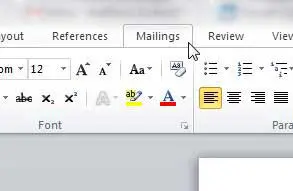
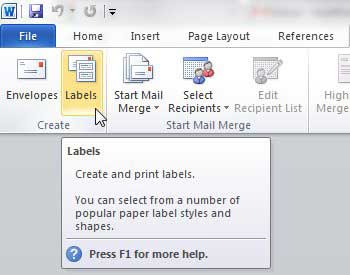
Step 4: Click the Labels button in the Create section of the ribbon at the top of the window.
Step 5: Type your address into the Address field at the center of the window.
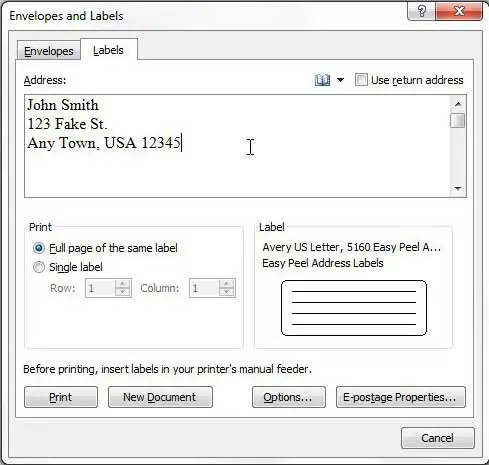
Step 6: Check the option to the left of Full page of the same label in the Print section of the window if you want to fill the entire sheet with the same address, or check the Single label option and choose which label to print it on if you only want to print one label.
Step 7: Click the Options button at the bottom of the window, then select your label from the choices on the menu.
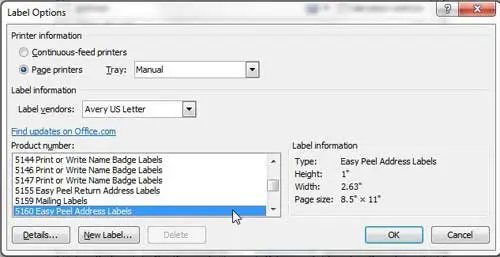
Step 8: Click the OK button to close the Label Options window.
Step 9: Click the New Document button at the bottom of the window if you want to see the sheet before you print the labels, or click the Print button if you just want to start printing.
Our guide on how to print Avery labels in Word provides additional instruction on this topic.
Summary – How to print labels in Word 2010
- Click the Mailings tab.
- Click the Labels button.
- Enter your label information, then adjust the other settings on this window.
- Click the Options button.
- Select the Label vendor and the Product number of your labels, then click the OK button.
- Click New Document if you want to see the label sheet, or click Print to print the labels.
Tip – You may need to adjust a setting on your printer if you are having difficulty getting your address labels to print. Some printer models will automatically adjust their default settings if they thing they are printing labels. For example, one printer that I work with regularly will change to the manual paper tray when it tries to print address labels from Word. You may find it helpful to print your labels as a PDF, then open the PDF and print from there if you are having difficulty.
- How to insert a check mark in Microsoft Word
- How to do small caps in Microsoft Word
- How to center text in Microsoft Word
- How to merge cells in Microsoft Word tables
- How to insert a square root symbol in Microsoft Word
Matthew Burleigh has been writing tech tutorials since 2008. His writing has appeared on dozens of different websites and been read over 50 million times.
After receiving his Bachelor’s and Master’s degrees in Computer Science he spent several years working in IT management for small businesses. However, he now works full time writing content online and creating websites.
His main writing topics include iPhones, Microsoft Office, Google Apps, Android, and Photoshop, but he has also written about many other tech topics as well.
Read his full bio here.
Featured guides and deals
Printing labels from your Microsoft Word document can seem intimidating at first, but it’s actually a simple process that anyone can master. In a nutshell, you’ll need to set up a document in Word, choose the correct label size, input your label text, and print. With just a few clicks, you’ll have professional-looking labels ready to go. So, let’s dive in and demystify the process, shall we?
Step by Step Tutorial: How to Print Labels from Word
Before we jump into the steps, let’s understand what we’re aiming for. By following these detailed instructions, you’ll be able to create and print a sheet of labels. These could be address labels, name tags, or even labels for your homemade jam. Ready? Let’s go.
Step 1: Open Microsoft Word
Open Microsoft Word on your computer to start the label-making process.
When you open Word, you’ll be greeted with a variety of template options. You can start with a blank document or choose a label template if you’re looking for a quick start.
Step 2: Choose ‘Mailings’ Tab
Click on the ‘Mailings’ tab in the top menu of Word.
The ‘Mailings’ tab is where all the magic happens. This is the control center for creating labels, envelopes, and even doing mail merges.
Step 3: Select ‘Labels’
Within the ‘Mailings’ tab, find and select ‘Labels’ to begin setting up your label sheet.
After clicking ‘Labels’, a new window will pop up. This is where you’ll input the text for your labels and choose the correct label size.
Step 4: Input Label Text
Enter the text you want on your labels in the ‘Address’ box within the Labels window.
If you’re printing address labels, you can type the address here. If it’s a different kind of label, simply input the text you want to appear on each label.
Step 5: Adjust Label Settings
Click the ‘Options’ button to choose the label size and configure any other settings.
In the ‘Options’ window, you can select the brand of labels you’re using and find the corresponding size number. Make sure it matches the labels you have!
Step 6: Preview Your Labels
Click ‘OK’ and then ‘New Document’ to generate a preview of your labels in a new Word document.
This new document will show your labels laid out on the page. This is a great time to double-check your work before printing.
Step 7: Print Your Labels
Load your printer with label sheets and hit ‘Print’ to start the printing process.
Make sure your printer is set to the correct type of paper and that your label sheets are loaded in the right direction. Then, watch as your labels come to life!
After completing these steps, your printer will produce a sheet of labels just as you designed them in Word. Peel them off, and they’re ready for use!
Tips: How to Print Labels from Word
- Ensure you have the correct label sheets for your printer (laser or inkjet).
- Double-check the label size and number before printing to avoid wasting sheets.
- Use the ‘Print Preview’ function to check how your labels will look before printing.
- Save your label document so you can easily reprint or adjust in the future.
- Consider using a template if you’re making more complex labels, like those with images or different fonts.
What if I can’t find the right label size in Word?
If you can’t find your label size, you can manually set the dimensions in the ‘Options’ window.
Can I print a single label instead of a whole sheet?
Yes, select the ‘Single label’ option in the Labels window and specify which label to print on the sheet.
How do I ensure my labels print correctly aligned?
Use the ‘Print Preview’ to check alignment and make sure to feed the label sheet into your printer as instructed.
Can I save my label setup for future use?
Absolutely, just save the document like any other Word file.
What should I do if my labels are smearing when I print them?
Make sure you’re using the correct label sheets for your type of printer and check your printer’s settings for label printing.
Summary
- Open Microsoft Word.
- Choose ‘Mailings’ Tab.
- Select ‘Labels’.
- Input Label Text.
- Adjust Label Settings.
- Preview Your Labels.
- Print Your Labels.
Conclusion
Printing labels from Word doesn’t have to feel like a chore or a daunting task. With the straightforward steps we’ve covered, you’re well on your way to creating custom labels for any occasion or need. Whether you’re organizing your home, sending out invitations, or running a small business, mastering the art of label printing can save you time and add a personal touch to your items. Remember, practice makes perfect. Don’t be afraid to experiment with different templates, fonts, and layouts to find the style that works best for you. And as always, if you have any additional questions or need further assistance, there are plenty of online resources and forums where you can find help. Happy printing!
Matthew Burleigh has been writing tech tutorials since 2008. His writing has appeared on dozens of different websites and been read over 50 million times.
After receiving his Bachelor’s and Master’s degrees in Computer Science he spent several years working in IT management for small businesses. However, he now works full time writing content online and creating websites.
His main writing topics include iPhones, Microsoft Office, Google Apps, Android, and Photoshop, but he has also written about many other tech topics as well.
Read his full bio here.
Featured guides and deals
