Printing documents on Windows 11 might seem like a small thing, but it’s a super important skill for just about everyone these days. Don’t worry, it’s actually pretty straightforward! You’ll typically start by connecting your printer to your computer, either with a cable or wirelessly. Then you’ll add the printer to your Windows 11 settings to help your computer recognize it. After that, just open the document you want to print, find the print option in the application, select your printer, adjust any settings you need, and hit the print button. It’s a process almost as easy as sending an email once you know the steps.
Tutorial – How To Print On Windows 11
Alright, let’s walk through the process of printing on Windows 11 step by step. We’ll cover everything from getting your printer ready to sending that final command. You’ll be a printing pro in no time, I promise.
Step 1: Connect Your Printer
First things first, make sure your printer is physically connected to your computer and powered on.
Most printers connect via a USB cable, which plugs into an available port on your PC, or wirelessly via Wi-Fi. If you’re using Wi-Fi, make sure both your printer and your Windows 11 computer are on the same network, which is super important for them to talk to each other. Don’t forget to power on your printer too, because even the smartest computer can’t print to a device that’s switched off.
Step 2: Add Your Printer to Windows 11
Once connected, you need to tell Windows 11 about your printer so it knows it’s there.
Go to your Windows Start menu, click on “Settings,” then select “Bluetooth & devices” from the left sidebar. From there, you’ll see an option for “Printers & scanners,” so click on that. You’ll then want to click the “Add device” button next to “Add a printer or scanner,” and Windows will start looking for your printer. If it finds it, simply click on its name and follow any on-screen prompts to install it, which might include downloading some special software called drivers that help your computer communicate with the printer.
Step 3: Open the Document You Want to Print
Now that your printer is ready, open the file or document you want to send to print.
This could be anything from a Microsoft Word document, a PDF file, a web page in your browser, or even a picture in your photo viewer. Just navigate to where your document is saved, then double-click it to open it in its program. Whatever program you use, it usually has a built-in print function, which makes things super convenient.
Step 4: Find the Print Option
Once your document is open, locate the print option within the program you are using.
Often, you’ll find it by clicking “File” in the top-left corner of the program window, then selecting “Print” from the dropdown menu. Many programs also let you press the Ctrl key and the P key at the same time (Ctrl+P) as a quick shortcut, which is a real time-saver. Sometimes there’s even a little printer icon somewhere on the toolbar you can click, making it super easy to find.
Step 5: Configure Print Settings
Before you hit print, take a moment to look at the print settings to make sure everything is just right.
This is where you can choose which printer to use (if you have more than one), decide how many copies to print, and select specific pages to print instead of the whole document. You can also typically change settings like whether to print in color or black and white, the paper size, and whether the paper should be in portrait (tall) or landscape (wide) orientation. Double-checking these settings can save you paper, ink, and a lot of frustration, so it’s a step you definitely don’t want to skip.
Step 6: Hit the Print Button
With all your settings adjusted to your liking, it’s time for the final step: clicking the “Print” button.
This button is usually at the bottom or top of the print dialog box, and it sends the document to your printer. Once you click it, your computer will send the file to the printer’s queue, and the printer should start whirring to life, ready to produce your physical copy.
After you click that final print button, your document gets sent to the printer. If everything is set up correctly, your printer will start printing the document almost immediately. You might hear it whirring or see its lights blinking as it processes the task and begins to produce your physical pages.
Tips For Printing On Windows 11
- Check Ink/Toner and Paper Levels Regularly: Don’t wait until you’re halfway through printing an important report to realize you’re out of ink or paper. A quick check before you start can save you a lot of headaches.
- Utilize Print Preview: Almost every program offers a “Print Preview” option. This lets you see exactly how your document will look on paper before you print, which is fantastic for catching formatting errors and avoiding wasted paper.
- Update Printer Drivers: Printer drivers act as the translator between your computer and your printer. Keeping them updated ensures smooth communication and can fix many common printing issues. You can usually find updates on your printer manufacturer’s website.
- Troubleshoot with Windows Tools: If you run into problems, Windows 11 has built-in troubleshooters that can often diagnose and fix printer issues automatically. Just type “troubleshoot” into the Start menu search, then look for printer-related options.
- Consider Duplex Printing: Many modern printers can print on both sides of the paper, a feature called duplex printing. Using this option saves paper and is better for the environment, so check your printer settings for this handy feature.
- Learn About Network Printing: If you have multiple computers in your home or office, setting up network printing lets them all use the same printer without needing individual connections. It’s a great way to share resources efficiently.
- Clean Print Heads: If your prints are streaky or faded even with new ink, your printer’s print heads might be clogged. Most printers have a utility in their software or on their control panel to clean the print heads, which can drastically improve print quality.
My printer isn’t showing up when I try to add it. What should I do?
First, ensure your printer is powered on and properly connected, either via USB or to the same Wi-Fi network as your computer. If it’s a USB printer, try plugging it into a different USB port. For Wi-Fi printers, make sure your router is working correctly. Sometimes, simply restarting both your printer and your computer can resolve the issue, as it gives everything a fresh start and allows them to reconnect. You might also need to manually install the printer drivers from the manufacturer’s website if Windows doesn’t find them automatically.
How do I print only specific pages from a document?
When you open the print dialog box, usually by pressing Ctrl+P or going to File > Print, you’ll see options for “Pages.” Instead of “Print all pages,” you can typically select “Custom Print” or “Pages” and then enter the page numbers you want. For example, you can type “1-5” to print pages 1 through 5, or “1, 3, 7” to print pages 1, 3, and 7 only. This is a great way to save paper and ink.
Can I print in black and white even if I have a color printer?
Absolutely! In the print settings window, after you’ve selected your printer, look for options like “Printer Properties,” “Preferences,” or “More settings.” Within these menus, you should find an option to select “Grayscale,” “Black & White,” or “Monochrome” printing. Choosing this ensures your document is printed in black ink, which can save your color ink for when you really need it.
What if my printed document looks different from what I see on the screen?
This can be frustrating, but there are a few common reasons. First, always use the “Print Preview” option if available, as it shows you exactly what will be printed. Check your print settings to ensure the paper size and orientation (portrait or landscape) match your document and the physical paper. Sometimes, outdated printer drivers can cause rendering issues, so updating them might help. Also, consider that screen colors can differ from printed colors due to color profiles, but layout issues are usually solved by checking the preview and settings.
How can I make my printer accessible to other computers on my home network?
Summary
- Connect the printer to the PC and power it on.
- Add printer via Windows Settings, Bluetooth & devices, Printers & scanners.
- Open the document you wish to print.
- Find the print option in the application for the document.
- Configure print settings like copies, pages, and color.
- Click the final print button.
Conclusion
So, there you have it, a complete rundown on how to print on Windows 11. It’s a fundamental skill in our digital world, isn’t it? Knowing these steps means you’re no longer staring blankly at your screen, wondering how to get that important report or cherished photo from digital to physical. We’ve covered everything from the initial connection, which is super important for your computer to even see the printer, to the final click of the print button. It’s truly not as intimidating as some might think, and with Windows 11, the process has become incredibly streamlined and user-friendly.
Remember, printing is more than just hitting a button; it involves a few thoughtful steps that ensure your documents come out exactly how you want them. Paying attention to things like print preview, choosing the right paper size, and deciding between color or black and white can make a huge difference in the outcome and even save you money on ink and paper. Think of it like baking a cake; you wouldn’t just throw ingredients together, would you? Follow the recipe, adjust as needed, and enjoy the delicious result. Printing is quite similar, where those settings are your recipe.
And what if something goes wrong? Don’t fret! We’ve armed you with some excellent tips, such as checking your ink levels, updating drivers, and using Windows’ built-in troubleshooters. These are your first line of defense against any printing hiccups. Knowing that you have these tools and knowledge at your disposal should give you confidence. The world of technology is constantly evolving, and while cloud printing and digital documents are gaining popularity, the need for a physical printout isn’t going away anytime soon. Mastering how to print on Windows 11 ensures you’re ready for whatever document comes your way. So go ahead, give it a try with newfound confidence, and enjoy the satisfaction of seeing your digital work come to life on paper!

Matthew Burleigh has been writing tech tutorials since 2008. His writing has appeared on dozens of different websites and been read over 50 million times.
After receiving his Bachelor’s and Master’s degrees in Computer Science he spent several years working in IT management for small businesses. However, he now works full time writing content online and creating websites.
His main writing topics include iPhones, Microsoft Office, Google Apps, Android, and Photoshop, but he has also written about many other tech topics as well.
Read his full bio here.
Featured guides and deals
JavaScript tidak tersedia.
We’ve detected that JavaScript is disabled in this browser. Please enable JavaScript or switch to a supported browser to continue using x.com. You can see a list of supported browsers in our Help Center.
Pusat Bantuan
Persyaratan Layanan Kebijakan Privasi Kebijakan Penggunaan Kuki Jejak Informasi iklan © 2026 X Corp.

Dengan mengeklik Lanjutkan, Anda menyetujui Perjanjian Pengguna , Kebijakan Privasi , dan Kebijakan Cookie LinkedIn.
Kami telah mengirimkan link sekali pakai ke alamat email utama Anda
Klik link untuk login langsung ke akun LinkedIn Anda.
Jika Anda tidak menemukan email tersebut di kotak pesan, periksa folder spam.
Setuju & Bergabung dengan LinkedIn
Dengan mengeklik Lanjutkan, Anda menyetujui Perjanjian Pengguna , Kebijakan Privasi , dan Kebijakan Cookie LinkedIn.
Pin Builder
Printers can be difficult ot work with, and troubleshooting them can take you to a lot of different places on your computer.
One common issue that can arise with a printer is when it says that it is offline, even though it’s turned on and seems to be hooked up correctly.
Our tutorial below will show you some steps to try so that you can learn how to change a printer from offline to online.
How to Switch a Printer from Offline to Online in Windows 7
- Click Start , then Devices and Printers .
- Right-click the printer, then click See what’s printing .
- Select the Printer tab, then click Use printer offline to clear the check mark.
Our guide continues below with additional information on how to switch a printer from offline to online , including pictures for these steps.
If you’re lucky, then this should work and your queued documents will start printing. However, sometimes this isn’t enough and you need to do some more troubleshooting. We discuss those additional troubleshooting steps further in this article.
Printers can be frustrating when they are not working correctly, due largely to the fact that errors can occur for seemingly no reason. Whether your print jobs don’t look right, you are getting constant paper jams, or printing is inconsistent or erratic, printers are often some of the most difficult electronic devices to work with. So if your printer is showing as offline and you can’t print, then you may be trying to figure out why it’s showing as offline when the printer was working before and nothing has changed.
One issue that you might encounter is Windows 7 not being able to connect to your printer to send documents that you want to print. Further investigation into the issue might lead you to discover that Windows 7 thinks the printer is offline.
There are several reasons why this might be occurring, so you will need to follow the instructions in this tutorial to learn how to change your printer from offline to online .
Once your printer is back online, it should then start printing the documents that you have sent to the printer that are currently sitting in your print queue.
How Do You Change a Printer from Offline to Online? (Guide with Pictures)
Windows is recognizing your printer as being offline because it is unable to communicate with the printer. This can be caused by several different situations, so you need to pinpoint exactly from where the problem is originating.
These steps will show you how to change a printer from offline to online from a Windows laptop or desktop computer.
Step 1: Click theStartbutton at the bottom-left corner of your screen, then clickDevices and Printers.
Click Start then choose Devices & Printers .
Step 2: Right-click the printer that is showing as offline, then clickSee what’s printing.
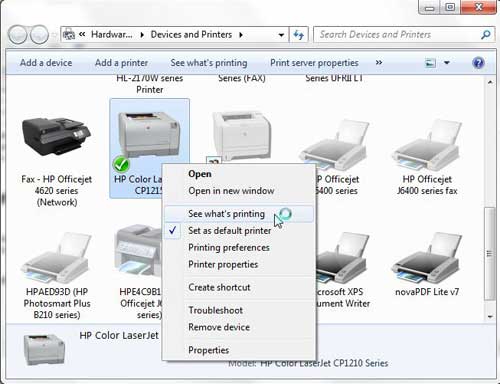
Right-click on the printer, then select See what’s printing.
Step 3: Click thePrinterlink at the top of this window, then click theUse Printer Offlineoption to remove the check mark.
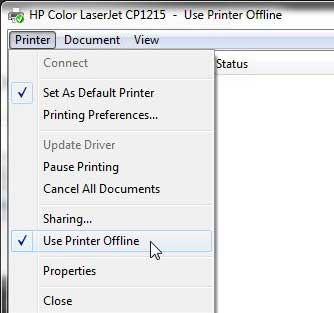
Select Printer , then Use Printer Offline .
Now that you know how to change printer from offline to online you can try this step whenever your computer is unable to print a file.
If this solved your problem, then you are all set and can continue with your printing . However, if this did not resolve the issue, then there are some more troubleshooting steps you can try.
Additional Troubleshooting for an Offline Printer in Windows 7
Check that the printer is turned on, and that the USB cable is properly connected to both the back of the printer and your computer. If your printer is wireless, you may need to restart the printer, then restart your computer to see if you can re-establish the wireless connection.
If you are using a wireless printer, have you recently changed your router, or changed the name of the wireless network ? If so, you may need to update your wireless printer with the new wireless network settings . If your wireless printer does not feature a control panel on the printer that allows you to change the network settings, you may need to temporarily connect the printer to your computer with a USB cable to modify the settings.
If your wired printer is still showing an offline status, despite the fact that it is plugged in and connected to your computer, then there may be a problem with the port to which the device is connected.
How to Change a Printer Port in Windows 7
You can use these steps to change the printer port for a printer that has been set up in Windows 7.
Step 1: Return to theDevices and Printersmenu, right-click your printer, then clickPrinter Properties.
Step 2: Click thePortstab at the top of the window, choose the correct port from the list at the center of the window, clickApply, then clickOK.
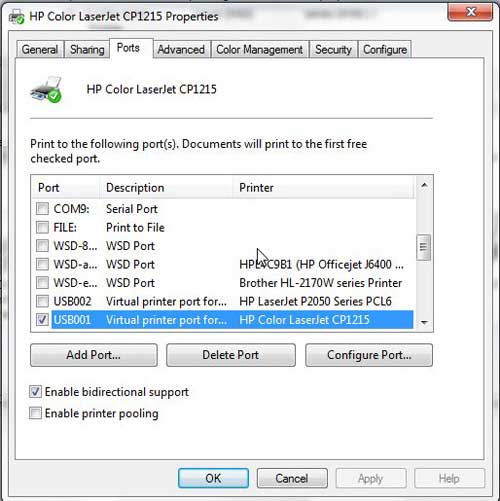
If you are still unable to print, then one final option you can attempt is to stop and restart the print spooler . You can follow the instructions in this article to learn how to manage the print spooler.
If you are still unable to print after following all of these instructions, then you may need to uninstall, then reinstall your printer. You can remove a printer from your computer by right-clicking the printer, then clicking Remove device . Once the printer has been uninstalled, follow your printer’s installation guide to properly reinstall it.
Why Is My Printer Offline?
The sections in the article above provide a bunch of different options and settings that you can check in order to see why your printer might be offline.
There are so many potential reasons that your printer might be offline that it’s hard to point to one specific reason why it might be happening.
In my experience, the best, simplest, and most useful thing that you can do when your printer is showing as offline is to simply restart the printer.
This can resolve issues related to a wireless printer that isn’t connected to a network, it can force the print spooler to restart, and it can fix print jobs that are stuck in the print queue.
While your printer is going through the process of restarting it can be helpful to restart your computer, too. And if you have a wireless printer and have been experiencing connection issues with other wireless devices as well, then even restarting your modem and your router might not be a bad idea.
How do I restart a printer?
You can reboot your printer by pressing the Power button on the printer, waiting until it has completely turned off, then pressing the Power button again to turn it back on.
How can I check my printer status?
If you aren’t sure whether or not your printer is in Printer Online or Printer Offline mode in Windows 11, then a quick way to check is to go to Start > Settings > Devices > Printers & Scanners .
You can then click on your printer and choose the Open Queue option. When you open print queue windows on your computer you can see any documents that are currently queued up to print.
When the printer window is open you can click the Printer option in the menu bar, then make sure the Use Printer Offline option isn’t selected.
How can I change the printer driver that my printer is currently using?
If you go to Start > Settings > Devices > Printers & Scanners then select your printer, you can click the Printer properties button, which will open a new window.
In this window you can choose the Advanced tab, then click the Driver drop down menu and choose a different driver. You could also click the New Driver button, which will launch the Add Printer Driver Wizard .
How do I run printer troubleshooter in Windows 11?
If you aren’t sure what the problem is, you can try the Windows utility that will cycle through a bunch of potential settings to try and fix the problem.
This means it will do things like restart printer related services, such as restarting the print spooler service and checking for outdated printer drivers.
You can do this by clicking the Windows button in the taskbar, searching for “Printer” then selecting the Printers & scanners option.
You can then select your printer and click the Run the troubleshooter option.
Why is my HP Printer offline?
The Hp printer offline Windows 11 steps are the same for Hewlett Packard printers as they are for other printers.
You need to open the Windows Settings menu, choose Bluetooth and devices, then select Printers & scanners.
You can then click on the default printer or whatever printer you want to check, then make sure Use printer offline is not selected.
If it is offline and clicking that option doesn’t put it back online, then you will need to go through the troubleshoot printer offline process of checking the printer cable (or the network status for wireless printers) and restarting the printer and the computer.
If that doesn’t work, then you may printer offline – how to put online instructions on the printer manufacturer’s website, which may involve reinstalling printer software and drivers.
Matthew Burleigh has been writing tech tutorials since 2008. His writing has appeared on dozens of different websites and been read over 50 million times.
After receiving his Bachelor’s and Master’s degrees in Computer Science he spent several years working in IT management for small businesses. However, he now works full time writing content online and creating websites.
His main writing topics include iPhones, Microsoft Office, Google Apps, Android, and Photoshop, but he has also written about many other tech topics as well.
Read his full bio here.
Featured guides and deals
While printers are becoming much easier to install and use in newer Windows operating systems, they can still be a large source of frustration for many people.
The combination of drivers, moving printer parts, print queues, and everything else that is involved with a printer can make it difficult to pinpoint the exact problem.
Our general printer troubleshooting guide below can walk you through a couple common issues that you should check if your printer isn’t working properly and you aren’t sure why.
We have written about working with several specific models of printers, such as the HP Officejet 4620 and the Officejet 6700, but there are so many different models of printers on the market, with so many different issues, that what works for one printer might not work for another.
So if you have a printer that is giving you problems on your Windows 7 computer, then there are a few steps that you can try which might work for any printer.
Note that each additional step under the sections below should only be tried if the previous step did not work.
If one of the steps has resolved your issue, then you do not need to continue with the rest of the steps in the section.
Additionally, these are generalized guidelines, that are meant to be effective for a wide range of printers. Individual printer models all work differently, so there may be some specifics about your printer that are not mentioned below.
This includes things such as exact locations of commands on Print menus, and physical characteristics and properties of the machine.
You can check out our printer offline Windows 7 article if your printer is currently showing as offline even though it seems to be hooked up properly.
Problem: I sent a document to the printer, but it’s not printing.
Troubleshooting steps (Note that each additional step in this section should only be tried if the previous step did not work. If one of the steps has resolved your issue, then you do not need to continue with the rest of the steps in the section):
Confirm that the printer is turned on.
Is the printer connected to the computer? Be sure to check both ends of the cable. If the printer is connected wirelessly, then make sure that the printer and the computer are both connected to the same wireless network. The method for connecting wirelessly will vary from model to model, so you may need to find the specific documentation for your printer. This article , for example, shows how to connect an HP Officejet 4620 to a wireless network.
Turn the printer off, wait ten seconds, then turn it back on.
Click the Start button at the lower left corner of the screen, click Devices and Printers , then right-click your printer and choose the See what’s printing option. If there is something there, then click the Printer option in the menu bar and choose the Cancel All Documents option. You will then need to re-send the document to the printer.
Stop and restart the print spooler. This option is a little more complicated, so you will need to read this article to learn how to do it.
Turn off the printer, turn off the computer, restart the computer, then restart the printer.
Are you trying to print labels, or on a paper size that is different than the default size for your printer? If your printer has a manual feed tray, then the computer may be trying to send the document to that tray instead. Try putting the paper in the manual feed tray and see if that causes the document to print.
Uninstall the printer, disconnect the printer cable from the back of your computer, then re-install the printer.
Problem: Documents are printing with spaces, missing colors, and general errors.
Troubleshooting steps (Note that each additional step in this section should only be tried if the previous step did not work. If one of the steps has resolved your issue, then you do not need to continue with the rest of the steps in the section):
Clean the printheads (inkjet printers), or run maintenance utilities (laserjet printers). Note that the specific ways to perform these operations will vary depending upon your printer model. If you are having print quality issues, then you should find the manual or troubleshooting guide to determine the necessary steps for resolving print quality issues for your specific printer model.
Open your printer and check the printer cartridges for any physical defects.
Replace printer cartridges. Printer ink can dry out if you do not use your printer very often.
Problem: Printer is showing as offline, but it is turned on and connected.
Troubleshooting steps (Note that each additional step in this section should only be tried if the previous step did not work. If one of the steps has resolved your issue, then you do not need to continue with the rest of the steps in the section):
Turn the printer off, then turn it back on again. Sometimes a printer will enter a sleep or hibernation mode and the computer won’t recognize it when it wakes up.
Unplug the printer cable from the back of the computer, wait ten seconds, then plug it back in again.
Click Start , click Devices and Printers , then right-click the printer and click Printer Properties . Click the Ports tab at the top of the window, make note of the USB port that is currently selected, then select a different USB port. Click Apply , then click OK . Check to see if the printer is still showing as Offline. If so, repeat this step, but with a different port.
Uninstall the printer, disconnect the printer cable, then re-install the printer. If you are still having problems, then there may be an issue with old print drivers. You can read this article to learn how to remove old print drivers.
Problem: My printer is printing everything very small or very big.
Troubleshooting steps (Note that each additional step in this section should only be tried if the previous step did not work. If one of the steps has resolved your issue, then you do not need to continue with the rest of the steps in the section):
- Try printing something from a different program. For example, if everything is printing small from Internet Explorer, then open Notepad or Microsoft Word and see if it is still printing small. If Word or Notepad prints correctly, then the print scale in Internet Explorer may have been changed. You can open Internet Explorer, click the gear icon at the top-right of the screen, click Print , then click Print Preview . Click the size drop-down menu at the top of the window and select a larger zoom level, such as 100%. Try and print the document again to confirm that it is now printing at the correct size.
Note that most popular programs have a scale option on the Print screen, so you will need to find this option if other programs are able to print at the correct size. Additionally, programs like Microsoft Word and Excel can have scaling that applies on a per-document basis. This means that one document might be configured to print at a 50% scale, while others might be set to print at the default 100% scale.
- Click the Start button, click Devices and Printers , then right-click your printer and click the Printing Preferences option. The exact steps from here will vary based on your specific printer model, but there should be a “Zoom” or “Scaling” option. Change this to 100%, then click the Apply or OK button to confirm your changes.
Problem: My printer is printing everything in black and white.
Troubleshooting steps (Note that each additional step in this section should only be tried if the previous step did not work. If one of the steps has resolved your issue, then you do not need to continue with the rest of the steps in the section):
Confirm that you have a color printer.
If you have a color printer, then confirm that there are color cartridges installed.
Check the ink levels of your printer cartridges to confirm that the color cartridges are not depleted.
Try and print a document, but check the settings on the Print menu before you click the Print button . Check for a color or black and white option, and make sure that the black and white option is not selected. The exact steps for this will vary based on the program and the printer being used. If you do not see an option like this on the default screen, then click the Advanced tab and check for this setting there.
Click the Start button, click Devices and Printers , then right-click your printer and choose the Printing Preferences option. Look for a Color Mode option on one of the tabs and confirm that the Color option is selected.
Additional troubleshooting steps
You can print a test page to confirm that your printer is set up properly. Click the Start button, click Devices and Printers , then right-click your printer and choose the Printer Properties option. Click the Print Test Page option near the bottom of the window. If the test page does not print, then you will need to follow the steps above to resolve an issue where documents are not printing.
If you have a paper jam, open the paper tray and check for any visual jams there. If you do not see anything, then check the back of the printer to see if there is an additional access door there. If so, open this access door and check there for a paper jam. If there is nothing there, then open the ink compartment and check to see if there is any jammed paper that can be accessed from there. If you still do not see anything, then try turning off the printer and turning it back on.
If your printer has a touchscreen or display, then check it for any error messages. If there is an error message, try and resolve it using the on-screen steps. If not, then search online for the identified issue and your printer model.
Are you printing to the correct printer? It is not uncommon to have many printers installed on the same computer, and certain programs may try to send a document to the incorrect printer. You should also confirm that the correct printer is selected as your default printer. You can set a default printer by clicking the Start button, clicking Devices and Printers , then right-clicking your printer and selecting the Set as default printer option. You can read this article for additional instructions on setting a default printer in Windows 7.
If nothing is working to resolve your print issue, then the best option may be to completely uninstall your printer, then install it again. This article will walk you through the process.
This article from Microsoft can provide additional help in identifying any issues that you may be having with your printer.
Additional Sources
Matthew Burleigh has been writing tech tutorials since 2008. His writing has appeared on dozens of different websites and been read over 50 million times.
After receiving his Bachelor’s and Master’s degrees in Computer Science he spent several years working in IT management for small businesses. However, he now works full time writing content online and creating websites.
His main writing topics include iPhones, Microsoft Office, Google Apps, Android, and Photoshop, but he has also written about many other tech topics as well.
Read his full bio here.
Smartphones and mobile devices like the iPhone have become so capable and powerful that they can perform many of the same functions as a desktop or laptop computer.
Therefore you might be wondering how to add a printer on your iPhone 11 so that you can print a file directly from the device.
If you were an early adopter of cell phones or even the first smartphone options, then you may have become so accustomed to avoiding printing that you may not have tried it in a while.
Printing from mobile devices used to be difficult, if not impossible, so many users simply chose to keep printing only from their computers.
But the prevalence and market dominance of mobile devices has increased so much that printing was something that needed to be addressed.
This happened with a feature called AirPrint that makes it much easier for iPhones to communicate with printers over a wireless printer.
Our guide below will show you how to add a printer to your iPhone 11 and how to complete a print job from the device.
How to Add an iPhone Printer
- Open an app or file to print.
- Tap the Share button.
- Choose Print .
- Tap Select Printer .
- Touch the printer you wish to use.
- Change print job settings as needed.
- Tap Print .
Our article continues below with additional information on how to add a printer on an iPhone, including pictures of these steps.
How to Use a Printer from an iPhone (Guide with Pictures)
The steps in this article were performed on an iPhone 11 in iOS 14.6. This section assumes that you have an AirPrint-enabled printer that is already setup up to use AirPrint over your wireless network.
Step 1: Open the app with the file you want to print, or open the specific file.
Step 2: Touch theShareicon (the one with the square and an upward pointing arrow.)
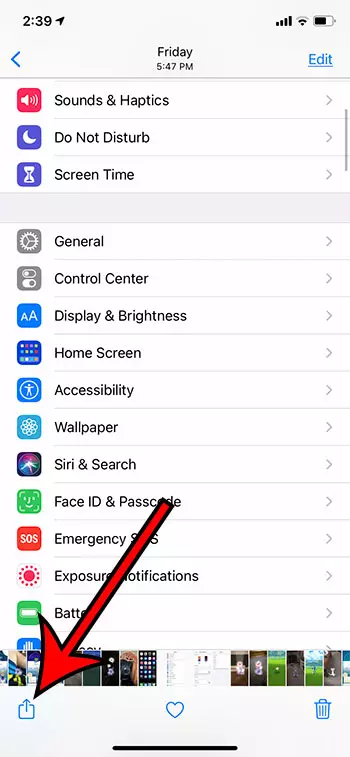
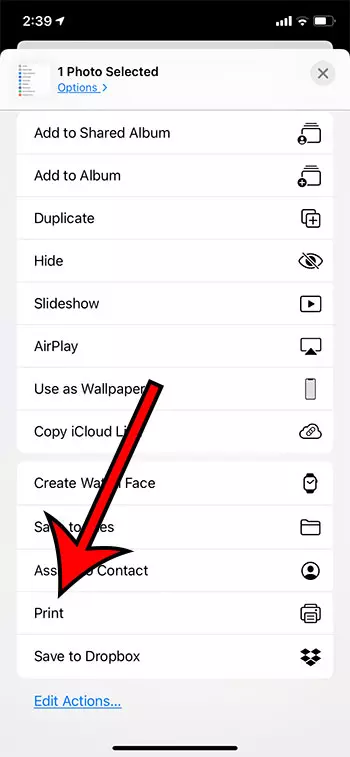
Step 3: Choose thePrintoption.
You may need to scroll down a little bit to find this option.
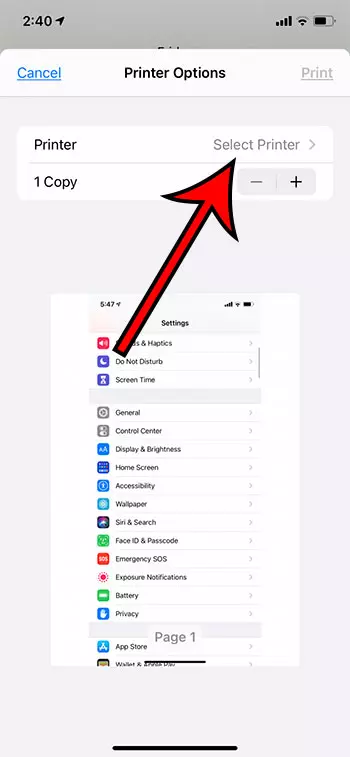
Step 4: Tap theSelect Printerbutton.
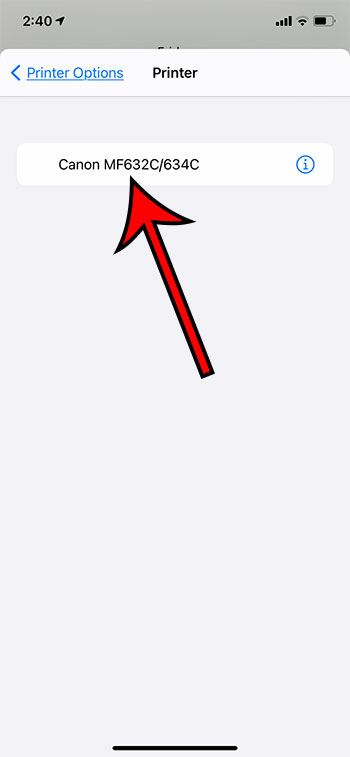
Step 5: Choose the printer that you would like to add and print from.
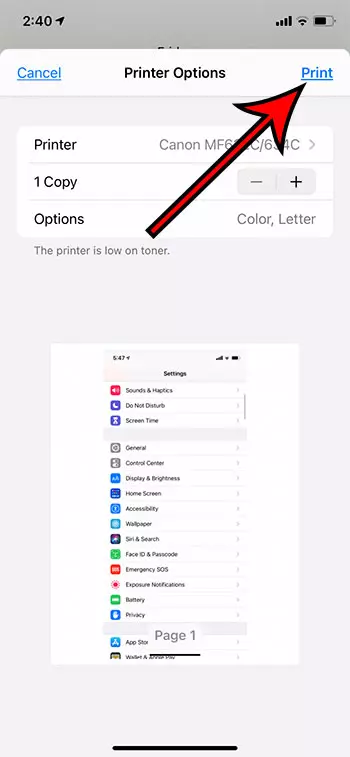
Step 6: Adjust any of the additional options on this print menu like the number of copies, then tapPrintat the top right corner of the screen.
Now that you know how to print from an iPhone you will be able to create physical copies of documents without needing to involve a laptop or desktop computer in the process.
What is Airprint?
The AirPrint feature is one that was rather uncommon and mysterious a decade ago but has become much more common and popular. In fact, most new wireless printers are now compatible with AirPrint, as it is such an important feature.
AirPrint is a wireless protocol that Apple takes advantage of to allow their device to print wirelessly. Most printers will need to install their own drivers on a computer in order to print, but the AirPrint feature is kind of a universal driver that any iPhone, iPad, or iPod Touch can use to print without needing to go through the headache of actually installing the files for a printer on to the device.
How to Print from an iPhone
If you are used to printing from a computer and haven’t yet had to try this from a device that uses iOS, then it’s a little tricky the first time.
Your iPhone lumps the printing option in with other sharing options, such as sending data through a text message or an email. Therefore, you need to open the Share menu from within the app or file which you want to print.
Step 1: Open the app or file.
Step 2: Tap the Share icon.
Step 3: Choose the Print option.
Step 4: Select the printer and adjust the other print settings, then tap the Print button.
Note that you will need to be connected to the same wireless network as the printer that you want to use for this print job.
Most of the items that you would want to print from a default iPhone app are going to use this “Share” method to print the file. However, you might need to follow some different steps to print from within other apps. For example, to print from Google Docs on an iPhone you would open the document, tap the three dots at the top-right, choose Share & export , then tap Print .
How to View or Cancel a Print Job on an iPhone
When you create a print job on your iPhone it is handled through an app called the Print Center. If the print job is just a single page then the printing process can occur very quickly, and you probably won’t be able to view or cancel that job.
But if the document that you are trying to print has a lot of pages, or if you are printing a lot of copies, then you might be able to view or modify it.
You can open the Print Center from the App Switcher. On older iPhone models you can open the App Switcher by pressing the Home button twice. On newer iPhone models you swipe up and to the left or right from the bottom of the Home screen.
You can then select the Print Center app and either look at the print job or tap the Cancel Printing button to cancel the print job.
How to Print To a Printer Without AirPrint from an iPhone (Using an App)
The specifics of this method are a little generic, as these steps will depend on the brand of printer. But, generally speaking, you are going to need to download an app to your iPhone for your printer, enable the Wi-Fi option on your printer, then connect to the network that the printer creates through your iPhone.
- Open the App Store .
- Search for your printer’s app. (Not all printers are going to have a dedicated app. Consult your printer’s documentation to see if this option is available.)
- Download and install the app.
- Enable Wi-Fi on your printer so that the printer is broadcasting its wireless network.
- Open the Settings app on your iPhone.
- Choose the Wi-Fi option.
- Select the printer’s Wi-Fi network and enter the password if prompted.
- Open the file that you want to print.
- Tap the Share icon.
- Select the Print option.
- Choose the printer.
- Tap Print .
Alternatively, you might open the printer app instead, then browse through your iPhone’s files through the app and send them to the printer that way.
If you can’t use an app or AirPrint for your printer then you might be able to use a USB solution. Note that this will likely require you to purchase some additional equipment.
Can You Print from Your iPhone to a Printer Without a Wi Fi Network?
Yes, this is possible, but it is going to require some additional steps and equipment. The iPhone is a wireless device, o its default method of connection is going to rely on wireless connectivity.
The section below discusses how to establish a wired connection between a printer and the iPhone using the USB port on the back of the printer and the Lightning port on your iPhone.
How to Use a USB Cable to Print from an iPhone to a Non AirPrint Printer
- Connect the USB end of the cable to the port on the back of the printer.
- Connect the other end of the cable to the iPhone’s lightning port.
- Confirm the device connection on your iPhone.
- Open the file you want to print.
- Tap the Share icon.
- Choose the Print option.
- Touch the Select Printer button.
- Select the USB-connected printer.
- Tap the Print button.
More Information on How to Add Printer to iPhone 11
While you can often get good prints from files, images, or other objects that you print from your iPhone, I have found that the prints typically look better when printed from a computer.
Often this is due to scaling, but it can also come from the fact that AirPrint can occasionally have some compatibility issues with combinations of phones and printers.
The different settings that are available on the print options menu can include things like the number of copies, color options, or a range selection.
These options aren’t always available for everything, though, so you might need to experiment with opening the file in different apps if you need to switch between black and white or color, for example.
Some printers that aren’t compatible with AirPrint, or aren’t wireless, can employ an email-based solution for printing.
Essentially what you are doing is assigning an email address to your printer, then you are sending the file that you want to print to that email address.
Since you can create and send emails with the Mail app on your iPhone, this can be another convenient option for printing from the device. Consult your printer’s manual for more information on setting up this feature, as its availability and functionality will vary between printer models.
One final thing to consider is setting up a wireless print server for your wired printer.
While this can be complicated and more expensive than simply purchasing a new, wireless printer, it can solve your printing issue.
Establishing the connection to that printer may involve some additional steps, but they are much more approachable when wireless capability has been added to the printer.
Matthew Burleigh has been writing tech tutorials since 2008. His writing has appeared on dozens of different websites and been read over 50 million times.
After receiving his Bachelor’s and Master’s degrees in Computer Science he spent several years working in IT management for small businesses. However, he now works full time writing content online and creating websites.
His main writing topics include iPhones, Microsoft Office, Google Apps, Android, and Photoshop, but he has also written about many other tech topics as well.
Read his full bio here.
Featured guides and deals
Printing from Microsoft Word for Office 365 is a simple process. Open the document you want to print, click on the ‘File’ tab, select ‘Print’, choose your printer, set your print options, and then click ‘Print’. And just like that, your document should be making its way out of your printer!
After clicking ‘Print’, your computer will send the document to the printer, and the physical printing process will begin. Make sure you have enough paper and ink in your printer to avoid any interruptions.
Introduction
So, you’ve finished drafting that all-important document in Microsoft Word for Office 365, and now it’s time to bring it into the physical world. Whether it’s a report for work, an essay for school, or a recipe for that new dish you want to try out, knowing how to print your documents is essential. In today’s digital age, we often overlook the importance of having a hard copy. However, there are numerous scenarios where a printed document is necessary or just more convenient. This process is relevant to students, professionals, and anyone who uses Microsoft Word for creating documents.
It’s one of those basic skills that, once mastered, will serve you time and time again. Printing can seem straightforward, but there are a few steps and options that you might not be aware of. This article will guide you through the process, ensuring you can print with confidence from Microsoft Word for Office 365.
Related: How to Print Multiple Word Documents at Once
Step by Step Tutorial: Printing from Microsoft Word for Office 365
The following steps will guide you through printing a document from Microsoft Word for Office 365.
Step 1: Open the document you want to print
Open the document in Microsoft Word that you wish to print.
Once you have your document open, check it over to make sure everything is exactly how you want it to appear in print. This is your last chance to catch any typos or formatting issues!
Step 2: Click on the ‘File’ tab
Click on the ‘File’ tab located in the top left corner of the Microsoft Word window.
This will take you to the backstage view, where you can access a range of document-related settings and options, including the print settings.
Step 3: Select ‘Print’
From the menu options, select ‘Print’.
This will bring up the print settings where you can choose your printer and specify the print details such as the number of copies, pages to print, and whether to print one-sided or double-sided.
Step 4: Choose your printer
Choose the printer you want to use from the list of available printers.
If you’re using a new printer for the first time, make sure it’s been correctly set up and connected to your computer or network.
Step 5: Set your print options
Set your print options, including the number of copies, pages to print, and other preferences.
Here you can also change the orientation of the paper, print in color or black and white, and adjust the size of the print. Make sure to preview your document to ensure it looks exactly how you want it to.
Step 6: Click ‘Print’
Once you’re satisfied with your print settings, click ‘Print’.
Your document will be sent to the printer and should begin printing shortly. Make sure to collect your document from the printer and check it over once more to ensure everything printed correctly.
Pros
| Benefit | Explanation |
|---|---|
| Convenience | Printing directly from Microsoft Word for Office 365 is highly convenient. It allows you to quickly and easily produce a physical copy of your document without the need for any additional software or steps. |
| Customization | The print settings in Microsoft Word for Office 365 offer a range of options to tailor the printout to your specific needs. Whether it’s selecting the number of copies, choosing specific pages, or adjusting the layout, these customizable settings ensure your document is printed just the way you need it. |
| Preview Feature | Before printing, Microsoft Word allows you to preview your document. This helps to catch any errors or formatting issues before they’re printed, saving you time, paper, and ink. |
Cons
| Drawback | Explanation |
|---|---|
| Printer Compatibility | Not all printers are compatible with Microsoft Word for Office 365’s print function. It’s important to ensure your printer is set up correctly and is compatible with the software to avoid any printing issues. |
| Resource Consumption | Printing documents, especially in large quantities or in color, can consume a significant amount of paper and ink. It’s important to consider the environmental impact and cost when deciding to print. |
| Technical Issues | Sometimes, technical issues can arise, such as printer errors, connectivity issues, or software glitches. These can disrupt the printing process and may require troubleshooting to resolve. |
Additional Information
When printing from Microsoft Word for Office 365, there are a few additional tips you should keep in mind. First, always ensure that your printer has enough ink or toner and that there is an adequate supply of paper. Nothing is more frustrating than a document that’s half-printed because you ran out of ink! If you’re printing a lengthy document, consider using the ‘Print on Both Sides’ option to save paper.
Another important aspect is to understand the different print layouts available. Depending on the nature of your document, you may want to print in portrait or landscape mode. For large documents, such as reports or manuscripts, you might want to use the ‘Print Layout’ view to see how each page will look when printed.
Don’t forget about the ‘Save Ink/Toner’ option in the print settings. This is useful if you’re printing draft documents or anything that doesn’t require high-quality print. This option reduces the amount of ink or toner used and can be a cost-effective and environmentally friendly choice.
Lastly, if you’re printing confidential or sensitive documents, be sure to collect them from the printer immediately to protect your privacy. If your printer supports it, you can also use secure print options that require a code to be entered at the printer before the document will print.
Summary
- Open the document you want to print.
- Click on the ‘File’ tab.
- Select ‘Print’.
- Choose your printer.
- Set your print options.
- Click ‘Print’.
How do I print double-sided on Microsoft Word for Office 365?
To print double-sided, go to the print settings and look for the option that says ‘Print on Both Sides’ or ‘Duplex Printing’. Select this option before clicking ‘Print’.
What should I do if my document won’t print?
First, check your printer to ensure it’s turned on and connected to your computer or network. If that’s not the issue, try restarting both your printer and computer. If the problem persists, consult your printer’s manual or contact technical support.
Can I print in color from Microsoft Word for Office 365?
Yes, if your printer supports color printing, you can print in color by selecting the color option in the print settings.
How can I save paper when printing?
To save paper, consider printing on both sides of the paper if your printer supports this feature. You can also print multiple pages on a single sheet by adjusting the ‘Pages per Sheet’ setting.
How do I cancel a print job in Microsoft Word for Office 365?
To cancel a print job, go to the print queue on your computer and select the document you want to cancel. Right-click and choose ‘Cancel’ or use the cancel button on your printer if available.
Conclusion
Printing from Microsoft Word for Office 365 is a fundamental skill that can enhance your productivity and efficiency. With the simple steps outlined in this article, you can print your documents quickly and easily, adjusting settings as needed to meet your specific requirements. Remember, while printing is convenient, always consider the environmental impact and use this feature responsibly.
Whether you’re a student printing an essay, a professional preparing a report, or someone sharing a cherished recipe, mastering the print function in Microsoft Word for Office 365 will serve you well in all your document-related endeavors. Keep these tips in mind, and happy printing!
Matthew Burleigh has been writing tech tutorials since 2008. His writing has appeared on dozens of different websites and been read over 50 million times.
After receiving his Bachelor’s and Master’s degrees in Computer Science he spent several years working in IT management for small businesses. However, he now works full time writing content online and creating websites.
His main writing topics include iPhones, Microsoft Office, Google Apps, Android, and Photoshop, but he has also written about many other tech topics as well.
Read his full bio here.
Featured guides and deals
Ever wondered how to get those awesome photos or important documents from your shiny new iPhone 15 onto actual paper? It might seem a bit tricky at first, but honestly, adding a printer to your iPhone 15 is usually a breeze, especially if you have a modern printer. The main thing you need to remember is that both your phone and the printer need to be chatting on the same Wi-Fi network, and your printer should ideally support something called AirPrint. Once those two things are in line, you just open whatever you want to print, hit the share button, and select your printer. It’s pretty magical, really.
How To Add A Printer To An iPhone 15: Step-by-Step Guide
Getting your iPhone 15 to talk to your printer so you can send documents and photos to paper is a super convenient feature. This guide will walk you through each step, making sure you can confidently print directly from your phone in no time. Think of it as opening up a whole new world of possibilities for your digital files.
Step 1: Check Your Printer’s AirPrint Compatibility
The very first thing you need to do is make sure your printer can actually work with your iPhone 15. You see, Apple has this really handy feature called AirPrint, which lets iPhones and other Apple devices print wirelessly without needing to install any special drivers or software. Most newer printers, especially ones made in the last few years, come with AirPrint built right in. You can usually spot an AirPrint logo on the printer itself or check the printer manufacturer’s website or manual to confirm. If your printer doesn’t have AirPrint, don’t despair just yet; some manufacturers offer their own printing apps that can do the trick, but AirPrint is definitely the easiest route.
Step 2: Connect Your Printer to Your Wi-Fi Network
Now, you need to get your printer hooked up to your home or office Wi-Fi network. This step is super important because your iPhone 15 and your printer need to be on the same network to “see” each other. Think of it like a party: everyone needs to be in the same room to talk. Most printers have a display screen and navigation buttons that let you go into the settings menu to find and connect to your Wi-Fi. You’ll select your network name from a list and then enter the password, just like you would with any other device.
Step 3: Connect Your iPhone 15 to the Same Wi-Fi Network
Make sure your iPhone 15 is connected to the exact same Wi-Fi network as your printer. This might sound obvious, but it’s a critical detail that sometimes gets overlooked. If your home has multiple Wi-Fi networks, like a 2.4 GHz and a 5 GHz band, both your iPhone and your printer need to be on the same one for them to communicate properly. Just swipe down from the top right of your iPhone screen, tap the Wi-Fi icon, and confirm you’re connected to the correct network.
Step 4: Open the App and Find the Print Option
Once both devices are on the same network, open the app on your iPhone 15 that contains what you want to print. Whether it’s a photo from your Photos app, an email from Mail, a webpage from Safari, or a document from Pages, almost any app that handles content will have a way to print. Look for the “Share” button, which usually looks like a square with an arrow pointing upwards. Tap that, and a menu of options will pop up.
Step 5: Select Your Printer from the List
From the Share Sheet menu, scroll down and tap on the “Print” option. Your iPhone will then start searching for available AirPrint printers on your current Wi-Fi network. After a moment, you should see a list of printers that your iPhone has found. Tap on “Select Printer” and then choose your specific printer from that list. If your printer doesn’t show up here, it’s a sign that you need to go back and double-check those Wi-Fi connections or AirPrint compatibility.
Step 6: Adjust Print Settings and Print
Before hitting the final print button, take a moment to adjust any print settings you might need. You can usually change things like the number of copies, whether you want to print in color or black and white, or which specific pages you want to print if it’s a multi-page document. Once everything looks perfect and you’re happy with your selections, go ahead and tap the “Print” button. Your iPhone 15 will then send the print job directly to your printer.
After you tap that final print button, your iPhone 15 will send the information over to your chosen printer. You might see a small notification pop up on your iPhone indicating that the print job has started or is in progress. Then, like magic, your printer should whir to life and start spitting out your documents or photos. It’s pretty satisfying to see your digital work become something tangible!
Tips for Adding A Printer To An iPhone 15
- Always keep your printer’s firmware updated. Manufacturers often release updates that improve AirPrint compatibility and fix bugs. Check your printer’s settings menu or website for instructions.
- If your printer supports both 2.4 GHz and 5 GHz Wi-Fi bands, ensure both your iPhone 15 and the printer are connected to the same band. Sometimes devices on different bands of the same network can’t find each other.
- When troubleshooting, try restarting both your printer and your iPhone. A simple reboot can often clear up minor network glitches and help devices reconnect.
- If you’re having persistent issues and your printer has an Ethernet port, consider connecting it directly to your router with an Ethernet cable. This can sometimes create a more stable connection for wireless printing.
- Don’t forget the basics: make sure your printer actually has paper loaded and enough ink or toner. It sounds silly, but these are often the culprits behind “non-printing” problems.
- For printers that don’t support AirPrint, check the App Store for a dedicated app from your printer’s manufacturer. Many brands like HP, Epson, Canon, and Brother offer their own printing applications that can bridge the gap.
Can I connect any printer to my iPhone 15?
No, unfortunately, you can’t connect just any printer. For the easiest experience, your printer needs to be AirPrint compatible. This is Apple’s special technology that lets your iPhone talk to the printer directly over Wi-Fi. If your printer doesn’t support AirPrint, you might still be able to print using a specific app from your printer’s manufacturer, but it won’t be as seamless.
My printer isn’t showing up on my iPhone. What should I do?
This is a common hiccup! First, double-check that both your iPhone 15 and your printer are connected to the exact same Wi-Fi network. Make sure your printer is turned on and not in sleep mode. If they are, try restarting both your printer and your iPhone. Sometimes, updating your printer’s software (firmware) can also resolve connection issues.
Do I need a special app to print from my iPhone 15?
If your printer is AirPrint compatible, then usually no, you do not need a special app. Your iPhone’s built-in “Print” function, found in the share sheet of most apps, will handle everything. However, if your printer doesn’t have AirPrint, its manufacturer might offer a specific printing app in the App Store that you’ll need to download and use.
Can I print wirelessly without a Wi-Fi router?
Generally, for printing from an iPhone 15, you need a shared Wi-Fi network provided by a router. Some printers have a feature called “Wi-Fi Direct” which creates its own direct wireless connection, allowing devices to connect to it without a router. If your printer has this feature, you might be able to connect your iPhone directly to the printer’s Wi-Fi Direct network for printing. Check your printer’s manual to see if it supports Wi-Fi Direct.
What if my printer is old and doesn’t have AirPrint?
If you have an older printer that doesn’t support AirPrint, you have a couple of options. As mentioned, you can check if the printer’s manufacturer offers a dedicated app for mobile printing. Another solution is to use a third-party print server or an app on a computer that can “share” your non-AirPrint printer over the network, making it accessible to your iPhone. In some cases, though, it might just be time to upgrade to a newer, AirPrint-enabled model for the best experience.
Summary of Adding A Printer To An iPhone 15
- Verify AirPrint compatibility.
- Connect printer to Wi-Fi.
- Connect iPhone to same Wi-Fi.
- Open app, find “Print.”
- Select your printer.
- Adjust settings, print.
Conclusion
Getting your iPhone 15 to print wirelessly is one of those modern conveniences that, once you start using it, you wonder how you ever lived without it. It’s truly liberating to be able to whip out your phone, select a photo or document, and have it appear on paper just moments later, all without cables or transferring files to a computer. The magic of AirPrint, combined with your home Wi-Fi, creates a seamless bridge between your digital world and the tangible one.
We’ve covered the straightforward steps, from checking if your printer is AirPrint-ready to making sure both devices are chatting on the same Wi-Fi network. Remember, the key is consistency: same network, AirPrint compatibility, and an active printer. If you ever hit a snag, don’t fret! Most issues boil down to simple things like checking your Wi-Fi connection, restarting your devices, or ensuring your printer isn’t out of ink or paper. Troubleshooting these small things can often get you back on track in a flash.
Embrace the freedom that printing directly from your iPhone 15 offers. Whether you’re a student needing to print notes, a parent printing out coloring pages, or just someone who loves seeing their digital memories come to life, your iPhone is a powerful tool. Don’t let the idea of setting up a printer intimidate you. Give these steps a try, and you’ll find that sending files to your printer is as easy as sending a text message. Go ahead, explore the possibilities, and enjoy the convenience of wireless printing right from the palm of your hand!
Matthew Burleigh has been writing tech tutorials since 2008. His writing has appeared on dozens of different websites and been read over 50 million times.
After receiving his Bachelor’s and Master’s degrees in Computer Science he spent several years working in IT management for small businesses. However, he now works full time writing content online and creating websites.
His main writing topics include iPhones, Microsoft Office, Google Apps, Android, and Photoshop, but he has also written about many other tech topics as well.
Read his full bio here.
Featured guides and deals
