Searching for words within files on Windows 10 is easier than you might think. By using the built-in search feature in File Explorer, you can quickly locate any word within your documents. Within a few steps, you’ll be a pro at finding exactly what you need.
How to Search for Words Within Files on Windows 10
In this tutorial, you’ll learn how to use the search function in File Explorer to find specific words within files on your Windows 10 computer. This method works for various file types, including text documents, PDFs, and even emails saved on your system.
Step 1: Open File Explorer
First, open File Explorer by clicking the folder icon on your taskbar.
When File Explorer opens, you’ll see a list of folders and drives on your computer. This is where you’ll start your search.
Step 2: Navigate to the Folder
Next, navigate to the folder where you want to search for the word.
If you’re not sure where the file is, you can start with your Documents folder or another common location. You can always search different folders later if needed.
Step 3: Use the Search Bar
Type the word you’re looking for into the search bar in the upper-right corner of the File Explorer window.
As you type, File Explorer will start searching for your word. Be patient, especially if you have a lot of files.
Step 4: Apply File Type Filters
You can narrow down your search by applying filters for file types.
For example, if you only want to search within text documents, click on the “Search” tab at the top and select “Kind” and then “Document.”
Step 5: Wait for Results
Wait for the search results to appear.
Depending on the number of files, this might take a few moments. You’ll see a list of files containing your word.
Step 6: View the Results
Finally, click on a file in the search results to open it.
You’ll be able to see where the word appears within the file. If you can’t find it, try another file from the list.
Once you’ve completed these steps, File Explorer will display all files containing the word you searched for. You can now locate and open the files to see exactly where the word appears.
Tips for Searching for Words Within Files on Windows 10
- Use Quotes: Enclose your search word in quotes to find exact matches.
- Use Boolean Operators: Combine words with AND, OR, and NOT to refine your search.
- Index Your Files: Ensure your files are indexed by Windows for faster searches.
- Search Specific File Types: Use filters to search within specific types of files, like PDFs or Word documents.
- Check File Properties: Some files might have the word in their properties but not in the content.
Why can’t I find a word in my files?
Make sure the files are indexed and that the word exists in the file content, not just in the file name.
How do I index my files?
Go to Control Panel, open “Indexing Options,” and select the folders you want to index.
Can I search within PDF files?
Yes, but you may need to ensure the PDF files are text-searchable, not just scanned images.
What if I don’t know the file location?
Start with broad searches in common folders like Documents or Downloads, then narrow it down.
Can I search for multiple words?
Yes, use Boolean operators like AND, OR, and NOT to combine search terms.
Steps Summary
- Open File Explorer.
- Navigate to the folder.
- Use the search bar.
- Apply file type filters.
- Wait for results.
- View the results.
Conclusion
So there you have it—a simple, step-by-step guide on how to search for words within files on Windows 10. It’s a handy skill that can save you loads of time, especially if you often deal with a large number of documents. Remember, the more specific you are with your search terms and filters, the faster you’ll find what you’re looking for.
By following these steps, you can become a master at finding specific words within your files. This method works across various file types, making it versatile for everyday use. If you found this guide helpful, be sure to check out other tips and tutorials to boost your productivity on Windows 10. Happy searching!

Matthew Burleigh has been writing tech tutorials since 2008. His writing has appeared on dozens of different websites and been read over 50 million times.
After receiving his Bachelor’s and Master’s degrees in Computer Science he spent several years working in IT management for small businesses. However, he now works full time writing content online and creating websites.
His main writing topics include iPhones, Microsoft Office, Google Apps, Android, and Photoshop, but he has also written about many other tech topics as well.
Read his full bio here.
Featured guides and deals
You can print multiple Word documents by opening the folder with the documents, holding down the Ctrl key, and clicking each document, then right-clicking on a selected document and selecting Print .
Our guide continues below with additional information on how to print multiple Word documents at once, including pictures of these steps.
Need to change something about an entire document? Our Word 365 select all guide can show you a couple of ways to do that quickly.
Printing More than One Word Document at One Time in Windows 7 (Guide with Pictures)
Note that the tutorial below is going to assume that all of the Word documents that you want to print are located in the same folder. If not, then you will need to move the files that you want to print into the same folder.
These steps will show you how to select and print more than one Word document at a time on a Windows 7 computer.
Step 1: Open the folder containing the Word documents that you want to print.
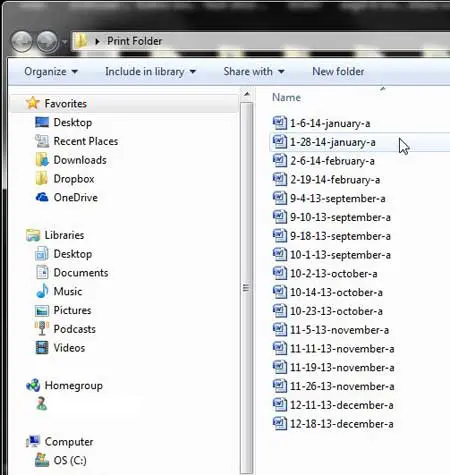
Open the folder with the Word documents.
If you don’t have all of the documents in the same folder, then you will need to move them into the same folder. You can always copy and paste the documents if you don’t want to change their location.
Step 2: Hold down theCtrlkey on your keyboard, then click each of the documents that you want to print.
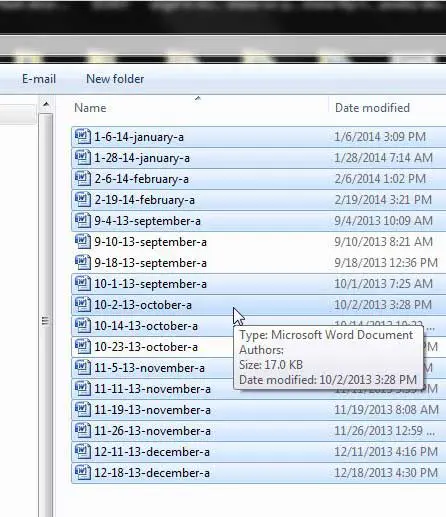
Hold down Ctrl and click each document that you wish to print.
You can select all of the documents in a folder by pressing Ctrl + A .
Step 3: Click thePrintbutton in the blue bar at the top of the window, or right-click on one of the selected files and click thePrintoption.
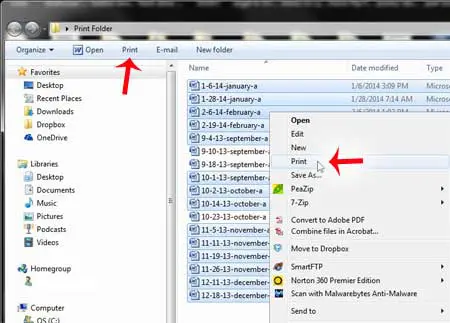
Click the Print button.
This will work best if all of the documents are the same page size. If you have letter and legal documents, for example, you could encounter issues if your printer doesn’t have multiple paper trays.
Now that you know how to print multiple Word documents at once, you will be able to apply this knowledge to future endeavors where you need to quickly create physical copies of multiple documents.
Deal of the Day
No products found.
Word will need to open each of the files to print them but will close once each file has been printed. This will occur automatically, so you will not need to do anything while your files are being printed.
How do I switch the printer that is being used when I print multiple Word documents?
Windows is going to use the default printer on your computer.
You can change the default printer in Windows 7 by clicking the Start menu, choosing the Devices and Printers option, right-clicking on the printer that you want to use, then choosing the Set as Default Printer option.
How do I unselect a file that I selected by mistake in Windows?
When you are holding down the Ctrl key on your keyboard and clicking the files that you want to print, it’s easy to accidentally click the wrong one.
Fortunately, you can simply keep holding down the Ctrl key and click on that file again to de-select it.
How do I rename a Word document in Windows 7?
The method in this guide for printing multiple documents is a lot easier when you can tell what a document is without opening it up. This means that the file needs to have a useful name.
If you have documents that are tough to identify by just their filename, then you can click on the file to select it, then press the F2 key.
You will then be able to type a new name for the file and press the Enter key when you are done.
Do you need to print address labels ? You can learn how to print labels in Microsoft Word 2010 by reading this article .
Summary – How to Batch Print Word Documents
- Open the folder with the documents to print.
- Hold down Ctrl and click each document.
- Right-click on a selected document and choose Print .
Conclusion
If you use Microsoft Word a lot, then you most likely need to print documents from time to time.
When you are dealing with a single document, it is relatively easy to navigate to the Print menu and print that document. But this can be tedious if you have a number of documents that you need to print.
Fortunately, Word is integrated into Windows 7 rather seamlessly, and you can print multiple Word documents at one time from a folder in Windows 7 by following the steps above.
When you perform the same task multiple times during a day, either for work or for school, you will inevitably look for a way to do it more quickly.
There are a lot of methods for increasing efficiency on a Windows computer, though these methods may not be immediately apparent, or even well-known to a lot of people.
One option that you have in Windows 7 includes the ability to print multiple Word documents at once.
If you do a lot of printing, then this can wind up saving a surprising amount of time, as you won’t need to open each individual document and then navigate to the Print menu.
Hopefully, the tutorial above has shown you the steps to accomplish this.
- How to Download an Entire Folder in Google Drive
Matthew Burleigh has been writing tech tutorials since 2008. His writing has appeared on dozens of different websites and been read over 50 million times.
After receiving his Bachelor’s and Master’s degrees in Computer Science he spent several years working in IT management for small businesses. However, he now works full time writing content online and creating websites.
His main writing topics include iPhones, Microsoft Office, Google Apps, Android, and Photoshop, but he has also written about many other tech topics as well.
Read his full bio here.
