You can set up Windows 11 without a Microsoft account by installing normally, then either disconnecting from the internet during the out of box experience or using a brief command to force the offline account option. Create a local administrator account, set a password and PIN, and finish the setup. After setup, you can install drivers and updates, and optionally sign in to Microsoft services later. This process works on most Windows 11 editions, and I will show two simple ways to get a local account during initial setup.
How To Setup Windows 11 Without Microsoft Account – Step by Step Tutorial
This section shows the steps to complete Windows 11 setup while avoiding a Microsoft account, using either a network disconnect method or a bypass command, and how to finish with a local account.
Step 1: Start Windows 11 setup and reach the OOBE screens.
Begin the normal Windows 11 installation or first-boot process until you reach the out of box experience where region, keyboard, and network are asked.
During OOBE you will pick language, region, and keyboard. You will arrive at the network screen where Windows usually asks you to sign in with a Microsoft account.
Step 2: Use the offline method by unplugging Ethernet or turning off Wi-Fi.
Disconnect any wired cable and do not join a Wi-Fi network, or switch off the router if you can, then click the I don’t have internet option when it appears.
When Windows detects no network, it will offer a limited setup flow for offline accounts on many editions. If you see a button like Continue with limited setup, choose it to create a local account.
Step 3: Use the bypass trick if offline option is not shown.
Press Shift and F10 together to open Command Prompt, type OOBEBYPASSNRO and press Enter, then follow the restart prompts to return to OOBE with the offline account option.
This trick toggles a special setup path that disables the network requirement temporarily and lets you pick an offline account. It is handy for Home edition installs that often force a Microsoft account.
Step 4, Create a local user account and strong password.
When the offline setup screen appears, enter a username and password for a local administrator account and continue.
Choose a name you will recognize and a password you can remember, or use a password manager. You can also set security questions for password recovery.
Step 5: Set a PIN and finish privacy settings.
After creating the local account, Windows will prompt to set up a PIN and show privacy and telemetry options; configure these as you prefer and complete the setup.
PIN setup makes local signin faster and separate from your password. Take a moment to review privacy settings so the system behaves how you want it.
Step 6: Connect to the internet and update drivers after setup.
Once on the desktop, connect to Wi-Fi or plug in Ethernet, then run Windows Update to download drivers and patches.
You will be able to use the Microsoft Store and other online features with a local account, though some features may prompt for a Microsoft account sign-in.
Once you finish these steps you will have a Windows 11 installation with a local administrator account, not linked to a Microsoft account. Your PC will function normally, and you can add a Microsoft account later if you want to use OneDrive, sync settings, or install apps from the Store that require a Microsoft ID.
How To Setup Windows 11 Without Microsoft Account – Tips
- Use the OOBEBYPASSNRO command if the offline option is hidden, it works well for Windows 11 Home.
- Keep a paper or digital copy of your local admin password in a safe place to avoid lockouts.
- Create a separate standard user account for daily use to minimize security risk from web browsing.
- If you need Microsoft services, sign in to individual apps like OneDrive or Store later without switching your main account.
- After setup, run Windows Update immediately to install security updates and drivers that may be missing.
- Consider creating a recovery drive or system image before installing major apps, so you can restore quickly.
- Enable BitLocker or another disk encryption method if your device supports it, for added protection.
Can I install Windows 11 without any Microsoft account at all?
Yes, you can complete the installation using a local account created during the setup process, either by disconnecting from the internet or using the OOBEBYPASSNRO method.
This local account will work for signing in and managing the PC. Some cloud features will remain inaccessible until you sign in to a Microsoft account, but basic and many advanced features will still work.
Will I lose access to Microsoft Store and OneDrive?
You can access the Microsoft Store and OneDrive, but some actions may require signing in with a Microsoft account when you use those apps.
You can sign in to individual apps while keeping your main Windows sign-in local. That gives the flexibility to use cloud services only when you want them.
Is it safe to use a local account instead of a Microsoft account?
Yes, a local account is safe if you use a strong password, keep Windows updated, and enable security measures like a PIN and disk encryption.
A Microsoft account adds conveniences like password recovery and syncing, but it is not required for a secure system.
Can I switch to a Microsoft account later?
Yes, you can add or switch to a Microsoft account anytime from Settings, Accounts, and the Your Info or Sign-in options.
Switching may enable syncing, cloud backup, and easier Microsoft Store purchases. You can also revert to a local account later.
Does this method work for Windows 11 Pro and Home?
The disconnect method usually works on Pro, while Home often forces a Microsoft account and may require the bypass command. The OOBE bypass trick solves the Home edition restriction.
Always ensure the method matches your edition and Windows build, since Microsoft occasionally changes setup behavior.
What if I forget the local account password?
If you forget the local password, you can use a password reset disk, another admin account, or boot to recovery tools to reset it. If you set security questions during setup, Windows can help you reset from the sign-in screen.
Having a second administrator account or backing up important data makes recovery much easier.
How To Setup Windows 11 Without Microsoft Account – Summary
- Start OOBE
- Disconnect network
- Use bypass if needed
- Create local account
- Set PIN and privacy
- Connect and update
How To Setup Windows 11 Without Microsoft Account – Conclusion
Setting up Windows 11 without tying it to a Microsoft account is a straightforward way to keep control of your data and reduce cloud ties. By either disconnecting from the internet during the out of box experience or using the OOBEBYPASSNRO command, you can force Windows to offer a local account creation option. This gives you a local administrator account that manages the machine without automatic syncing or cloud backups. You will still be able to sign into individual Microsoft apps later, so you do not sacrifice access to the Store or OneDrive forever.
Choosing a local account is a privacy-forward decision. It reduces the amount of synced telemetry and profile data associated with a Microsoft ID. That said, be mindful of security. Use a strong, unique password, enable a PIN for quicker logins, and consider disk encryption. Periodically run Windows Update, and check drivers so your PC stays secure and performs well. If you plan to use Microsoft services later, you can add your Microsoft account for specific apps without changing your main sign-in, which gives the best of both worlds.
If you run into trouble, the Windows recovery environment and community forums are good places to find step-by-step help. For power users, creating a system image or recovery USB before making major changes is a smart move. Remember, the main goal is a working, secure device that you control. If you want more guidance, try searching for tutorials on the BYPASSNRO trick and on converting between local and Microsoft accounts after setup. Knowing how to setup Windows 11 without a Microsoft account is a useful skill that keeps your choices open and your data under your control, so give it a try and decide which sign-in approach matches your privacy and convenience needs.

Matthew Burleigh has been writing tech tutorials since 2008. His writing has appeared on dozens of different websites and been read over 50 million times.
After receiving his Bachelor’s and Master’s degrees in Computer Science he spent several years working in IT management for small businesses. However, he now works full time writing content online and creating websites.
His main writing topics include iPhones, Microsoft Office, Google Apps, Android, and Photoshop, but he has also written about many other tech topics as well.
Read his full bio here.
Featured guides and deals
Printers can be difficult ot work with, and troubleshooting them can take you to a lot of different places on your computer.
One common issue that can arise with a printer is when it says that it is offline, even though it’s turned on and seems to be hooked up correctly.
Our tutorial below will show you some steps to try so that you can learn how to change a printer from offline to online.
How to Switch a Printer from Offline to Online in Windows 7
- Click Start , then Devices and Printers .
- Right-click the printer, then click See what’s printing .
- Select the Printer tab, then click Use printer offline to clear the check mark.
Our guide continues below with additional information on how to switch a printer from offline to online , including pictures for these steps.
If you’re lucky, then this should work and your queued documents will start printing. However, sometimes this isn’t enough and you need to do some more troubleshooting. We discuss those additional troubleshooting steps further in this article.
Printers can be frustrating when they are not working correctly, due largely to the fact that errors can occur for seemingly no reason. Whether your print jobs don’t look right, you are getting constant paper jams, or printing is inconsistent or erratic, printers are often some of the most difficult electronic devices to work with. So if your printer is showing as offline and you can’t print, then you may be trying to figure out why it’s showing as offline when the printer was working before and nothing has changed.
One issue that you might encounter is Windows 7 not being able to connect to your printer to send documents that you want to print. Further investigation into the issue might lead you to discover that Windows 7 thinks the printer is offline.
There are several reasons why this might be occurring, so you will need to follow the instructions in this tutorial to learn how to change your printer from offline to online .
Once your printer is back online, it should then start printing the documents that you have sent to the printer that are currently sitting in your print queue.
How Do You Change a Printer from Offline to Online? (Guide with Pictures)
Windows is recognizing your printer as being offline because it is unable to communicate with the printer. This can be caused by several different situations, so you need to pinpoint exactly from where the problem is originating.
These steps will show you how to change a printer from offline to online from a Windows laptop or desktop computer.
Step 1: Click theStartbutton at the bottom-left corner of your screen, then clickDevices and Printers.
Click Start then choose Devices & Printers .
Step 2: Right-click the printer that is showing as offline, then clickSee what’s printing.
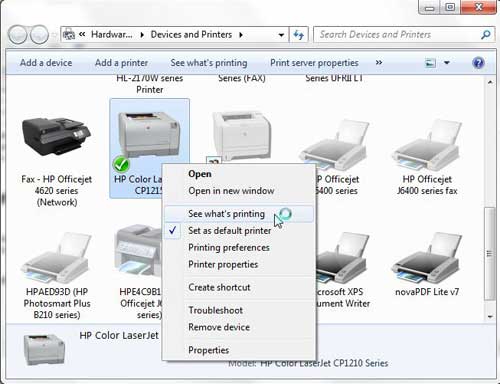
Right-click on the printer, then select See what’s printing.
Step 3: Click thePrinterlink at the top of this window, then click theUse Printer Offlineoption to remove the check mark.
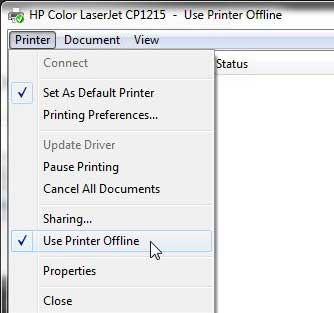
Select Printer , then Use Printer Offline .
Now that you know how to change printer from offline to online you can try this step whenever your computer is unable to print a file.
If this solved your problem, then you are all set and can continue with your printing . However, if this did not resolve the issue, then there are some more troubleshooting steps you can try.
Additional Troubleshooting for an Offline Printer in Windows 7
Check that the printer is turned on, and that the USB cable is properly connected to both the back of the printer and your computer. If your printer is wireless, you may need to restart the printer, then restart your computer to see if you can re-establish the wireless connection.
If you are using a wireless printer, have you recently changed your router, or changed the name of the wireless network ? If so, you may need to update your wireless printer with the new wireless network settings . If your wireless printer does not feature a control panel on the printer that allows you to change the network settings, you may need to temporarily connect the printer to your computer with a USB cable to modify the settings.
If your wired printer is still showing an offline status, despite the fact that it is plugged in and connected to your computer, then there may be a problem with the port to which the device is connected.
How to Change a Printer Port in Windows 7
You can use these steps to change the printer port for a printer that has been set up in Windows 7.
Step 1: Return to theDevices and Printersmenu, right-click your printer, then clickPrinter Properties.
Step 2: Click thePortstab at the top of the window, choose the correct port from the list at the center of the window, clickApply, then clickOK.
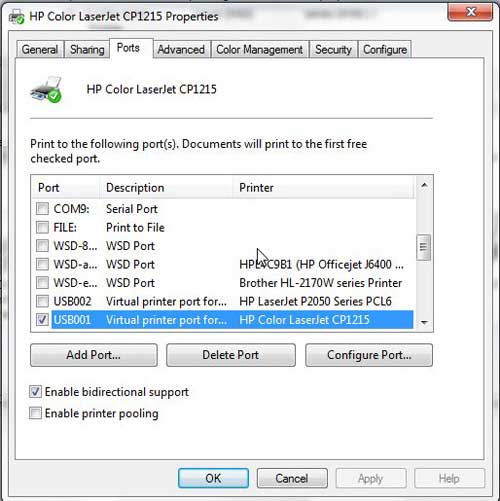
If you are still unable to print, then one final option you can attempt is to stop and restart the print spooler . You can follow the instructions in this article to learn how to manage the print spooler.
If you are still unable to print after following all of these instructions, then you may need to uninstall, then reinstall your printer. You can remove a printer from your computer by right-clicking the printer, then clicking Remove device . Once the printer has been uninstalled, follow your printer’s installation guide to properly reinstall it.
Why Is My Printer Offline?
The sections in the article above provide a bunch of different options and settings that you can check in order to see why your printer might be offline.
There are so many potential reasons that your printer might be offline that it’s hard to point to one specific reason why it might be happening.
In my experience, the best, simplest, and most useful thing that you can do when your printer is showing as offline is to simply restart the printer.
This can resolve issues related to a wireless printer that isn’t connected to a network, it can force the print spooler to restart, and it can fix print jobs that are stuck in the print queue.
While your printer is going through the process of restarting it can be helpful to restart your computer, too. And if you have a wireless printer and have been experiencing connection issues with other wireless devices as well, then even restarting your modem and your router might not be a bad idea.
How do I restart a printer?
You can reboot your printer by pressing the Power button on the printer, waiting until it has completely turned off, then pressing the Power button again to turn it back on.
How can I check my printer status?
If you aren’t sure whether or not your printer is in Printer Online or Printer Offline mode in Windows 11, then a quick way to check is to go to Start > Settings > Devices > Printers & Scanners .
You can then click on your printer and choose the Open Queue option. When you open print queue windows on your computer you can see any documents that are currently queued up to print.
When the printer window is open you can click the Printer option in the menu bar, then make sure the Use Printer Offline option isn’t selected.
How can I change the printer driver that my printer is currently using?
If you go to Start > Settings > Devices > Printers & Scanners then select your printer, you can click the Printer properties button, which will open a new window.
In this window you can choose the Advanced tab, then click the Driver drop down menu and choose a different driver. You could also click the New Driver button, which will launch the Add Printer Driver Wizard .
How do I run printer troubleshooter in Windows 11?
If you aren’t sure what the problem is, you can try the Windows utility that will cycle through a bunch of potential settings to try and fix the problem.
This means it will do things like restart printer related services, such as restarting the print spooler service and checking for outdated printer drivers.
You can do this by clicking the Windows button in the taskbar, searching for “Printer” then selecting the Printers & scanners option.
You can then select your printer and click the Run the troubleshooter option.
Why is my HP Printer offline?
The Hp printer offline Windows 11 steps are the same for Hewlett Packard printers as they are for other printers.
You need to open the Windows Settings menu, choose Bluetooth and devices, then select Printers & scanners.
You can then click on the default printer or whatever printer you want to check, then make sure Use printer offline is not selected.
If it is offline and clicking that option doesn’t put it back online, then you will need to go through the troubleshoot printer offline process of checking the printer cable (or the network status for wireless printers) and restarting the printer and the computer.
If that doesn’t work, then you may printer offline – how to put online instructions on the printer manufacturer’s website, which may involve reinstalling printer software and drivers.
Matthew Burleigh has been writing tech tutorials since 2008. His writing has appeared on dozens of different websites and been read over 50 million times.
After receiving his Bachelor’s and Master’s degrees in Computer Science he spent several years working in IT management for small businesses. However, he now works full time writing content online and creating websites.
His main writing topics include iPhones, Microsoft Office, Google Apps, Android, and Photoshop, but he has also written about many other tech topics as well.
Read his full bio here.
Featured guides and deals
