Showing margins in Microsoft Word is a simple task that helps you manage your document’s layout. By displaying the margins, you can ensure your text and images fit perfectly within the page, keeping everything neat and professional. To show margins, you’ll need to access the View tab and activate the Ruler. Once done, you’ll see the margins clearly marked along the top and side of your document. This feature is especially useful for formatting documents like reports, essays, and letters, where precise alignment is key.
Step-by-Step Tutorial on How to Show Margins in Word
Here’s a step-by-step guide to help you display the margins in Word easily and efficiently.
Step 1: Open Microsoft Word
First, launch the Microsoft Word application and open your document.
Make sure you’re using a document where you want to see and adjust the margins. If you’re starting fresh, creating a new document works just as well.
Step 2: Navigate to the View Tab
At the top of the screen, click on the “View” tab in the menu bar.
The View tab contains a variety of options that let you modify how your document is displayed, including showing the ruler.
Step 3: Enable the Ruler
In the View tab, find the checkbox labeled “Ruler” and click it.
Once you check this box, the ruler will appear along the top and left side of your document. This ruler is what will display your margins.
Step 4: Identify the Margins
Look at the ruler, and you’ll notice gray areas indicating the margins.
These gray areas are the default margins set by Word, helping you see where your text begins and ends on the page.
Step 5: Adjust if Necessary
If you need to change the margins, simply click and drag the edges of the gray area.
By adjusting the margins, you can customize how much space surrounds your text, which is great for specific formatting needs.
After completing these steps, the margins in your Word document will be clearly visible. This allows you to easily align text and images, making your document look tidy and well-organized.
Tips for How to Show Margins in Word
- Check the “Ruler” option regularly if you switch between view modes, as it may turn off when changing views.
- Customize the margins by going to the “Layout” tab and selecting “Margins” for more precise control.
- Use the ruler not only for margins but also for setting tabs and indents.
- Familiarize yourself with margin presets like Narrow, Moderate, and Wide for quick access.
- Remember to save your document after adjusting margins to keep your changes.
What if I don’t see the View tab?
Ensure that you’re using an up-to-date version of Microsoft Word, as older versions may have different interfaces.
Can I set custom margins?
Yes, go to the “Layout” tab, click “Margins,” and select “Custom Margins” to enter specific measurements.
Will changing margins affect my text?
Yes, altering margins can shift your text, so preview your document to ensure everything looks correct.
Are there keyboard shortcuts for showing margins?
While there isn’t a specific shortcut for showing margins, you can press Alt + W, R to quickly access the View tab and enable the ruler.
What do I do if the ruler doesn’t appear?
Double-check that you’ve selected the “Ruler” option in the View tab. If it’s still not visible, try restarting Word.
Summary
- Open Microsoft Word.
- Navigate to the View tab.
- Enable the Ruler.
- Identify the margins.
- Adjust if necessary.
Conclusion
Knowing how to show margins in Word is a handy skill that enhances your document formatting. It ensures everything fits perfectly, much like a puzzle coming together seamlessly. Whether you’re crafting a professional report or a heartfelt letter, visible margins let you control your layout with precision.
For further reading, explore Microsoft Word’s help resources or experiment with different view settings in the application. Once you’ve mastered showing margins, consider diving into other formatting features like headers and footers.
Now that you know how to show margins in Word, you’re equipped to tackle any document with confidence. Remember, practice makes perfect, and the more you play around with these features, the more efficient and creative you’ll become in your document designs.

Matthew Burleigh has been writing tech tutorials since 2008. His writing has appeared on dozens of different websites and been read over 50 million times.
After receiving his Bachelor’s and Master’s degrees in Computer Science he spent several years working in IT management for small businesses. However, he now works full time writing content online and creating websites.
His main writing topics include iPhones, Microsoft Office, Google Apps, Android, and Photoshop, but he has also written about many other tech topics as well.
Read his full bio here.
You will need to know how to change the page margins in Excel 2010 if you encounter a spreadsheet that is either slightly too big to fit on a printed page or if the spreadsheet might look better if it had larger margins.
But the method for changing page margins in Excel is a little different than other programs, such as Word, where you can immediately see the effects of adjusting the margins.
Fitting all of the information on a printed Microsoft Excel 2010 sheet is a pretty important element to consider when you are printing them out for reading purposes.
If you have a few extra columns or rows that spill over onto a second sheet, it can make for a difficult reading situation.
Additionally, if you have not printed column headings on that second page (which you can do by learning how to repeat rows in Excel 2010 ) then your readers might have difficulty determining what the outlying columns or rows are telling them.
Luckily Excel 2010 provides you with the necessary tools for learning how to set print margins in Excel 2010 , which you can use to your advantage to make as much of your spreadsheet fit on one page as possible.
How to Change Page Margins in Excel 2010
Adjusting the margins in Excel 2010 will not have any effect on how the spreadsheet appears on your computer screen.
The adjustment that the following methods will teach you to make is solely an element that will affect your printed documents.
One thing that you will need to take into consideration is your printer. Every printer is different, and you could theoretically encounter a situation where the printer will not be able to print the entire document if you make your margins too small.
In my experience, most printers are capable of creating documents with .2″ margins, even if you receive a warning that the document might not fit on the page.
However, your own experiences might vary. We offer three methods for changing the page margins in Excel 2010 below.
Method 1 – how to change the page margins from the Page Layout tab in Excel 2010
Step 1: Open your file in Excel 2010.
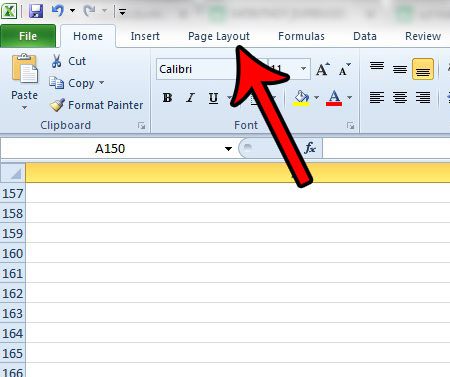
Step 2: Click the Page Layout tab at the top of the window.
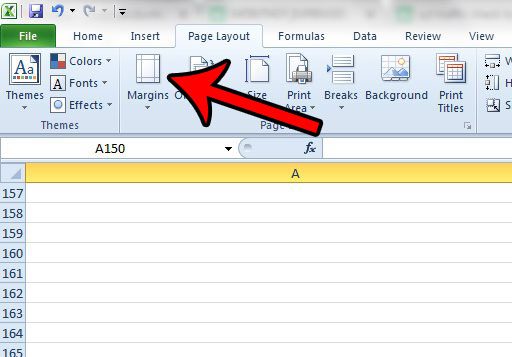
Step 3: Click the Margins button.
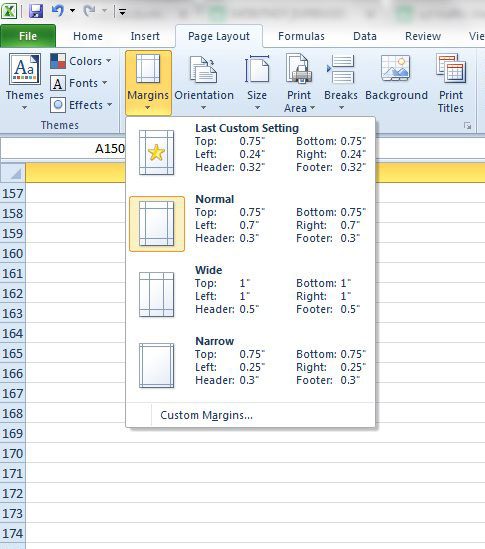
Step 4: Click the desired margin setting, or click Custom Margins to specify your own. If you clicked Custom Margins, continue to the next step. Otherwise you are done changing your page margins.
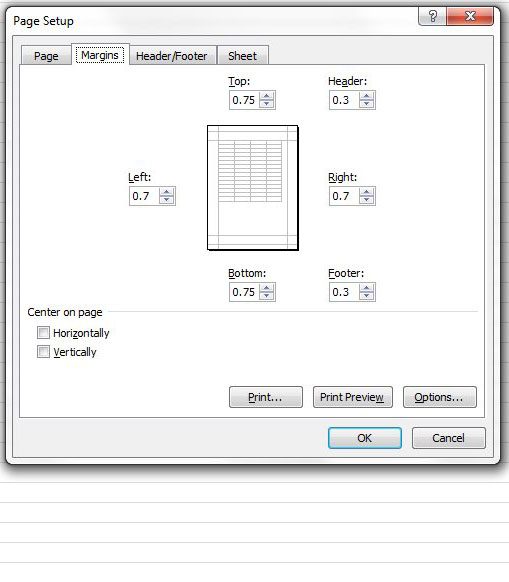
Step 5: Enter your desired margin sizes into the appropriate fields, then click the OK button.
Method 2 – change the page margins from the Print menu in Excel 2010
Step 1: Open the Excel spreadsheet for which you want to set the print margins.
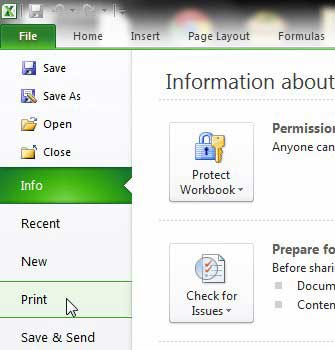
Step 2: Click the File tab at the top-left corner of the window, then click the Print option in the column at the left side of the window.
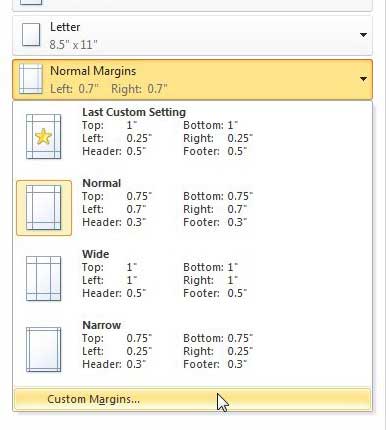
Step 3: Click the Normal Margins drop-down menu, then click the Custom Margins option at the bottom of the window. There are actually several preset options on this drop-down menu, so feel free to use on of them instead if it will suit your spreadsheet.
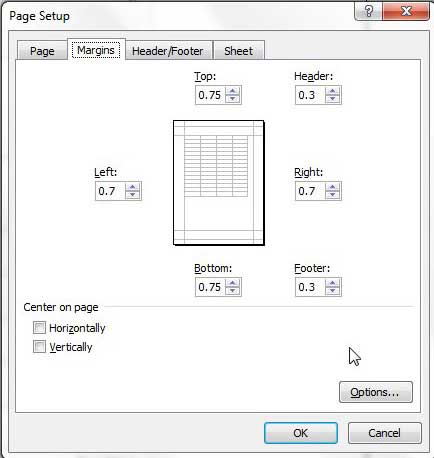
Step 4: Adjust the values in the individual margin fields until your document is fitting on the page as you would like it to. Since Excel 2010 does not offer a preview window for the margin adjustments, you may need to exit and re-enter this menu a few times to get it right.
Method 3 – Change page margins by clicking the Page Setup button on the Page Layout tab
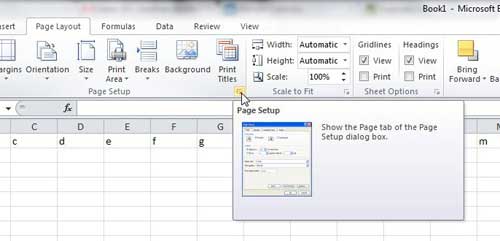
Note that you can also open the Page Setup window by clicking the Page Layout tab at the top of the window, then clicking the Page Setup button in the Page Setup section of the ribbon. You will then be taken to the Page Setup menu shown in Method 2.
Now that you know how to set print margins in Excel 2010, you can use whichever of these options you prefer to set that information for your spreadsheets.
Summary – How to change page margins in Excel 2010
- Click the Page Layout tab.
- Click the Margins button.
- Select one of the default page margin settings, or click Custom Margins to specify your own.
- Adjust the settings on the Page Setup window as needed.
- Click the OK button when you are finished.
Learning how to change page margins in Excel 2013 is one of several options available for you to improve the way your spreadsheets print. You can read our guide to printing in Excel for additional options and features that are available which can lead you to spreadsheets that print in a more optimal way.
Matthew Burleigh has been writing tech tutorials since 2008. His writing has appeared on dozens of different websites and been read over 50 million times.
After receiving his Bachelor’s and Master’s degrees in Computer Science he spent several years working in IT management for small businesses. However, he now works full time writing content online and creating websites.
His main writing topics include iPhones, Microsoft Office, Google Apps, Android, and Photoshop, but he has also written about many other tech topics as well.
Read his full bio here.
Featured guides and deals
