Want to set up Windows 11 without using a Microsoft account? It’s simple! Just follow these steps to bypass the Microsoft account requirement during setup. This will let you create a local account instead. Here’s a quick overview: disconnect from the internet before you start the setup process, then create a local user account when prompted.
Skipping Microsoft Account Windows 11
In this section, we’ll go through the steps needed to skip the Microsoft account requirement on Windows 11. By the end, you’ll have a local account set up without any hassle.
Step 1: Disconnect from the Internet
First, turn off your Wi-Fi or unplug your Ethernet cable.
By disconnecting from the internet, Windows 11 won’t prompt you to sign in with a Microsoft account as it won’t have access to check for updates or verify your credentials online.
Step 2: Start the Windows 11 Setup
Begin the setup process by turning on your new or freshly reset computer.
As you go through the initial setup screens, you may be asked to connect to the internet. Since you’re offline, you can skip this step and continue.
Step 3: Choose “Set up for personal use”
When prompted, select the option to set up your device for personal use.
This choice helps differentiate from a work or school setup, which often requires a Microsoft account.
Step 4: Select “Offline Account”
Instead of signing in with a Microsoft account, choose “Offline Account” at the bottom of the sign-in page.
The option might be easy to miss, but it’s crucial for skipping the Microsoft account requirement effectively.
Step 5: Create a Local User Account
Now, you can create your local user account by providing a username and password.
This step allows you to use your computer without linking it to a Microsoft account, giving you more control over your data and settings.
After completing these steps, your Windows 11 setup will continue, and you’ll be able to use your new local account. You won’t be prompted for a Microsoft account again unless you choose to add one later.
Tips for Skipping Microsoft Account Windows 11
- Stay Offline : Keep your device disconnected throughout the setup to avoid prompts for a Microsoft account.
- Look for Offline Options : Always check if there’s an option to create an offline account, often hidden or less prominent.
- Use Ethernet Cable : If using Wi-Fi, disconnect it. If using Ethernet, unplug the cable to prevent accidental connections.
- Local Account Benefits : Local accounts offer more privacy and fewer sync features, which can be beneficial for personal use.
- Switch Later : You can always switch to a Microsoft account later if you change your mind or need specific features.
Do I need an internet connection to set up Windows 11?
No, you can set up Windows 11 without an internet connection by creating a local offline account.
Can I switch to a Microsoft account after setting up an offline account?
Yes, you can switch to a Microsoft account at any time through the settings menu.
What are the benefits of a local account in Windows 11?
A local account offers more privacy, fewer automatic syncs, and less data sharing with Microsoft.
Will I miss out on features by not using a Microsoft account?
Some features like OneDrive, Microsoft Store purchases, and device sync across platforms require a Microsoft account.
How do I create a local account if I missed the setup option?
Go to Settings > Accounts > Your Info and select “Sign in with a local account instead.”
Summary
- Disconnect from the Internet.
- Start the Windows 11 Setup.
- Choose “Set up for personal use.”
- Select “Offline Account.”
- Create a Local User Account.
Conclusion
Setting up Windows 11 without a Microsoft account is straightforward if you know where to look. By following these steps, you can enjoy a more private and controlled computing experience. Whether you’re concerned about privacy or just prefer to keep things simple, a local account is a great way to get started with Windows 11.
Of course, if you ever want to switch to a Microsoft account later on for additional features, the option is always available. Until then, enjoy having full control over your Windows 11 setup without the need for Microsoft’s cloud services.
For more tips and tutorials on Windows 11, stay tuned!

Matthew Burleigh has been writing tech tutorials since 2008. His writing has appeared on dozens of different websites and been read over 50 million times.
After receiving his Bachelor’s and Master’s degrees in Computer Science he spent several years working in IT management for small businesses. However, he now works full time writing content online and creating websites.
His main writing topics include iPhones, Microsoft Office, Google Apps, Android, and Photoshop, but he has also written about many other tech topics as well.
Read his full bio here.
Featured guides and deals
Printers can be difficult ot work with, and troubleshooting them can take you to a lot of different places on your computer.
One common issue that can arise with a printer is when it says that it is offline, even though it’s turned on and seems to be hooked up correctly.
Our tutorial below will show you some steps to try so that you can learn how to change a printer from offline to online.
How to Switch a Printer from Offline to Online in Windows 7
- Click Start , then Devices and Printers .
- Right-click the printer, then click See what’s printing .
- Select the Printer tab, then click Use printer offline to clear the check mark.
Our guide continues below with additional information on how to switch a printer from offline to online , including pictures for these steps.
If you’re lucky, then this should work and your queued documents will start printing. However, sometimes this isn’t enough and you need to do some more troubleshooting. We discuss those additional troubleshooting steps further in this article.
Printers can be frustrating when they are not working correctly, due largely to the fact that errors can occur for seemingly no reason. Whether your print jobs don’t look right, you are getting constant paper jams, or printing is inconsistent or erratic, printers are often some of the most difficult electronic devices to work with. So if your printer is showing as offline and you can’t print, then you may be trying to figure out why it’s showing as offline when the printer was working before and nothing has changed.
One issue that you might encounter is Windows 7 not being able to connect to your printer to send documents that you want to print. Further investigation into the issue might lead you to discover that Windows 7 thinks the printer is offline.
There are several reasons why this might be occurring, so you will need to follow the instructions in this tutorial to learn how to change your printer from offline to online .
Once your printer is back online, it should then start printing the documents that you have sent to the printer that are currently sitting in your print queue.
How Do You Change a Printer from Offline to Online? (Guide with Pictures)
Windows is recognizing your printer as being offline because it is unable to communicate with the printer. This can be caused by several different situations, so you need to pinpoint exactly from where the problem is originating.
These steps will show you how to change a printer from offline to online from a Windows laptop or desktop computer.
Step 1: Click theStartbutton at the bottom-left corner of your screen, then clickDevices and Printers.
Click Start then choose Devices & Printers .
Step 2: Right-click the printer that is showing as offline, then clickSee what’s printing.
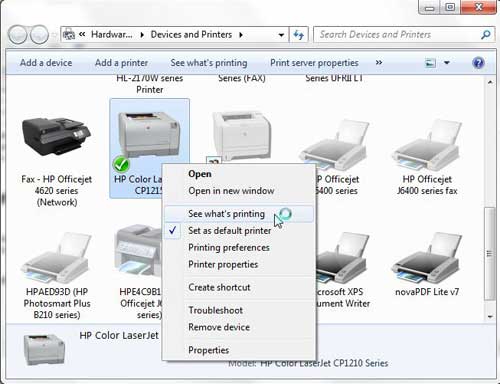
Right-click on the printer, then select See what’s printing.
Step 3: Click thePrinterlink at the top of this window, then click theUse Printer Offlineoption to remove the check mark.
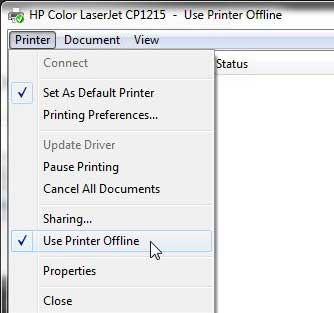
Select Printer , then Use Printer Offline .
Now that you know how to change printer from offline to online you can try this step whenever your computer is unable to print a file.
If this solved your problem, then you are all set and can continue with your printing . However, if this did not resolve the issue, then there are some more troubleshooting steps you can try.
Additional Troubleshooting for an Offline Printer in Windows 7
Check that the printer is turned on, and that the USB cable is properly connected to both the back of the printer and your computer. If your printer is wireless, you may need to restart the printer, then restart your computer to see if you can re-establish the wireless connection.
If you are using a wireless printer, have you recently changed your router, or changed the name of the wireless network ? If so, you may need to update your wireless printer with the new wireless network settings . If your wireless printer does not feature a control panel on the printer that allows you to change the network settings, you may need to temporarily connect the printer to your computer with a USB cable to modify the settings.
If your wired printer is still showing an offline status, despite the fact that it is plugged in and connected to your computer, then there may be a problem with the port to which the device is connected.
How to Change a Printer Port in Windows 7
You can use these steps to change the printer port for a printer that has been set up in Windows 7.
Step 1: Return to theDevices and Printersmenu, right-click your printer, then clickPrinter Properties.
Step 2: Click thePortstab at the top of the window, choose the correct port from the list at the center of the window, clickApply, then clickOK.
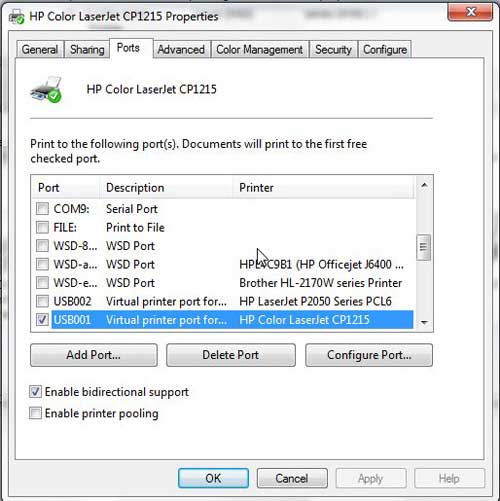
If you are still unable to print, then one final option you can attempt is to stop and restart the print spooler . You can follow the instructions in this article to learn how to manage the print spooler.
If you are still unable to print after following all of these instructions, then you may need to uninstall, then reinstall your printer. You can remove a printer from your computer by right-clicking the printer, then clicking Remove device . Once the printer has been uninstalled, follow your printer’s installation guide to properly reinstall it.
Why Is My Printer Offline?
The sections in the article above provide a bunch of different options and settings that you can check in order to see why your printer might be offline.
There are so many potential reasons that your printer might be offline that it’s hard to point to one specific reason why it might be happening.
In my experience, the best, simplest, and most useful thing that you can do when your printer is showing as offline is to simply restart the printer.
This can resolve issues related to a wireless printer that isn’t connected to a network, it can force the print spooler to restart, and it can fix print jobs that are stuck in the print queue.
While your printer is going through the process of restarting it can be helpful to restart your computer, too. And if you have a wireless printer and have been experiencing connection issues with other wireless devices as well, then even restarting your modem and your router might not be a bad idea.
How do I restart a printer?
You can reboot your printer by pressing the Power button on the printer, waiting until it has completely turned off, then pressing the Power button again to turn it back on.
How can I check my printer status?
If you aren’t sure whether or not your printer is in Printer Online or Printer Offline mode in Windows 11, then a quick way to check is to go to Start > Settings > Devices > Printers & Scanners .
You can then click on your printer and choose the Open Queue option. When you open print queue windows on your computer you can see any documents that are currently queued up to print.
When the printer window is open you can click the Printer option in the menu bar, then make sure the Use Printer Offline option isn’t selected.
How can I change the printer driver that my printer is currently using?
If you go to Start > Settings > Devices > Printers & Scanners then select your printer, you can click the Printer properties button, which will open a new window.
In this window you can choose the Advanced tab, then click the Driver drop down menu and choose a different driver. You could also click the New Driver button, which will launch the Add Printer Driver Wizard .
How do I run printer troubleshooter in Windows 11?
If you aren’t sure what the problem is, you can try the Windows utility that will cycle through a bunch of potential settings to try and fix the problem.
This means it will do things like restart printer related services, such as restarting the print spooler service and checking for outdated printer drivers.
You can do this by clicking the Windows button in the taskbar, searching for “Printer” then selecting the Printers & scanners option.
You can then select your printer and click the Run the troubleshooter option.
Why is my HP Printer offline?
The Hp printer offline Windows 11 steps are the same for Hewlett Packard printers as they are for other printers.
You need to open the Windows Settings menu, choose Bluetooth and devices, then select Printers & scanners.
You can then click on the default printer or whatever printer you want to check, then make sure Use printer offline is not selected.
If it is offline and clicking that option doesn’t put it back online, then you will need to go through the troubleshoot printer offline process of checking the printer cable (or the network status for wireless printers) and restarting the printer and the computer.
If that doesn’t work, then you may printer offline – how to put online instructions on the printer manufacturer’s website, which may involve reinstalling printer software and drivers.
Matthew Burleigh has been writing tech tutorials since 2008. His writing has appeared on dozens of different websites and been read over 50 million times.
After receiving his Bachelor’s and Master’s degrees in Computer Science he spent several years working in IT management for small businesses. However, he now works full time writing content online and creating websites.
His main writing topics include iPhones, Microsoft Office, Google Apps, Android, and Photoshop, but he has also written about many other tech topics as well.
Read his full bio here.
Featured guides and deals
If you’re used to working with printers frequently, you have probably faced situations where your machine is ready to print, but the printer status on your Windows 10 is showing offline.
This can happen due to minor network connectivity issues, poor printer connection, paper jams, or other problems.
Whatever the reason is, you should know how to get a printer online in Windows 10 to fix the problems and get your work done.
To make the task easier for you, we will discuss a number of methods of solving the printer offline issue and tell you some simple tricks to avoid such problems in the future.
We will cover it all, from minor paper jam problems to complex setting issues. So, let’s dive right in.
How to Use the Windows 10 Printer Troubleshooter to Get the Printer Online
- Press the Windows key + I to open Settings.
- Choose Devices in the left column.
- Select Printers and Scanners .
- Choose to run the troubleshooter.
- Let the troubleshooter run and perform the suggested tasks.
Our guide continues below with additional information on getting your Windows 10 printer online, including some other options that you can try which might help to resolve the situation.
Sometimes you will need to send someone a picture of the items that appear on your screen. Our article on how to screenshot on Acer laptops can help you with that.
How to Solve Windows 10 Printer Offline Issues – 10 Options
As you already know, your computer can show that your printer is offline for many reasons. Some problems are so trivial that you can solve them within moments, even without any printer technician. Below are some effective and detailed methods to solve the printer offline error yourself:
Method One – Perform Physical Checks
To bring back a printer online, you should properly check all the wire connections. If your machine is a local printer or a network printer and needs to be connected by a USB cable or Ethernet cable, you should check out whether the connection is firm or not. Try checking out the cable at both ends of your USB port and printer.
If the cable is too loose or broken, replace it with a new one. Also, try to use multiple USB ports on your computer to make sure that the problem isn’t in your cable, ethernet port, or USB ports.
Method Two – Check Your Internet Connection
If you have connected your printer using a Wi-Fi network, check out if the device’s network is working properly. The printer’s status might go offline if the network is too slow or if the network keeps dropping.
So, check out the condition of the network from the built-in options of your printer. If you don’t know how to connect your printer through Wi-Fi, look for instructions in your owner’s manual. Sometimes the printer status goes offline when you try to connect it using a VPN (virtual private network.)
In that case, you must disconnect the VPN connection and restart your printer. Otherwise, you can also try a more efficient VPN connection and adjust the VPN configuration to access the local network.
Method Three – Restart Your Printer and Computer
The process of restarting your devices is called power cycling. It’s a very common technique to solve minor glitches in your devices – power off both your PC and printer first. Then disconnect your printer from the computer and unplug its power cable.
Wait for 30 seconds before restarting the printer. When your printer is switched on, turn on your computer again and check if the offline status is turned online.
Method Four – Use Printer Offline Option
If our previously mentioned methods fail to solve your printer problems, it’s time to do some work manually. You need to open settings on your computer and make some necessary changes to the printer offline option. And here’s how to use the printer offline option in Windows 11 –
Step 1) On your windows computer, click on the ‘Start’ option from the bottom of your screen. From there, click on the ‘Settings’ option and then ‘Bluetooth and devices.’
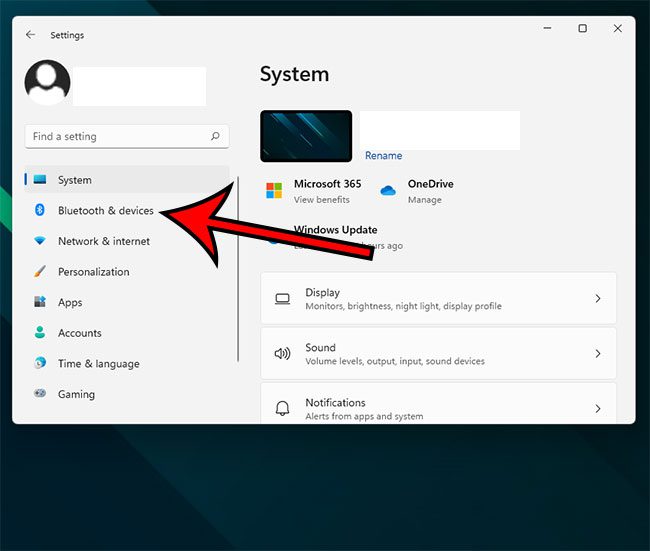
Step 2) Now select the option called ‘Printers & Scanners’.
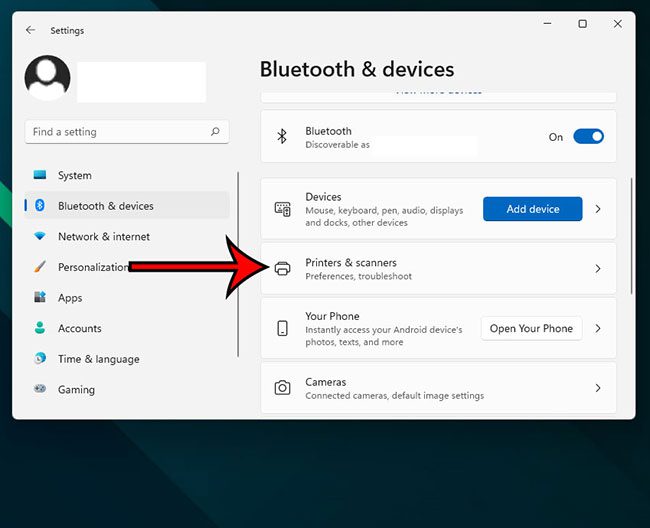
Step 3) Select your printer and choose the ‘Open print queue’ option.
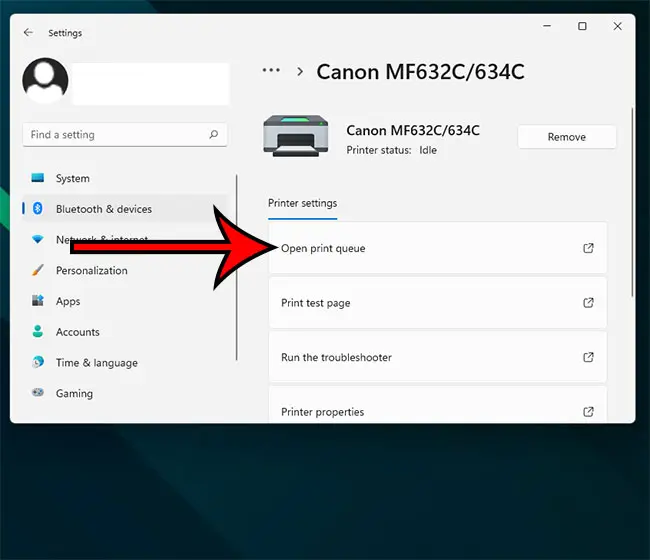
Step 4) A new page will appear, and you need to look for the ‘Printer’ tab on the toolbar. Click on it, and a drop-down menu will arrive. Do you see any ‘Use Printer Offline’ option there? Check out if there’s a tick beside this option. Click on it to remove the tick mark and get your printer online.
<img loading=“lazy” src=“https://www.solveyourtech.com/wp-content/uploads/2022/02/how-to-get-printer-online-windows-10-4.jpg" onerror=“this.onerror=null;this.src=‘https://blogger.googleusercontent.com/img/a/AVvXsEhe7F7TRXHtjiKvHb5vS7DmnxvpHiDyoYyYvm1nHB3Qp2_w3BnM6A2eq4v7FYxCC9bfZt3a9vIMtAYEKUiaDQbHMg-ViyGmRIj39MLp0bGFfgfYw1Dc9q_H-T0wiTm3l0Uq42dETrN9eC8aGJ9_IORZsxST1AcLR7np1koOfcc7tnHa4S8Mwz_xD9d0=s16000';" alt=“turn off the “use printer offline” option - 9”>
For additional coverage of this topic, you can read our printer offline Windows 7 guide.
Method Five – Use Printer Troubleshooter
If the status of your printer keeps coming online briefly and going offline again, you can use a printer troubleshooter to solve the problem and start printing again. In fact, Windows 10 features several troubleshooters to solve the printer offline issues automatically. Here’s how you can perform troubleshooting –
Step 1) Use the dedicated Windows key to open the ‘Start’ menu and go to your settings. You can also press Windows key + I to open the Settings app directly. Click on ‘Devices’ and then on ‘Printers & Scanners.’
Step 2) Click on the ‘Run the troubleshooter’ option from the right-pane. You can find it right beneath the ‘Related Settings’ option.
Step 3) Now, the troubleshooter will run several series of checks. It will also suggest to you some ways to solve the detected problems. It might ask you to set your current printer as a default printer or ask you to update your printer driver. Act accordingly to fix the problems.
Method Six – Clear Your Pending Print Jobs
It’s always preferable to perform one print job at once. When you continue printing for a long time and multiple unfinished print jobs are queued, it might cause printer offline errors. Follow the steps given below to remove the print queue –
Step 1) Open settings and choose ‘Devices.’ Then select ‘Printers & Scanners’ and click on your printer’s name.
Step 2) Now click on ‘Open queue’ to get the list of all the pending documents. Select the ‘ Printer ‘ option from the toolbar at the top and then click ‘Cancel All Documents.’ It should clear all the pending jobs.
Step 3) You can restart your printer and your computer to clear the remaining documents of the print queue.
Method Seven – Use Print Spooler Service
The print spooler service controls the interactions between your computer and printer. You can restart the service to get the printer online. Here’s how you can do it –
Step 1) Open your computer’s start menu, type ‘Services’, and press enter. You can also press Windows Key + R and search by typing ‘Service.msc.’
Step 2) Look for the ‘Print Spooler’ option and right-click on it. Then choose ‘Restart,’ and your offline printer will go online again.
Method Eight – Change Printer Properties
Step 1) Open the control panel of your printer and then go to ‘Devices and Printers.’ Right-click on your printer’s name and select ‘Printer Properties.’
Step 2) From there, click on the ‘Ports’ tab and then choose the printer’s IP address. Now select the option ‘Configure Port.’
Step 3) Check if there’s any tick next to the ‘SNMP Status Enable’ option. Click on it to uncheck the option and then choose ‘OK’ for saving the changes.
Method Nine – Use Printer Software
Many printer manufacturers own printer software to let your windows manage and troubleshoot the printer. You can go to the printer manufacturer’s website to install the software. Or, your printer manufacturer might have provided a CD containing the software.
To check whether the software is installed or not, go to settings and click on ‘Devices.’ Then select ‘Printers & Scanners’, choose your printer’s name, and then ‘Manage.’ If the software is installed, you’ll see the option ‘Open printer app.’
Click on it to open the software and look for troubleshooting options to bring the offline printer status back online.
Method Ten – Reinstall the Printer
If the printer offline message keeps appearing even after you have tried all our methods, you should try to remove the current printer and reinstall it or install a new printer. Here’s how you can remove and reinstall it –
Step 1) Open your computer’s settings and choose ‘Devices.’ From the menu bar, select ‘Printers & Scanners’ and then your printer’s name.
Step 2) Click on ‘Remove Device’ and select ‘Yes’ to remove the current printer.
Step 3) Now go for the option ‘Add printer or scanner.’ Follow the necessary steps to reinstall the printer.
Final Words
So, now you know how to get a printer online Windows 10. Before anything else, try our first three methods to solve the printer offline errors in your Windows 10 easily.
If none of our methods work for your computer, the problem might be hardware-related. In that case, you need to get your printers to a technician or change the printer drivers to solve the issues.
Matthew Burleigh has been writing tech tutorials since 2008. His writing has appeared on dozens of different websites and been read over 50 million times.
After receiving his Bachelor’s and Master’s degrees in Computer Science he spent several years working in IT management for small businesses. However, he now works full time writing content online and creating websites.
His main writing topics include iPhones, Microsoft Office, Google Apps, Android, and Photoshop, but he has also written about many other tech topics as well.
Read his full bio here.
Featured guides and deals

