Uninstalling drivers on Windows 11 doesn’t have to be a daunting task. You just need to follow a few simple steps to get the job done. This guide will help you understand each step of the process, so you’ll know how to uninstall any driver on your Windows 11 computer like a pro.
How to Uninstall Drivers in Windows 11
In this section, you’ll learn how to uninstall drivers in Windows 11. This will help you get rid of outdated or unwanted drivers that may be causing issues on your computer. Follow these steps to ensure you successfully uninstall the drivers you no longer need.
Step 1: Open Device Manager
To open Device Manager, press the Windows key + X and select “Device Manager” from the menu.
Device Manager is your go-to tool for managing hardware devices and their drivers. It’s like the control room where you can see all the gadgets connected to your computer.
Step 2: Find the Device
In Device Manager, locate the device whose driver you want to uninstall.
Devices are categorized, so you’ll need to expand the appropriate category to see the device. For example, if you’re uninstalling a network driver, look under “Network adapters.”
Step 3: Right-Click the Device
Right-click the device you want to uninstall and select “Uninstall device” from the context menu.
Right-clicking brings up a menu with several options. “Uninstall device” is the option you need to remove the driver from your system.
Step 4: Confirm Uninstallation
In the pop-up window, check “Delete the driver software for this device” if you want to remove the driver completely, then click “Uninstall.”
This step ensures that not only will the driver be uninstalled, but its software will also be deleted, keeping your system clean.
Step 5: Restart Your Computer
After the uninstallation is complete, restart your computer to apply the changes.
Restarting allows Windows to refresh and complete the uninstallation process. Your system might also reinstall a default driver for the device if necessary.
After you complete these steps, your computer will no longer use the driver you uninstalled. If you need to reinstall the driver later, you can always download the latest version from the manufacturer’s website.
Tips for Uninstalling Drivers in Windows 11
- Always create a restore point before uninstalling a driver.
- Make sure you have the latest driver installer before removing the current one.
- Use Safe Mode if you cannot uninstall the driver in normal mode.
- Be cautious when uninstalling essential drivers, like those for your graphics card or network adapter.
- If the device stops working, reinstall the driver from the manufacturer’s website.
What is a driver?
A driver is a software that allows your computer to communicate with its hardware components.
Why should I uninstall a driver?
Uninstalling a driver can resolve issues caused by outdated or corrupted drivers, improve system performance, or remove unnecessary drivers.
Can I reinstall a driver after uninstalling it?
Yes, you can reinstall a driver by downloading the latest version from the manufacturer’s website.
What happens if I uninstall an essential driver?
Uninstalling an essential driver can cause your device to stop working. Make sure you have a replacement driver ready for installation.
How do I know if a driver is causing issues?
You might notice frequent crashes, device malfunctions, or error messages indicating driver problems.
Steps to Uninstall Drivers in Windows 11
- Open Device Manager.
- Find the device.
- Right-click the device.
- Confirm uninstallation.
- Restart your computer.
Conclusion
Uninstalling drivers in Windows 11 is a straightforward process if you follow the steps outlined in this guide. By using Device Manager, you can manage and remove drivers that might be causing issues or are no longer needed. Always remember to create a restore point before making changes to your system, and have the latest driver installers ready if you need to reinstall them.
Whether you’re troubleshooting hardware issues or just keeping your system clean, knowing how to uninstall drivers is an essential skill. For further reading, consider checking out guides on installing new drivers or updating existing ones to keep your system running smoothly.
So, are you ready to take control of your Windows 11 drivers? Dive in and start managing your drivers like a pro today!

Matthew Burleigh has been writing tech tutorials since 2008. His writing has appeared on dozens of different websites and been read over 50 million times.
After receiving his Bachelor’s and Master’s degrees in Computer Science he spent several years working in IT management for small businesses. However, he now works full time writing content online and creating websites.
His main writing topics include iPhones, Microsoft Office, Google Apps, Android, and Photoshop, but he has also written about many other tech topics as well.
Read his full bio here.
Featured guides and deals
If you have been using the same computer for a while, or if you have recently cycled through printer installations, then you probably have some printer drivers on your computer.
Even if you have gone through the hassle of using the Remove Device option for a printer on the Devices and Printers menu, the driver for that printer is likely to still be on your computer.
Since the old printer is no longer visible, you assume that there is no need to remove old printer drivers, because they are already gone. Windows 7 does not do this to complicate the printer installation process; they leave the driver on there in case you decide to use the printer again in the future.
Unfortunately, if you want to make changes to the printer driver, if you installed the wrong one, or if you want to install another printer that uses the same or a similar driver, then you will need to remove old printer drivers to get the current installation to work correctly.
Locating the List of Installed Printer Drivers
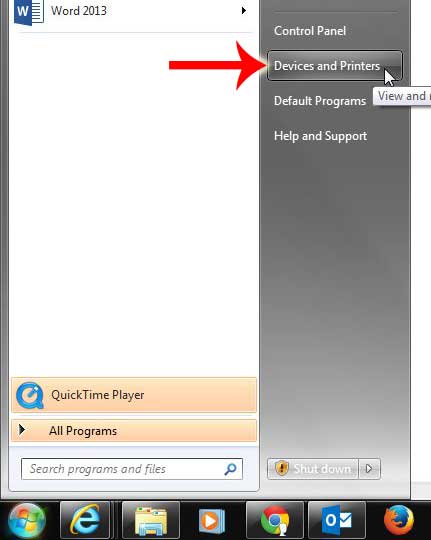
The list of printer drivers installed on your computer can be found by clicking the Start button at the bottom-left corner of your screen, then clicking Devices and Printers at the right side of the Start menu. Click one time on any installed printer, then click the Print Server Properties button in the horizontal blue bar at the top of the window.
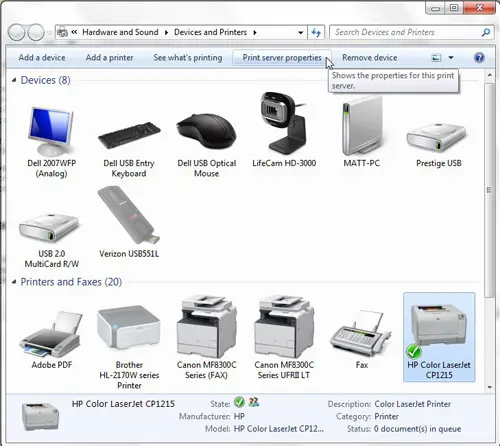
This will open a new Printer Server Properties window. Click the Drivers tab at the top of this window, click the old printer driver you want to remove, then click the Remove button at the bottom of the window.
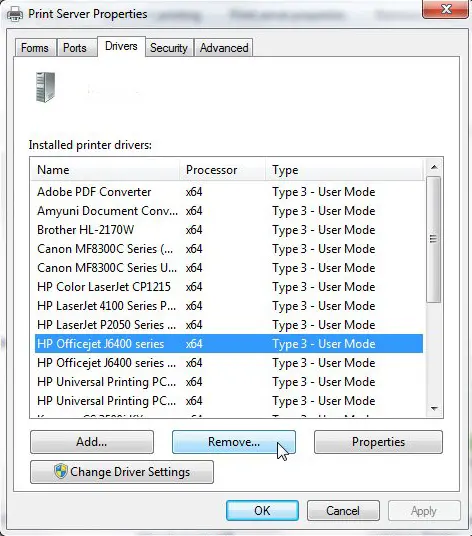
Click the option to the left of Remove driver and driver package , then click the OK button.
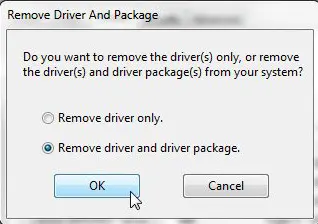
In most situations this will be the end of the process, and you will have removed all traces of the old printer driver. Unfortunately, it might not always be this easy.
Problems You May Encounter When You Want to Remove Old Printer Drivers
When I unsuccessfully attempt to remove an old printer driver, i usually get an error of the type “XX Printer could not be removed because driver XX is in use.” Unfortunately it is difficult to pinpoint exactly why you are receiving this message, but there are usually a few culprits that can be to blame.
1. Have you gone through the process of removing the device from the Devices and Printers menu?
While this step does not remove the driver from your computer, you cannot actually remove the driver until you have done this. To perform this step, open the Devices and Printers menu, right-click the printer whose driver you want to uninstall, then click the Remove Device option.
2. Is an open program still attempting to communicate with the printer?
This is a less common problem, but is one that I have encountered specifically with label printers for shipping programs. It is particularly prevalent in cases where the printer stopped working, and a print job was stuck in the print queue. The exact method for clearing this issue will vary depending upon your own specific circumstances, but a good way to resolve it is to close every program on your computer from which you can print, then press the Feed button on the printer a couple times.
3. Is there a print job stuck in the print queue?
When you right-click on a printer in the Devices and Printers menu, there is a See what’s printing option. When you click that option, it will show you the current print queue, as well as any documents that you cancelled, that you paused, or that were otherwise not successfully printer. If you cannot use the Cancel document or Cancel all documents option to clear this from the print queue, then you might need to restart your computer, remove the device from the Devices and Printers menu, then attempt to remove the driver using the procedure outlined above.
An issue that many people frequently experience is a broken printer.
Fortunately, this can usually be fixed with a few short troubleshooting steps, which we will go through below.
How to Fix a Faulty Windows Printer
For a variety of reasons, a printer may look offline in Windows 7. In addition to print driver difficulties, they can also involve problems with electricity and network access.
For further troubleshooting options, see our networked printer offline Windows 7 post.
If your printer is now showing as offline, you could try the following steps.
- Click Start .
- Choose Devices and Printers .
- Using the right-click menu on the printer icon, choose See what’s printing .
- Click the Printer tab, followed by Use printer offline , to bring the printer online.
You can also try rebooting the printer and computer, removing all of the printer’s cords, and, if necessary, reinstalling the printer if that doesn’t work.
Windows 11 Information
Printers! They’re like that one friend who needs a little extra attention. When they’re happy, everything is smooth sailing. But when they’re not, boy do they let you know! If you’ve recently upgraded or switched printers, those old drivers still hanging around on your Windows 11 system might just be the culprits causing the fuss. Time for a bit of digital spring cleaning! Let’s walk through the steps to remove those old printer drivers.
Understanding Printer Drivers
Ever wonder why we even need printer drivers? Think of them as the interpreters. Your computer speaks one language, and your printer speaks another. The driver is like the mutual friend that translates for both, ensuring your documents look exactly as they should when printed.
Getting Started: Accessing the Printer Server Properties
Before diving in, ensure you’re logged in with an administrator account. Trust me, it’ll save you a headache later!
- Press the Windows key + R on your keyboard. This opens the ‘Run’ dialogue box.
- Type in “control printers” and hit Enter. This should bring up the ‘Devices and Printers’ window.
- In the toolbar, you’ll spot an option that says “Print server properties”. Click on it.
Diving Deeper: Removing the Old Printer Drivers
- Now, in the ‘Print server properties’ window, switch to the ‘Drivers’ tab. This is where the magic happens!
- You’ll see a list of all the installed printer drivers. If your list is anything like mine, it’s longer than expected.
- Locate the old or unwanted printer driver.
- Select it, and click on the “Remove” button.
- A pop-up window will ask which driver to remove. Choose “Remove driver and driver package”.
- Confirm the action.
Voila! The old printer driver should now be history. But don’t rush off just yet, I’ve got some bonus tips for you!
Additional Information
- Backup First : As with any significant system changes, consider backing up your system before removing any drivers. It’s like wearing a helmet – better safe than sorry.
- Restart after Removal : After removing the driver, a quick system restart can help clear out any lingering files.
- Windows Update : Sometimes, if you remove a printer driver, Windows might try to reinstall it during an update. To prevent this, hide the specific update related to the printer driver.
- Manual Cleanup : Some drivers can be stubborn. If you still find traces, consider diving into the ‘Program Files’ or ‘Program Files (x86)’ directories and deleting related folders. But tread carefully; you don’t want to delete something important.
- Why should I remove old printer drivers? Old printer drivers can sometimes conflict with new ones or simply take up unnecessary space.
- Can I remove a driver if I’m not an admin? Usually, no. Admin rights are typically required for such tasks.
- What if I accidentally remove the wrong driver? Don’t panic! You can always reinstall the driver either from the printer’s official website or by reconnecting your printer.
- Does removing the driver uninstall the printer software too? Not always. Some printers come with additional software. You might need to uninstall that separately.
- Do I need to physically disconnect the printer? No, but it might be a good idea to ensure it’s turned off to avoid any mid-process surprises.
Matthew Burleigh has been writing tech tutorials since 2008. His writing has appeared on dozens of different websites and been read over 50 million times.
After receiving his Bachelor’s and Master’s degrees in Computer Science he spent several years working in IT management for small businesses. However, he now works full time writing content online and creating websites.
His main writing topics include iPhones, Microsoft Office, Google Apps, Android, and Photoshop, but he has also written about many other tech topics as well.
Read his full bio here.
Featured guides and deals
Printers can be a source of problems for many computer users. They have a lot of moving parts that need to be replaced, and they require constant replenishment of very expensive ink and toner.
A printer that was previously working perfectly may even start saying that it’s offline, such as described in this article .
Occasionally a printer will break, stop working, or get replaced, so you need to uninstall it from your computer.
Often this can be as simple as removing the device from Windows 7. But it can also be a little more complicated than that, especially if the problem that you were having was related to a bad driver installation or a hidden file stuck in your print queue.
Fortunately, our guide below can provide some solutions to the problems that you are having as you try to completely remove a printer from your Windows 7 computer.
Removing a Printer and Printer Driver in Windows 7
The guide below is going to show how to first remove a printer in Windows 7, then how to remove a print driver in Windows 7, then a couple of troubleshooting steps if a print driver will not uninstall.
You are going to be performing some actions that require you to have administrator access to Windows 7, so make sure that you are either signed into an Administrator account, or that you have the administrator credentials for your computer.
Before you get started, check that your printer doesn’t have a specific program installed with it. In some cases uninstalling the program for the printer can take care of the entire uninstall process for you. Simply disconnect the printer cable from the computer first, then uninstall the printer program like any other program in Windows 7 by following the steps in this article .
If this is not an option for you, however, follow the steps below.
Step 1: Disconnect the printer cable from the computer, if it is a USB connection.
Step 2: Click the Start button at the bottom-left corner of the screen.
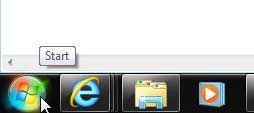
Step 2: Click Devices and Printers in the column at the right side of the menu.
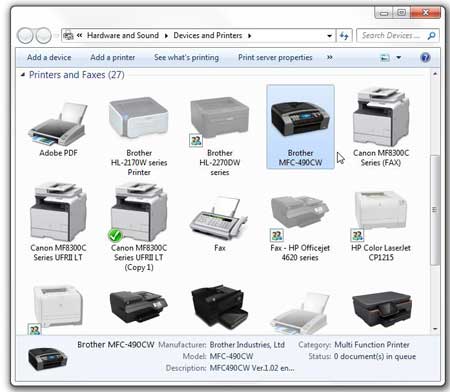
Step 3: Locate the printer that you want to remove. In this case we are removing the Brother MFC 490CW.
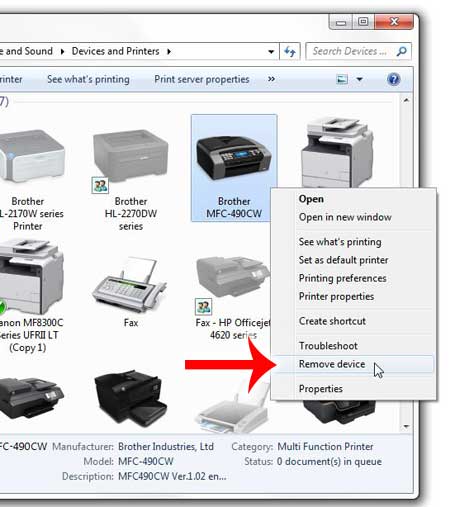
Step 4: Right-click the printer, then click Remove Device .
Step 5: Click the Yes option to confirm that you want to remove the printer. Don’t close this window just yet, though.
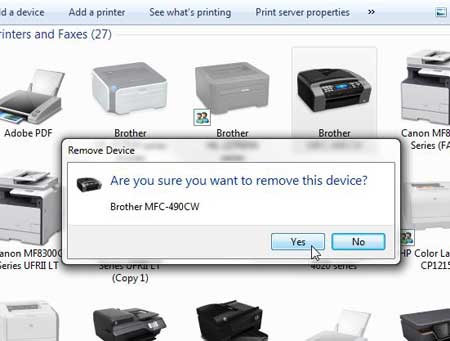
At this point the printer is removed from your computer, and you will no longer be able to print to it. For a lot of people, this is a sufficient stopping point. But the driver is still on the computer, and if you have been trying to re-install the printer but keep encountering an error, then it could be an issue with the driver. So you can follow the steps below to delete the print driver as well.
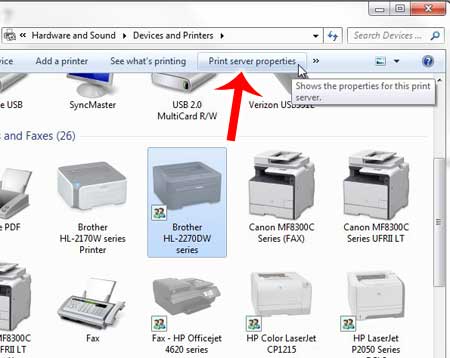
Step 6: Click another printer icon once to select it, then click the Print Server Properties option in the blue bar at the top of the window.
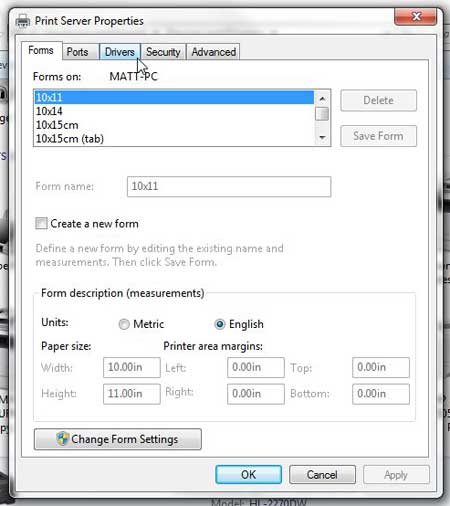
Step 7: Click the Drivers tab at the top of this window.
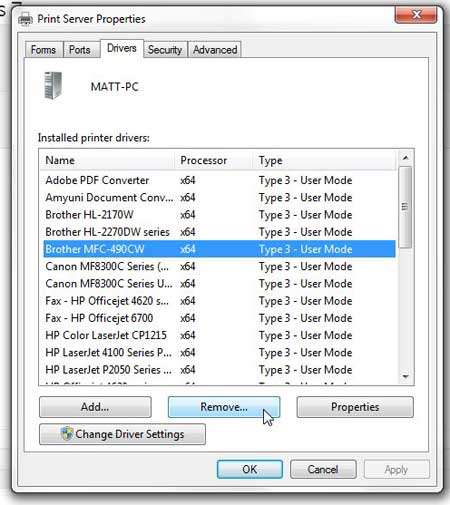
Step 8: Click the driver for the printer you just removed, then click the Remove button .
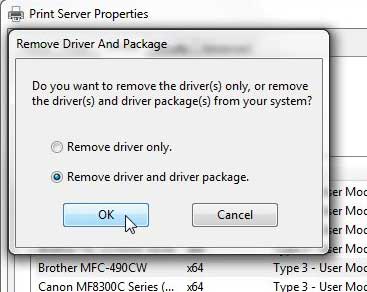
Step 9: Click the Remove driver and driver package option, then click the OK button.
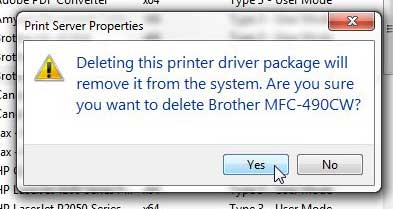
Step 10: Click the Yes button to confirm that you want to delete the driver and driver package.
Step 11: Click the Delete button to complete deletion of the printer driver.
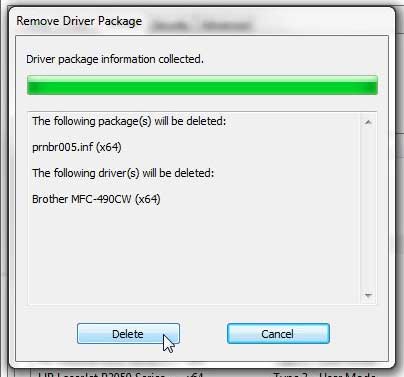
You might get an error at this point saying that the driver is in use and that it cannot be deleted. This can occur if there is a document that is still stuck in the print queue , so we need to take a couple more steps.
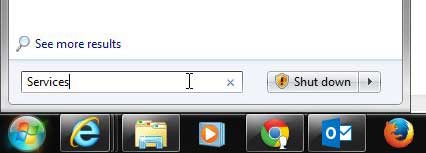
Step 12: Click the Start button at the bottom-left corner of your screen again, type “ Services ” into the search bar at the bottom of the menu, then hit Enter on your keyboard.
Step 13: Scroll down and select the Print Spooler option.
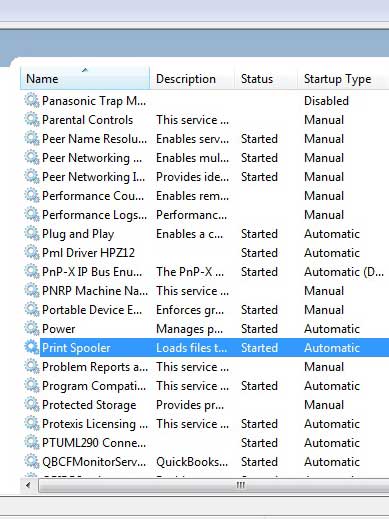
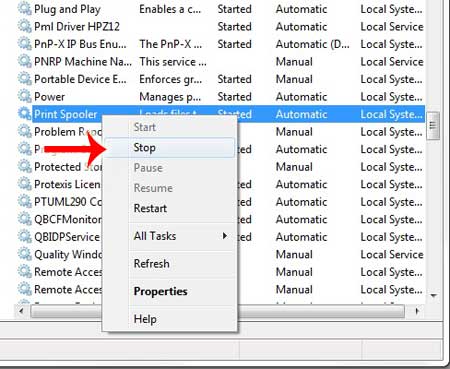
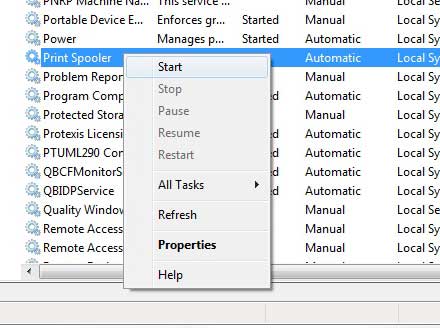
Step 14: Right-click on Print Spooler , then click the Stop option. Leave this window open for now.
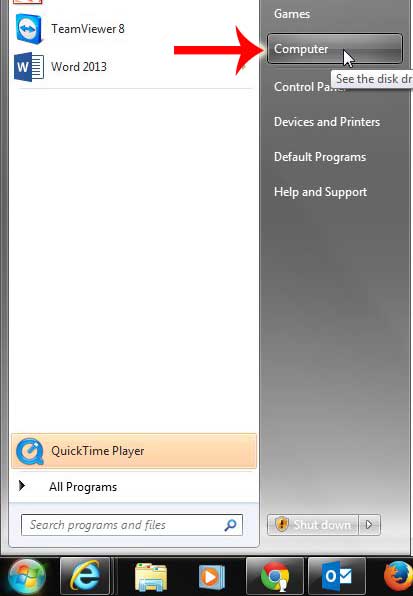
Step 15: Click the Start button at the bottom-left corner of the screen, then click Computer in the column at the right side of the window.
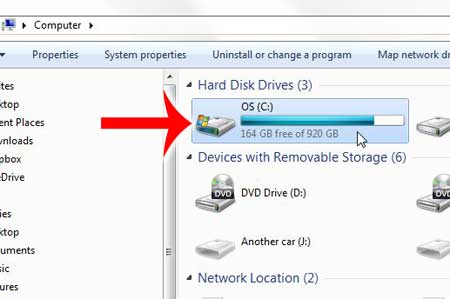
Step 16: Double-click your hard drive at the center of the window.
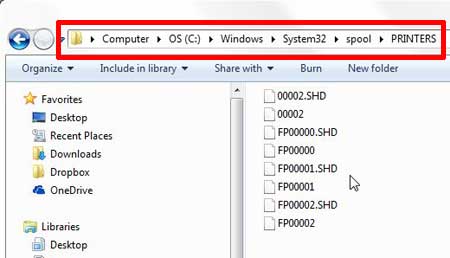
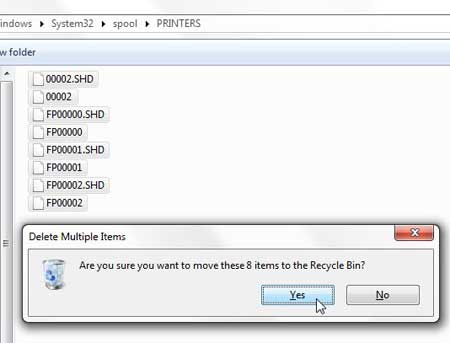
Step 17: Double-click the Windows folder, double-click System32 , double-click spool , then double-click PRINTERS . So the location you want to be at now is C:\Windows\System32\spool\PRINTERS , which should look similar to the image below.
Step 18: Press Ctrl + A on your keyboard to select everything in this folder, press the Delete key on your keyboard (the actual key that says “Delete” or “Del”. Not the “Backspace” key), then click Yes to confirm that you want to delete these files.
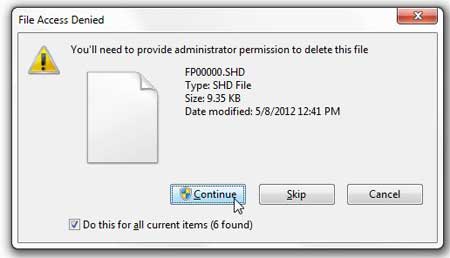
Step 19: Click Continue and provide Administrator access to confirm that you want to delete these files.
Step 20: Return to the Services window that we left open in Step 14, scroll to Print Spooler , right-click it, then click Start .
Step 21: Return to the Devices and Printers window that we left open all the way back in Step 5.
Step 22: Repeat Step 6 – Step 11 to delete the printer driver. The error telling you that it was in use should now be gone.
If you are still unable to delete the printer driver, then restart your computer, and repeat steps 6-11 one more time. If the driver is deleting but the driver package remains, then there may be another user on your computer that has the printer installed on their profile. You will also need to delete the printer and the driver for those users as well.
If you are still experiencing problems, then you should contact your printer’s manufacturer for additional troubleshooting steps related to that specific printer model.
If you’re getting rid of a problematic printer and are in search of a good new one, the Brother HL-2270DW could be the right printer for you. It is a wireless black and white laser printer that is fast, easy to use, and affordable. Check it out here .
Matthew Burleigh has been writing tech tutorials since 2008. His writing has appeared on dozens of different websites and been read over 50 million times.
After receiving his Bachelor’s and Master’s degrees in Computer Science he spent several years working in IT management for small businesses. However, he now works full time writing content online and creating websites.
His main writing topics include iPhones, Microsoft Office, Google Apps, Android, and Photoshop, but he has also written about many other tech topics as well.
Read his full bio here.
Featured guides and deals
