Sometimes, you just want your computer to know which printer is your favorite, right? Instead of picking it every single time you hit print, Windows 11 lets you set a default printer. This little tweak means your chosen printer will automatically be selected for all your documents, saving you clicks and hassle. You just head into your Settings, find your printers, make a quick selection, and you are all set. It is a simple process that gives you more control over your printing experience and makes things run a bit more smoothly.
Tutorial – How To Set the Default Printer In Windows 11
Setting a default printer in Windows 11 is like telling your computer, “Hey, this is my go-to printer for everything.” It saves you time and prevents those annoying moments when you accidentally print to the wrong device. Let’s walk through the steps to get this done, and you will be a printing pro in no time.
Step 1: Open your Settings app.
Getting to your computer’s brain, the Settings app, is the first move in many Windows adjustments. You can usually find it by clicking the Start button (the Windows icon), then selecting the gear icon from the pinned apps, or by searching for “Settings” in the search bar. This is your command center for personalizing your Windows experience.
Step 2: Navigate to “Bluetooth & devices,” then click “Printers & scanners.”
Once you are inside Settings, look for the “Bluetooth & devices” option on the left side of the window. Click that, and on the right you will see a list of related options, one of which should be “Printers & scanners.” This is where Windows keeps track of all the printing devices connected to your computer, whether they are physical printers or virtual ones, like PDF creators.
Step 3: Turn off “Let Windows manage my default printer.”
This is a super important step if you want full control. You will likely see a toggle switch next to “Let Windows manage my default printer.” If it is on, click it to turn it off. This tells Windows, “Thanks for trying to be smart, but I’ve got this.” If you leave it on, Windows might try to guess which printer you use most often and change your default without asking, which can be frustrating.
Step 4: Find and select the printer you want to set as the default.
Scroll through the list of printers and scanners until you spot the one you use most often. Maybe it is your trusty inkjet at home, or perhaps it is the fast laser printer at your office. Once you have found it, click on its name in the list, and a new set of options will appear below it.
Step 5: Click the “Set as default” button.
After selecting your desired printer, you will see a button that says “Set as default.” Go ahead and click that button. Windows will then register your choice, and a small message might pop up confirming your selection. This action tells your operating system that whenever you initiate a print job without specifying a printer, it should automatically send your documents to this printer.
Once you complete these steps, your selected printer will become the star of the show. Every time you print a document from any application, that printer will be pre-selected, saving you the trouble of hunting through a list. It is a small change that makes your daily printing tasks much smoother and more efficient.
How To Set the Default Printer In Windows 11 Tips
- Always turn off “Let Windows manage my default printer” if you want consistent control over which printer is your default. Otherwise, Windows might change it to your last-used printer.
- If your printer isn’t showing up in the list, make sure it is powered on, connected to your computer (either via USB or Wi-Fi), and that you have installed the correct drivers.
- You can still manually select a different printer for a specific print job even after setting a default. The default just saves you a step; it doesn’t lock you in.
- For network printers, ensure your computer is connected to the same network as the printer. Sometimes, network changes can cause printers to disappear or become unavailable.
- If you frequently use different printers for different tasks, consider setting “Print to PDF” as the default for general document saving, then manually select your physical printer when needed.
- Periodically check your default printer settings, especially after Windows updates or installing new printer software, as these events can sometimes reset your preferences.
Why should I set a default printer?
Setting a default printer makes your life easier by automatically selecting your most-used printer for all print jobs. It saves you clicks and ensures your documents go to the correct device without you having to pick it every single time, streamlining your workflow and reducing potential errors.
Can I have more than one default printer?
No, Windows only allows one active default printer at a time. Think of it like a primary contact; you can have many contacts, but only one “primary” one. While you can have multiple printers installed, only one can hold the default title at any given moment.
What if Windows keeps changing my default printer?
If Windows is constantly changing your default printer, it is almost certainly because the “Let Windows manage my default printer” setting is turned on. Head into your Printers & scanners settings, and toggle that option off. Once it is disabled, your chosen default should stick.
My printer isn’t showing up. What do I do?
First, ensure your printer is plugged in and powered on. If it is a USB printer, check the cable connection. For Wi-Fi printers, make sure they are connected to your network and that your computer is on the same network. You might also need to install or update the printer’s drivers, which you can usually find on the printer manufacturer’s website.
How do I remove a default printer?
You do not actually “remove” a default printer in the sense of uninstalling it. Instead, you simply set a different printer as the new default. Once you designate another printer as the default, the previous one will no longer hold that status, though it will remain installed on your system. If you want to uninstall a printer completely, you can usually do so from the same “Printers & scanners” section in Settings.
Summary
- Open Settings.
- Go to Bluetooth & devices, then Printers & scanners.
- Turn off “Let Windows manage my default printer.”
- Select your desired printer.
- Click “Set as default.”
Conclusion
Taking control of your printing experience in Windows 11 is one of those small yet impactful adjustments that can genuinely improve your daily computer use. Think of it like setting your favorite coffee mug on the counter every morning; you just know it is there, ready for you, without having to dig through the cupboard. That is exactly what setting a default printer does for your digital life. It cuts down on those tiny moments of friction, making printing a seamless, almost thoughtless, process. No more frantic searching through a list of printers, some of which you might not even recognize, just to get your document out.
This simple tweak is a perfect example of how Windows 11 empowers you to personalize your environment. By turning off the “Let Windows manage my default printer” feature, you are telling the operating system, “I know what I want, thank you very much,” asserting your preference and ensuring consistency. It is a subtle shift from passive acceptance to active management of your device, and honestly, it is a great habit to get into for all your settings. We have walked through the straightforward steps in Windows 11: How to Set Default Printer, and hopefully, you feel more confident tackling these kinds of adjustments yourself. Remember, your computer should work for you, not the other way around. Don’t hesitate to poke around in your settings, explore the options, and tailor your Windows 11 experience to fit your needs perfectly. If you found this guide helpful, consider sharing it with a friend who might also be tired of always picking their printer. Happy printing!

Matthew Burleigh has been writing tech tutorials since 2008. His writing has appeared on dozens of different websites and been read over 50 million times.
After receiving his Bachelor’s and Master’s degrees in Computer Science he spent several years working in IT management for small businesses. However, he now works full time writing content online and creating websites.
His main writing topics include iPhones, Microsoft Office, Google Apps, Android, and Photoshop, but he has also written about many other tech topics as well.
Read his full bio here.
Featured guides and deals
JavaScript is not available.
We’ve detected that JavaScript is disabled in this browser. Please enable JavaScript or switch to a supported browser to continue using x.com. You can see a list of supported browsers in our Help Center.
Help Center

Dengan mengeklik Lanjutkan, Anda menyetujui Perjanjian Pengguna , Kebijakan Privasi , dan Kebijakan Cookie LinkedIn.
Kami telah mengirimkan link sekali pakai ke alamat email utama Anda
Klik link untuk login langsung ke akun LinkedIn Anda.
Jika Anda tidak menemukan email tersebut di kotak pesan, periksa folder spam.
Setuju & Bergabung dengan LinkedIn
Dengan mengeklik Lanjutkan, Anda menyetujui Perjanjian Pengguna , Kebijakan Privasi , dan Kebijakan Cookie LinkedIn.
Printers can be difficult ot work with, and troubleshooting them can take you to a lot of different places on your computer.
One common issue that can arise with a printer is when it says that it is offline, even though it’s turned on and seems to be hooked up correctly.
Our tutorial below will show you some steps to try so that you can learn how to change a printer from offline to online.
How to Switch a Printer from Offline to Online in Windows 7
- Click Start , then Devices and Printers .
- Right-click the printer, then click See what’s printing .
- Select the Printer tab, then click Use printer offline to clear the check mark.
Our guide continues below with additional information on how to switch a printer from offline to online , including pictures for these steps.
If you’re lucky, then this should work and your queued documents will start printing. However, sometimes this isn’t enough and you need to do some more troubleshooting. We discuss those additional troubleshooting steps further in this article.
Printers can be frustrating when they are not working correctly, due largely to the fact that errors can occur for seemingly no reason. Whether your print jobs don’t look right, you are getting constant paper jams, or printing is inconsistent or erratic, printers are often some of the most difficult electronic devices to work with. So if your printer is showing as offline and you can’t print, then you may be trying to figure out why it’s showing as offline when the printer was working before and nothing has changed.
One issue that you might encounter is Windows 7 not being able to connect to your printer to send documents that you want to print. Further investigation into the issue might lead you to discover that Windows 7 thinks the printer is offline.
There are several reasons why this might be occurring, so you will need to follow the instructions in this tutorial to learn how to change your printer from offline to online .
Once your printer is back online, it should then start printing the documents that you have sent to the printer that are currently sitting in your print queue.
How Do You Change a Printer from Offline to Online? (Guide with Pictures)
Windows is recognizing your printer as being offline because it is unable to communicate with the printer. This can be caused by several different situations, so you need to pinpoint exactly from where the problem is originating.
These steps will show you how to change a printer from offline to online from a Windows laptop or desktop computer.
Step 1: Click theStartbutton at the bottom-left corner of your screen, then clickDevices and Printers.
Click Start then choose Devices & Printers .
Step 2: Right-click the printer that is showing as offline, then clickSee what’s printing.
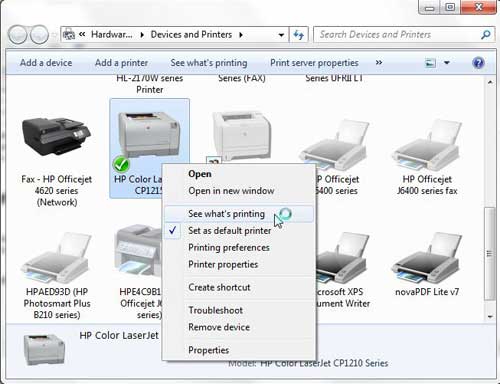
Right-click on the printer, then select See what’s printing.
Step 3: Click thePrinterlink at the top of this window, then click theUse Printer Offlineoption to remove the check mark.
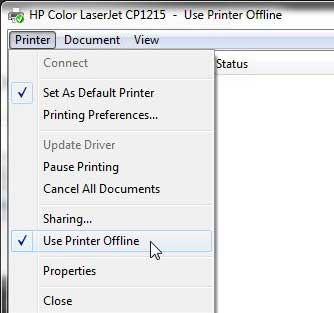
Select Printer , then Use Printer Offline .
Now that you know how to change printer from offline to online you can try this step whenever your computer is unable to print a file.
If this solved your problem, then you are all set and can continue with your printing . However, if this did not resolve the issue, then there are some more troubleshooting steps you can try.
Additional Troubleshooting for an Offline Printer in Windows 7
Check that the printer is turned on, and that the USB cable is properly connected to both the back of the printer and your computer. If your printer is wireless, you may need to restart the printer, then restart your computer to see if you can re-establish the wireless connection.
If you are using a wireless printer, have you recently changed your router, or changed the name of the wireless network ? If so, you may need to update your wireless printer with the new wireless network settings . If your wireless printer does not feature a control panel on the printer that allows you to change the network settings, you may need to temporarily connect the printer to your computer with a USB cable to modify the settings.
If your wired printer is still showing an offline status, despite the fact that it is plugged in and connected to your computer, then there may be a problem with the port to which the device is connected.
How to Change a Printer Port in Windows 7
You can use these steps to change the printer port for a printer that has been set up in Windows 7.
Step 1: Return to theDevices and Printersmenu, right-click your printer, then clickPrinter Properties.
Step 2: Click thePortstab at the top of the window, choose the correct port from the list at the center of the window, clickApply, then clickOK.
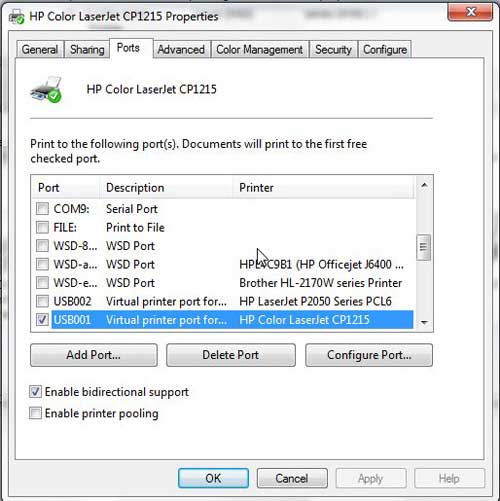
If you are still unable to print, then one final option you can attempt is to stop and restart the print spooler . You can follow the instructions in this article to learn how to manage the print spooler.
If you are still unable to print after following all of these instructions, then you may need to uninstall, then reinstall your printer. You can remove a printer from your computer by right-clicking the printer, then clicking Remove device . Once the printer has been uninstalled, follow your printer’s installation guide to properly reinstall it.
Why Is My Printer Offline?
The sections in the article above provide a bunch of different options and settings that you can check in order to see why your printer might be offline.
There are so many potential reasons that your printer might be offline that it’s hard to point to one specific reason why it might be happening.
In my experience, the best, simplest, and most useful thing that you can do when your printer is showing as offline is to simply restart the printer.
This can resolve issues related to a wireless printer that isn’t connected to a network, it can force the print spooler to restart, and it can fix print jobs that are stuck in the print queue.
While your printer is going through the process of restarting it can be helpful to restart your computer, too. And if you have a wireless printer and have been experiencing connection issues with other wireless devices as well, then even restarting your modem and your router might not be a bad idea.
How do I restart a printer?
You can reboot your printer by pressing the Power button on the printer, waiting until it has completely turned off, then pressing the Power button again to turn it back on.
How can I check my printer status?
If you aren’t sure whether or not your printer is in Printer Online or Printer Offline mode in Windows 11, then a quick way to check is to go to Start > Settings > Devices > Printers & Scanners .
You can then click on your printer and choose the Open Queue option. When you open print queue windows on your computer you can see any documents that are currently queued up to print.
When the printer window is open you can click the Printer option in the menu bar, then make sure the Use Printer Offline option isn’t selected.
How can I change the printer driver that my printer is currently using?
If you go to Start > Settings > Devices > Printers & Scanners then select your printer, you can click the Printer properties button, which will open a new window.
In this window you can choose the Advanced tab, then click the Driver drop down menu and choose a different driver. You could also click the New Driver button, which will launch the Add Printer Driver Wizard .
How do I run printer troubleshooter in Windows 11?
If you aren’t sure what the problem is, you can try the Windows utility that will cycle through a bunch of potential settings to try and fix the problem.
This means it will do things like restart printer related services, such as restarting the print spooler service and checking for outdated printer drivers.
You can do this by clicking the Windows button in the taskbar, searching for “Printer” then selecting the Printers & scanners option.
You can then select your printer and click the Run the troubleshooter option.
Why is my HP Printer offline?
The Hp printer offline Windows 11 steps are the same for Hewlett Packard printers as they are for other printers.
You need to open the Windows Settings menu, choose Bluetooth and devices, then select Printers & scanners.
You can then click on the default printer or whatever printer you want to check, then make sure Use printer offline is not selected.
If it is offline and clicking that option doesn’t put it back online, then you will need to go through the troubleshoot printer offline process of checking the printer cable (or the network status for wireless printers) and restarting the printer and the computer.
If that doesn’t work, then you may printer offline – how to put online instructions on the printer manufacturer’s website, which may involve reinstalling printer software and drivers.
Matthew Burleigh has been writing tech tutorials since 2008. His writing has appeared on dozens of different websites and been read over 50 million times.
After receiving his Bachelor’s and Master’s degrees in Computer Science he spent several years working in IT management for small businesses. However, he now works full time writing content online and creating websites.
His main writing topics include iPhones, Microsoft Office, Google Apps, Android, and Photoshop, but he has also written about many other tech topics as well.
Read his full bio here.
Featured guides and deals
If you’re used to working with printers frequently, you have probably faced situations where your machine is ready to print, but the printer status on your Windows 10 is showing offline.
This can happen due to minor network connectivity issues, poor printer connection, paper jams, or other problems.
Whatever the reason is, you should know how to get a printer online in Windows 10 to fix the problems and get your work done.
To make the task easier for you, we will discuss a number of methods of solving the printer offline issue and tell you some simple tricks to avoid such problems in the future.
We will cover it all, from minor paper jam problems to complex setting issues. So, let’s dive right in.
How to Use the Windows 10 Printer Troubleshooter to Get the Printer Online
- Press the Windows key + I to open Settings.
- Choose Devices in the left column.
- Select Printers and Scanners .
- Choose to run the troubleshooter.
- Let the troubleshooter run and perform the suggested tasks.
Our guide continues below with additional information on getting your Windows 10 printer online, including some other options that you can try which might help to resolve the situation.
Sometimes you will need to send someone a picture of the items that appear on your screen. Our article on how to screenshot on Acer laptops can help you with that.
How to Solve Windows 10 Printer Offline Issues – 10 Options
As you already know, your computer can show that your printer is offline for many reasons. Some problems are so trivial that you can solve them within moments, even without any printer technician. Below are some effective and detailed methods to solve the printer offline error yourself:
Method One – Perform Physical Checks
To bring back a printer online, you should properly check all the wire connections. If your machine is a local printer or a network printer and needs to be connected by a USB cable or Ethernet cable, you should check out whether the connection is firm or not. Try checking out the cable at both ends of your USB port and printer.
If the cable is too loose or broken, replace it with a new one. Also, try to use multiple USB ports on your computer to make sure that the problem isn’t in your cable, ethernet port, or USB ports.
Method Two – Check Your Internet Connection
If you have connected your printer using a Wi-Fi network, check out if the device’s network is working properly. The printer’s status might go offline if the network is too slow or if the network keeps dropping.
So, check out the condition of the network from the built-in options of your printer. If you don’t know how to connect your printer through Wi-Fi, look for instructions in your owner’s manual. Sometimes the printer status goes offline when you try to connect it using a VPN (virtual private network.)
In that case, you must disconnect the VPN connection and restart your printer. Otherwise, you can also try a more efficient VPN connection and adjust the VPN configuration to access the local network.
Method Three – Restart Your Printer and Computer
The process of restarting your devices is called power cycling. It’s a very common technique to solve minor glitches in your devices – power off both your PC and printer first. Then disconnect your printer from the computer and unplug its power cable.
Wait for 30 seconds before restarting the printer. When your printer is switched on, turn on your computer again and check if the offline status is turned online.
Method Four – Use Printer Offline Option
If our previously mentioned methods fail to solve your printer problems, it’s time to do some work manually. You need to open settings on your computer and make some necessary changes to the printer offline option. And here’s how to use the printer offline option in Windows 11 –
Step 1) On your windows computer, click on the ‘Start’ option from the bottom of your screen. From there, click on the ‘Settings’ option and then ‘Bluetooth and devices.’
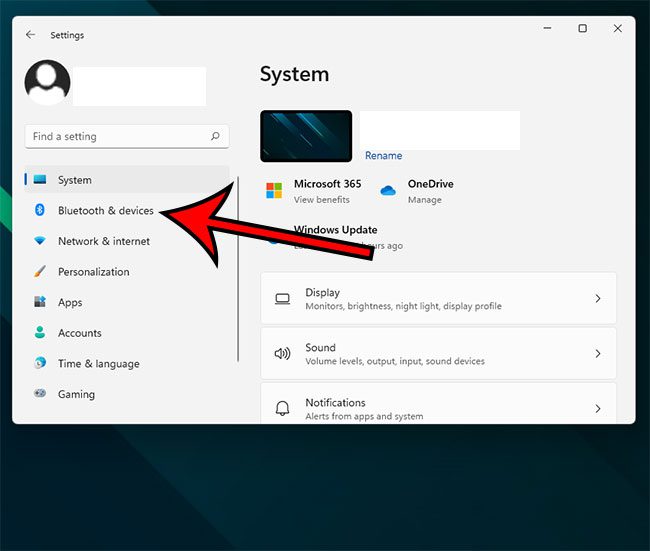
Step 2) Now select the option called ‘Printers & Scanners’.
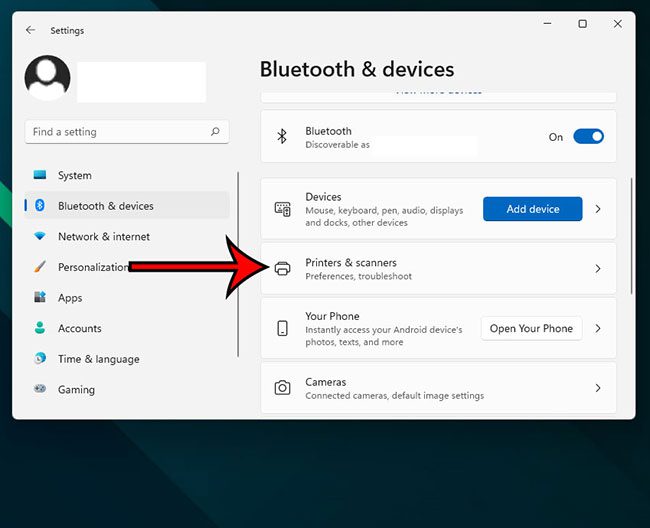
Step 3) Select your printer and choose the ‘Open print queue’ option.
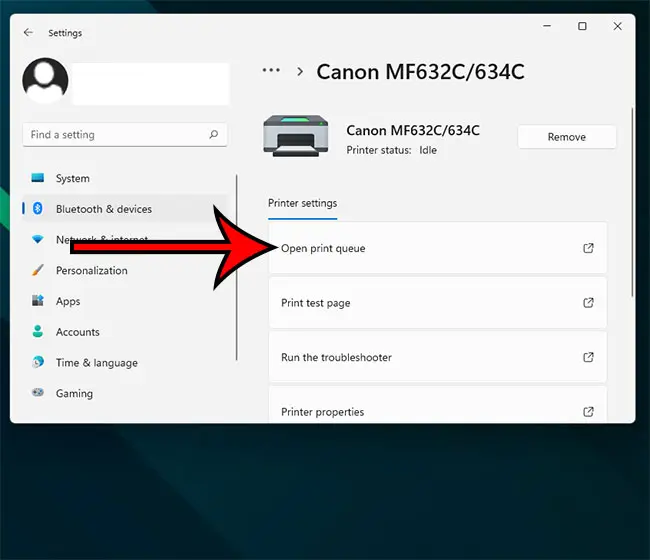
Step 4) A new page will appear, and you need to look for the ‘Printer’ tab on the toolbar. Click on it, and a drop-down menu will arrive. Do you see any ‘Use Printer Offline’ option there? Check out if there’s a tick beside this option. Click on it to remove the tick mark and get your printer online.
<img loading=“lazy” src=“https://www.solveyourtech.com/wp-content/uploads/2022/02/how-to-get-printer-online-windows-10-4.jpg" onerror=“this.onerror=null;this.src=‘https://blogger.googleusercontent.com/img/a/AVvXsEhe7F7TRXHtjiKvHb5vS7DmnxvpHiDyoYyYvm1nHB3Qp2_w3BnM6A2eq4v7FYxCC9bfZt3a9vIMtAYEKUiaDQbHMg-ViyGmRIj39MLp0bGFfgfYw1Dc9q_H-T0wiTm3l0Uq42dETrN9eC8aGJ9_IORZsxST1AcLR7np1koOfcc7tnHa4S8Mwz_xD9d0=s16000';" alt=“turn off the “use printer offline” option - 10”>
For additional coverage of this topic, you can read our printer offline Windows 7 guide.
Method Five – Use Printer Troubleshooter
If the status of your printer keeps coming online briefly and going offline again, you can use a printer troubleshooter to solve the problem and start printing again. In fact, Windows 10 features several troubleshooters to solve the printer offline issues automatically. Here’s how you can perform troubleshooting –
Step 1) Use the dedicated Windows key to open the ‘Start’ menu and go to your settings. You can also press Windows key + I to open the Settings app directly. Click on ‘Devices’ and then on ‘Printers & Scanners.’
Step 2) Click on the ‘Run the troubleshooter’ option from the right-pane. You can find it right beneath the ‘Related Settings’ option.
Step 3) Now, the troubleshooter will run several series of checks. It will also suggest to you some ways to solve the detected problems. It might ask you to set your current printer as a default printer or ask you to update your printer driver. Act accordingly to fix the problems.
Method Six – Clear Your Pending Print Jobs
It’s always preferable to perform one print job at once. When you continue printing for a long time and multiple unfinished print jobs are queued, it might cause printer offline errors. Follow the steps given below to remove the print queue –
Step 1) Open settings and choose ‘Devices.’ Then select ‘Printers & Scanners’ and click on your printer’s name.
Step 2) Now click on ‘Open queue’ to get the list of all the pending documents. Select the ‘ Printer ‘ option from the toolbar at the top and then click ‘Cancel All Documents.’ It should clear all the pending jobs.
Step 3) You can restart your printer and your computer to clear the remaining documents of the print queue.
Method Seven – Use Print Spooler Service
The print spooler service controls the interactions between your computer and printer. You can restart the service to get the printer online. Here’s how you can do it –
Step 1) Open your computer’s start menu, type ‘Services’, and press enter. You can also press Windows Key + R and search by typing ‘Service.msc.’
Step 2) Look for the ‘Print Spooler’ option and right-click on it. Then choose ‘Restart,’ and your offline printer will go online again.
Method Eight – Change Printer Properties
Step 1) Open the control panel of your printer and then go to ‘Devices and Printers.’ Right-click on your printer’s name and select ‘Printer Properties.’
Step 2) From there, click on the ‘Ports’ tab and then choose the printer’s IP address. Now select the option ‘Configure Port.’
Step 3) Check if there’s any tick next to the ‘SNMP Status Enable’ option. Click on it to uncheck the option and then choose ‘OK’ for saving the changes.
Method Nine – Use Printer Software
Many printer manufacturers own printer software to let your windows manage and troubleshoot the printer. You can go to the printer manufacturer’s website to install the software. Or, your printer manufacturer might have provided a CD containing the software.
To check whether the software is installed or not, go to settings and click on ‘Devices.’ Then select ‘Printers & Scanners’, choose your printer’s name, and then ‘Manage.’ If the software is installed, you’ll see the option ‘Open printer app.’
Click on it to open the software and look for troubleshooting options to bring the offline printer status back online.
Method Ten – Reinstall the Printer
If the printer offline message keeps appearing even after you have tried all our methods, you should try to remove the current printer and reinstall it or install a new printer. Here’s how you can remove and reinstall it –
Step 1) Open your computer’s settings and choose ‘Devices.’ From the menu bar, select ‘Printers & Scanners’ and then your printer’s name.
Step 2) Click on ‘Remove Device’ and select ‘Yes’ to remove the current printer.
Step 3) Now go for the option ‘Add printer or scanner.’ Follow the necessary steps to reinstall the printer.
Final Words
So, now you know how to get a printer online Windows 10. Before anything else, try our first three methods to solve the printer offline errors in your Windows 10 easily.
If none of our methods work for your computer, the problem might be hardware-related. In that case, you need to get your printers to a technician or change the printer drivers to solve the issues.
Matthew Burleigh has been writing tech tutorials since 2008. His writing has appeared on dozens of different websites and been read over 50 million times.
After receiving his Bachelor’s and Master’s degrees in Computer Science he spent several years working in IT management for small businesses. However, he now works full time writing content online and creating websites.
His main writing topics include iPhones, Microsoft Office, Google Apps, Android, and Photoshop, but he has also written about many other tech topics as well.
Read his full bio here.
Featured guides and deals
While printers are becoming much easier to install and use in newer Windows operating systems, they can still be a large source of frustration for many people.
The combination of drivers, moving printer parts, print queues, and everything else that is involved with a printer can make it difficult to pinpoint the exact problem.
Our general printer troubleshooting guide below can walk you through a couple common issues that you should check if your printer isn’t working properly and you aren’t sure why.
We have written about working with several specific models of printers, such as the HP Officejet 4620 and the Officejet 6700, but there are so many different models of printers on the market, with so many different issues, that what works for one printer might not work for another.
So if you have a printer that is giving you problems on your Windows 7 computer, then there are a few steps that you can try which might work for any printer.
Note that each additional step under the sections below should only be tried if the previous step did not work.
If one of the steps has resolved your issue, then you do not need to continue with the rest of the steps in the section.
Additionally, these are generalized guidelines, that are meant to be effective for a wide range of printers. Individual printer models all work differently, so there may be some specifics about your printer that are not mentioned below.
This includes things such as exact locations of commands on Print menus, and physical characteristics and properties of the machine.
You can check out our printer offline Windows 7 article if your printer is currently showing as offline even though it seems to be hooked up properly.
Problem: I sent a document to the printer, but it’s not printing.
Troubleshooting steps (Note that each additional step in this section should only be tried if the previous step did not work. If one of the steps has resolved your issue, then you do not need to continue with the rest of the steps in the section):
Confirm that the printer is turned on.
Is the printer connected to the computer? Be sure to check both ends of the cable. If the printer is connected wirelessly, then make sure that the printer and the computer are both connected to the same wireless network. The method for connecting wirelessly will vary from model to model, so you may need to find the specific documentation for your printer. This article , for example, shows how to connect an HP Officejet 4620 to a wireless network.
Turn the printer off, wait ten seconds, then turn it back on.
Click the Start button at the lower left corner of the screen, click Devices and Printers , then right-click your printer and choose the See what’s printing option. If there is something there, then click the Printer option in the menu bar and choose the Cancel All Documents option. You will then need to re-send the document to the printer.
Stop and restart the print spooler. This option is a little more complicated, so you will need to read this article to learn how to do it.
Turn off the printer, turn off the computer, restart the computer, then restart the printer.
Are you trying to print labels, or on a paper size that is different than the default size for your printer? If your printer has a manual feed tray, then the computer may be trying to send the document to that tray instead. Try putting the paper in the manual feed tray and see if that causes the document to print.
Uninstall the printer, disconnect the printer cable from the back of your computer, then re-install the printer.
Problem: Documents are printing with spaces, missing colors, and general errors.
Troubleshooting steps (Note that each additional step in this section should only be tried if the previous step did not work. If one of the steps has resolved your issue, then you do not need to continue with the rest of the steps in the section):
Clean the printheads (inkjet printers), or run maintenance utilities (laserjet printers). Note that the specific ways to perform these operations will vary depending upon your printer model. If you are having print quality issues, then you should find the manual or troubleshooting guide to determine the necessary steps for resolving print quality issues for your specific printer model.
Open your printer and check the printer cartridges for any physical defects.
Replace printer cartridges. Printer ink can dry out if you do not use your printer very often.
Problem: Printer is showing as offline, but it is turned on and connected.
Troubleshooting steps (Note that each additional step in this section should only be tried if the previous step did not work. If one of the steps has resolved your issue, then you do not need to continue with the rest of the steps in the section):
Turn the printer off, then turn it back on again. Sometimes a printer will enter a sleep or hibernation mode and the computer won’t recognize it when it wakes up.
Unplug the printer cable from the back of the computer, wait ten seconds, then plug it back in again.
Click Start , click Devices and Printers , then right-click the printer and click Printer Properties . Click the Ports tab at the top of the window, make note of the USB port that is currently selected, then select a different USB port. Click Apply , then click OK . Check to see if the printer is still showing as Offline. If so, repeat this step, but with a different port.
Uninstall the printer, disconnect the printer cable, then re-install the printer. If you are still having problems, then there may be an issue with old print drivers. You can read this article to learn how to remove old print drivers.
Problem: My printer is printing everything very small or very big.
Troubleshooting steps (Note that each additional step in this section should only be tried if the previous step did not work. If one of the steps has resolved your issue, then you do not need to continue with the rest of the steps in the section):
- Try printing something from a different program. For example, if everything is printing small from Internet Explorer, then open Notepad or Microsoft Word and see if it is still printing small. If Word or Notepad prints correctly, then the print scale in Internet Explorer may have been changed. You can open Internet Explorer, click the gear icon at the top-right of the screen, click Print , then click Print Preview . Click the size drop-down menu at the top of the window and select a larger zoom level, such as 100%. Try and print the document again to confirm that it is now printing at the correct size.
Note that most popular programs have a scale option on the Print screen, so you will need to find this option if other programs are able to print at the correct size. Additionally, programs like Microsoft Word and Excel can have scaling that applies on a per-document basis. This means that one document might be configured to print at a 50% scale, while others might be set to print at the default 100% scale.
- Click the Start button, click Devices and Printers , then right-click your printer and click the Printing Preferences option. The exact steps from here will vary based on your specific printer model, but there should be a “Zoom” or “Scaling” option. Change this to 100%, then click the Apply or OK button to confirm your changes.
Problem: My printer is printing everything in black and white.
Troubleshooting steps (Note that each additional step in this section should only be tried if the previous step did not work. If one of the steps has resolved your issue, then you do not need to continue with the rest of the steps in the section):
Confirm that you have a color printer.
If you have a color printer, then confirm that there are color cartridges installed.
Check the ink levels of your printer cartridges to confirm that the color cartridges are not depleted.
Try and print a document, but check the settings on the Print menu before you click the Print button . Check for a color or black and white option, and make sure that the black and white option is not selected. The exact steps for this will vary based on the program and the printer being used. If you do not see an option like this on the default screen, then click the Advanced tab and check for this setting there.
Click the Start button, click Devices and Printers , then right-click your printer and choose the Printing Preferences option. Look for a Color Mode option on one of the tabs and confirm that the Color option is selected.
Additional troubleshooting steps
You can print a test page to confirm that your printer is set up properly. Click the Start button, click Devices and Printers , then right-click your printer and choose the Printer Properties option. Click the Print Test Page option near the bottom of the window. If the test page does not print, then you will need to follow the steps above to resolve an issue where documents are not printing.
If you have a paper jam, open the paper tray and check for any visual jams there. If you do not see anything, then check the back of the printer to see if there is an additional access door there. If so, open this access door and check there for a paper jam. If there is nothing there, then open the ink compartment and check to see if there is any jammed paper that can be accessed from there. If you still do not see anything, then try turning off the printer and turning it back on.
If your printer has a touchscreen or display, then check it for any error messages. If there is an error message, try and resolve it using the on-screen steps. If not, then search online for the identified issue and your printer model.
Are you printing to the correct printer? It is not uncommon to have many printers installed on the same computer, and certain programs may try to send a document to the incorrect printer. You should also confirm that the correct printer is selected as your default printer. You can set a default printer by clicking the Start button, clicking Devices and Printers , then right-clicking your printer and selecting the Set as default printer option. You can read this article for additional instructions on setting a default printer in Windows 7.
If nothing is working to resolve your print issue, then the best option may be to completely uninstall your printer, then install it again. This article will walk you through the process.
This article from Microsoft can provide additional help in identifying any issues that you may be having with your printer.
Additional Sources
Matthew Burleigh has been writing tech tutorials since 2008. His writing has appeared on dozens of different websites and been read over 50 million times.
After receiving his Bachelor’s and Master’s degrees in Computer Science he spent several years working in IT management for small businesses. However, he now works full time writing content online and creating websites.
His main writing topics include iPhones, Microsoft Office, Google Apps, Android, and Photoshop, but he has also written about many other tech topics as well.
Read his full bio here.
Setting up your digital world just the way you like it can make a big difference in how smoothly your day goes. One tiny tweak that saves a surprising amount of hassle is telling your computer which printer is your favorite, your go-to machine. You can easily set your preferred printer as the default on Windows 11 by heading into your system’s settings. Just navigate to “Bluetooth & devices,” then “Printers & scanners,” flip off the “Let Windows manage” option, pick your desired printer from the list, and finally, hit the “Set as default” button. This simple action ensures your print jobs always land in the right place without extra clicks.
Tutorial – How To Set Printer As Default Windows 11
Making your favorite printer the default in Windows 11 is a smart move that streamlines your printing experience. No more scrolling through a list of printers every time you want to print a document. We’re going to walk through the steps together, making sure your computer knows exactly which printer you prefer to use for most of your tasks.
Step 1: Open your Settings.
You can open Settings by clicking on the Start button, which looks like four little squares, and then selecting the gear icon from the pinned apps or by searching for “Settings.”
This is your central hub for customizing almost everything about your Windows 11 experience, from how your display looks to how your devices connect. It’s often the first place we go when we want to change something important. A quick shortcut for tech-savvy folks is to just press the Windows key and the “I” key on your keyboard at the same time.
Step 2: Go to “Bluetooth & devices.”
Once you are in the Settings window, look at the left sidebar and click on “Bluetooth & devices.”
This section is where you manage all the gadgets connected to your computer, whether they’re wireless like headphones and mice, or wired like external hard drives and, yep, printers. It’s like the control panel for all your physical computer companions.
Step 3: Click on “Printers & scanners.”
In the “Bluetooth & devices” menu, scroll down a bit until you see and click on “Printers & scanners.”
Here, you’ll see a list of every printer your computer knows about, whether it’s currently turned on, connected directly with a cable, or shared over your home network. It’s like a directory of all your available printing options.
Step 4: Turn off “Let Windows manage my default printer.”
You’ll see a toggle switch next to “Let Windows manage my default printer,” which you should click to turn it off.
This step is super important, like telling your computer, “Hey, I got this, don’t worry about it!” If this setting is on, Windows tries to be smart and guess which printer you want to use based on which one you used last or where you are. But sometimes, Windows isn’t as smart as you are about your own printing habits.
Step 5: Select your desired printer.
Now, find the name of the printer you want to set as your default in the list and click on it.
When you click on a printer’s name, it expands, showing you more options specific to that device. Think of it like pulling up a printer’s individual profile page.
Step 6: Click “Set as default.”
After clicking on your printer’s name, you’ll see a button that says “Set as default,” go ahead and click it.
Once you click this button, your chosen printer instantly becomes the star of the show. You’ll probably see a little checkmark or a “Default” label next to its name, confirming your choice.
After you complete these steps, your computer will remember your chosen printer. From now on, whenever you hit “Print” in any program, that specific printer will automatically be selected, saving you a step and making your printing life a whole lot smoother. It’s like telling your computer, “This is my favorite, always choose this one first.”
Tips For Setting Your Default Printer In Windows 11
Here are some helpful tips to keep in mind when dealing with your printers in Windows 11.
- Always ensure your printer is connected and powered on. It might sound obvious, but a printer that’s offline or unplugged can’t be set as default or even recognized by your computer. Double-check those cables and power buttons!
- Understand why “Let Windows manage my default printer” can be tricky. While Windows tries to be helpful, this feature often switches your default printer based on your location or the last printer you used, which can be annoying if you have a specific primary printer. Turning it off gives you full control.
- You can still choose a different printer for a single print job. Setting a default doesn’t trap you. In most applications, when you go to print, you’ll see a drop-down menu where you can temporarily select any other available printer for that one specific task.
- Troubleshooting: If your printer isn’t showing up, try adding it. If you can’t find your printer in the “Printers & scanners” list, you might need to click “Add device” at the top of that screen. Windows will then search for available printers on your network or let you add it manually.
- Consider network printers versus local printers. If you use a printer shared on a network, ensure your computer is connected to that network. Local printers, connected directly via USB, are usually more straightforward to manage.
- Regularly check your default printer, especially after Windows updates. Sometimes, after big system updates, Windows might reset certain settings. It’s a good habit to quickly verify your default printer is still the one you want, just to avoid any surprises.
Why won’t my printer stay as the default?
If your printer keeps reverting or changing, the most common culprit is the “Let Windows manage my default printer” setting being turned on. Go back to “Settings > Bluetooth & devices > Printers & scanners” and make sure that toggle switch is in the “Off” position. Once that’s done, you should be able to set your preferred printer and have it stick.
Can I have multiple default printers?
No, you can only have one default printer at any given time. Think of it like having one main email address; you can have many, but only one is your primary. Windows needs a single go-to option for when you don’t specify otherwise.
What if my printer isn’t listed in “Printers & scanners”?
If your printer isn’t showing up, first make sure it’s turned on and properly connected to your computer or network. If it’s a new printer, you might need to install its drivers. In the “Printers & scanners” section, look for an “Add device” button, which will help Windows find and install your printer.
Does setting a default printer affect other users on the same computer?
Generally, printer settings, including the default, are user-specific. This means if someone else logs into the same computer with their own user account, they will have their own default printer setting. However, for shared network printers, the availability might be universal, but the default choice remains personal.
Is there a faster way to set the default printer?
While there isn’t a single “one-click” shortcut right on the desktop, the method through Settings is the most direct and reliable way. Once you know the path (Settings > Bluetooth & devices > Printers & scanners), it only takes a few seconds. For most people, you only need to do this once and then you’re all set.
How do I remove a default printer?
You don’t really “remove” a default printer in the same way you would uninstall a program. To change your default, you simply follow the steps to set another printer as the default. The previous default will then become a regular available printer. If you want to completely remove a printer from your system, you can do so by selecting it in the “Printers & scanners” list and choosing the “Remove” or “Remove device” option.
Summary Of Setting Your Default Printer
- Open Settings.
- Go to Bluetooth & devices.
- Click Printers & scanners.
- Turn off “Let Windows manage my default printer.”
- Select your desired printer.
- Click “Set as default.”
Final Thoughts On Your Default Printer
Alright, so we’ve covered the ins and outs of how to set printer as default Windows 11, and hopefully, you’re feeling pretty confident about it now. It might seem like a small detail in the grand scheme of your computer’s settings, but trust me, this little tweak can make a surprisingly big difference in your daily workflow. Think about it: every single time you need to print something, you’re saved from clicking an extra menu or, worse, sending your document to the wrong printer and having to hunt it down. It’s all about making your technology work for you , not the other way around.
Taking a moment to manage these basic settings is like tidying up your physical workspace. When everything has its place, and your tools are ready to go, you can focus on the task at hand without needless distractions or frustrations. This isn’t just about saving a few seconds here and there, though that certainly adds up over time. It’s about reducing friction in your digital life, making your interactions with your computer smoother and more intuitive. You’ve now taken control of one more piece of your Windows 11 experience, ensuring your printer behaves exactly as you expect it to.
Remember, Windows 11 is packed with customization options, and learning to navigate them empowers you to tailor your system to your personal preferences. Don’t be shy about exploring other settings; you might discover even more ways to streamline your computer use. And if you ever find yourself troubleshooting a printer issue, always start with the basics: Is it plugged in? Is it turned on? Are the drivers installed? And, of course, is it set as your default? These simple checks often solve most common problems. So go ahead, set that default printer, and enjoy a slightly less complicated day. You’ve earned that little bit of extra convenience!
Matthew Burleigh has been writing tech tutorials since 2008. His writing has appeared on dozens of different websites and been read over 50 million times.
After receiving his Bachelor’s and Master’s degrees in Computer Science he spent several years working in IT management for small businesses. However, he now works full time writing content online and creating websites.
His main writing topics include iPhones, Microsoft Office, Google Apps, Android, and Photoshop, but he has also written about many other tech topics as well.
Read his full bio here.
Featured guides and deals
If you are tired of manually selecting your printer every time you want to print something in Windows 11, then setting a default printer is your solution. Essentially, you are telling your computer which printer should be its go-to choice for all printing tasks unless you specify otherwise. The process involves a quick trip to your Settings app, navigating through “Bluetooth & devices” to “Printers & scanners,” and then simply picking your preferred printer from the list. With just a few clicks, you can designate your most used printer as the default, making your printing experience smoother and saving you valuable time and frustration.
Tutorial – How To Set A Default Printer In Windows 11
This section will walk you through the exact steps needed to designate your favorite printer as the default one on your Windows 11 machine. It is like telling your computer, “Hey, this is my go-to guy,” making your life a whole lot easier when it comes to printing documents, photos, or anything else. Let us get this done so you can print without a second thought.
Step 1: Open the Settings application.
This is your starting point for nearly all system adjustments in Windows 11, kind of like the control panel for your entire computer setup. You can easily find it by clicking on the Start button, which usually sits right in the middle or to the left of your taskbar, and then selecting the gear icon that represents “Settings.” Alternatively, a quicker way for some is to press the Windows key and the ‘I’ key on your keyboard simultaneously, which instantly brings up the Settings window.
Step 2: Navigate to “Bluetooth & devices.”
Once you are inside the Settings app, you will see a menu on the left side of the window. Look for the option labeled “Bluetooth & devices” and give it a click. This section is where Windows keeps track of all the different gadgets and peripherals connected to your computer, everything from your wireless mouse to, you guessed it, your printers. It is an organized hub for managing your hardware.
Step 3: Select “Printers & scanners.”
After clicking on “Bluetooth & devices,” a new set of options will appear on the right side of the window. Scroll down a bit until you find “Printers & scanners” and click on it. This specific area is dedicated solely to managing all the printing devices you have ever connected or installed on your Windows 11 system, giving you a clear overview of what is available.
Step 4: Choose your desired printer.
Now you will see a list of all the printers your computer knows about. Find the printer that you want to make your default, the one you use most often, and click on its name. This action expands the printer’s details, revealing specific options and settings related only to that particular printing device. Make sure you pick the right one, especially if you have several similar-sounding printers.
Step 5: Click the “Set as default” button.
With your chosen printer’s details expanded, you will spot a button that says “Set as default.” Go ahead and click this button. Once you do, Windows 11 will register this printer as your primary choice, meaning it will automatically appear as the selected printer in most applications when you go to print something. You might also see a small green checkmark or a similar indicator next to its name in the list, confirming its new status.
After you complete these steps, your chosen printer will now be the star of the show, meaning Windows 11 will automatically select it every time you initiate a print job from any application, unless you manually pick a different one. No more accidentally printing to the dusty printer in the corner or having to search through a long list each time. Your printing workflow just got a significant upgrade, making your digital life a little bit easier and a lot more efficient.
Tips For Setting A Default Printer In Windows 11
- Disable “Let Windows manage my default printer”: If you are having trouble keeping your chosen printer as the default, check the “Printers & scanners” settings for an option called “Let Windows manage my default printer.” Turn this off. When enabled, Windows tries to guess which printer you want to use based on your location and recent activity, which can be helpful for some but frustrating if you have a specific preference.
- Check printer status: Before setting a default, ensure your printer is properly installed, connected, and online. A printer that is offline or has driver issues cannot be set or function correctly as the default, leading to headaches when you try to print. Make sure it is ready to roll.
- Remove unused printers: To keep your list tidy and avoid confusion, consider removing printers you no longer use. You can do this from the same “Printers & scanners” section by clicking on an unused printer and selecting “Remove.” A cleaner list makes it easier to find and manage your active devices.
- Update printer drivers: Sometimes, a printer might not behave as expected, even after setting it as default. Outdated or corrupted drivers are often the culprits. Check your printer manufacturer’s website for the latest drivers and install them. It is like giving your printer a fresh pair of glasses, helping it see and function clearly.
- Test your default printer: After setting your default, always do a quick test print from an application like Notepad or Word. This simple check confirms that everything is working as it should and that your chosen printer is indeed the one being used automatically. It is a quick verification to ensure your efforts paid off.
- Understand network vs. local printers: If you have both network and locally connected printers, know which one you are setting as default. Network printers are shared across a home or office network, while local printers are directly connected to your computer. Both can be set as default, but their availability might differ depending on your network connection.
What if I have multiple printers and want to switch defaults often?
If you frequently switch between different printers, perhaps one for color and one for black and white, you can follow the steps outlined above each time you wish to change your default. While there is no “quick switch” button, the process is quick enough that it will not take up much of your time. You can also manually select a different printer from the print dialog box in any application if you only need to use a non-default printer for a single job.
Why does my default printer keep changing on its own?
This usually happens because the “Let Windows manage my default printer” setting is turned on. When this feature is active, Windows 11 tries to be smart and automatically sets the default printer based on your last used printer in a specific location. If you want full control, make sure to disable this option in the “Printers & scanners” settings. It is like telling Windows, “Thanks for trying to help, but I have got this.”
My printer is not showing up in the list. What should I do?
If your printer is missing, first ensure it is powered on and properly connected to your computer, either via USB or your network. If it is a new printer, you might need to install its drivers first. You can usually find a “Add a printer or scanner” button at the top of the “Printers & scanners” section, which will guide you through adding a new device. Sometimes, a simple restart of your computer can also resolve minor connection glitches.
Can I set a default printer for specific applications?
No, Windows 11 sets a system-wide default printer. This means that once you set a default, it applies to all applications unless you manually override it within the print dialog of a particular program. Most applications will respect the system default, but they always provide an option to select a different printer for that specific print job. It is a one-size-fits-most approach, with flexibility when needed.
Does setting a default printer affect print quality or speed?
Setting a default printer has absolutely no impact on the print quality or speed of your printer. It is purely a convenience setting that tells Windows which printer to prioritize when you initiate a print job. The quality and speed are determined by the printer’s hardware capabilities, its drivers, the type of paper you are using, and the print settings you choose within the application. Think of it as merely pointing to your favorite tool, not changing how the tool itself works.
Summary Of Setting Your Default Printer
- Open Settings.
- Go to Bluetooth & devices.
- Select Printers & scanners.
- Choose your desired printer.
- Click “Set as default.”
Final Thoughts On Managing Your Printers
Alright, so we have navigated the digital maze of Windows 11 settings, and now you are a pro at setting your default printer. It might seem like a small tweak, but trust me, this simple adjustment can make a world of difference in your daily computer interactions. Think about it, every time you hit that print button, your chosen device will be ready and waiting, no more fumbling through drop-down menus or accidentally sending your important documents to the wrong machine. It is all about efficiency, folks, and reclaiming those precious seconds that add up over time.
This little piece of knowledge empowers you to take control of your printing experience. No longer are you at the mercy of Windows’ sometimes quirky attempts to guess your preferred printer. You are now the captain of your print ship, steering it exactly where you want it to go. This newfound control can reduce frustration, prevent wasted paper and ink, and simply make your workflow smoother. It is a testament to how small, informed actions can lead to significant improvements in your overall tech experience.
Matthew Burleigh has been writing tech tutorials since 2008. His writing has appeared on dozens of different websites and been read over 50 million times.
After receiving his Bachelor’s and Master’s degrees in Computer Science he spent several years working in IT management for small businesses. However, he now works full time writing content online and creating websites.
His main writing topics include iPhones, Microsoft Office, Google Apps, Android, and Photoshop, but he has also written about many other tech topics as well.
Read his full bio here.
Featured guides and deals

